

Build a gaming PC in this order: confirm the parts fit each other before they ship, mount the CPU, cooler and memory on the motherboard outside the case, install the power supply and board, add the graphics card last, and plug the monitor into the graphics card for the first power-on.
Intel’s build walkthrough puts the graphics card near the end of the sequence, and NVIDIA’s installation guide says to connect the display to the graphics card. I built gaming PCs for customers, and a good gaming pc build guide spends as much time on the first power-on as on the screws.
Check that the parts fit each other before anything ships
Intel’s walkthrough lists what a gaming PC needs besides the case: a CPU, a graphics card, a motherboard, memory, storage, a power supply, CPU cooling, a monitor with keyboard and mouse, and an operating system. That list is really a list of pairs. Each pair has one number that has to match, and the number sits on a maker’s spec page. For the monitor itself, the PPI calculator and the aspect ratio calculator show how sharp and how wide a given screen is.
| Pair | What has to match | Where the number comes from |
|---|---|---|
| CPU and motherboard | Socket, plus chipset and BIOS support for that exact CPU | Intel’s spec page lists the Core Ultra 9 285K on socket FCLGA1851. Intel’s Desktop Compatibility tool checks Intel parts against boards. |
| Memory and motherboard | Memory generation and speed | The same Intel page lists DDR5 up to 6400 MT/s and two memory channels. The board maker’s memory list names kits it has tested. |
| Graphics card and power supply | Wattage and plug type | NVIDIA lists 650 W of system power for the RTX 5070 and 750 W for the RTX 5070 Ti, with two PCIe 8-pin cables or a 300 W PCIe Gen 5 cable. |
| Graphics card and case | Length, width and slot count | NVIDIA’s RTX 4080 SUPER guide asks for room for a 304 mm by 137 mm by 61 mm card. The case maker lists its maximum card length. |
| CPU cooler and case | Cooler height with fans against the case’s maximum cooler height | Both numbers are on the two makers’ spec sheets. Tall memory under a big cooler needs its own look. |
| Motherboard and case | Form factor | Intel gives ATX as 12 by 9.6 inches, microATX as 9.6 by 9.6 and Mini-ITX as 6.7 by 6.7, and describes mid-tower cases as built for full-size ATX. |
| M.2 SSD and motherboard | Slot count and shared ports | Intel warns that an M.2 drive can limit other storage connections. The board manual says which ones. |
Treat the card maker’s wattage as the floor. NVIDIA’s own page says specifications may vary by add-in-card manufacturer, so a partner card’s box or product page outranks any general wattage calculator.
Wattage alone doesn’t prove the plugs exist. NVIDIA lists 750 W for both the RTX 5070 Ti and the RTX 4080 SUPER, yet the 5070 Ti page names two PCIe 8-pin cables or a 300 W PCIe Gen 5 cable, while the 4080 SUPER guide calls for at least three PCIe 8-pin cables or one 450 W 16-pin cable. Count the power supply’s native connectors against the card’s list before you buy either one.
Memory capacity is a smaller decision. Intel puts the minimum for modern gaming at 16GB and says streaming or heavy modding needs more. Buy one matched kit rather than two odd ones, since Intel advises against mixing kits from different manufacturers even when the advertised speeds agree.
Order the whole list in one go if you can. A part that arrives dead is usually an exchange rather than a warranty claim while the store’s return window is open.
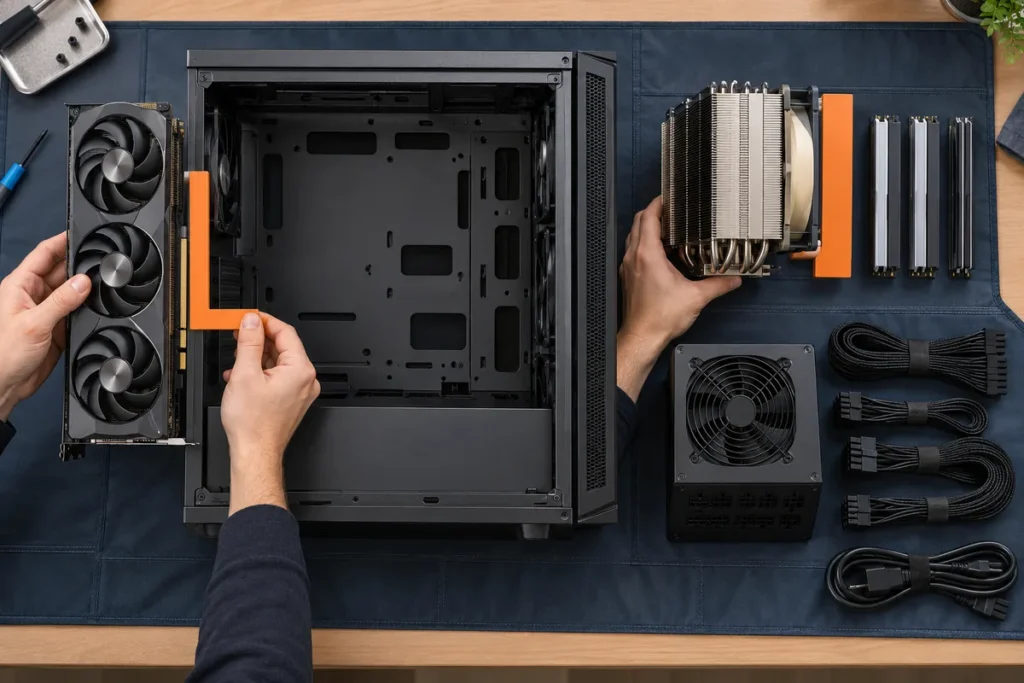
Set up the bench: power off and ground yourself
Work at a table, not on carpet. Static discharge is the reason: Intel says to stand on an uncarpeted surface to avoid it, and calls an anti-static strap useful but not strictly necessary.
Most of the build needs one tool, a Phillips #2 screwdriver. Intel adds a #0 for the small M.2 screw and recommends a magnetic tip so screws don’t drop inside the case. Keep the motherboard manual and the case manual open on the table, because the manual settles questions that no general article can, such as memory slots, drive bays and which header takes which lead.
Nothing gets plugged in or pulled out while the power supply is connected to the wall.
NVIDIA’s installation steps begin with turning off the computer and disconnecting the power cord. After a bench test, switch the power supply off and wait for the motherboard’s LEDs to go dark before touching anything. Intel gives the reason as residual power in the system.
Watch your fingers on a loose port shield, the metal plate with cutouts for the board’s rear ports. Intel notes that its edges are usually sharp.
The gaming PC build guide sequence: every part stays reachable
A build sequence follows access: parts that need a clear view of the board go on before the board is boxed in, and the largest part that blocks your hands goes in last.
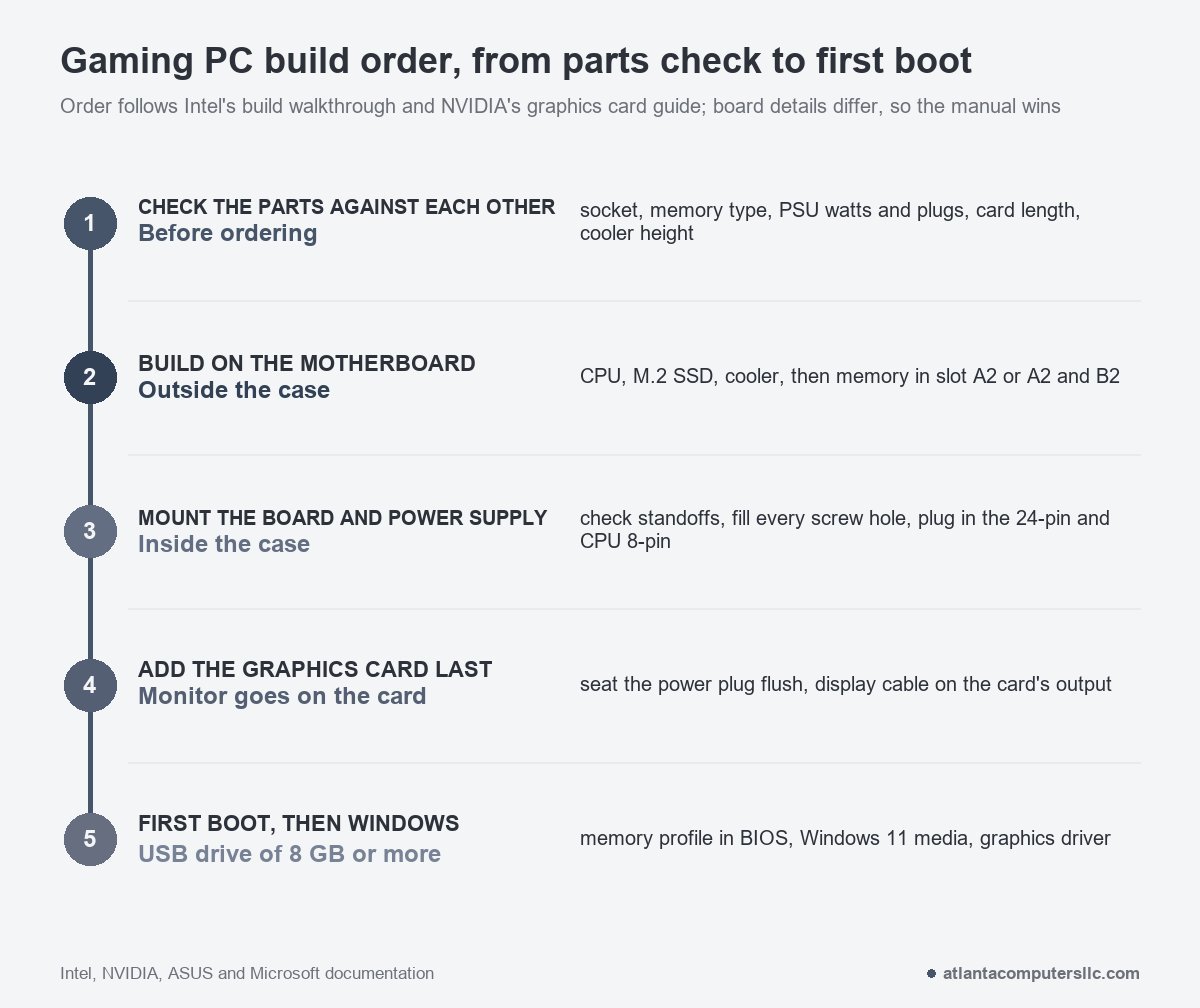
On the motherboard, outside the case
- CPU. Lift the socket lever, match the corner marker on the CPU to the one on the socket, and lay the CPU in. Hold it by the edges. Intel’s walkthrough says seating takes no force; lowering the lever is the part that takes pressure. Intel says the plastic socket cap pops off by itself when the lever closes, so leave it alone.
- M.2 SSD. Do this now, while the slot is easy to reach. Remove the small screw with the #0 driver, slide the drive in at a shallow angle, press it flat and fasten the screw. Lift the slot’s heatsink first if the board has one.
- CPU cooler. Follow the cooler’s own manual. Intel points out that some boards ship with a bracket you may have to remove or swap, and that this happens before the board goes in the case. If the cooler has no paste pre-applied, put a dot no larger than a grain of rice in the middle of the CPU. Tighten the mounting screws in a cross pattern.
- Memory. Open the clips, match the notch (it isn’t centered, so the stick fits one way) and press until the clips snap shut. Slot choice matters on a four-slot board. ASUS tells builders to use DIMM_A2 for a single module and DIMM_A2 plus DIMM_B2 for two, and to look up “Recommended memory configuration” in the manual. Slot names and order differ between boards, so the manual of your board wins.
Intel lists a test run outside the case as an optional step, with the graphics card and power supply connected, and says problems are much harder to troubleshoot once everything is installed in the chassis.
Inside the case
- Power supply. Point its fan at a vent if the case has one. Intel says a case with no vent takes the fan facing up into the case, with room around it. A non-modular unit’s cables should be run through the case now, before the board is in the way.
- Standoffs and board. Confirm the case has standoffs where your board’s holes are, and don’t add extras. Snap in a loose port shield first. Set the board down without dragging it across the standoffs, drive the center screw first, then fill every screw hole. Intel says a full-size ATX board usually takes nine.
- Power leads. Plug in the 24-pin connector from the board’s side and the 8-pin CPU connector near the top edge. ASUS says to connect every motherboard power connector the board has, which on some boards includes a second 4-pin.
- Storage. SATA drives need a data cable and a power lead. The case manual shows where each bay is.
- Graphics card, last. Remove the slot covers behind the longest PCIe slot, seat the card with firm even pressure, and fasten its bracket with one or two screws. NVIDIA recommends plugging the power connector into the card before the card goes into the motherboard, and says to confirm the plug is fully inserted and flush against the receptacle. For the RTX 4080 SUPER the guide calls for independent dedicated cables to the adapter’s 8-pin plugs.
First power-on with no picture: work this list in order
Leave the side panel off until the machine reaches the BIOS, so every fix stays a one-handed job. Connect the monitor to the graphics card, plug in a keyboard, switch the power supply on and press the case’s power button.
A black screen on a new build feels like a dead part. ASUS builds its no-display procedure around cables and seating first, so start there too, and work down the list below. Power off and unplug before each change.
“Waiting for RAMs to come while watching build guides. Any video recommendations or tips for a beginner? PCIe cables confuse me the most. My first ever build short circuited back then and couldn’t get to work, still no idea why. I could’ve gotten RX 9070XT for the same price of 5070. Have a bit of regret since refund period is gone but gotta look for the fun. CPU is 9600X btw”
– r/pcmasterrace, September 2026 (15 upvotes)
- Display cable. The monitor goes into a port on the graphics card, which is what NVIDIA’s guide says. ASUS asks you to confirm whether the display is on the CPU’s integrated output or on a discrete card. Try a second port on the card while you’re there.
- Power plugs. Reseat the 24-pin, the 8-pin CPU lead and any 4-pin your board has. Then reseat each card plug until it sits flush, using a separate cable per plug where NVIDIA’s guide specifies it. ASUS puts it plainly: a discrete card with a power connector needs it properly plugged in.
- Memory. Press the sticks out and back in, one stick in DIMM_A2 if your manual agrees. Intel’s walkthrough says to reseat the RAM first if a new build won’t turn on. If the machine reaches the BIOS, ASUS says to read the DRAM Status item to confirm the modules were detected.
- Board lights. Many boards carry four small LEDs. ASUS’s Q-LED guide reads them as follows:
- CPU light stays on: no CPU, or a faulty one. Reseat the CPU and look for bent or broken pins.
- DRAM light stays on: no memory, or faulty memory. Reseat it and test one module at a time.
- VGA light stays on: no graphics card, or a faulty one. Reseat the card and clean its contacts.
- BOOT light stays on: no boot device, or a faulty one. Reseat the M.2 drive or the SATA cable.
- Strip it down. Unplug everything except the monitor, keyboard and one memory stick. ASUS lists removing external devices as its own step. If the CPU has integrated graphics, which the CPU’s spec page states, pulling the card and plugging the monitor into the board’s video port tells you which half is at fault.
- Clear the CMOS. ASUS makes this its last step, with the power off. The method is a jumper, a button or the coin cell, and the manual shows which one your board uses.
The list has an end. If the CPU light stays on after a reseat and a look at the socket, or you can see bent pins, stop. ASUS’s guidance for that light ends with replacing the CPU, and I don’t do board-level repair, so a damaged socket goes back to the seller or to a shop. Unplug at once if you smell burning or see smoke, and don’t power it up again.
Windows 11, the memory profile and the drivers
Make the installer on another computer before the build is finished. Microsoft’s Windows 11 page asks for a blank USB flash drive of at least 8GB, warns that its contents will be deleted, and has you choose “Create installation media for another PC” in the Media Creation Tool.
Windows 11 needs 4GB of RAM, 64GB of storage, UEFI with Secure Boot capability, TPM 2.0, and DirectX 12 graphics with a WDDM 2.0 driver, according to Microsoft’s specifications page. A current gaming board should meet all of that. If setup still complains about TPM or Secure Boot, the toggle lives in the BIOS under a name the board maker chose, and the manual says where.
The first screen at boot names the key that opens the BIOS. Confirm there that the CPU, memory and drives are all recognized, then set the boot order with the USB drive first and the target drive second, as Intel’s walkthrough lays out. A keyboard that does nothing at this stage is the likeliest culprit, Intel adds, so try another one or another port.
Two installer problems have documented fixes. If the board doesn’t recognize a newly installed M.2 SSD as storage, Intel says it may need to be configured in the BIOS, and the motherboard manual covers that. If the USB drive won’t boot, Intel says to check that the board is set for the installation type you’re attempting, since most UEFI platforms try the UEFI partition scheme before Legacy.
Turn on the memory profile while you’re in the BIOS. High-speed RAM runs at a standard, lower-than-advertised speed until its profile is enabled, and Intel’s name for the profile is XMP. AMD boards list a similar feature called EXPO. The board’s memory support list tells you which speeds it has validated.
After Windows installs, get the graphics driver from the card maker. The screen may go blank for a few seconds, more than once, during the install, and NVIDIA’s guide calls that normal. Chipset and network drivers come from the motherboard maker’s support page for your exact model.
Skip the “driver updater” utilities.
Quick answers
Is 32GB of RAM overkill for a gaming PC?
Not if you stream or run heavy mods. Intel puts the minimum for modern gaming at 16GB and says streaming or heavy modding needs more, so 32GB is headroom for plain gaming and a sensible choice for the heavier cases.
Is a test run outside the case worth it?
It’s optional. Intel’s walkthrough lists the bench test as an optional step because a failure is much easier to troubleshoot before everything is installed in the chassis.
Is an anti-static wrist strap required?
Not strictly. Intel calls the strap useful but not necessary and says static damage isn’t common, yet it still advises working on an uncarpeted surface, and straps are cheap.
