
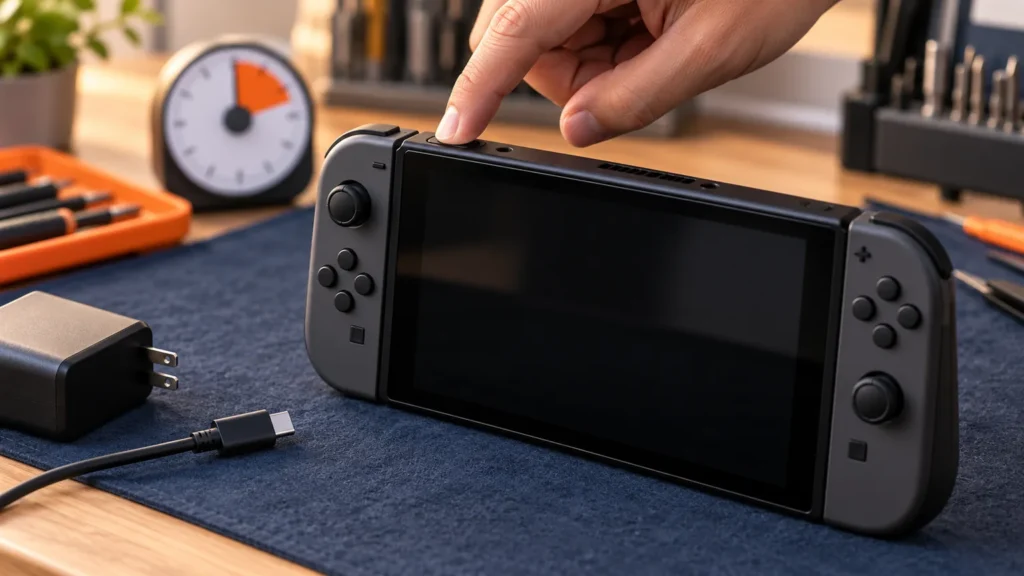
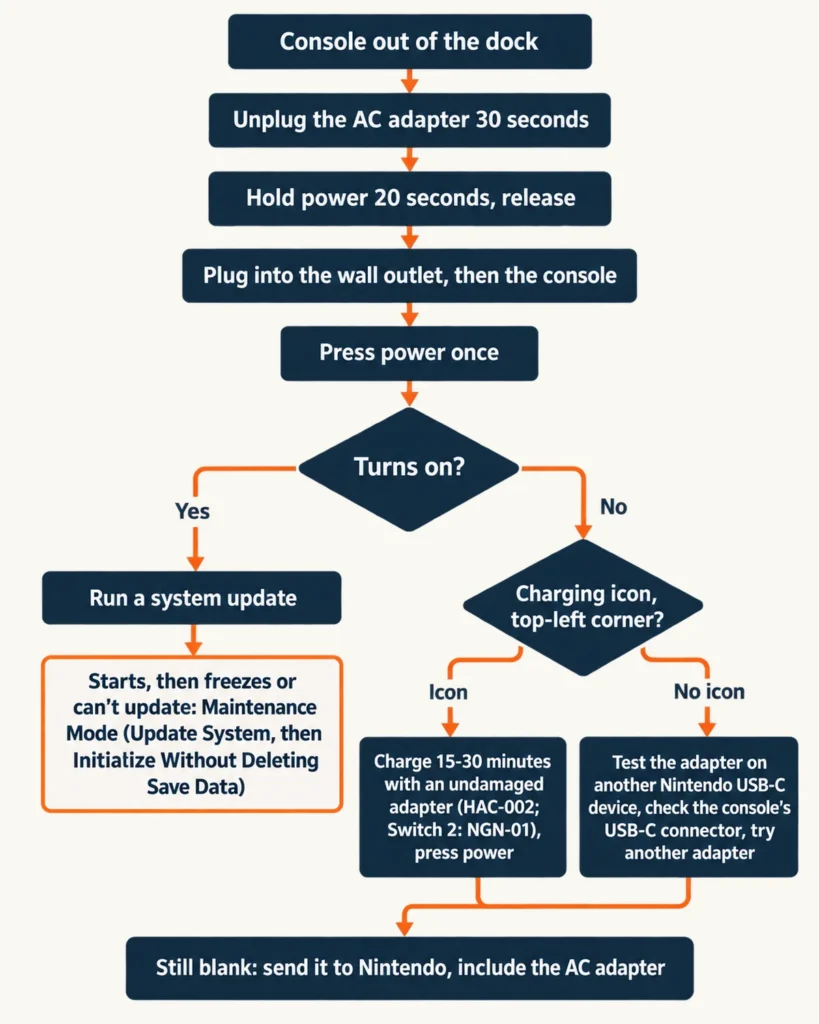
When a Nintendo Switch won’t turn on, the official fix is one sequence: unplug the AC adapter for 30 seconds, hold the power button for 20 seconds, plug the adapter back in and press power once. A charging icon means 15 to 30 minutes on the charger; no icon means testing the adapter itself.
That sequence is on Nintendo’s support page for a Switch with no power, a blank screen or no wake-up from sleep mode, which covers the Switch, Switch OLED Model and Switch Lite. A matching page covers the Switch 2. None of these consoles has a power light, so a dark screen proves little.
Nintendo Switch won’t turn on: the official sequence in order
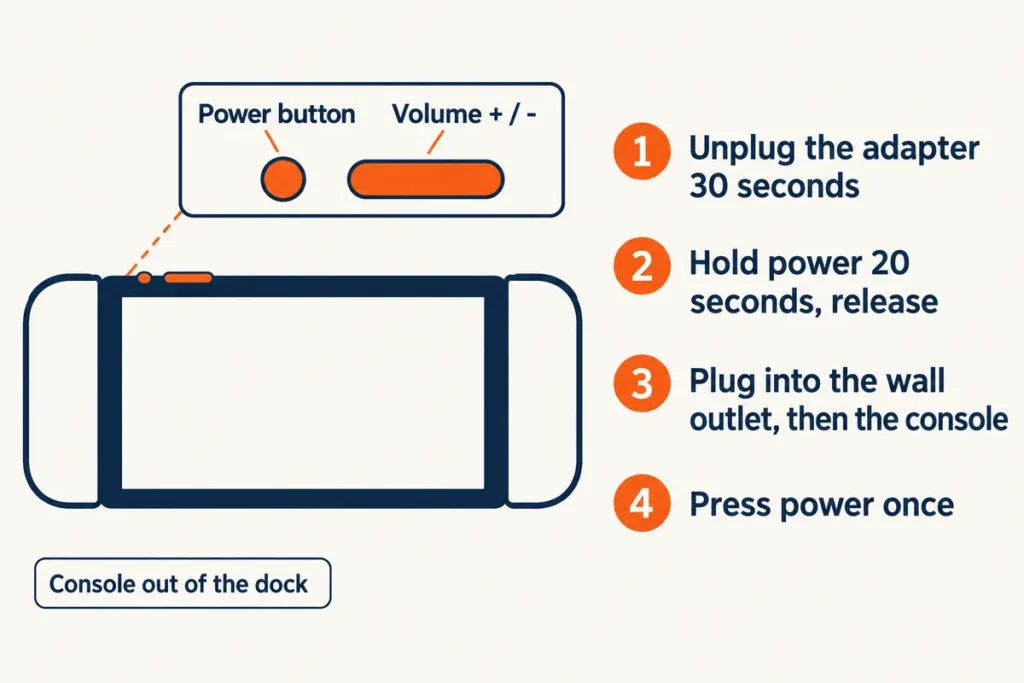
Run the sequence with the console out of the dock and the original adapter, model HAC-002, going into a wall outlet. A Switch that seems stuck in sleep mode is covered by the same page, and a Switch Lite has no dock, so for that model the first step is already done.
- Take the console out of the dock and keep it out for the whole procedure.
- Unplug the AC adapter from the wall and from the console or dock. Leave it unplugged for 30 seconds.
- Hold the power button for 20 seconds, then release it. This is a forced shut down. The button is on the top edge of the console, next to the volume buttons.
- Plug the adapter into the wall outlet, then into the console.
- Press the power button once. The console should turn back on.
Count the full 20 seconds.
Both the no-power page and the charging-problem page give 20 seconds, and neither describes a shorter hold. If the first outlet is the weak link, try another one. A different outlet is a step of its own on the charging-problem page (Nintendo support, a_id 22502 and 22395).
On a laptop I swap the charger and try another outlet first, because those two cost nothing to rule out. Official guidance opens the same way. So do the HP laptop won’t turn on and Dell laptop won’t turn on pages.
After you plug in: the battery icon or nothing
A Switch with a nearly empty battery keeps its screen off when the adapter first goes in, and a charging icon shows only momentarily in the top-left corner. If you catch the icon, charge for at least 15 to 30 minutes with an undamaged adapter. If not, move on to the adapter and the console’s USB-C connector.
| What you see after plugging in | Next step |
|---|---|
| A battery icon flashes in the top-left corner, then the screen goes dark | Charge for at least 15 to 30 minutes with an undamaged HAC-002 adapter, then press power. Confirm the model number on the adapter and look for a frayed or split cord, loose connectors or kinks. |
| No icon and a blank screen | Plug the adapter into another Nintendo USB-C product (a Pro Controller, a Joy-Con Charging Stand or the dock). If it charges that device, the console needs service. If not, or if you have no second device, inspect the console’s USB-C connector for damage such as bent metal, then try a different adapter. |
| Console in the dock, screen dark | Take it out of the dock first. A docked console’s own screen switches off while the game shows on the TV, and the steps assume the console is undocked. |
| Still blank after all of that | Service. Include the AC adapter for testing. |
A full charge takes approximately 3 hours, so 15 to 30 minutes is a test and not a charge. Charging problems get a longer wait: at least 30 minutes before you try the power button. If the icon never appears, or the battery isn’t full after several hours, the adapter or the charging ports may be at fault. No separate procedure exists for a console that sat unused for months, so the same sequence and times apply (Nintendo support, a_id 22359 and 22395).
One Switch Lite owner on r/Switch found that a dark screen isn’t proof of a dead console, after the force-off steps:
“It turned on again, but the screen was still dark. I fiddled with it for a bit and yes. It was on. I could navigate the menus, open games, the works. Just no graphics.”
– r/Switch, December 2025 (1 upvote)
That poster adds that a repair shop traced it to the screen coming loose inside. That is one report on one Lite. A loose screen connector is beyond what the reset steps can fix, and a console that stays blank after them goes to service.
Switch, OLED, Lite or Switch 2: what changes
The sequence is the same on the Switch, Switch OLED Model, Switch Lite and Switch 2. Parts differ: the Switch family uses the HAC-002 adapter, the Lite has no dock, and the Switch 2 has its own adapter, two USB-C ports and a Recovery Mode where the others have Maintenance Mode.
- Switch and Switch OLED Model. These consoles work with the Switch AC adapter only, model HAC-002, printed on the bottom of the adapter where the cord attaches. The docks are HAC-007 and HEG-007 (Nintendo support, a_id 22359).
- Switch Lite. The Lite isn’t compatible with the Switch dock, so every test runs through the adapter and the console itself. For the adapter test use a Pro Controller or Joy-Con Charging Stand, not a dock.
- Switch 2. The steps are the same, with one note: plug into an outlet rather than a power strip for testing. The adapter is model NGN-01, and a Switch adapter (HAC-002) can charge a Switch 2 directly but not through the dock.
- Switch 2 USB-C ports. The console has one on the top and one on the bottom. If the adapter works in the other port, the console needs service. An unlicensed adapter of 54W or more is allowed, with the usual compatibility warning (a_id 68483).
- Switch 2 dock that runs hot. If the dock gets hot in TV mode and stops sending video or charging its USB ports, unplug the dock’s adapter and let it cool. Put the dock somewhere open and ventilated with its air vent clear. If the dock fan doesn’t start when it warms up, the dock needs service (a_id 68567). A PS5 has vent rules of its own, covered in PS5 overheating fixes.
Maintenance Mode: the options, least destructive first
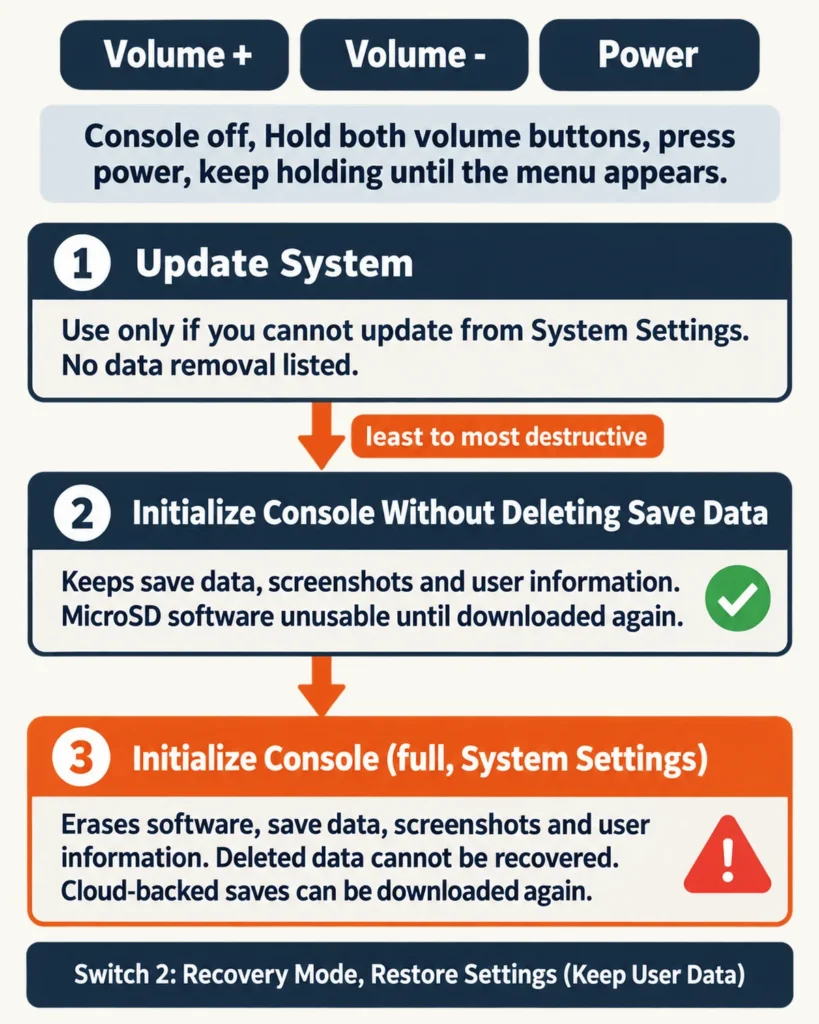
Maintenance Mode is the menu for a Switch that freezes or can’t update from System Settings. Try Update System first, then Initialize Console Without Deleting Save Data. Full Initialize Console erases everything, and deleted data cannot be recovered.
Maintenance Mode never appears on the no-power page; only the freeze page and the update page send you there, so reach for it when the console starts and then freezes or can’t finish an update, not when the screen is blank from the first press (a_id 22523 and 28135).
- Power the console off. Maintenance Mode can’t be entered while the console is on or in sleep mode. If it doesn’t respond, hold the power button for 12 seconds to shut it down.
- With the console off, hold volume up (+) and volume down (-), then press power.
- Keep both volume buttons down until the Maintenance Mode menu appears.
- Pick an option. If a Parental Controls PIN is set, the console asks for it.
- Update System. Use it only when you can’t update from System Settings. The page for it lists no data removal.
- Initialize Console Without Deleting Save Data. Save data, screenshots and user information stay. Software saved on the microSD card becomes unusable until it is downloaded again. Use this option only on a console you plan to keep.
- Initialize Console (full). This removes all data in the console memory: software, save data, screenshots and user information. Save data backed up to the Save Data Cloud service can be downloaded again after you create a user and link your Nintendo Account. The full erase runs from System Settings under Formatting Options, and the steps start at the HOME Menu (a_id 22559 and 22399).
Read the option name before you confirm. The support page on initializing without deleting save data uses the words “Without Deleting Save Data” for the safer choice, and the full erase has no such qualifier. On the Switch 2 the same menu is called Recovery Mode, and the matching safer option is Restore Settings (Keep User Data).
Three different holds appear across these pages, and each one does a different job.
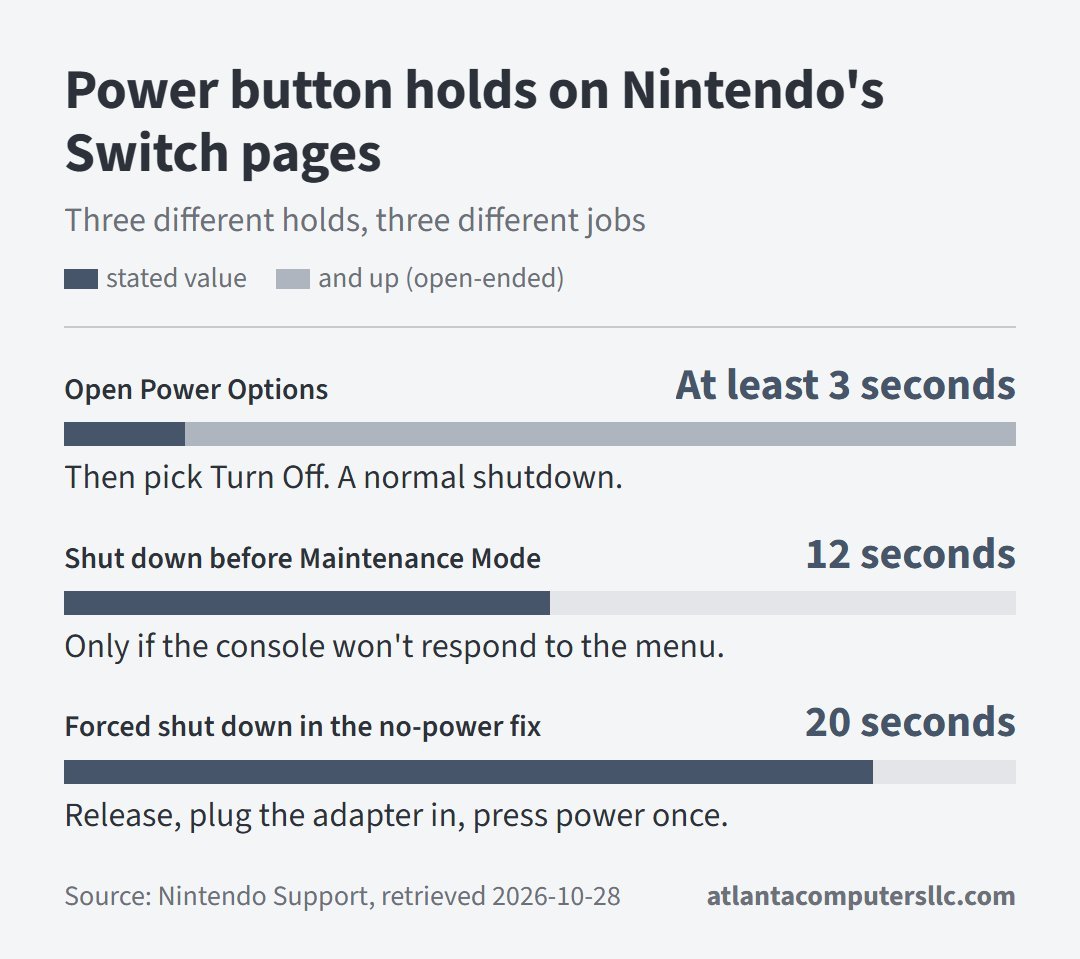
Both the 12 and the 20 appear on the freeze page, which uses 20 seconds for the first forced shutdown and 12 inside its Maintenance Mode steps. Nothing on these pages explains the difference. Hold 20 for the reset, and treat 12 as the shutdown that comes before Maintenance Mode.
On a laptop I back up or image the drive before any repair that touches the disk. A Switch that won’t start can’t be backed up from the console. That makes the order of the options matter, and cloud saves, if they were switched on, can be downloaded again after a full erase.
When the steps say to send it in
Send the console to Nintendo when the adapter works on another Nintendo device and the console still won’t charge, when its USB-C connector is damaged, or when the screen stays blank after the full sequence. Include the AC adapter so it can be tested.
Check your warranty status in the Nintendo Service Center: systems carry a standard 12-month warranty in the US and Canada. A service request expires after 6 months, and only residents of those two countries can use the service (Nintendo support, a_id 47284).
Stop charging a console with a bulging case or a screen lifting away from the body, and don’t open it. Damaged or defective consoles with lithium batteries can be mailed to the service facilities only by surface transport and with specified markings, so set up the request first (a_id 47284).
Opening the case isn’t a fix for a dead console, and one r/Switch reply to a poster whose replacement battery connector was glued down warns:
“If that’s glued in you’ve had it, trying to remove will rip the connector off the board.”
– r/Switch, September 2026 (1 upvote)
That is one commenter’s warning about one repair, not an official statement. None of the no-power or charging pages involve opening the console, and a pulled connector is board-level work, the kind that goes to a specialist.
FAQ: charge time, save data and third-party chargers
Nintendo Switch won’t turn on: how long should it charge?
A Switch needs approximately 3 hours to charge fully. For a console that won’t turn on, the no-power page asks for at least 15 to 30 minutes before you try the power button, and the charging-problem page asks for at least 30 minutes.
Does the 20-second hold delete my save data?
Nintendo’s no-power page describes the 20-second hold as a forced shut down and lists no data removal. Data removal appears on the initialization pages instead.
Can a third-party charger stop a Switch from turning on?
Non-licensed or damaged AC adapters may have compatibility problems with the console, and unlicensed products don’t go through Nintendo’s testing. Switch 2 allows an adapter of 54W or more, with the same warning.