
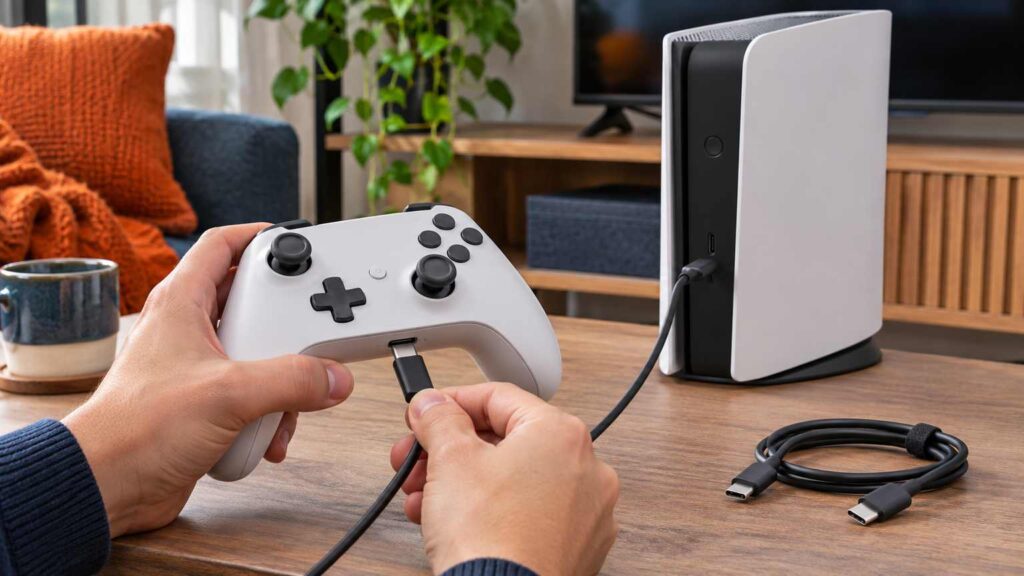
A PS5 controller not connecting is a pairing or cable problem until proven otherwise. Plug the DualSense into the console’s USB port with the console on, press the PS button, and watch for the player indicator. If nothing lights, reset the pad with a pin.
PlayStation Support sets the order used below: cable pairing, the pairing slots, the pin reset, software updates, then PlayStation Repairs. Reset steps come from the DualSense troubleshooting page, and the pairing and slot rules from the DualSense connection page.
PS5 controller not connecting: find your situation first
Match what happened to the pad before it stopped, because a pad that worked yesterday and a pad that spent the weekend paired to a phone start at different steps.
| What happened | First move | Section |
|---|---|---|
| New pad, never paired to this console | Console on, USB cable, press the PS button | Pair it by USB cable |
| Worked yesterday, now the PS button does nothing | Same cable pairing, then a different cable and USB port | Pair it by USB cable |
| Used on a phone, PC or another console since | Cable pairing again, or the PS button plus the shape button of the console’s slot | When a phone, PC or another console took the pairing |
| Second pad will not join wirelessly | Pairing mode from a working pad’s Accessories menu | Add a second controller without a cable |
| Cable pairing fails and the pad is undamaged | Pin reset with the console off, then cable pairing | Reset the controller with a pin |
| Pad was dropped or got wet, or stays dark on every cable | Stop and go to PlayStation Repairs | When Sony’s pages send you to PlayStation Repairs |
Pair it by USB cable with the console on
Switch the console on, plug the controller into it with the USB cable that came with the console or the pad, and press the PS button. When pairing works, the light bar blinks and then the player indicator lights up.
- Make sure the PS5 is switched on.
- Connect the controller to the console with the included USB cable.
- If the controller is off, press the PS button.
- Wait for the light bar to blink. The player indicator lights up once the pad is paired.
Once the player indicator is lit, you can unplug the cable and play wirelessly. The console has four USB ports, two on the front and two on the back, and Sony lists the controllers as working with any of them. A port swap costs nothing. The same cable charges the pad, and charging works with the console on or in rest mode, so a drained battery gets topped up during this step.
Test the cable before the pad. Sony’s charging steps say a cable marked “charge only” cannot be used with the controller, and Reddit answers keep pointing at phone-charger cables as the usual culprit. One of them put it this way.
“Reset it and make sure the cable can transmit data. That cable looks like a phone charger and most of them don’t transmit data, they only charge the controller.”
– r/PS5HelpSupport, September 2026 (7 upvotes)
Several chargers had failed for the poster, who later wrote that a new cable bought for the PS5, one that charges and passes data, solved it.
On the gaming PCs I build, a dead peripheral gets a different cable and a different port before anyone blames the device. Do the same at the console: swap the cable, then the port, then move on to the reset.
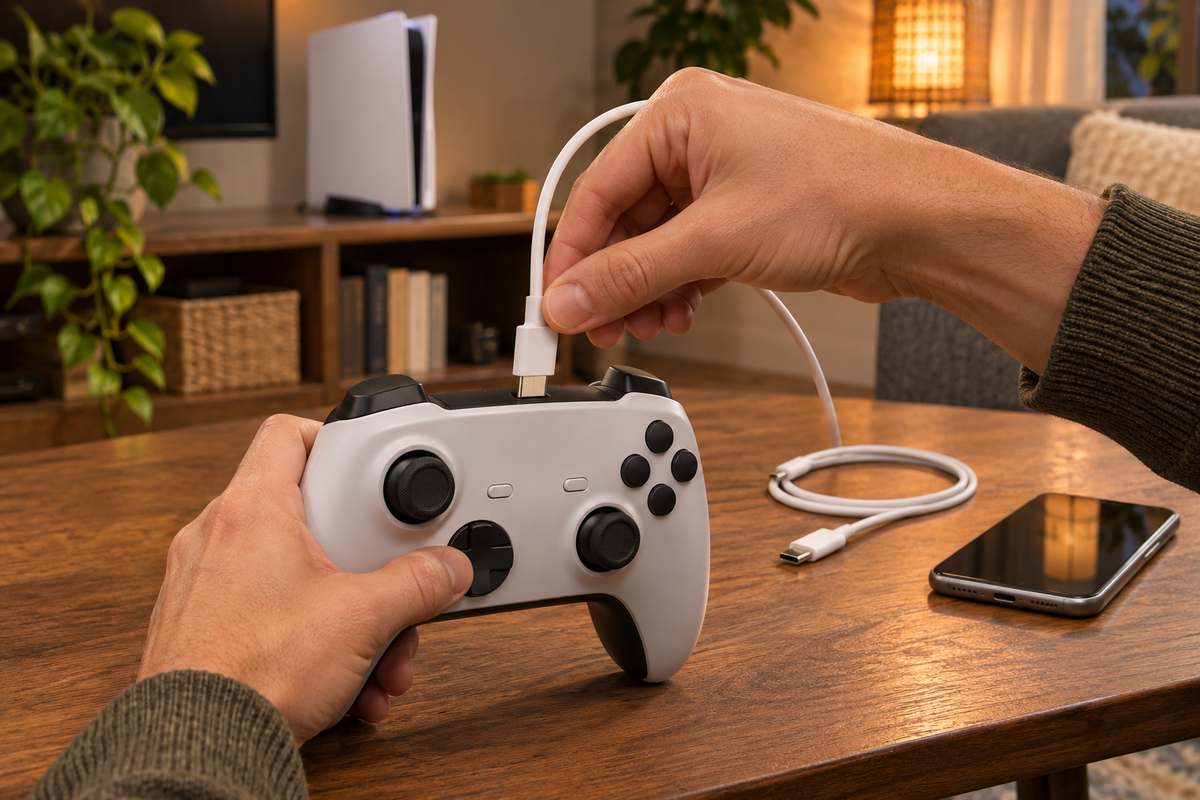
When a phone, PC or another console took the pairing
A DualSense keeps up to four pairings, one per slot, and a press of the PS button on a pad that is off connects it to the device it used last. After a session on a phone or PC, the PS button can send the pad there instead of to the console.
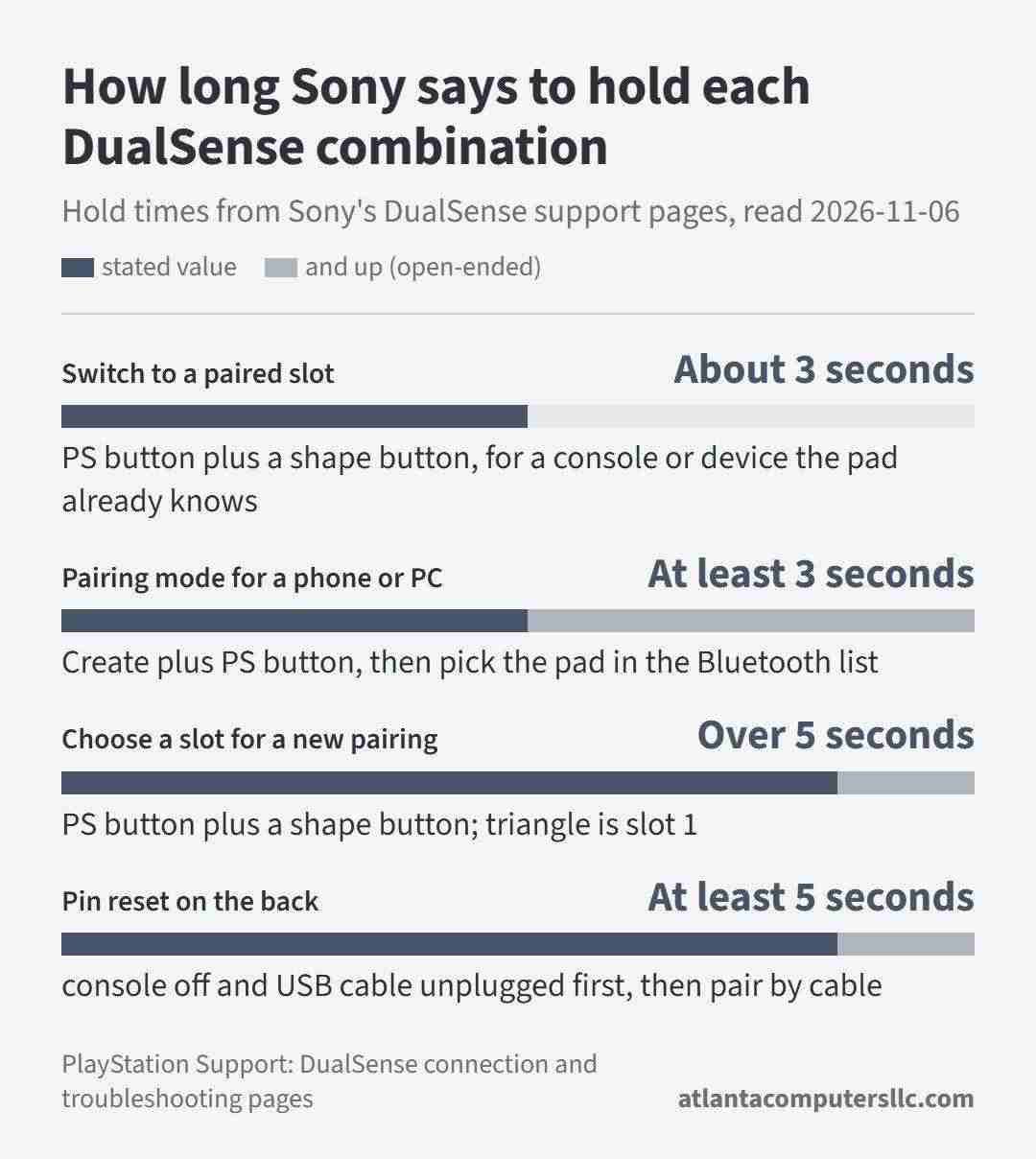
Quickest cure: connect the pad to the PS5 with a compatible USB cable and press the PS button. Unplug it afterward and the pad stays wireless. If you have no cable handy, switch slots from the pad itself. Hold the shape button for the slot, then press the PS button for about 3 seconds, until the player indicator blinks.
- Triangle with PS: slot 1, one player light
- Circle with PS: slot 2, two lights
- Cross with PS: slot 3, three lights
- Square with PS: slot 4, four lights
Slot 1 is not guaranteed. The console lands in the next open slot whenever you pair it, so the number depends on the pad’s history. If you cannot say which slot holds the console, use the cable and skip the question; when all four slots are taken, the slot you have gone longest without connecting to is the one that gets replaced.
Two rules block the wireless route.
A pad with a USB cable attached cannot pair wirelessly or switch slots to another PS5, so unplug it first. And while the pad is connected to a PS5, a Mac or phone cannot switch the pad’s connection, so use the pad’s own buttons.
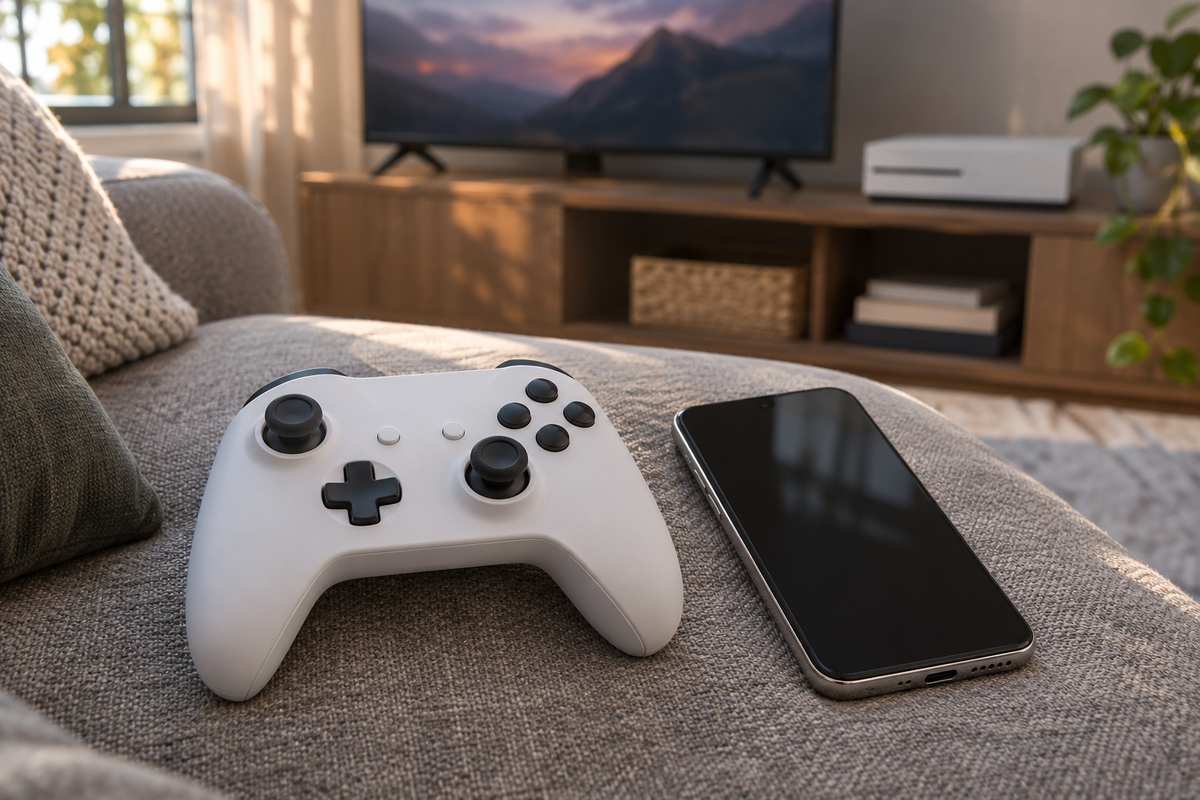
One r/playstation thread shows the pattern. A poster whose pad had been on a phone could not get it back to the console, and a commenter asked the useful questions.
“Have you recently connected it to a different device? For example, your PC? Have you tried pressing the PS button and triangle together?”
– r/playstation, January 2026 (5 upvotes)
Later the poster replied that the PS-plus-triangle combination worked. Triangle targets slot 1, and a pad’s first pairing is assigned to slot one, so the combination suits a pad that was paired to the PS5 first.
Reset the controller with a pin, in Sony’s order
Use the pin reset when cable pairing fails and the pad is undamaged. Order matters: console off first, cable out of the pad, a hold of at least 5 seconds, then a fresh pairing by cable.
- Turn off the PS5.
- Disconnect the USB cable from the controller.
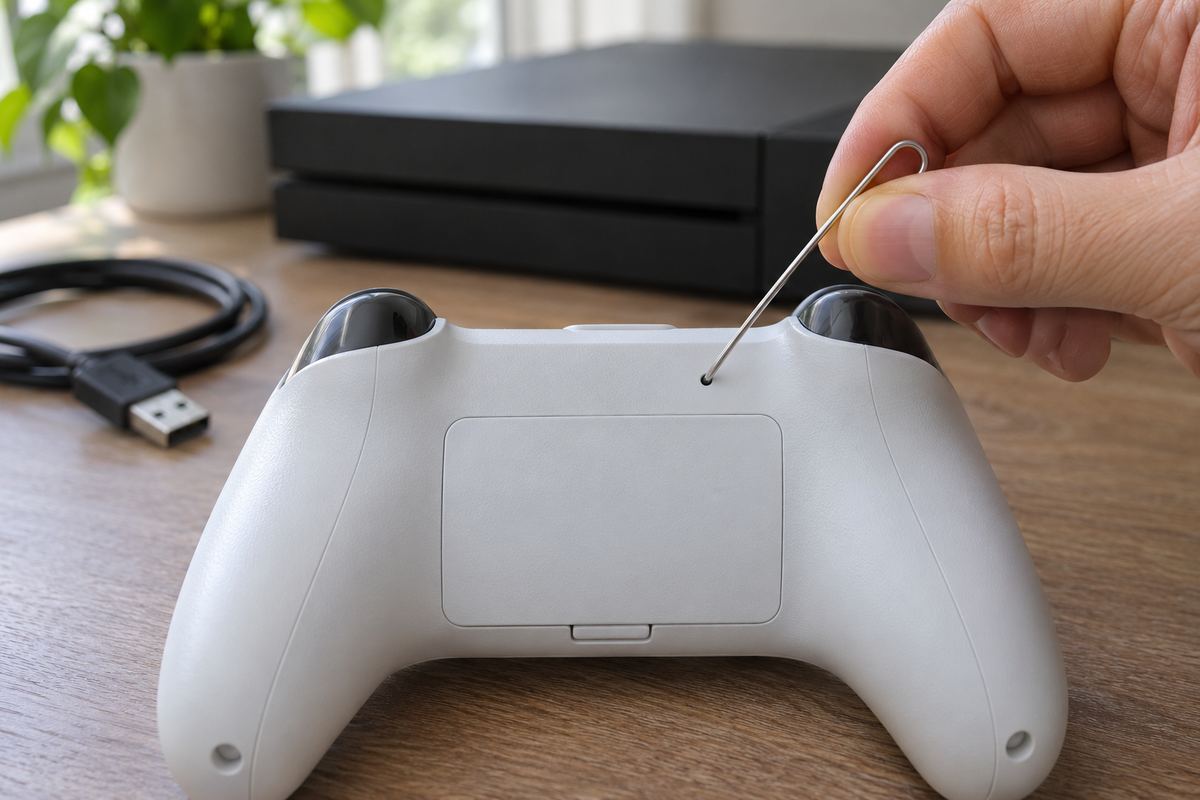
- Find the reset button inside the small hole next to the Sony logo on the back of the controller.
- Press and hold that button with a pin or similar tool for at least 5 seconds.
- Connect the controller to the PS5 with the official USB cable and press the PS button.
A pin is not in the box. Use something thin that fits the small hole, hold it steady for the full 5 seconds (the wording is “at least,” so a few extra seconds does no harm), and update the PS5 system software too if you can operate the console, which the next section covers.
Add a second controller without a cable
A second pad joins wirelessly through the first one: open Settings, Accessories, General, then Bluetooth Accessories on controller 1, and put controller 2 in pairing mode with the Create and PS buttons. If the pad that will not connect is your only one, use the cable instead.
- Unplug any USB cable from controller 2. If its player indicator is on, hold the PS button until the light turns off.
- On controller 1, go to Settings, then Accessories, then General, then Bluetooth Accessories.
- On controller 2, hold the Create button and the PS button together. The light bar blinks and the pad appears on screen.
- On controller 1, select controller 2. Its player indicator lights up when pairing succeeds.
Update the console and the controller
Controller updates arrive with the console’s system software, so update the console first: Settings, System, System Software, System Software Update and Settings, then Update System Software.
For the pad, go to Settings, Accessories, Controller (General), then DualSense Wireless Controller Device Software. A PC can also update a DualSense through PlayStation Accessories. Both routes need the pad to be connected, which is one more reason to get the cable pairing working first.
When Sony’s pages send you to PlayStation Repairs
If cable pairing, the pin reset and the updates all fail, stop. Sony’s troubleshooting page sends both “Pairing issue” and “Controller disconnects” to PlayStation Repairs, and the connection page names the PlayStation Repairs diagnostic tool as the step after a reset.
Stop sooner if the pad was dropped or got wet, or if the light bar stays dark on every cable and port you try, because those are hardware cases that no pairing step reaches.
On an Xbox instead? Xbox controller not connecting follows Xbox Support’s order for Series X|S and Xbox One pads.
Two neighboring problems sit in separate entries on that same page, “Battery issue” for a pad that connects but will not charge (PS5 controller not charging covers it) and “Button or analog stick issue” for drift, and neither is a pairing fault. A console that switches itself off with a heat warning while you work through the steps is a separate problem, and the PS5 overheating page covers it.
FAQ: the leftover cases
PS5 controller not connecting and flashing blue: what does the blinking light bar mean?
A light bar that blinks and never ends in a lit player indicator points to a pairing that did not finish. Sony’s pairing steps assign no meaning to the blink color and end at the indicator lighting up, so run the cable pairing again, and use the pin reset if the blinking repeats.
Can I fix it without a second controller?
Yes. Cable pairing and the pin reset need only the pad, the console and a USB cable. Only the wireless second-controller route and the Accessories menus need a pad that already works.
What is the difference between Create plus PS and PS plus a shape button?
Create plus PS puts a pad in pairing mode for a new device, and the phone and PC steps say to hold both for at least 3 seconds to take the next open slot. PS plus a shape button picks a slot: over 5 seconds to assign one for a new pairing, about 3 seconds to switch to a device already stored in it.