

What to look for when buying a laptop comes down to the machine you’ll own in year three, not the one in the photo: a job you can name, enough memory that you never need to add any, storage you can replace, a keyboard and hinge you’ve tested, and a service manual you can find.
I repair Dell, HP and Lenovo laptops, so I read a spec sheet the way a mechanic reads a used-car listing. The line that sells the machine is rarely the part that ends it.
What to look for when buying a laptop starts with the job, not the spec sheet
Write down what the laptop has to do before you open a single listing. Email, browsing, documents and video calls need far less than photo editing, coding or games, and paying for the second group when you live in the first is the easiest way to overspend.
Pick the operating system by the software you can’t give up. Windows runs the widest range of apps. A Chromebook costs less and feels quick, but Wired points out that it won’t run Adobe’s Creative Suite or desktop Microsoft Office, so it suits people whose work happens in a browser. MacBooks are a separate buying decision, and I see fewer of them on my bench.
Windows 11 sets a floor you can check. Microsoft lists 4 GB of RAM, 64 GB of storage, UEFI firmware with Secure Boot and TPM 2.0 as the minimum for installing it (Windows 11 specifications). Any new Windows laptop clears that floor, which is why the floor is a poor shopping guide.
If the laptop will live on one desk, price a desktop first. I’ve built custom and gaming PCs, and a desktop gives you a case you can open and parts you can swap. A laptop earns its premium when you carry it.
“1. Consider a Desktop First If you don’t need to carry your computer around, go for a desktop instead of a laptop. You get way better performance for the money, and they are much easier to upgrade down the road. Picking out parts or building one yourself can seem a bit intimidating at first, but the performance boost is totally worth it. 2. Don’t Just Look at the Spec Sheet You can’t always rely on just the basic specs. For example, two laptops might both say they have an RTX 3050 graphics card…” [excerpt — 2,900 characters in full]
– r/laptops, June 2026 (32 upvotes)
How much RAM does a laptop need?
Plan on 16 GB of RAM for a laptop you intend to keep for several years. Wired’s current guide describes 16 GB as the standard since about 2024, and Microsoft’s own buying guide recommends 8 GB to 16 GB. Treat 8 GB as a budget-machine number.
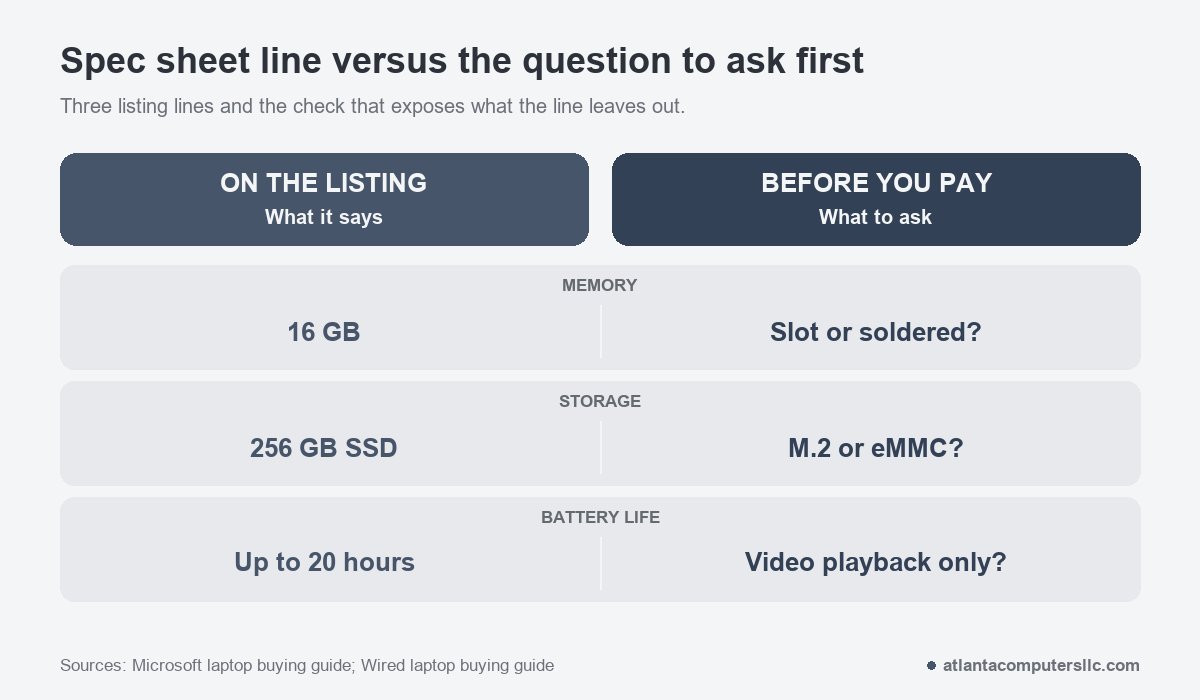
The bigger question is whether you can add memory later. Wired reports that, apart from a few designs such as Framework laptops, most laptops now solder the memory to the board, and some gaming laptops are among the rare ones with a free slot. Soldered means the amount you buy is the amount you keep.
On the bench, that is the difference between a quick fix and no fix. When a laptop with a memory slot runs short, I open the machine and add a module. When the memory is soldered, all I can do is tell the owner it was the wrong laptop for the job, because I don’t do board-level microsoldering.
So hunt for the words “soldered” or “onboard” on the listing, then search the exact model name with “RAM upgrade” and see what owners found. HowStuffWorks gives the same advice: look up whether owners found a memory or drive upgrade easy. If the listing says nothing, assume the amount is fixed until a service manual shows a slot.
Gamers and video editors should look higher than 16 GB, and Wired puts 32 GB in that conversation.
Storage: NVMe, eMMC and a size that leaves room
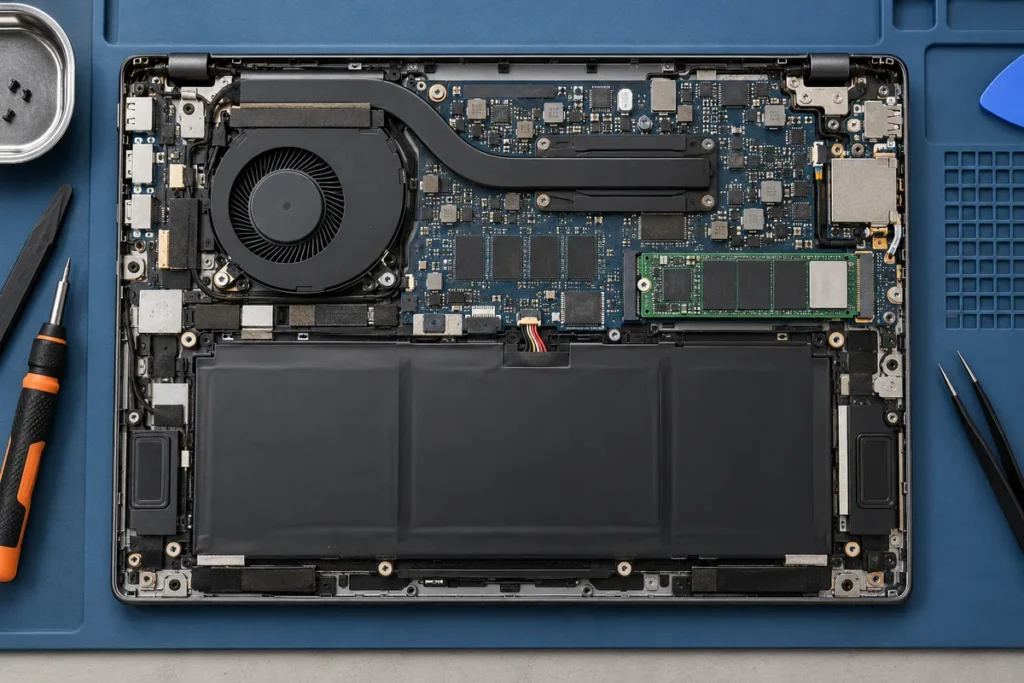
Almost every laptop ships with a solid-state drive now, but the drives aren’t all alike. An NVMe SSD is usually a small card on a socket, though some thin models solder it, so the service manual settles it. eMMC storage, which turns up on budget laptops and many Chromebooks, is soldered to the board and slower, according to Wired.
For size, Microsoft’s buying guide says 128 GB to 256 GB works if you lean on cloud storage and 512 GB to 1 TB suits people who keep lots of photos and video. Wired sets its own minimum at 256 GB. I’d treat 256 GB as the floor and 512 GB as the comfortable number, because Windows, updates and your apps take space before your files arrive.
A drive labeled 512 GB will show less free space in Windows. Wired explains that drive makers count in decimal while Windows counts in binary, so nothing is missing.
Storage is where my backup habit comes from. I back up or image the drive before any repair that touches the disk, and an M.2 SSD lets me move the drive to another machine and copy it if the board fails. With soldered storage the files sit on the dead board, and getting them out is board-level work that I don’t do. Back up to an external drive or cloud storage either way.
Processor and graphics without the badge hunt
Check the generation before the tier. Wired notes that Intel renamed its chips in 2023, when Core i5 became Core Ultra 5, and that the first digit of the model number is how you read the generation on current Intel and AMD parts. Two laptops with the same Ryzen 5 or Core Ultra 5 label can sit a generation apart.
For email, documents, browsing and video, a current mid-tier chip is plenty. Qualcomm’s Snapdragon X laptops use an Arm design rather than the x86 chips in most Windows laptops, so confirm that the apps you can’t live without run on one before you buy.
Integrated graphics handle everyday work. Add a dedicated graphics chip only when the work needs one, because it brings extra heat, and extra heat means the fans and heat pipes work harder and clog with dust sooner. Gamers and video editors still need it.
Screen, keyboard and hinge: what the spec sheet leaves out
Most buyers land on a 14-inch screen, which Wired describes as the best compromise between portability and screen space. A 13-inch model is more compact, and a 16-inch model suits people who need more performance.
Resolution is the one screen number worth reading. Wired recommends at least 1920 x 1200 on a budget 13- or 14-inch laptop and 2560 x 1600 or better on larger and premium ones. Budget laptops often sit at 60 Hz, according to Wired, and for office work that is enough. The PPI calculator shows how sharp a resolution is at a given screen size, and the aspect ratio calculator shows how tall the screen is for its width.
Glossy or matte matters more to daily comfort than refresh rate does. A glossy panel next to a window or under office lights shows your own face.
The keyboard and hinge never appear on the spec sheet, and they are where a laptop wears out in daily use. Hinges, charge ports and batteries are all parts I’ve replaced. Wired’s advice is to open the lid with one hand in a store and to judge the keyboard and trackpad while you’re there. A hinge that feels loose or sticky on day one won’t improve. If you can’t try the laptop, read long-term reviews, since Wired notes that specs can’t show whether a hinge is poorly made or a lid scratches easily.
Battery and charger: read the claim before you trust it
Battery claims come from the lightest task the maker can name. Microsoft’s own listing for the Surface Laptop 13.8 inch says up to 20 hours of video playback, and the wording matters. Video playback is a lighter load than a browser with many tabs, a video call and a bright screen. To estimate runtime for your own use from the battery’s Wh rating, try the battery life calculator.
Expect a shorter day than the headline. How much shorter depends on your work, and no single spec line settles it.
Check how the battery is held in. HowStuffWorks notes that many thin laptops use built-in batteries, which is the trade for a slimmer body. A battery held by screws and sold as a part can be replaced; one held with adhesive pushes up the repair bill. The service manual shows which you have.
When you replace a charger, buy the manufacturer’s or a known brand. Wired’s reviewer reports destroying several laptop batteries with cheap no-name chargers, and I’d rather not see yours on my bench. USB-C charging helps here, since Wired notes that most modern laptops charge that way and the chargers cost less to replace.
If you shop used or refurbished, a trackpad that sits proud of the case or a lid that won’t close flat can mean a swollen battery. Walk away from that laptop, and if you own one like that, stop using it and take it to a recycler or repair shop.
Ports, warranty and the service manual: last checks before you pay
List what you plug in every week. A laptop with only USB-C ports works if you check one thing. If you use an external monitor, confirm the port details, because Wired warns that some USB-C ports don’t carry video. An SD card slot, HDMI or Ethernet port saves carrying a hub if you use them often.
Ports fail too. Charge ports are another part I’ve replaced, since a plug goes in and out all year. On some models the port sits on a small board of its own; on others it’s soldered to the main board, and the service manual shows which.
Read what the warranty covers before you pay for an extra year. Check whether it covers the battery and accidental damage, because plans differ by maker.
Last, search the exact model name plus “service manual” or “maintenance manual.” A published manual shows whether the memory is a slot, whether the SSD is a card, how the battery is held and where the charge port sits. If you can’t find one, read owner reports before you commit.
Soldered memory is not a screwdriver job. If a laptop you already own has run out of memory and the memory is soldered, rework on the board belongs with a specialist.
Quick answers
Which laptops should you stay away from?
Skip any laptop you can’t match to a job, and any model with no findable service manual or owner reports. Also skip 8 GB of soldered memory paired with eMMC storage if you plan to keep the machine for years, since neither part can be upgraded later.
Is RAM or the processor more important for speed?
Neither wins in general; a laptop slows down when the part you’re stressing runs out first. The slow laptops that reach my bench usually trace to too little memory or a nearly full drive before the processor. A fast chip with 8 GB of memory and a crowded drive still crawls.
What are the specs of a good laptop?
For everyday work, aim for a current mid-tier processor, 16 GB of RAM, an SSD of 256 GB or more, a 1920 x 1200 or better screen and a battery claim you’ve read closely. Then confirm the memory and drive can be replaced.
