

Office 365 setup is two different jobs under one old name. Microsoft now sells these subscriptions as Microsoft 365, and the steps depend on what you hold: a personal or family subscription means sign in and install, while a business plan means the admin center, a domain, users and licenses first.
Microsoft’s install page still lists “Office 365 Small Business” next to Microsoft 365 for home, so both names point at the same family of subscriptions. What differs is the order of the steps. Get the order right and the rest is clicking Install.
Which kind of Microsoft 365 account do you have?
You have a personal or family account if you bought Microsoft 365 for yourself or your household and it lives under a Microsoft account. You have a business account if you sign in with a work address and someone, possibly you, manages users in the Microsoft 365 admin center.
| What you have in hand | Your path | Start here |
|---|---|---|
| A Microsoft account and a subscription you bought for yourself or family | Personal | Sign in at m365.cloud.microsoft/apps |
| A product key from a card, box or receipt | Personal, redeem first | Enter the key at microsoft365.com/setup, then install |
| A new business plan and a domain you own or plan to buy | Business, you are the admin | Admin center guided setup, then add the domain |
| A work email from your employer and no Install option | Business, you are a user | Ask your admin to assign you a license |
One plan catches people out. Microsoft’s setup planning page describes the Business Basic sign-up as Word, Excel, PowerPoint and Teams for the web, with the OneDrive and SharePoint desktop apps included. If you expect desktop Word and Outlook on your PC, confirm the plan includes them before you hunt for an Install button that will never appear.
Microsoft’s install page states the rule for every business plan. Users can install the desktop apps only when the plan includes the desktop version and an admin has assigned them a license.
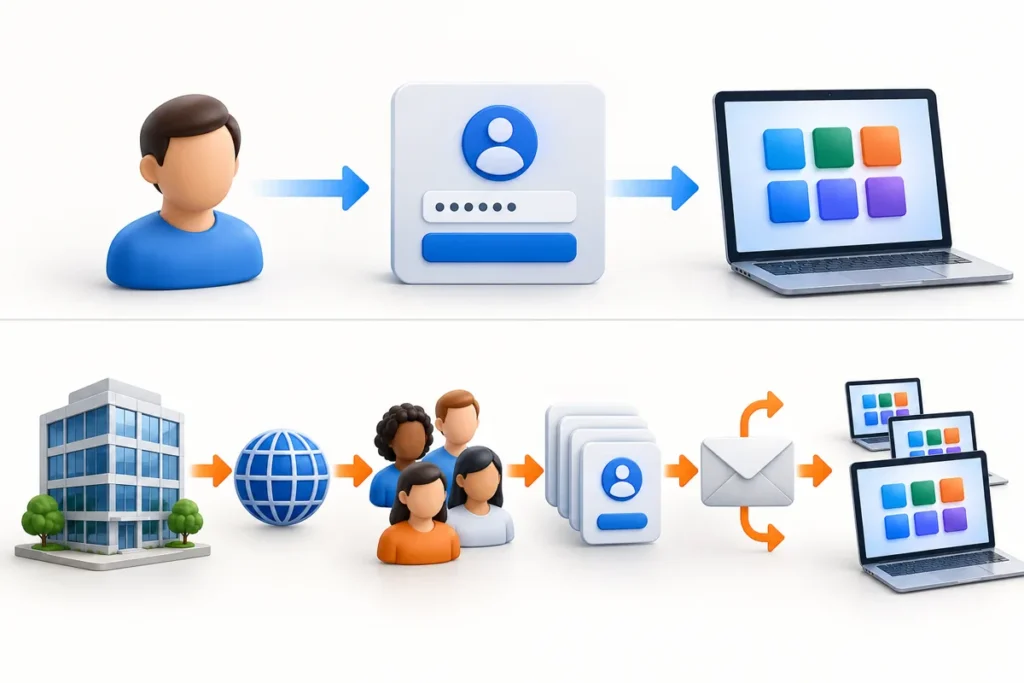
Personal and family accounts: install and sign in
A personal Office 365 setup takes six steps. The first applies only when your purchase came with a product key.
- If your purchase came with a product key, go to microsoft365.com/setup, sign in with a Microsoft account and enter the key. Microsoft says you redeem each key once. A renewal key goes onto the same account as the expired subscription.
- Go to m365.cloud.microsoft/apps. Select Sign in if you are not already signed in, then open the Install apps drop-down. Microsoft’s app page says the older office.com and microsoft365.com addresses redirect there.
- Sign in with the account tied to your subscription. Select Install apps, then Install.
- Run the downloaded file. Microsoft’s page names Run in Edge, Setup in Chrome and Save File in Firefox. If Windows asks whether the app may make changes to your device, select Yes. You need to be an administrator on the PC.
- Wait for the message “You’re all set! Office is installed now,” then select Close.
- Open Word or another app from the Start menu and accept the license agreement. That activates it. If activation runs into trouble, an Activation Wizard opens, and finishing it completes the job.
Microsoft’s install and reinstall page is the reference for all six steps, and it is worth bookmarking for the day you reinstall.
The 64-bit version installs by default. Microsoft installs the 32-bit version instead when it finds 32-bit Office or a stand-alone Project or Visio already on the PC. Switching between the two means uninstalling first.
A subscription lets you install on all your devices and stay signed in on five at once. Microsoft 365 Family can also be shared with up to five other people.
Download only from the Microsoft sign-in pages above. If you already ran an Office installer or an activation tool from anywhere else, scan the PC before doing anything else. The steps for that sit in removing a virus from a Windows laptop.
Business plans: confirm the subscription and add your domain
Business setup starts in the Microsoft 365 admin center, and the first screen to open is Billing, then Your products. Microsoft’s Business Basic setup page has you confirm the plan shows Active there, then open Users and Active users to assign licenses. Microsoft publishes a setup page for each business plan, so look up yours.
From the Home page in Dashboard view, Go to guided setup starts the wizard. The same domain job is also reachable from the Setup page, under Sign-in and security, as Get your custom domain set up, or from Settings, Domains and Add domain. Using the Add domain route:
- Enter your domain name and select Use this domain.
- Pick how to prove you own it. Microsoft offers a TXT record at your registrar, an MX record if a TXT record is not possible, or a text file uploaded to your website.
- If you use the MX option, give that record a high priority number. Microsoft warns that a low one can break mail at your current provider.
- Select Verify and wait. Microsoft says a TXT or MX record verifies in up to 10 minutes, and some registrars need up to 48 hours.
Microsoft’s custom domain page carries the full wizard for both methods. Registrars that support Domain Connect make this easier. Microsoft lists GoDaddy, Cloudflare and IONOS among them. You sign in at the registrar in a new window and approve the records, so allow pop-ups first. You also need the Domain Name Administrator role to add a domain at all.
Later, an Add DNS records page lets you choose which Microsoft 365 services get records. Hold email back until your users exist; the next section explains why. Microsoft adds its own warning. Incorrect DNS records can cause email and service outages.
Add users before you move the mail
Changing the MX record sends all new mail for anyone on your domain to Microsoft 365. A person with no mailbox there has nowhere for that mail to land. Microsoft’s instruction is to add users after the domain is added and before the MX record, so mail keeps flowing while it moves from the old provider.
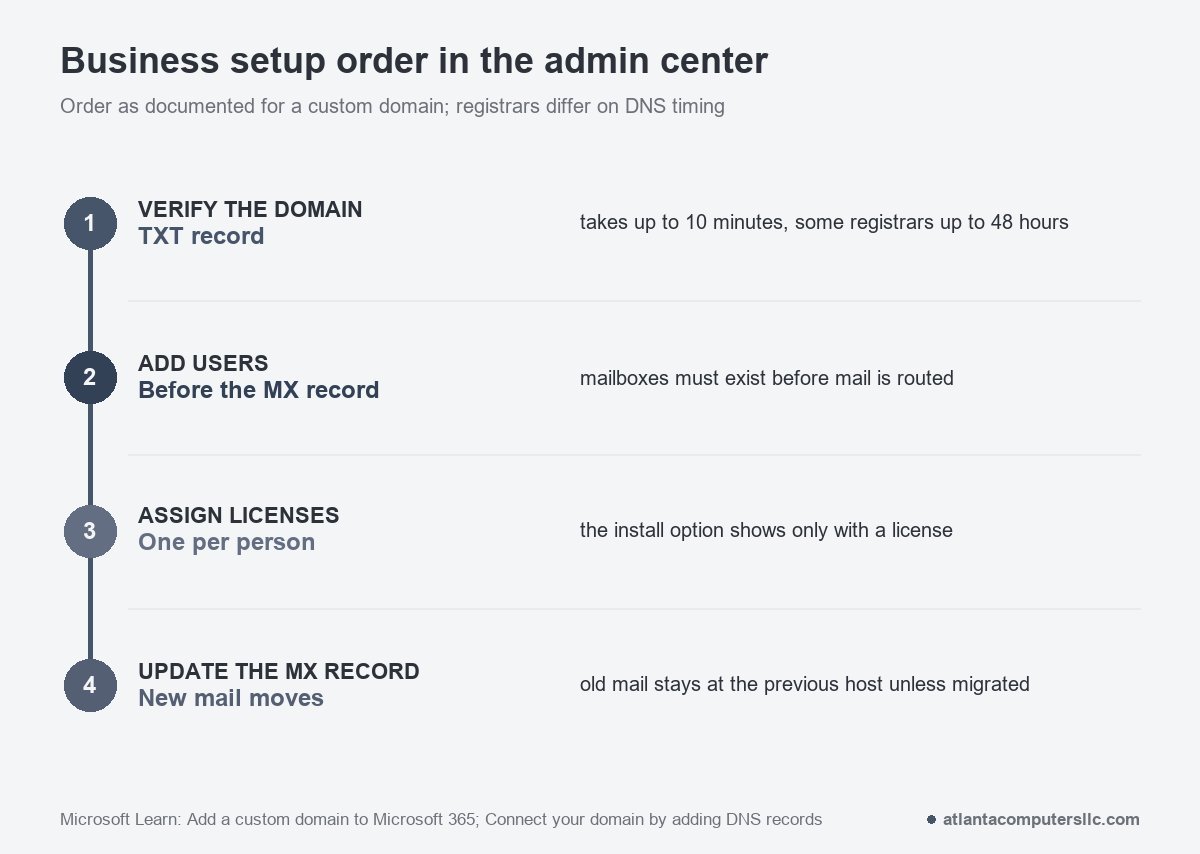
In Dashboard view, go to Users, then Active users, and select Add a user. In Simplified view, select Add user. Fill in the name and username, and pick the domain for the account. Microsoft’s example is jakob@contoso.com for a user named Jakob on contoso.com.
Leave the password setting alone unless you have a reason. Automatic password creation and a forced change at first sign-in are both on by default. Then assign a license for that person. If you have none left, you can still add the user and buy more.
Select Finish adding, then print or save the credentials and hand them over securely. You must be a license or user administrator to do any of this.
The license matters beyond email. It is what makes the Install option appear for that person later.
Install the apps and connect Outlook
Each person installs on their own PC, signed in with their work account. At m365.cloud.microsoft/apps, they select Install apps, then Microsoft 365 apps. Microsoft’s admin documentation describes the same route through My account, where Install Office sits under Office apps & devices. OfficeSetup.exe lands in the Downloads folder. Open it, answer Yes at the Windows prompt, then wait until the You’re all set window appears.
Microsoft allows up to five PCs or Macs per person for the desktop apps.
For mail, open Outlook from the Start menu. On the Welcome page select Next, then choose File, Info, Add Account, type the Microsoft email address and select Connect. In classic Outlook, File and Add Account works the same way, and if Outlook asks for the password again you select OK, then Finish.
The newer Outlook for Windows uses different menus. Select View, then View settings, then Accounts and Your accounts, and use Add Account under Email accounts. Microsoft’s Outlook page says a missing File tab in the classic steps means you are probably on the new version.
When Office 365 setup stalls
Most Office 365 setup stalls trace back to the account, not the PC. The usual causes are a missing license, a failed activation, a second copy of Office or a domain record that has not verified yet.
No Install option after you sign in
Look at the license first. Microsoft says a business user sees no install option until an admin assigns a license, and the plan has to include the desktop version at all. If the home page shows nothing, Microsoft points work and school users to a Microsoft 365 Software page, where you pick the language and 32-bit or 64-bit and select Install. If it is missing there too, the license has not been assigned.
A blocked sign-in on a work account is a different problem. Microsoft says it usually means your administrator set a security policy, and the person to ask is your IT admin.
Activation or license error
Microsoft’s own sequence for an Office license error is short. Close the error message, because Office may activate once it is gone. Open a new document, go to File, Account, Update options and Update now. If that fails, run an Online Repair from Repair an Office application. Then confirm the subscription itself: if it appears under Canceled subscriptions on the Services and subscriptions page, it has to be renewed.
A copy of Office came with the PC
Microsoft notes that Microsoft 365 is often pre-installed on new Windows computers, and a second copy can block activation of the one you bought. On a Dell, HP or Lenovo laptop that refuses to activate, that bundled copy is the first thing I look for.
Open Control Panel, go to Programs and Features and search for Office. If more than one version is listed and one is not the version you want, right-click it and select Uninstall. If that does not clear it, Microsoft’s uninstall troubleshooter works on Windows 10 or later and must run on the same PC. It cannot remove Office 2024. I copy the Documents folder somewhere safe before any removal, since it costs minutes and an uninstall that goes wrong does not.
The domain will not verify
Give the record the time Microsoft quotes, up to 10 minutes and up to 48 hours at some registrars. If that passes, confirm you added the record where the domain’s DNS is actually hosted. Microsoft notes that when the Add records button is missing in the admin center, a non-Microsoft registrar hosts the DNS and the records go there.
The install crawls
Microsoft ties very slow installs to the internet connection, a firewall or antivirus software, and offers an offline installer for a poor connection.
Stop and hand it to Microsoft or your IT person if the fault sits on the account side: no license, a blocked sign-in, or a domain you cannot prove you own. A technician at the PC cannot fix those from the keyboard. If the uninstall troubleshooter and a manual removal both fail, bring in a local technician for the machine itself.
Moving old email into Microsoft 365
Updating the MX record moves new mail only. Existing mail stays at your previous host unless you migrate it. Mailboxes that arrive by migration still need licenses, and Microsoft disables an unlicensed one after a grace period of 30 days.
For a single Outlook user, the export route works: File, Open & Export, Import/Export, export to a .pst file, then import it into the new account the same way. Moving whole mailboxes from another server is a separate job, and the Exchange Online migration write-up covers it.
Office 365 setup questions
Where is the Office setup page?
Microsoft sends product key owners to microsoft365.com/setup to redeem the key, and everyone installs from m365.cloud.microsoft/apps. Redeem a key once. After that, reinstalling only needs the sign-in page.
What are the IMAP and SMTP settings for Office 365?
Microsoft lists IMAP at outlook.office365.com on port 993 with SSL/TLS, POP3 at the same server on port 995 with SSL/TLS, and SMTP at smtp.office365.com on port 587 with STARTTLS. POP and IMAP are switched off automatically when security defaults are on, and disabling Basic authentication blocks them too.
Is there a monthly fee for Microsoft 365?
Microsoft 365 is a subscription, not a one-time purchase, and Microsoft’s support pages treat a canceled or expired subscription as a reason Office stops activating. Prices differ by plan and change, so read the figure on Microsoft’s plan page at checkout.
Can I do Office 365 setup without paying?
Word, Excel and PowerPoint run in a browser for free with a Microsoft account, and Microsoft suggests those web apps if your computer cannot run the desktop version.
Can I set up Office 365 on Android?
Yes. Microsoft lists iPhone, iPad and Android as supported for the mobile apps. On a business plan, each person can install them on up to five phones and five tablets.
