

Pick an Exchange Online migration method by where your mail lives today: cutover for your own Exchange server with up to 150 mailboxes, hybrid for a bigger one, a Google Workspace batch for Google, and IMAP for mail-only moves from other providers.
Every route runs from the Exchange admin center and ends the same way. You point your domain’s MX record at Microsoft, wait, and sort out whatever Outlook still remembers about the old server. The Microsoft 365 tenant has to exist before any of this starts. Opening the account and buying seats is a separate job.
Which Exchange Online migration method fits your business?
Start from the source system. Your own Exchange server with up to 150 mailboxes points to cutover, a larger or gradual Exchange 2010 or later move points to hybrid, Exchange 2003 or 2007 points to staged, Google Workspace has its own batch type, and any other IMAP mailbox uses an IMAP migration.
Microsoft’s cutover migration page allows up to 2,000 mailboxes in one batch. It also says migrating 150 or fewer is the more reasonable number, because creating and moving that many users takes a long time. Microsoft’s migration-path page repeats the 150 line and sends bigger Exchange 2010 to 2016 organizations to hybrid.
| Where your mail lives now | Method | What moves | Limit to know |
|---|---|---|---|
| Your own Exchange server (2003 or later), 150 mailboxes or fewer, switched over a weekend or a few days | Cutover | Mail, calendar, contacts, tasks | Ceiling of 2,000 mailboxes. Directory synchronization must be off first. |
| Exchange 2010 server with more than 150 mailboxes, or an Exchange 2013 or later server you want to move in batches | Hybrid, or minimal hybrid for a move of a few weeks or less | Mail, calendar, contacts, tasks | Hybrid needs directory synchronization. Minimal hybrid does a one-time sync and needs at least one Exchange 2010, 2013 or 2016 server. |
| Exchange 2003 or 2007 server, more than 150 mailboxes or a gradual move | Staged | Mail, calendar, contacts | Needs directory synchronization. Both versions are out of support, and staged can’t move Exchange 2010 or 2013 mailboxes. |
| Google Workspace | Google Workspace migration batch | Mail, calendar, contacts | Users must exist first as mail-enabled users. Shared calendars and room bookings don’t move. |
| Another provider’s mailboxes: a hosting company, Gmail, Outlook.com | IMAP migration | Mail folders only | 500,000 items per mailbox, newest first. Largest message is 35 MB. Mailboxes must already exist. |
| A handful of people, or a pile of PST files | Users import their own mail, or the Import Service for PSTs | Whatever each user or PST holds | The Import Service is meant for many large PST files. |
On Exchange 2000 or earlier, IMAP is the only route.
Stop and hire help if you’re near one of Microsoft’s own lines. Its migration-path page suggests a partner at 5,000 or more mailboxes. Its duration tables list no figure for mailboxes over 200 GB. And if none of the standard migration types fits your setup, Microsoft points to a partner instead.

What to sort out before you start
Seven things need sorting before the first batch exists: your mailbox list, access to those mailboxes, the Exchange server’s settings, directory sync, retention policies, domain verification and the MX record’s TTL. Items 3 and 4 apply to cutover. The rest apply to every method unless noted.
A new IT specialist put the starting question to r/MicrosoftPartners:
“So I just got a new job as an IT Specialist. My first task is to migrate all company mailboxes from exchange on prem to exchange online. Do you have any tips on where to start? What should I take into consideration? Thanks.”
– r/MicrosoftPartners, August 2026 (9 upvotes)
Work through it in this order.
- List every mailbox you’ll move. Cutover moves mailboxes, mail users, mail contacts and mail-enabled groups with their membership. If an object that isn’t migrating is set as a manager or delegate on one that is, Microsoft says to remove that link first. Mailboxes hidden from the address lists have to be unhidden.
- Get the migration account into the mailboxes. For cutover, give it FullAccess on each mailbox or Receive As on the database that holds them. For IMAP you need admin credentials or each user’s password. If you can’t get in, you reset passwords, and anyone who doesn’t learn the new one can’t open their old mailbox.
- Prepare the Exchange server. Outlook Anywhere has to work, with a certificate from a trusted certification authority that covers Outlook Anywhere and Autodiscover. MRSProxy has to be enabled. Turn off Unified Messaging on the mailboxes being moved. Test from outside your network with Outlook or Microsoft’s Remote Connectivity Analyzer.
- Turn directory synchronization off. Microsoft requires this before a cutover migration. The sync tool comes back into play only for staged and hybrid.
- Disable retention and archive policies on the source. Microsoft’s migration tool doesn’t know about them. Anything those policies deleted or archived shows up as “missing,” which looks like data loss and isn’t.
- Verify your domain. Add it in the Microsoft 365 admin center, create the TXT record at your DNS host, and wait about 15 minutes before verifying. Stop there. Don’t continue the domain wizard until the mail has moved, because the next step is where the MX record changes.
- Lower the MX record’s TTL. Set 3,600 seconds or less on every MX record before the batch starts. Other mail systems cache your mail host for the TTL, so a short value shortens the stretch where some senders still deliver to the old server. Put a longer value back after the switch.
Licenses depend on the method. IMAP and Google Workspace batches need licensed users in place before they run. With cutover you assign licenses afterward, and the 30-day grace rule is in the DNS section.
On the bench I back up or image a drive before any repair that touches it. Mail deserves the same habit. Leave the old system running, untouched, until every user has signed in to the new mailbox and seen their folders.
How long does an Exchange Online migration take?
For a mailbox under 10 GB, Microsoft’s Exchange Online guidance shows a median migration of 1 day and a 90th-percentile of 1 to 3 days, depending on the source. Time grows with size: on-premises mailboxes of 100 to 200 GB show a 10-day median and a 31-day 90th percentile.
The figures come from Microsoft’s migration performance and best-practices page, which builds them from earlier customer migrations. Each cell below reads median days / 90th-percentile days.
| Mailbox size | On-premises Exchange (cutover, staged, hybrid) | Google Workspace batch | Generic IMAP |
|---|---|---|---|
| 0 to 10 GB | 1 / 3 | 1 / 2 | 1 / 1 |
| 10 to 50 GB | 2 / 6 | 1 / 8 | 1 / 2 |
| 50 to 100 GB | 4 / 13 | 3 / 12 | 1 / 8 |
| 100 to 200 GB | 10 / 31 | 5 / 19 | 3 / 29 |
| Over 200 GB | Not supported | Not supported | Not supported |
Plan to the second number in each cell if you have a hard deadline. The 90th percentile means nine in ten migrations finished within that time, and the tenth ran longer.
Microsoft calls these guidelines and says your own speed varies with your network, your mailbox sizes and its throttling of discretionary work such as mailbox moves. For Google sources it adds that Google limits how much data can be pulled out in a given period.
The table times the mailbox copy and nothing else. The MX switch is separate: other mail systems can take up to 72 hours to recognize it.
Build the migration batch in the Exchange admin center
Cutover is the worked example here. The other methods change the endpoint type and the batch type, and the section ends with those differences.
Create the endpoint
An endpoint holds the settings and credentials that let Exchange Online reach your server. In the Exchange admin center, open Migration, select Endpoints, then Add. For cutover, choose Outlook Anywhere as the type and fill in these fields:
- A unique endpoint name.
- The account with privileges, as domain\username or an email address, and its password.
- The email address of any user you’ll migrate. Exchange Online tests the connection against that mailbox, so it can’t be a hidden one.
- The fully qualified domain name of the Exchange server.
- The fully qualified domain name of the RPC proxy server. This is usually the same host name as your Outlook on the web address, such as mail.contoso.com.
Leave Maximum concurrent migrations and Maximum concurrent incremental syncs at their defaults, then select Create.
Create the batch
Go to Migration and select Add migration batch. Name the batch, confirm Migration to Exchange Online is selected, and choose Cutover migration as the type. Pick your endpoint, then set the schedule. Microsoft gives you these options:
- Start manually later (status Created), start automatically on save (status Syncing), or start automatically at a set time, which has to fall within 30 days.
- Complete manually later, which leaves the batch at Synced until you select Complete migration batch. Or complete it automatically, or at a set time within 120 days.
Start it and watch it
If you chose a manual start, select the batch and then Resume migration. The status changes to Starting, then Syncing. The migration dashboard shows progress, and errors link to a log with more detail. New users also appear in the Microsoft 365 admin center as the batch proceeds. Synced means the copy is done.
What changes for IMAP and hybrid
For IMAP, the endpoint type is IMAP and you enter the source’s IMAP server name, such as imap.contoso.com. The batch takes a CSV file with the headers EmailAddress, UserName and Password. The mailboxes must exist and be licensed in Microsoft 365 before the batch runs, because IMAP migration doesn’t create them. Microsoft suggests running a small test batch first. If you’ve limited connections on the source system, raise the limits to speed the copy.
For minimal hybrid, you run the Hybrid Configuration Wizard from the Microsoft 365 admin center under Setup, then Migrations, on a computer joined to your on-premises domain. Choose Minimal Hybrid Configuration, run Microsoft Entra Connect once to sync users, assign licenses, then select users and Start migration. Microsoft recommends migrating two or three users as a test before everyone else.
Migrating from Google Workspace
Microsoft treats a Google Workspace organization differently from a plain IMAP source. The Google Workspace batch moves mail, calendar and contacts. The IMAP route moves mail only, and each user imports calendar and contacts on their own.
The batch has prerequisites on both sides, and Microsoft says the migration fails if you skip them:
- Create a routing subdomain for Microsoft 365 in Google Workspace, such as o365.example.com, as a user alias domain. Point an MX record on that subdomain at Microsoft 365 and add it as an accepted domain there.
- Create a second subdomain for routing back to Google, such as gsuite.example.com, with Google’s MX records. Google can take up to 24 hours to propagate that setting to every user.
- Use subdomains of your primary domain. Microsoft says the built-in tenant.onmicrosoft.com domain occasionally causes problems it can’t help with.
- Provision every user in Microsoft 365 as a mail-enabled user.
- Hold the Recipient Management role in Exchange Online. In Google, the migration admin needs the Project Creator and Service Accounts Creator roles.
Then, in the Exchange admin center, choose Add migration batch and select Google Workspace (Gmail) migration as the type. In the automation section, select Start. The admin center creates the Google project, the service account, its key and the API access for Gmail, Calendar and Contacts. You sign in to Google, download a JSON key, and authorize the client ID and scope the page shows in Google’s API controls. The endpoint then takes your Google admin email and that JSON key. Its defaults are 20 concurrent migrations and 10 concurrent incremental syncs.
Know what stays behind. Vacation and automatic reply settings don’t migrate. Neither do shared calendars, event colors, room bookings, Gmail tags or contact URLs. Contacts keep a maximum of three email addresses. Gmail rules arrive turned off, so have users look them over in Outlook before switching them on. The largest message that migrates is the tenant’s transport limit, 35 MB by default.
The IMAP route for Google mailboxes works differently. Each account owner creates an app password in Google, and 2-step verification has to be available to them. The CSV file can hold up to 50,000 rows and 10 MB. The batch syncs once a day, so let it run at least 72 hours before you delete it.
Switch mail routing with MX and Autodiscover records
Until the MX record changes, mail for your domain keeps going to the old system. Microsoft’s cutover page says mail sent to users who have already been migrated still routes to their old mailboxes until the record moves. Here is the order for cutover.
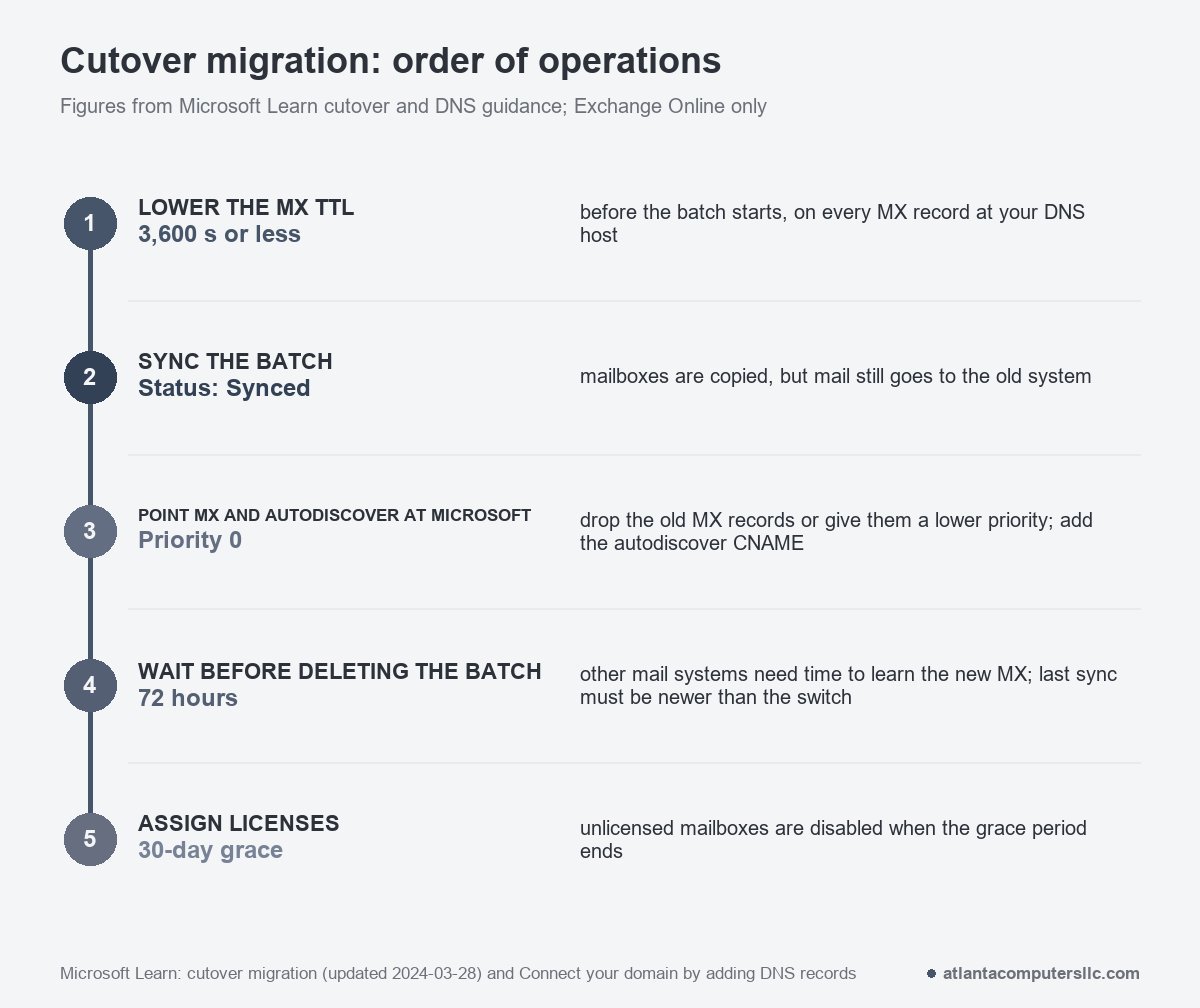
Add your users and mailboxes in Microsoft 365 before touching the MX record. Then open Settings, Domains in the Microsoft 365 admin center, select the domain, and choose DNS records, then Manage DNS. If your DNS host supports Domain Connect, the records are added for you. If not, add them by hand with these values:
- MX record. Host @, target copied from the value the admin center shows, priority 0, TTL 3600. If an MX record for the old provider exists, delete it or give it a lower priority than Microsoft’s.
- Autodiscover CNAME. Alias autodiscover, target autodiscover.outlook.com on the cutover page. The admin center shows the exact value for your tenant, so copy that. If you’re keeping an Exchange server, this record also has to point at Microsoft 365 in your internal DNS.
Then wait. Microsoft says it can take up to 72 hours for other mail systems to recognize a new MX record, and it asks you to wait at least that long before you delete the cutover batch. Two conditions must hold when you do. All users must be on their Microsoft 365 mailboxes. And the batch’s Last Synced Time must be later than the moment mail began flowing to Microsoft 365. Once the batch is deleted, mail sent to the old mailboxes isn’t copied across.
Licenses are the last piece. Cutover creates the users, but you still assign licenses. A mailbox without one is disabled when the 30-day grace period ends.
Decommissioning comes after all of that. Microsoft’s cutover page warns that removing Exchange can have unintended consequences and recommends contacting Microsoft Support first.
Fix Outlook after the move
The Autodiscover record is what lets Outlook find a migrated mailbox on its own. With staged migrations, Microsoft says users must create a new Outlook profile after the move, and Outlook then connects to Microsoft 365 by itself. A staged migration also leaves the Out of Office message blank, so users recreate theirs.
Sometimes the record is right and Outlook still fails. The symptoms are an “Outlook cannot log on” error, plus Out of Office, meeting availability, mail tips and the online archive all failing. Microsoft traces this to the pre-migration Autodiscover server name cached in the Outlook profile in the registry.
Try the new profile first. It’s the fix that doesn’t touch the registry:
- Close Outlook.
- In Control Panel, open Mail, then Show Profiles, then Add.
- Name the profile and walk through the Add Account wizard.
- Back in Mail, select “Always use this profile” and pick the new one.
If you’d rather change the setting, Microsoft documents a registry value called ExcludeLastKnownGoodUrl. Set it to 1 as a DWORD under HKEY_CURRENT_USER\Software\Microsoft\Office\16.0\Outlook\Autodiscover. The 16.0 folder covers Office 2016, Office 2019 and Microsoft 365. The same switch exists in Group Policy, under the Disable AutoDiscover setting, as the option to exclude the last known good URL.
If a fresh profile also fails, the problem isn’t the profile. Look at the Autodiscover CNAME and at whether that mailbox has a license.
Questions that come up mid-migration
Do I need a third-party tool for an Exchange Online migration?
Not for the routes above. Cutover, staged, hybrid, IMAP and Google Workspace migrations all run from the Exchange admin center. Microsoft’s best-practices page says outside tools are mostly used for sources other than Exchange, such as IBM Lotus, Domino and Novell GroupWise.
Will mail be lost while the MX record changes?
Not if the old system stays up through the switch. Mail keeps arriving there until the new MX record spreads, then lands in Microsoft 365. Wait 72 hours and confirm the last sync is newer than the switch before you delete the batch, because mail sent to the old mailboxes afterward isn’t copied.
Can I shut down the old Exchange server once everyone has moved?
Only after every mailbox is routed to Microsoft 365 and you’ve confirmed it. Microsoft recommends contacting its support before decommissioning. If you use single sign-on, its staged-migration page says to keep at least one Exchange server so you can still manage mail attributes.
