

QuickBooks not responding in the title bar means Windows is waiting on the program, which is either busy or stuck. Wait a few minutes after a rebuild or a long report. If nothing moves, end QuickBooks in Task Manager, reopen it, and run Quick Fix my Program from Intuit’s Tool Hub.
Everything here is for QuickBooks Desktop on Windows, and every step comes from Intuit’s support pages. The order is mine: free and reversible first, anything that touches the company file only after a backup. QuickBooks Online gets its own short section near the end.
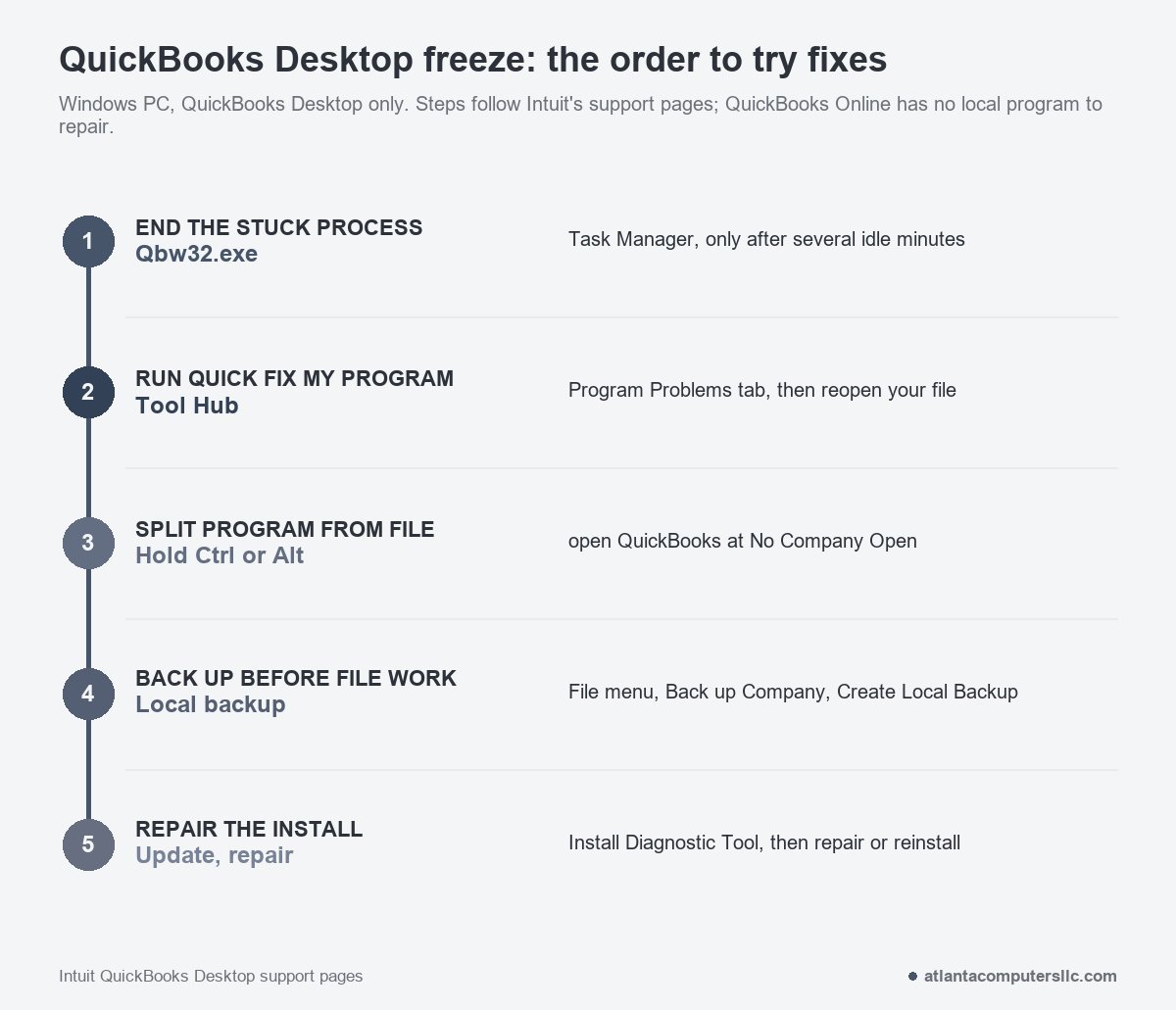
QuickBooks not responding: end the process, then run Quick Fix my Program
Windows labels any window that stops answering as not responding, and a program working hard does the same thing. Intuit says so about Rebuild Data: when Windows shows QuickBooks as not responding during a rebuild, the rebuild is still running as long as the mouse cursor moves, so let it finish. After a rebuild, a verify or a big report, wait. Several idle minutes with none of those running is a stuck program.
- Press Ctrl+Shift+Esc, or right-click the taskbar and choose Task Manager.
- On the Processes tab, sort by the Name column and find Qbw32.exe.
- Select it and choose End task (older Windows versions say End Process). If Windows warns that ending a process can cause undesired results, confirm.
- Reopen QuickBooks and your company file.
Anything you typed but hadn’t saved is gone once the process ends. Intuit’s reinstall steps end four QuickBooks entries: QBDBMgrN.exe, QBDBMgr.exe, QBCFMonitorService.exe and Qbw32.exe. Only Qbw32.exe matters for a freeze. The next step shuts the background ones down for you.
If it hangs again, close QuickBooks and run Quick Fix my Program, using the steps on Intuit’s page for QuickBooks that has stopped working.
- Install QuickBooks Tool Hub from Intuit’s help pages, not from a link in an unexpected message. If it’s already installed, the Home tab shows the version at the bottom, and Intuit recommends the newest one.
- Open the hub, select Program Problems, then Quick Fix my Program.
- Wait for it to finish, then start QuickBooks and open your file.
Intuit says Quick Fix shuts down the background processes QuickBooks uses and runs a quick repair. It worked if the file opens and the task that froze last time now completes.
Hold Ctrl or Alt to split the program from the file
Two opening tests from Intuit tell a failing program from a failing company file. The Alt test opens your file with all windows closed. The Ctrl test stops QuickBooks at the No Company Open window, before any file loads.
For the Alt test, open QuickBooks and select your company file under No Company Open. Hold Alt, select Open, and keep holding until the file loads. A password prompt means you let go of Alt, type the password, hold Alt again and select OK.
For the Ctrl test, hold Ctrl while you double-click the QuickBooks icon. Keep holding it until the No Company Open window appears, QuickBooks freezes, or an error shows up. Then select a company file and choose Open.
The first two rows below are my reading of the Ctrl test. The other three are branches Intuit spells out, and all three come after you rename QBWUSER.ini in the last repair section.
| What happened | What it points to | Next step |
|---|---|---|
| Ctrl held, No Company Open appears, freeze starts when your file loads | The company file or the folder it sits in | Back up, then work on the file |
| Freeze comes before No Company Open, even with Ctrl held | The QuickBooks program or its install | Update, rename QBWUSER.ini, repair the install |
| QuickBooks starts and the sample company file opens, but yours doesn’t | Your file or its location | Copy the file to a local folder and open it from there |
| You still can’t get into your file from the local copy | Intuit: the file is most likely damaged | Restore an earlier backup |
| The sample company file won’t open, or QuickBooks won’t start | Intuit: the installation is damaged | Install Diagnostic Tool, then repair or reinstall |
Back up the company file before you touch it
At the bench I back up or image the drive before any repair that touches the disk. A company file gets the same rule before a rebuild, a move or a restore, because several steps below change it.
- Open the file, then choose File and Switch to Single-user Mode.
- Choose File, point to Back up Company, and select Create Local Backup.
- Select Local Backup and Next. Under Local Backup Only, use Browse to pick a folder.
- Select OK, then Save it now and Next.
The result is one file ending in .qbb. Intuit notes that backups leave out payroll forms, so save or print those separately if you use payroll.
If the file won’t open even with Alt held, QuickBooks can’t back it up. Copy the company file in File Explorer to a folder on the local drive instead, which is what Intuit’s own test does. Keep one more copy off the PC too. The guide to unlimited cloud backup covers what a cloud copy does and doesn’t protect.

Fix the company file or its folder
Start with where the file lives. Intuit recommends a local folder rather than a network location for the test copy. If the copy opens from the new folder, the old folder was damaged or its permissions were wrong, and the file itself is fine.
When the file is the suspect, Intuit’s File Doctor is the next free tool. Intuit points it at company file errors such as -6150 and -6000 -82, and at lists that show up blank, so a plain freeze is a weaker fit. It’s still cheap to try.
- In the Tool Hub, select Company File Issues, then Quick Fix my File. Select OK when it finishes.
- Back in Company File Issues, select Run QuickBooks File Doctor. It can take up to a minute to open.
- Pick your company file, choose Check your file, then Continue, and enter your QuickBooks admin password.
The scan takes 10 to 15 minutes depending on file size. Intuit warns it may report failure even when it fixed the problem, so open QuickBooks and the file before you decide.
If the freeze continues, rebuild. From the File menu, choose Utilities, then Rebuild Data, and accept the backup prompt. Afterward choose File, Utilities, Verify Data. If Verify finds problems, select Rebuild Now. Intuit says two or three rounds are common, as long as the messages keep changing instead of looping. “Database disk image is malformed” surviving all of that means restoring an older file or creating a new one.
Update QuickBooks, rename QBWUSER.ini, repair the install
Intuit lists five causes for a QuickBooks that stops working: a company name that is too long, a damaged or missing QBWUSER.INI file, hard drive corruption, damaged program files or installation, and a damaged Windows. The steps in this section go after the INI file and the installation; drive trouble comes up at the end.
Update first. In QuickBooks choose Help, then Update QuickBooks Desktop. On the Update Now tab, select Get Updates, restart QuickBooks when the download ends, and select Install Now when prompted. Pressing F2 or Ctrl+1 shows which release you’re on. If the program won’t open far enough to update, Intuit’s Downloads and Updates page has the manual route.
Next, rename QBWUSER.ini. Open Users, then your user name, AppData, Local, Intuit, and the folder named for your QuickBooks year; hidden files and folders may need to be turned on to see it. Right-click QBWUSER.ini, choose Rename, and add .old to the end. Intuit’s steps also rename EntitlementDataStore.ecml and link to a separate page for that one. Reopen the file by hand afterward, since renaming erases the list of recently opened company files.
If QuickBooks opens now, try the sample company file. Sample opens and yours doesn’t: use the local-copy test from the previous section.
If the sample won’t open either, run the QuickBooks Install Diagnostic Tool from the Tool Hub’s Installation Issues tab. Older Intuit pages list it under Program Problems as the Program Diagnostic Tool. It can take up to 20 minutes. Restart the PC afterward and update QuickBooks. A repair comes next and a reinstall is the last rung. Intuit says reinstalling doesn’t affect your data; I’d still make the backup first.
QuickBooks Online freezes differently
QuickBooks Online runs in the browser, so there’s no local program to repair, and the Tool Hub is a Desktop tool. Look at Intuit’s QuickBooks status page first. Intuit says a listed outage means it knows about the problem and is working on it, and the status page lets you subscribe to updates.
With no outage listed, the browser is the suspect. Before clearing anything, I’d open a private window or a second browser, because a page that loads there points at stored browser data. Intuit’s help article on clearing cache and cookies then has you clear the cache and restart the browser. Only if the problem persists should you clear cookies, and only the Intuit-specific ones.
When to stop, and where real help lives
Intuit’s support options sit on its own site, so type quickbooks.intuit.com into the address bar yourself. A support number picked up from an ad or a pop-up is one you can’t vouch for.
Intuit’s guidance on suspicious activity describes callers who claim something is wrong with your computer and offer to fix it to get at your money or files. It also says Intuit won’t contact you to fix a computer problem.
If you already let someone connect to the PC, the cleanup steps are in the virus removal guide.
Stop at these three points. The drive clicks, grinds or drops out between boots: that’s a data recovery lab’s job and outside what I do. A rebuild leaves “Database disk image is malformed” in place: restore an older file or create a new one. The sample company file won’t open, or QuickBooks won’t start: the installation is damaged, and more work on the company file gets you nowhere.
