
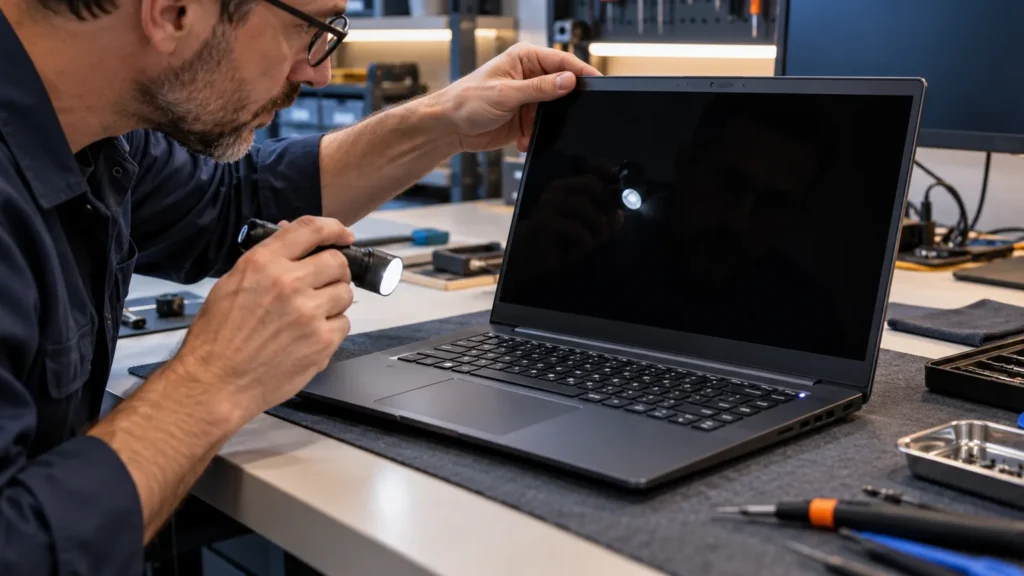
A Dell laptop black screen is really four different faults, and what the machine does when you press the power button tells you which one. Nothing at all points to power. Fans and lights with a dark panel point to video. The Dell logo and then black points to startup. A pointer on black points to Windows.
Dell’s own support article splits the problem the same way, into no power, no POST, no boot and no video, and the fixes for each barely overlap. I work through them in the order I’d run them at the bench: free resets first, Dell’s built-in tests second, parts and shops last. Dell was the brand that crossed my bench more than any other, and this order is built around those machines.
Dell names four usual causes for a dark laptop panel: display settings, an outdated or crashed graphics driver, a software conflict, or failed hardware. The first three cost nothing to rule out.
Four kinds of Dell black screen
Press the power button once and watch the case for ten seconds. Then find your row.
| What the laptop does | What it points to | Start at |
|---|---|---|
| No lights, no fan noise, nothing happens | Power: the adapter, the battery or a stuck power state | No lights at all |
| Power light on, fans spinning, panel stays dark | No video: the panel, the graphics side or a hung display driver | Lights on and fans running |
| Dell logo appears, then the screen goes dark or freezes | Startup: POST, or the first moments of Windows loading | Logo, then dark |
| Windows loads and you see a black screen with a mouse pointer | Software: the display driver, Explorer or the user profile | Black with a pointer |
Two habits apply to every row. Plug the charger in before any test. Then unplug everything else you can, meaning USB drives, docks and external monitors, because Dell’s no-POST steps start the same way and bring the devices back one at a time.
Dell laptop black screen with no lights at all
Dell describes this one as a laptop that shows no sign of power when you press the button: no diagnostic lights, no fan, no sound. Work down this list. The Dell won’t-turn-on guide goes further into adapter checks and battery light codes.
- The charger. If the adapter has a light on it, it should be lit. Swap in a known-good adapter of the same rating if you can borrow one. I do this first even when the owner is sure the charger is fine, because it’s the cheapest part to be wrong about.
- A hard reset. Turn the laptop off, unplug the adapter, and take the battery out if it’s removable. Many thin models have a sealed battery, and on those you unplug and move on. Hold the power button for 15 to 20 seconds, which Dell says discharges static electricity, then reconnect and power on.
- Adapter only. On a model with a removable battery, leave the battery out and try powering on from the adapter alone.
- M-BIST, if your model has it. Hold the M key, then press the power button. Dell says that if the battery light turns amber, the test found a motherboard error and you should contact Dell. If the light stays off, it found no motherboard fault. Dell ties this test to newer Latitude laptops, so a test that does nothing on your model proves nothing either way.
- An RTC reset. Dell lists this for no-power, no-POST and no-video states on select Alienware, Inspiron, Latitude, Precision, Vostro and XPS laptops. With the laptop off and the AC adapter connected, hold the power button for about 30 to 35 seconds, until the power light blinks three times, then let go. The reset aborts if you hold the button for less than 25 seconds or more than 40, or if the adapter is disconnected.
Expect a strange first boot after the RTC reset. It returns the BIOS to its defaults and resets the clock, and Dell warns that the laptop may refuse to start Windows until you press F2, enter the BIOS and restore settings such as the SATA mode. A laptop that boots badly after the reset has not failed the reset. On a business machine with a BIOS admin password, Dell says the manual reset may be disabled.
If none of that brings up a light, you’re past the free fixes.
Dell laptop black screen with lights on and fans running
The power light is on, the fans are spinning, and the panel shows nothing. Dell calls this no video, and its article notes that you may even hear the Windows sign-in sound while the screen stays blank. Run these in order, because each one is free and each one narrows the cause.
- Brightness. Hold Fn and press the brightness key, which Dell says is often F6 or F7 and varies by model. If that does nothing, press the brightness key by itself.
- Restart the graphics driver. Press Windows key + Ctrl + Shift + B. Microsoft says a beep or a screen flicker means it worked.
- The hard reset. Same routine as above, but unplug every accessory too, external monitors and docks included, then hold the power button for 15 to 20 seconds.
- Dell’s LCD built-in self-test. With the laptop off, hold the D key and press the power button. Let go of D when the screen starts flashing colors. It cycles through white, black, red, green and blue. Press the power button to leave the test.
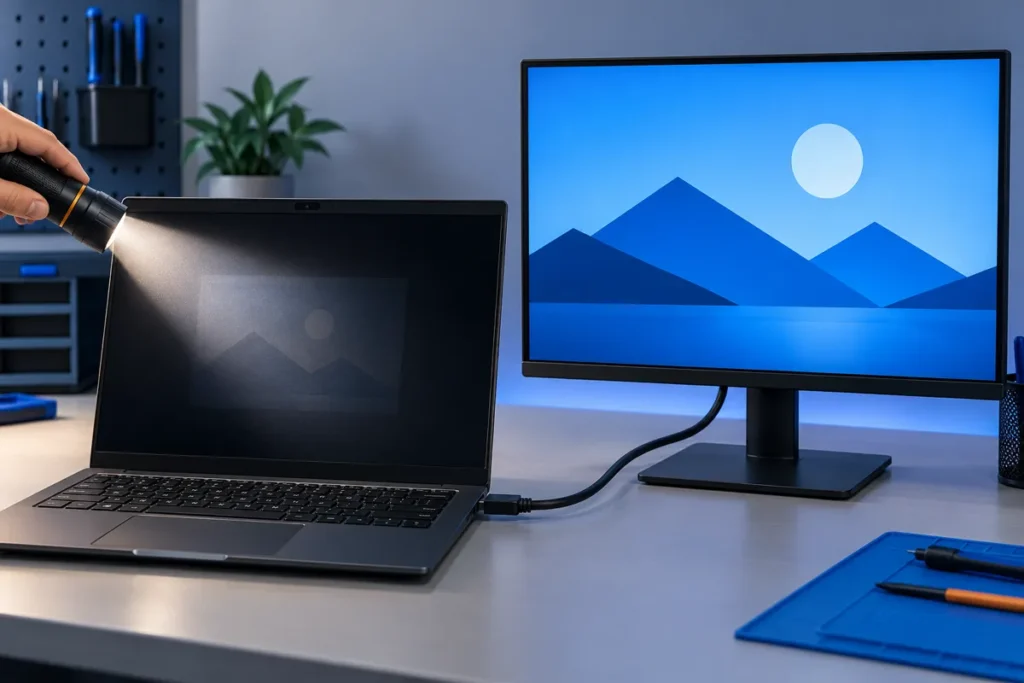
- An external monitor. Connect a known-good monitor over HDMI or DisplayPort, press Windows key + P, and choose Duplicate or Extend.
I plug in the external monitor before I form any opinion about the panel. If it shows your desktop, your files are reachable, and I copy off whatever matters before anything else gets changed.
Dell describes the two tests separately. Read together, the results sort into four outcomes.
| What you see | What it means | Your next move |
|---|---|---|
| Self-test colors look clean on the laptop screen, and the external monitor works | Dell says a passing self-test means the LCD works and the cause could be the graphics side or display settings | Press Windows key + P and choose PC screen only. If the screen is still black, update or roll back the display driver, covered below |
| Self-test colors look clean, but the external monitor shows nothing or garbage | The self-test clears the panel. My read: the fault sits in the video output or the monitor chain | Try a different cable and a different monitor. If a known-good pair still shows nothing, stop and get it to a shop |
| Self-test shows lines, patches or missing colors, and the external monitor works | Dell says an external monitor that works means the laptop’s own screen may have a hardware problem | Work from the external monitor, copy files off, then contact Dell or a shop |
| Laptop screen stays dark in the self-test, and the external monitor shows nothing either | Dell’s pages don’t cover this case. My read: the fault sits upstream of the panel, in the graphics hardware or the board | Stop here. Note any blink code from the next section first |
Dell sends any self-test defect, including lines, to Dell Technical Support, and says repair options depend on the warranty status. Lines on a screen can come from the panel, the graphics chip or the cables, and you can’t tell which from the outside.
What the blinking power light is telling you
A Dell blink code is a count of amber blinks followed by a count of white ones, and it reports how far startup got even when the screen shows nothing. Dell publishes a separate table for each model line, so match the count to your line and year.
The pattern is a group of amber blinks, a pause, a group of white blinks and a longer pause, and then it repeats until you shut the laptop down. Dell’s XPS guide puts the pauses at 1.5 seconds after the amber group and 3 seconds after the white group. Amber is the first number and white is the second, so 2 amber and 3 white reads as (2,3), which Dell’s Inspiron and XPS guides list as no memory detected.
One Reddit commenter helping a stranger with a dark Dell opened with this question:
“First when you turn it on does the power button blink in a pattern of colors or short and long blinks. Like 3 short 1 long or 1 long 3 short or one blue and 3 red etc.?” [excerpt]
– r/computer (1 upvote)
Dell’s own guides count amber blinks and then white ones, so write the count down before you look it up. Four codes point at the display side:
- LCD failure is 2 amber, 7 white. Dell’s Latitude, Inspiron and XPS guides all list it.
- Video card or chip failure is 3 amber, 2 white, listed in the same three guides.
- Board or chipset error is 2 amber, 6 white. Dell’s Inspiron and XPS guides say to update the BIOS and then contact support, and the Latitude guide gives no fix for it.
- LCD power rail failure is 2 amber, 8 white. It appears in the Inspiron guide’s 2020 to 2025 table, and Dell’s no-video steps mention the same count.

Which codes exist depends on the line and the year. Older XPS laptops from roughly 2008 to 2014 and Inspirons from 2006 to 2016 have no amber and white codes and beep instead. Dell’s Inspiron guide also says a diagnostic code takes over the light, so you won’t see battery status while one is showing. If the light alternates between amber and white with no count, Dell’s Latitude and Inspiron guides read that as an unsupported or non-Dell charger, so swap the charger before blaming the board.
The XPS guide adds a caveat I agree with: these lights show how far startup got, not the exact part that failed.
The Dell logo appears, then the screen goes dark
Dell treats a laptop that reaches the logo and goes no further as a POST problem. It also says that if you saw video at startup before the screen went black, the display or graphics driver may be the cause. The steps are short.
- Strip it down. Unplug everything, external monitors included, and try again. If it starts, reconnect the devices one at a time until the black screen returns.
- Run Dell’s built-in diagnostics. Restart and start tapping F12 as soon as the Dell logo shows, and keep tapping until the One Time Boot Menu appears. Choose Diagnostics and the quick test starts by itself. The mouse and touchscreen don’t work during the test, and a laptop needs your input during the LCD part.
- Write down what it reports. Dell asks for the error code, the validation code and the service tag. Those three turn a vague call to support into a short one.
Dell’s pages don’t agree on how to start these diagnostics. The preboot diagnostics article uses F12 on laptops, while the no-power article gives F12 for desktops and says to hold Fn and press the power button on a laptop. I try F12 first, Fn plus power second, and defer to the manual for the exact model.
A logo that gives way to a spinning Windows circle and then darkness belongs in the next section.
Windows loads, but all you get is black and a pointer
Dell’s display article says a black screen with only a pointer is likely software, such as a corrupted user profile or system files, and points to Safe Mode or a system restore. Microsoft’s blank-screen article lays out the order I’d follow.
- Restart Explorer. Press Ctrl + Shift + Esc to open Task Manager, find Windows Explorer and choose Restart. If it isn’t listed, open File, Run new task, type explorer.exe and press Enter.
- Restart the graphics driver. Windows key + Ctrl + Shift + B, then listen for the beep. Microsoft’s guide also suggests pressing Windows key + P to cycle through the display modes.
- Get to Safe Mode. Hold the power button for 10 seconds to force a shutdown, and repeat that two or three times until Windows opens its recovery screen. Then choose Troubleshoot, Advanced options, Startup Settings and Restart, and press F5 for Safe Mode with Networking.
- Fix the driver. In Safe Mode, open Device Manager, expand Display adapters and update the graphics driver. If the black screen began right after an update, choose Roll back driver instead.
- Use System Restore from the recovery screen if the problem is recent, and pick a restore point from before it started.
Driver rollback does fix some of these. In a Reddit thread about new Dell 14 Pro laptops that boot to black with only the cursor after sign-in, one admin who hit the same problem on a company deployment wrote this:
“had the exact same thing happen with our deployment last month, super frustrating. we ended up rolling back the intel arc drivers to an earlier version and that seemed to fix most cases.” [excerpt]
– r/Intune (4 upvotes)
That is one admin’s report on one model line, so treat it as a lead rather than a rule. If the black screen started right after you installed something you don’t recognize, work through the steps for removing a virus from a laptop from Safe Mode before you reach for System Restore. Before any restore or reset, I back up or image the drive first, because both change what’s on it.
When I stop and send a Dell to a shop
I stop and send a Dell to a shop when a self-test or blink code points at the display, the video chip or the board, or when the laptop shows no sign of life after both resets with a charger I’ve proven good. These are the specific triggers:
- The LCD self-test shows lines, patches or stays dark while the fans run.
- A blink code names the LCD, the video chip, the board or the LCD power rail, and a BIOS update (where Dell’s guide for your line suggests one) changed nothing.
- M-BIST turns the battery light amber.
- The laptop shows no sign of life after the hard reset and the RTC reset, with a charger you’ve proven good.
- The black screen followed a drop or a spill, which points at hardware and makes the software steps unlikely to help.
A swollen battery is a hard stop. If the case bulges or the trackpad no longer sits flat, don’t charge it, don’t press on it and don’t open the laptop. Take it to a battery recycler or a repair shop.
Board-level repair is not something I do at the bench, and it isn’t a kitchen-table job either. If the laptop is still under warranty, start with Dell Technical Support, because Dell’s articles say repair options depend on warranty status.
Dell black screen questions
What is the F12 key on a Dell laptop?
On a Dell laptop, tapping F12 at the Dell logo opens the One Time Boot Menu. From there you can choose Diagnostics to run Dell’s built-in hardware test before Windows loads.
How do I reset a Dell laptop with a black screen?
Do a hard reset. Unplug the charger and accessories, remove the battery if it comes out, hold the power button for 15 to 20 seconds, then reconnect and power on. The steps only remove power and clear the stored charge, and none of them touch the drive. A factory reset in Windows is a different thing and not part of this troubleshooting.
Does a Dell laptop black screen mean my data is gone?
No. A dark panel says nothing about the drive. If an external monitor shows your desktop, copy your files off before you change anything else.
