

The first move on an Acer laptop that won’t turn on is a power reset: unplug the adapter and every accessory, then press the battery reset pinhole on the bottom for four seconds with a paperclip, as Acer’s Aspire and Swift manuals describe. Not every Acer has that pinhole, so check your model before you hunt for it.
If your Acer laptop won’t turn on after that, sort it into one of four groups before trying anything else. Which light comes on, if any, decides where you go next. Most of my bench time went to Dell, HP and Lenovo, so for anything Acer-specific below I lean on Acer’s own manuals and say when a step comes from community answers instead.
Four ways an Acer fails to start, and what its lights say
Acer’s manuals describe two lights. The power indicator shows power status. The battery indicator glows amber while the battery charges and blue once it’s full in AC mode. The Aspire, Swift and Nitro manuals I read give no meaning for flashing or red patterns, so I won’t guess at them.
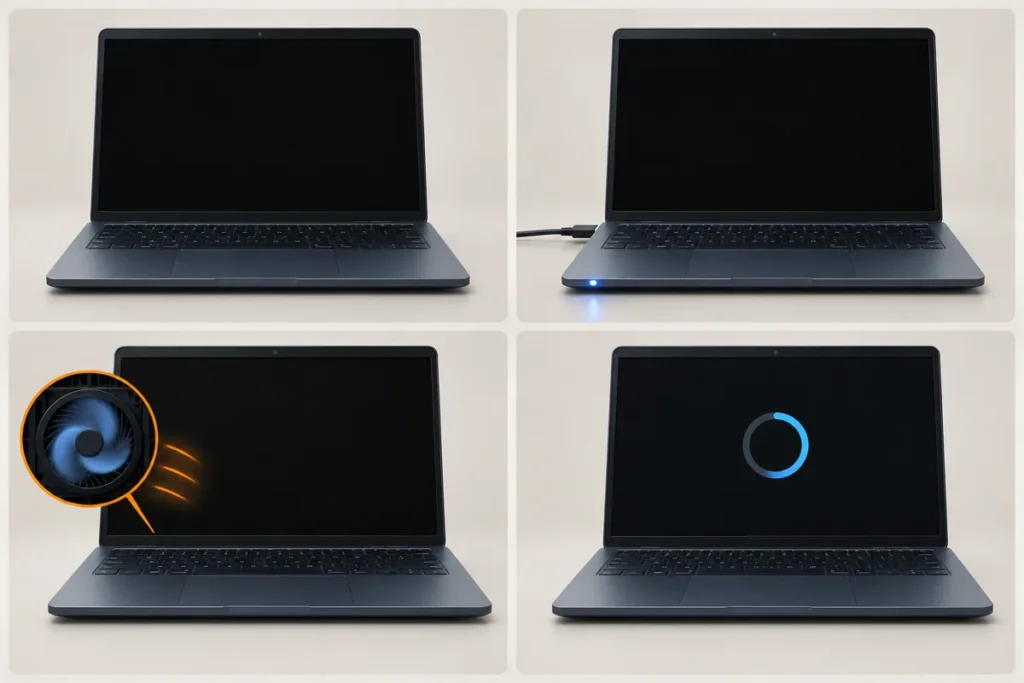
Plug the adapter in, look at what happens, and find your row.
| What you see with the adapter plugged in | What it points to first | Where to go |
|---|---|---|
| No light, no fan, no sound, black screen | The power path: outlet, adapter, DC-in plug, or a battery that needs a reset | Nothing at all |
| Battery light amber or blue, power button does nothing | Power arrives but the laptop won’t start: battery state or the board | Charging light on |
| Fan spinning or keyboard backlight on, screen black | Brightness, display output or the panel path | Black screen |
| Acer logo, then a restart or a freeze | Storage, firmware settings or Windows | Logo loop |
Nothing at all: no lights, no fan, no sound
A laptop that shows nothing with the adapter attached has lost its power path, so work that path before you blame the laptop. Go in this order.
- Plug the adapter into a different wall outlet. Skip power strips and surge protectors for this test.
- Look over the cable and both plugs for cracks, kinks and bent pins, then reseat the plug at the laptop. On the Nitro 5, Acer’s manual says to press the plug in until it clicks, then confirm the battery light shows amber.
- Unplug everything else: USB drives, phones, docks, external monitors. Acer’s own start-up FAQ points at USB storage devices first.
- Borrow a matching adapter if you can. Matching means the same connector and the same rated output printed on the label. With a barrel plug I also put a multimeter on it and compare the reading with the output rating on the label.
- Still dark with a good adapter? Move on to the pinhole reset below.
The battery reset pinhole: which Acers have one and how long to press
The pinhole is a battery reset. Acer’s manuals say it simulates removing and reinstalling the battery, and that you press it with a paperclip for four seconds. Acer’s Aspire and Swift manuals list one; the Nitro 5 manual doesn’t.
I read four manuals. The Aspire A115-22 and A315-23 manual (April 2021), the Aspire 1 and 3 manual covering the A114-32, A314-21 and A314-32 (January 2019) and the Swift 3 SF314-52 manual (September 2017) each show the pinhole on the base view. The Nitro 5 manual for the AN515-45 and AN517-41 families (October 2021) shows only vents and speakers there.
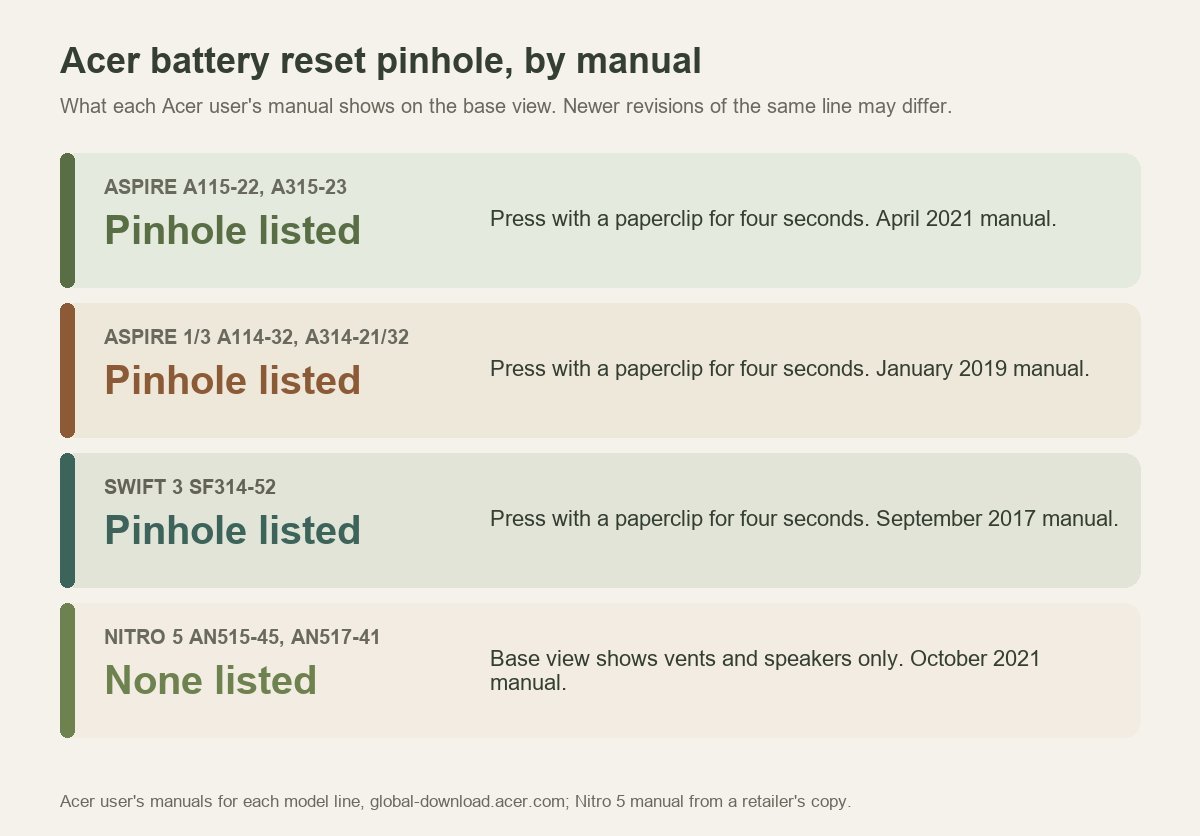
A newer revision of the same line can differ, and I haven’t read a Predator manual. Flip the laptop over before you trust any list, mine included. Acer Community answers describe the hole as sitting beside a small battery icon.
- Shut the laptop down and unplug the adapter and every accessory. Acer Community answers unplug the charger first; the manual’s own line gives only the paperclip and the four seconds.
- Close the lid, flip the laptop over and find the hole.
- Straighten a paperclip, push it straight in and hold it for four seconds. Community answers say a small button clicks inside.
- Plug the adapter back in and press the power button.
- No luck? Unplug again, leave it 15 to 30 minutes, then retry. That wait comes from an Acer Community answer, not from the manual.
“on the backside of your laptop you find a tiny hole near battery area. use sim ejector or some pin and insert there you fill feel a button click. press and hold for 10-30 secs.. then try powering on.. hope it works”
– r/laptops (2 upvotes)
That commenter says 10 to 30 seconds. One Acer Community answer says 30 seconds, and the manual says four. I start at four, because that’s the figure Acer printed. If nothing happens, I’d try one longer press before giving up, since it’s the same paperclip and the same button.
No pinhole on your Acer: Nitro, Predator and Chromebook
Without a pinhole, the reset becomes a power drain. An Acer Community answer gives the sequence: unplug the charger and every device, hold the power button for one minute, then wait 15 to 30 minutes before plugging in. The same answers split the lines this way: a pinhole on built-in batteries, a latch door on removable ones.
A Nitro gets the drain, not a paperclip, because its manual lists no pinhole. Predator is Acer’s other gaming line, but I haven’t read a Predator manual, so open yours to the base view before you assume either way.
A Chromebook has its own reset. Google’s steps are to shut it down, hold Refresh, tap Power, and let go of Refresh when it starts. Tablet-style models hold Volume Up and Power for at least 10 seconds. Google warns the reset might delete some files in Downloads and says to try it after other fixes have failed.
Acer laptop won’t turn on but the charging light is on
A lit battery light means power is arriving, not that the laptop can start. Acer’s manuals define amber as charging and blue as fully charged in AC mode, so both colors describe the battery’s state and nothing more.
An Acer Community thread from January 2025 shows the pattern. An Aspire 7 owner left the laptop unused for two or three days, then saw it shut down within seconds of the next start. The light went from amber to blue while the power button did nothing, and a battery reset changed nothing. Replies suggested a replacement battery, a 30-second pinhole press and a power drain.
When I see that combination, I split the suspects.
- Run the pinhole reset or the power drain once, with the adapter unplugged.
- Plug the adapter in, wait for the light to turn blue, then press the power button.
- If it starts on the adapter but dies when you unplug it, the battery is the suspect. If it starts only on battery, suspect the adapter or the DC-in jack. If neither works, the board is next, and that’s a shop job.
- Before any more charging, look at the base and trackpad for a swollen battery: a bulging bottom case, a gap along the seams, a trackpad pushed up. If you see any of it, stop. Don’t charge it again, and take it to a battery recycler or a repair shop.
On any laptop with a removable battery, I pull it and run on the adapter alone. A sealed-in Acer won’t let you do that, so the pinhole stands in for that step.
Fans spinning, backlight on, screen black
If fans spin or the keyboard lights up, the laptop is probably starting and the picture is what’s missing. Acer’s FAQ lists three causes for a blank screen: low brightness, output set to an external monitor, and Sleep or Hibernate.
- Press any key, then raise brightness with the brightness-up hotkey, an Fn combination that your model’s hotkey table lists.
- Press the display toggle hotkey. The Swift 3 SF314-52 manual lists Fn + F5; your model’s hotkey table may use another key.
- If a power light is flashing, the laptop may be asleep. Press and release the power button to wake it.
- Press the Windows logo key + Ctrl + Shift + B. Microsoft lists it as the shortcut that wakes a blank or black screen.
- Plug in an external monitor over HDMI. A picture there means the laptop is running and the internal panel, its cable or the display settings are at fault. I walk through that test in the Dell black screen guide; the test itself isn’t tied to a brand.
- No picture anywhere? Hold the power button for four seconds, as Acer’s manual does to force a shutdown, unplug the adapter, run the pinhole reset or drain, and try again.
Stuck at the Acer logo or restarting
An Acer that reaches its logo and then restarts or freezes is getting power and beginning to start, so open the BIOS next. Press F2 while the Acer logo is on screen, as Acer’s manuals say.
- Unplug USB drives, phones and docks first. Acer’s FAQ names USB storage devices as a reason a laptop won’t start.
- Restart and tap F2 at the logo. If the BIOS opens, the machine gets as far as its firmware, so storage and Windows are the next suspects.
- Look through the BIOS screens for your drive; the boot order lives under Boot in Acer’s manual. If the drive isn’t listed anywhere, a failing drive or a loose connection is likely, and the shop is next.
- Load the defaults and save. An Acer Community answer gives F9 for defaults and F10 to save; Acer’s manual confirms F10 saves and exits.
- Drive listed but Windows keeps looping? A Windows repair from a USB recovery stick comes next. If it reaches Windows and then crashes to a blue screen, the Acer blue screen guide picks up from there. If the files matter, I back up or image the drive before any repair that touches it.
Memory that’s seated badly can also stall a start. Reseating it is a fair step if your model has an access panel. Unplug the adapter and disconnect the battery connector first.
Stop here and send it out
- The bottom case bulges, the trackpad lifts or the lid won’t close flat. That’s a swollen battery: stop, don’t charge it, and take it to a recycler or a repair shop.
- You smell burning, see smoke, or the laptop has been wet.
- There’s still no light after a different outlet, a matching adapter and the pinhole reset or power drain.
- The BIOS never opens and the restart loop continues.
- The drive clicks or drops out between starts. I don’t do clean-room recovery, so that one goes to a data recovery lab.
- The next step would be soldering on the board. I don’t do microsoldering either.
If the files matter more than the laptop, say so before anyone reinstalls Windows.
