
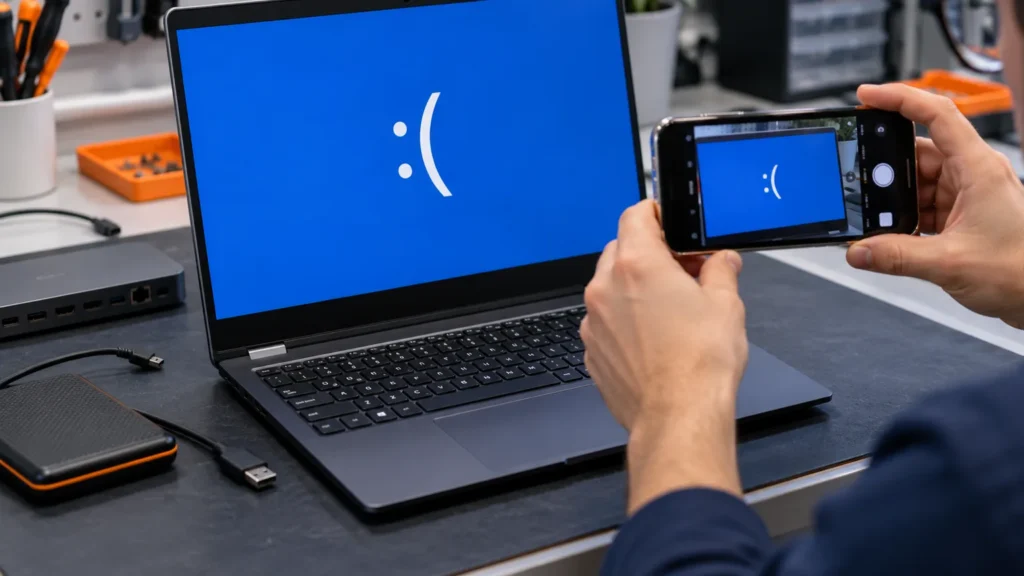
An Acer laptop blue screen means Windows hit an error it can’t recover from. Acer’s own article on the subject names software conflicts, hardware issues and corrupted system files as the causes, and the stop code at the bottom of the screen is the first clue to which one you have.
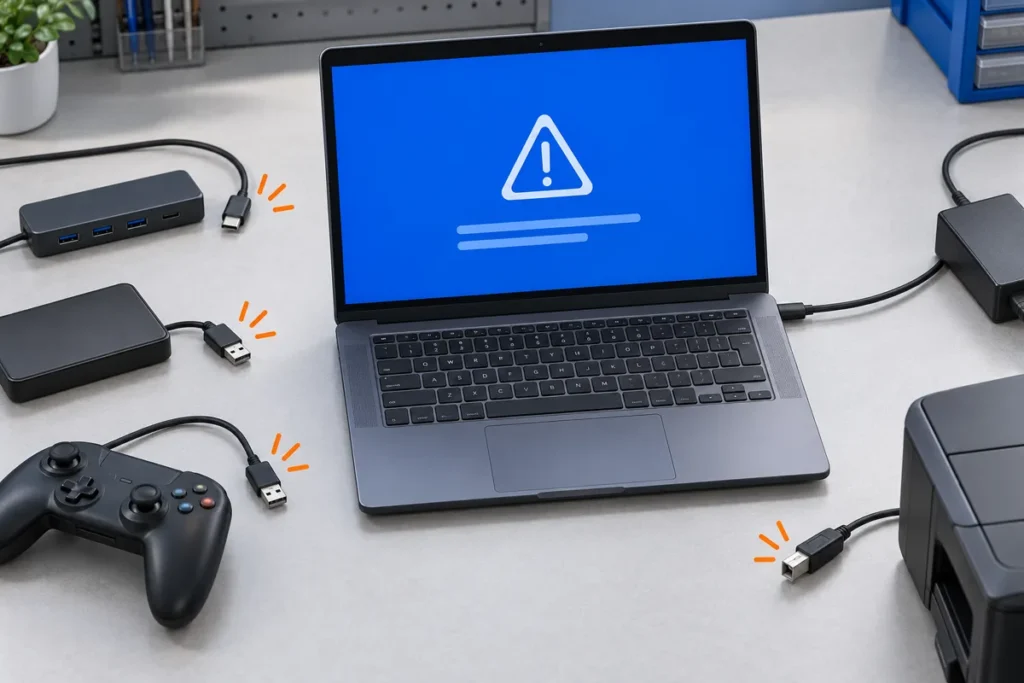
Photograph that code before the laptop restarts, because a phone camera is faster than copying it by hand. Then unplug everything except the charger. Microsoft’s first step is to remove any hardware you added before the error, and I go further, because a dock or a USB drive can’t be the cause if it isn’t attached.
The stop code comes from Windows, not from Acer, so a code means the same thing on an Acer as it does on any other brand. The Dell blue screen guide explains three of the common ones.
Acer ships its own tools for the rest: Care Center, a support page keyed to your serial number, an F2 setup screen and Recovery Management. Acer isn’t the brand that crosses my bench most often, since Dell, HP and Lenovo are, so for model-specific details I rely on Acer’s own pages and manuals and name the model each one came from.
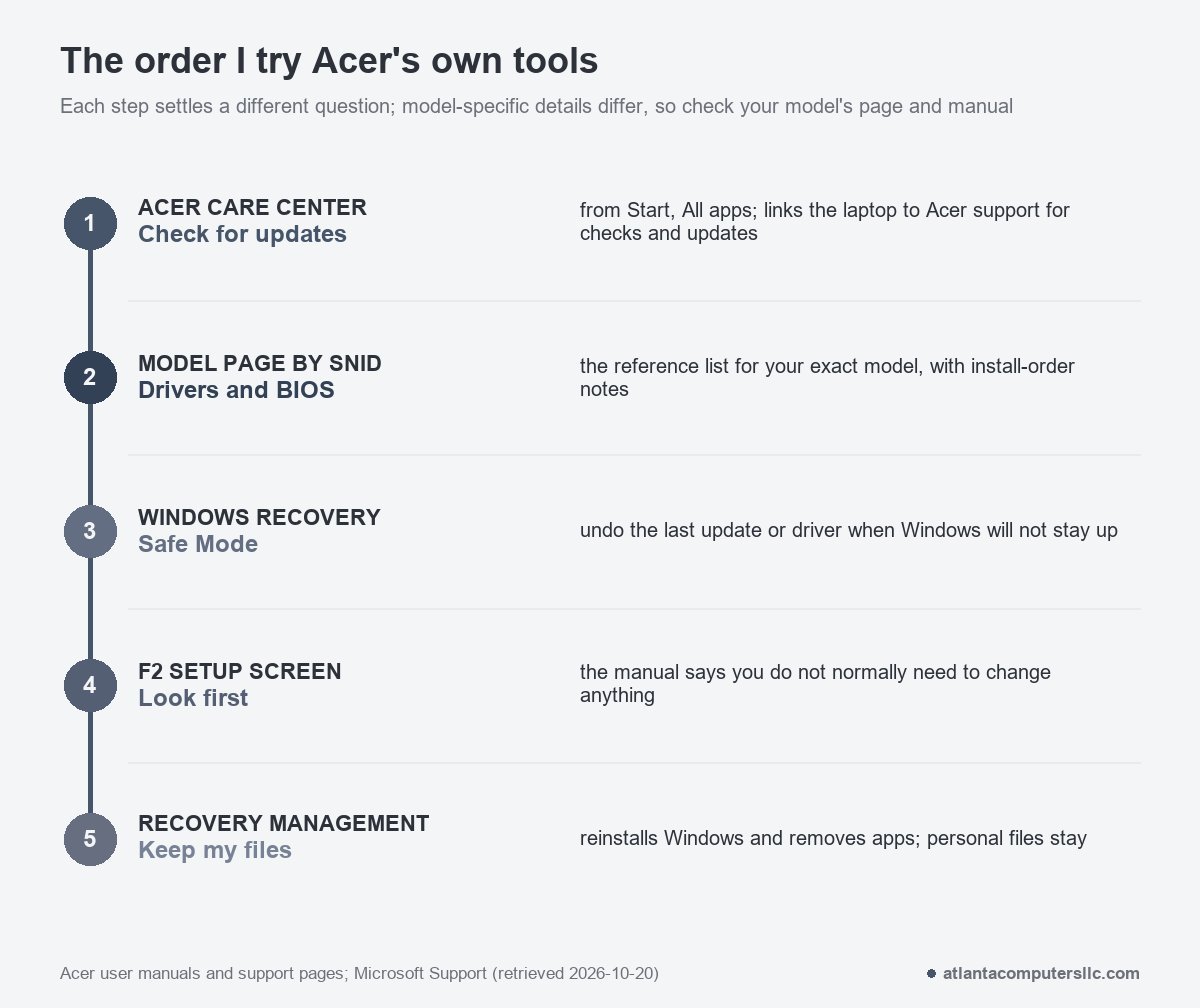
Care Center first, then the support page for your model
Open Start, choose All apps and look for Care Center. Acer’s security notice describes it as the link between the laptop and Acer support for checks and updates, and says the information icon inside it holds a Check for updates function. That button brings Care Center itself up to date, so run it before anything else.
On the Nitro AN515-58 page, Care Center sits under Application next to NitroSense and Quick Access. If your model’s page has no such entry, skip straight to the page itself.
Care Center is the shortcut. The model page is the reference. Acer’s Drivers and Manuals page takes a serial number, an SNID or a part number, and offers a serial number detection utility for Windows if you can’t find either.
The Nitro AN515-58 page shows what you get. It lists 36 drivers by category, with separate Intel and NVIDIA graphics drivers, and a note that the Serial I/O driver goes in before the Touchpad driver. An order note like that is why I take drivers from the model page instead of a generic updater. Microsoft’s blue screen page says to open Device Manager, look for any device marked with an exclamation point, update its driver, and disable or uninstall the device if the update doesn’t help. When I see that mark, I find the matching category on the model page.
The same page lists BIOS releases, 21 of them for the AN515-58, from 1.10 up to 2.21. Above them Acer warns that upgrading your system BIOS incorrectly could harm your Acer product. I take that at face value. I back up the drive and plug in the charger first, and I don’t flash a laptop that’s crashing every few minutes. I get it stable in Safe Mode before I try.
Check free space on the drive while you’re in Windows. Microsoft recommends keeping 10% to 15% of it free and says the exact need varies by system. Then run Windows Update. Acer’s article also lists a virus scan, and the steps for that are in how to remove a virus from a laptop.
When Windows won’t stay up: Safe Mode and undoing the last change
An Acer laptop blue screen that appears before the desktop loads needs the Windows recovery screen, and Microsoft’s way in uses only the power button. As soon as the Windows logo appears, hold the power button until the laptop shuts off. Do that twice, and the third start should show Automatic Repair.
The steps are on Microsoft’s Windows recovery environment page. From there choose Troubleshoot, then Advanced options. Startup Repair, System Restore and Uninstall Updates are all listed. For Safe Mode, choose Startup Settings, then Restart, and press 4 for Safe Mode or 5 for Safe Mode with Networking.
If the crashes began after an update, Microsoft’s route inside Windows is Settings, Windows Update, Update history, then Uninstall updates. Microsoft notes that some updates cannot be uninstalled. From the recovery screen the same option sits under Troubleshoot and Advanced options.
System Restore rolls back system files and settings but not personal files. I pick the restore point from before the first crash.
The F2 screen and Acer’s own error table
Press F2 while the Acer logo is on screen to open the BIOS utility. The user manuals for the Nitro AN515-58 and the Aspire A515-56 both say so. They also say the computer is already configured and optimized, and that you don’t normally need to run the utility. So I look first and change nothing.
Those manuals carry a table of startup error messages, and several point straight at hardware. Acer’s corrective action splits three ways:
- Contact your dealer or an authorized service center: CMOS battery bad, CMOS checksum error, Hard disk 0 error, Hard disk 0 extended type error and I/O parity error.
- Press F2 during startup, then choose Exit so the laptop reboots: Equipment configuration error and Memory size mismatch.
- Insert a bootable disk and press Enter: Disk boot failure.
Those are startup messages, not blue screens. They matter because a laptop that crashes and also shows a hardware message before Windows loads has told you where to look. A disk message plus crashes sends me to the storage first, and that is a shop visit. I copy off whatever I can before handing it over.
Nitro and Predator: fan control and performance modes
Gaming models add a control app. NitroSense on the Nitro AN515-58 has Fan Control with three levels: Auto, which is the default, Max and Custom. Custom gives separate CPU and GPU sliders. It also has Quiet, Default and Performance operating modes, and the manual says those options are disabled when the charger is unplugged or the battery is below 40%.
PredatorSense on the Predator PHN16-72 offers Quiet, Balanced, Performance, Turbo and Eco modes, with the same three fan levels.
Neither manual says these settings cause blue screens, and I won’t claim they do. They are settings someone can change, though. If the crashes start under load, I put the fans back to Auto and the mode back to default, then repeat the same workload. Both manuals also say not to cover or obstruct the ventilation openings, so I make sure nothing sits against the vents.
Reset this PC in Recovery Management: what Keep my files removes
If the stop code is back after the updates and the rollback, a reset is the last software step. In Care Center, open Recovery Management, select the Restore tab, click Get started, then Reset PC. If Care Center won’t open, the manual points to Settings, System, Recovery in Windows instead.
Keep my files reinstalls Windows without removing your personal files. The manual’s note is blunt: apps you installed will be removed, preinstalled apps and programs go with them, and settings return to factory defaults. You then choose Cloud download, which needs an internet connection, or Local reinstall. Remove everything is the other option and returns the PC to its factory default. Acer’s blue screen article tells you to pick Keep My Files, and I agree.
Back up before either one. The manual’s restore-to-original-settings entry warns that the C: drive will be reformatted and all data erased, and it says to check the BIOS first: if there is a D2D Recovery setting in Main, it must be Enabled. I image the drive before any repair that touches it, and a copy in cloud storage works too.
When an Acer laptop blue screen means the shop
A stop code that returns after a clean Keep my files reset is no longer something the keyboard can fix. In my read, that points to memory, the drive or the board, and I stop there.
Stop sooner if Acer’s table gave you a hardware message, or if the battery has swollen. Don’t charge a swollen battery; take the laptop to a recycler or a repair shop. A drive that clicks goes to a data recovery lab, because I don’t do clean-room recovery. If the laptop has stopped powering on after a crash loop, Acer laptop won’t turn on is the page for that.
Bring the photo of the stop code, the model number and a note of what you changed, so whoever opens the laptop starts where you stopped.
Acer laptop blue screen questions
What do I do if my Acer is stuck on the blue screen?
Hold the power button until the laptop shuts off, then use Microsoft’s two-interruption route to reach Automatic Repair. Startup Repair, Safe Mode and Uninstall Updates are all listed there, and the section on Windows that won’t stay up has the steps.
Can an Acer blue screen be fixed without losing files?
Yes, two of the routes keep personal files: System Restore leaves them alone, and Keep my files in Recovery Management keeps them while removing your installed apps. Remove everything does not, and none of this replaces a backup.
Why does my Acer keep showing a blue screen?
Acer names software conflicts, hardware issues and corrupted system files as the causes, and a repeat means the fix you tried didn’t reach the one you have. If the stop code returns after a clean Keep my files reset, I treat it as hardware.
