
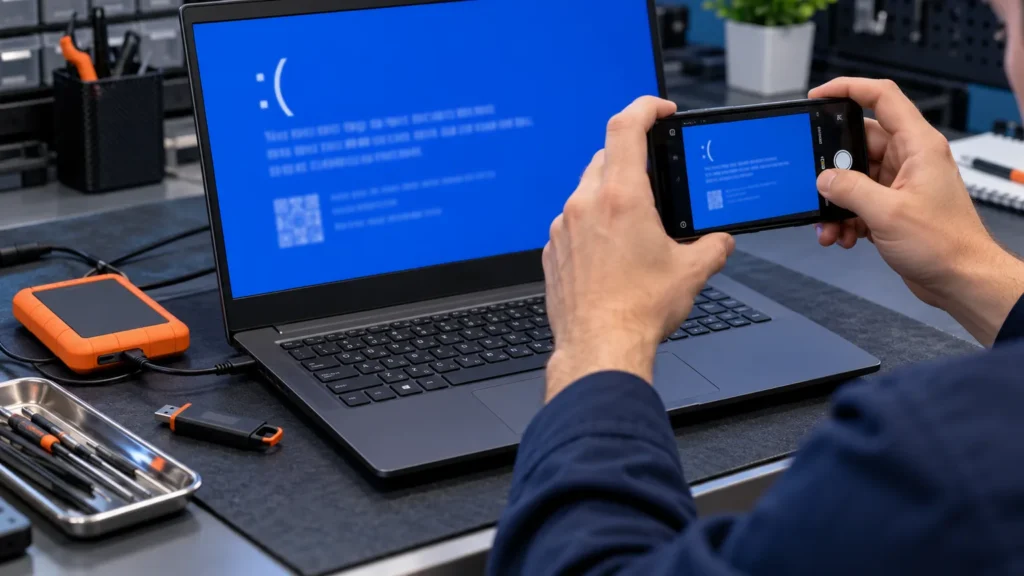
A Dell laptop blue screen is Windows reporting a crash it can’t recover from, and the stop code at the bottom of the screen names the kind: a driver, the system drive, damaged system files or memory. Read that code before you try any fix, because each family needs a different one.
Dell’s own guide lists the usual causes as faulty memory, a damaged hard drive, old drivers and overheating, plus viruses, software conflicts and corrupt system files. That is a long list to work through blind. I write the code down first on every Dell I look at, and I leave the BIOS and the parts alone until I have it.
If your Dell shows no message at all, you have a display or startup fault, and the Dell laptop black screen guide is the right page. If it doesn’t react to the power button, start with Dell laptop won’t turn on.
Get the stop code before you touch anything
The stop code sits at the bottom of the screen in capital letters joined by underscores. Microsoft’s examples are PAGE_FAULT_IN_NONPAGED_AREA and MEMORY_MANAGEMENT, and a module name appears beside it when Windows can tell which code was running. Photograph the screen with your phone, because Windows restarts by itself.
On Windows 11 version 24H2 and later, the same crash shows up as a black screen with the stop code on it. Both Microsoft and Dell say this. A black screen with a stop code is a crash. A black screen with no message, or only a cursor, is the display problem from the black screen guide.
If the restart comes before you can read anything, turn the automatic restart off. Dell’s route is Control Panel, System and Security, System, Advanced system settings, then Settings under Startup and Recovery, where you clear the Automatically restart box.
If Windows starts again afterward, the crash is already on file in three places.
- Event Viewer. Open Windows Logs, then System, and look for critical errors near the time of the crash.
- Reliability Monitor. A red X marks a crash. Select that date, expand Windows failure history, and note the application or fault module. Dell points out that repeated entries for the same file are a strong lead.
- The minidump. Dell says Windows saves a small file for each crash in C:\Windows\Minidump\. If that folder is empty, open System Properties, Advanced, then Settings under Startup and Recovery, and set Write debugging information to Small memory dump. That only records future crashes.
Dell has a separate guide for reading a minidump in the free WinDbg tool. You open the newest .dmp file and run !analyze -v. The BugCheck line holds the stop code, and a .sys file in the MODULE_NAME or IMAGE_NAME line usually points to a driver.
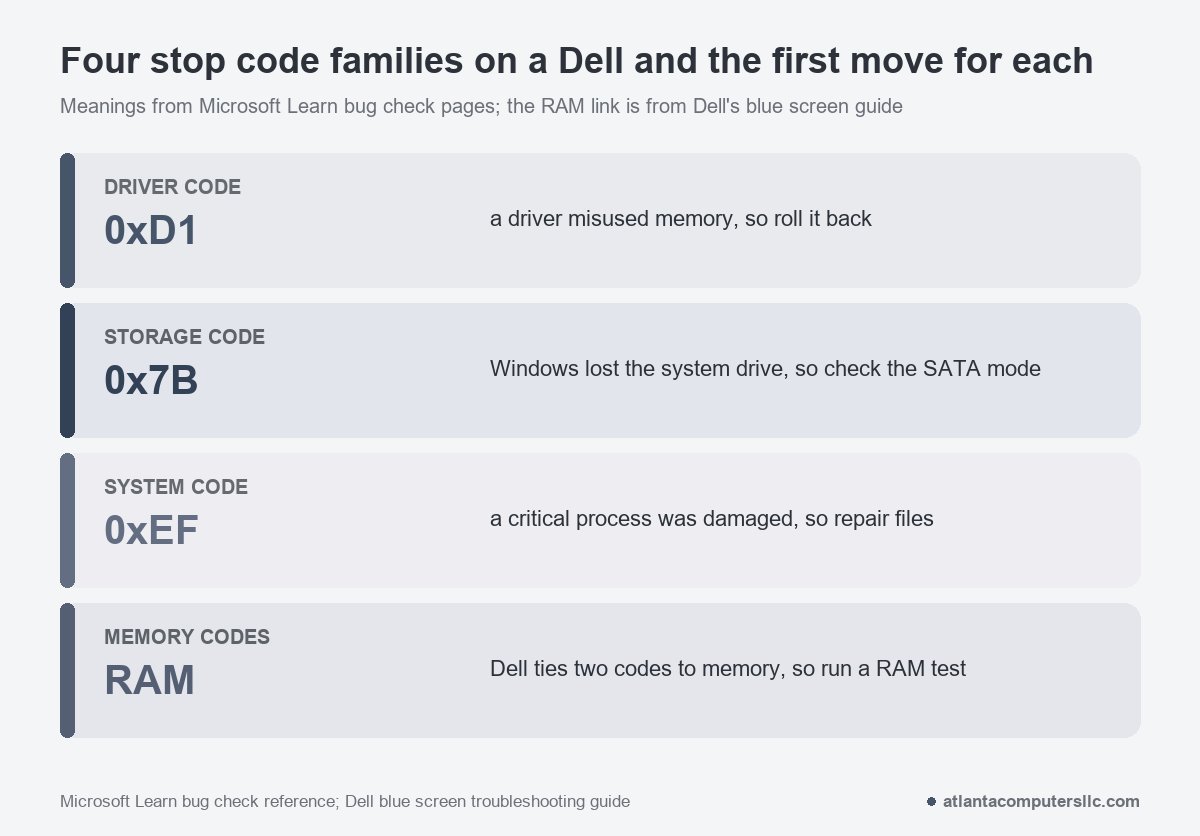
Everything after this sorts by the code, in four families.
If Windows won’t stay up: recovery before repair
Most fixes below need Windows running, and a Dell that crashes on every start won’t give you that. Dell’s way into the recovery environment uses nothing but the power button.
- Hold the power button for 10 seconds to turn the laptop off.
- Turn it on. When the Windows startup screen appears, hold the power button for 10 seconds again. Repeat once more.
- On the third start, let it boot into the Windows Recovery Environment.
- Choose Troubleshoot, then Advanced options. Startup Repair is on that screen. For Safe Mode, choose Startup Settings, then Restart, and press 5 or F5 for Safe Mode with Networking.
Safe Mode loads Windows with a minimal set of drivers, so a faulty one may not load there at all. Dell says Wi-Fi isn’t supported in Safe Mode with Networking, so use a wired connection for anything that needs the internet.
Have your BitLocker recovery key ready before the recovery screens, in case the drive is encrypted. Dell does not store or access those keys. Yours is in your Microsoft account under Devices.
If the crashes began right after a Windows update or a new driver, undo it. In Windows, open Settings, Windows Update, Update history, then Uninstall updates. From the recovery screen, System Restore under Advanced options takes the PC back to a restore point, and Microsoft’s reference says Windows makes those when you install an app, driver or update. Pick one from before the first crash.
If the laptop is stuck in a loop that Safe Mode can’t break, the hard reset is next: adapter out, battery out if it’s removable, power button held for 15 to 20 seconds. The steps are in the Dell power guide.
Driver codes: roll back, then update from Dell
DRIVER_IRQL_NOT_LESS_OR_EQUAL (0xD1) is the code that sends me to the drivers first. Microsoft’s reference describes a kernel-mode driver touching pageable memory while the interrupt level was too high, usually because a driver used an improper memory address. When Windows prints a driver file name on the screen, Microsoft’s advice is to disable that driver or check the manufacturer for an update.
- Unplug what you can. Dell’s first step is to disconnect every external device except the keyboard and mouse, restart, and then reconnect them one at a time. I count a docking station as one of those devices.
- Look for the yellow mark. In Device Manager, Microsoft says to check for any device marked with an exclamation point.
- Roll the driver back. Right-click the device, open Properties, choose the Driver tab, and select Roll Back Driver. If the button is grayed out, Dell says to choose Uninstall device with the box to remove the driver software checked, then restart so Windows installs a clean default driver.
- Update from Dell. SupportAssist’s Update software option scans for driver and BIOS updates. Without it, the Drivers and Downloads page on Dell’s site finds them by Service Tag.
Microsoft also tells you to check for a newer BIOS or firmware for several of these codes. Dell’s BIOS guide is clear about the risk: a failed BIOS update can corrupt the motherboard, so keep the laptop plugged in and back up your data first. If the laptop is in a crash loop, get it stable in Safe Mode before you flash anything.
INACCESSIBLE_BOOT_DEVICE and the other storage codes
INACCESSIBLE_BOOT_DEVICE (0x7B) means Windows lost access to the system partition during startup. Microsoft’s reference lists a failed boot drive, a changed BIOS configuration, a newly installed disk controller and incompatible disk hardware among the causes. On a Dell, the BIOS storage setting is the cheapest of those to check, and it is where the Dell-specific advice sits.
Dell has a whole knowledge base article on this one. It says that switching the SATA/NVMe Operation setting between AHCI or NVMe and RAID On can cause the 0x7B error, because Windows was installed under one mode and now finds the other. Keeping a changed mode means reinstalling Windows in it, and putting the setting back to the original can resolve the error. Dell adds that this isn’t the only reason for the error.
The setting can move without you choosing it. Dell’s RTC reset article says that reset returns the BIOS to factory defaults and that the laptop may not boot until you restore settings such as the SATA Operation mode to RAID On or AHCI. A BIOS update can also remove the option, as the next steps explain.
- At startup, press F2 repeatedly to open the BIOS and find SATA Operation. Menu layouts differ by model, so check your manual if it isn’t there.
- Write down the current value before you change anything.
- If you know the original mode, set it back, save and exit.
- If you don’t know it, Dell’s general blue screen guide says to try the opposite value, save, and see if Windows starts. Flipping is a test you can undo by flipping back.
Some newer Dells don’t have the setting at all. Dell says the option may be removed after a BIOS update, and if the menu has no SATA Operation line while the error persists, the Intel Rapid Storage Technology (IRST) or RAID driver has to be installed from Safe Mode with Command Prompt. Follow Dell’s page for that, not a forum snippet, because the exact driver and commands matter. Once Windows has been reinstalled under a different mode, Dell adds that SupportAssist OS Recovery can’t be used on it.
When the mode isn’t the problem, the drive is the next suspect. Dell’s advanced guide has you run chkdsk C: /f /r for storage codes such as INACCESSIBLE_BOOT_DEVICE and UNMOUNTABLE_BOOT_VOLUME, and Microsoft says to keep 10 to 15 percent of the drive free. Before any step that touches the disk, I back it up or image it, and chkdsk is one of those steps.
“Right, based on that CHKDSK, you may have a failing drive or just an overfilled drive. I would start by booting into a HBCD USB stick as you’ll have access to a more traditional Windows like interface to backup data and run checks on your drive. First: use CrystalDiskInfo to have a look at the drive, it will tell you if the drive is failing or has failed. Then check the remaining capacity of the drive in the file explorer. Remember, drives should have at least 10% of capacity free, I would reco…” [excerpt — 1,211 characters in full]
– r/japanresidents, September 2026 (13 upvotes)
To test the drive from outside Windows, restart, press F12 and choose Diagnostics. Dell’s Advanced test lets you pick individual tests, though what it offers depends on the hardware in your model. The Dell power guide covers the same tests from the no-power side. If a test fails, write down the error code, the validation code and the Service Tag.
CRITICAL_PROCESS_DIED and damaged system files
CRITICAL_PROCESS_DIED (0xEF) means a critical system process was terminated because its state was corrupted or damaged, in Microsoft’s words. Windows treats that as a reason to stop. Microsoft is frank that pinning down the cause usually takes a debugger and several dump files, so what follows is the general route.
- Open Command Prompt as administrator and run
sfc /scannow. Let it finish, then restart. - If the crash returns, run
DISM /Online /Cleanup-Image /Restorehealth. It needs an internet connection, and Dell puts its run time at 10 to 30 minutes. - Run
sfc /scannowonce more and restart.
Microsoft also lists a virus scan for these codes, since malware can damage a Windows disk. The virus removal guide covers that scan.
Memory and heat: the crashes that come and go
Dell ties MEMORY_MANAGEMENT and PAGE_FAULT_IN_NONPAGED_AREA to faulty RAM in particular. Crashes that vanish for a day and return under load, with a different stop code each time, are the pattern that makes me test memory and check the vents.
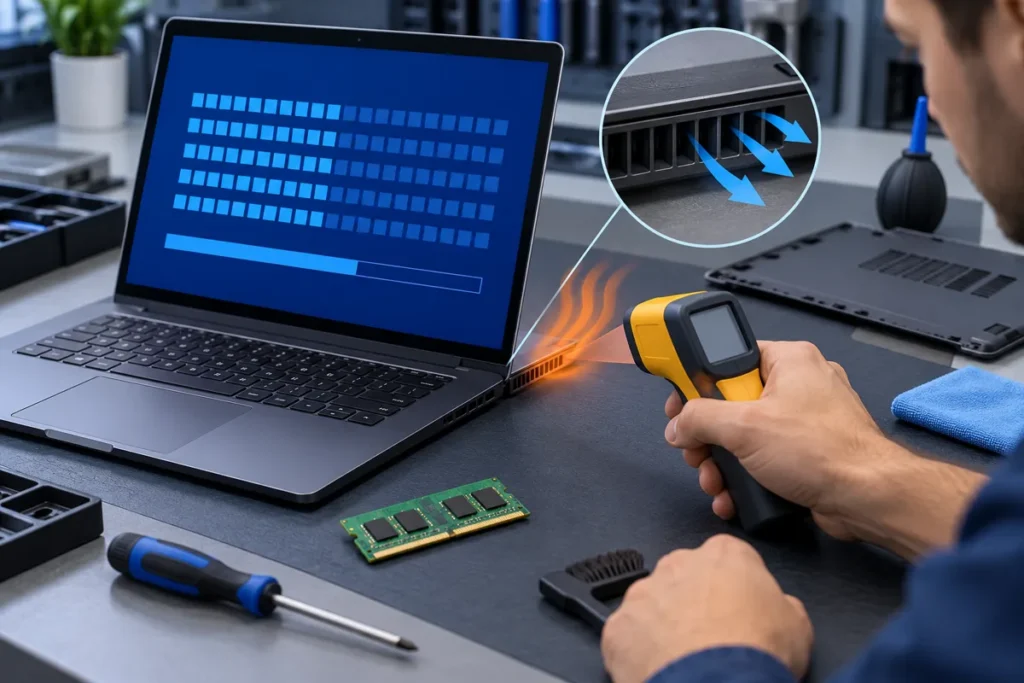
For the RAM test, search Start for Windows Memory Diagnostic, press Enter, and choose Restart now and check for problems. The results appear as a notification after Windows restarts, or in Event Viewer under Windows Logs, System, by searching for MemoryDiagnostics-Results. Dell says that if the test reports errors, a memory module needs to be reseated or replaced. Your model’s manual shows whether its memory is a module you can reach.
Heat is the other half. Dell’s checklist is short:
- Check whether the exhaust vents blow noticeably hot air and whether the fan runs at high speed all the time.
- Use the laptop on a hard, flat surface, since a bed or cushion blocks the intake vents underneath.
- With the laptop off and unplugged, clean dust from the vents and fan intake with compressed air.
- On models with Dell Optimizer, set the thermal mode to Cool or Quiet.
Then watch when it crashes. Dell says crashes during gaming, video editing or work on multiple monitors, but not while idle, point to heat.
When a Dell laptop blue screen means hardware
A Dell laptop blue screen points at hardware when a Dell diagnostic fails, the memory test reports errors, the drive clicks, or the crash survives a clean Windows install. Those are the four places where I stop.
- A Dell diagnostic fails. The error code, validation code and Service Tag are what Dell support asks for.
- Windows Memory Diagnostic reports errors. Dell sends you to its support to reseat or replace the module.
- The drive clicks or drops out. Power off and stop. I don’t do clean-room data recovery, so a clicking drive goes to a lab.
- It still crashes after Windows is reinstalled. A clean install takes drivers, updates and software out of the picture, so a crash that survives it points toward the hardware.
Reinstalling is Dell’s last resort and it has two forms. In SupportAssist OS Recovery, reached with F12 during startup, the Repair option fixes Windows without erasing your data. Restore System permanently erases everything on the computer, so back up first.
What to hand over with the laptop: the stop code, the module name if one showed, any diagnostic error and validation codes, and the Service Tag.
Dell blue screen questions
What do I do if my Dell is stuck on the blue screen?
Force it off by holding the power button for 10 seconds, then use the recovery screen that appears after repeated failed starts to reach Safe Mode or Startup Repair. If the code was readable before the restart, write it down and use the family sections above.
Is a Dell laptop blue screen fixable?
Often, when the cause is a driver, an update, a storage setting or damaged system files. Dell says a blue screen doesn’t damage the computer by itself, but the fault behind it can, and it names overheating as an example.
How do I check if RAM is causing the blue screen?
Run Windows Memory Diagnostic from Start, restart when it asks, and read the result in Event Viewer if no notification shows. Dell’s F12 diagnostics can test the memory separately if your model lists it.
