
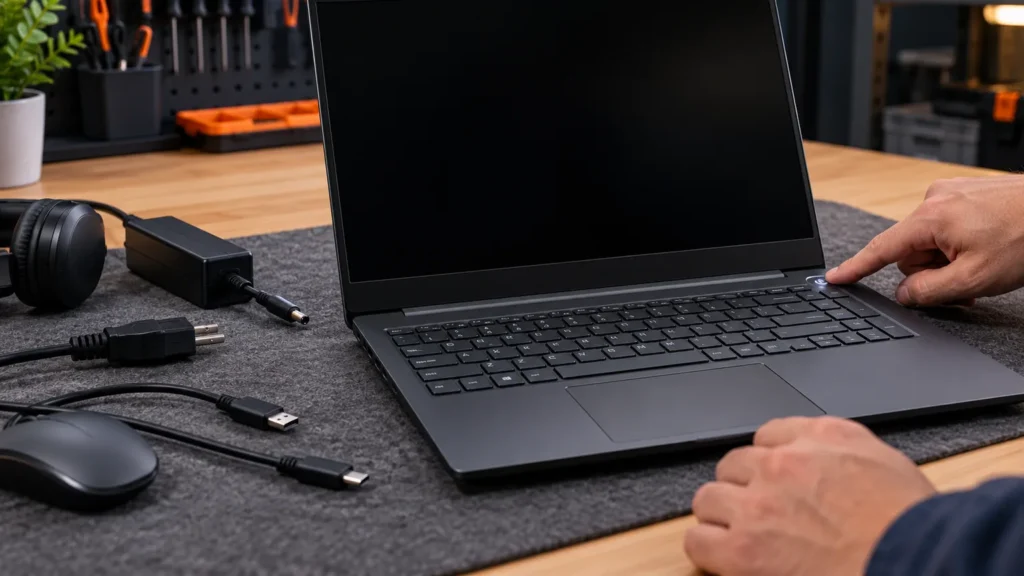
An HP laptop with a black screen and a lit power button is usually stuck in a bad power or firmware state, and HP’s hard reset is the first fix to try. Unplug the adapter, take out the battery if the case allows it, and hold the power button for 15 seconds. If the power button stays dark as well, start with the HP won’t-turn-on checks instead.
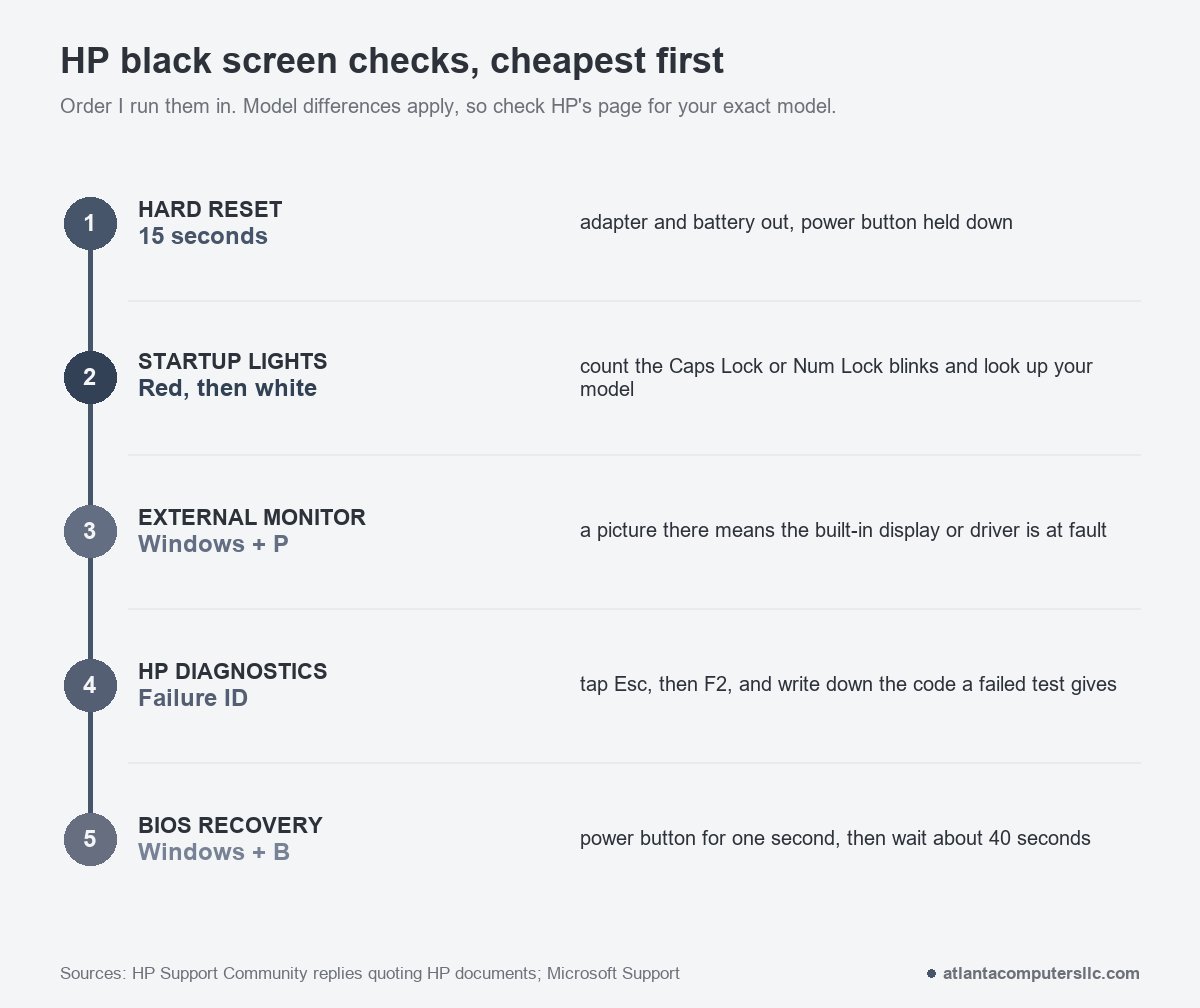
If the HP laptop black screen survives that, HP has four more free tools, and I run them in a fixed order: the startup lights, an external monitor, HP PC Hardware Diagnostics, then BIOS recovery. HP was one of the three brands that filled my bench, and this order comes from those machines. Windows fixes come last, because they only matter once the laptop is clearly getting as far as Windows.
Do the HP hard reset before anything else
A hard reset clears the power state a laptop can get stuck in, and HP says resetting the computer can resolve many of the issues that cause a blank screen. For an HP laptop black screen that means no adapter, no accessories, and a 15-second hold on the power button.
- Shut the laptop down. If it will not respond, hold the power button until it goes off.
- Unplug the AC adapter. Pull every USB drive, SD card, dongle, dock and disc.
- Check the bottom of the case for a battery door or latch. If the battery is removable, take it out.
- With the adapter and battery both out, hold the power button down for 15 seconds.
- Put the battery back if you removed it. Plug in the adapter only, with nothing else attached, and press the power button.
Many current HP laptops have no battery door because the battery sits inside the case. On those, skip step 3 and leave the screws alone.
Hold it the full 15 seconds, then try the power button. If a startup menu appears afterward, choose Start Windows Normally.
I do this one before I open a single screw on any HP. It costs nothing, and it clears a fair number of dark screens all by itself without a tool leaving the bag. If the battery looks swollen, or the case or trackpad bulges, stop here and do not charge it. Take it to a recycler or a repair shop.
Read the Caps Lock and Num Lock lights
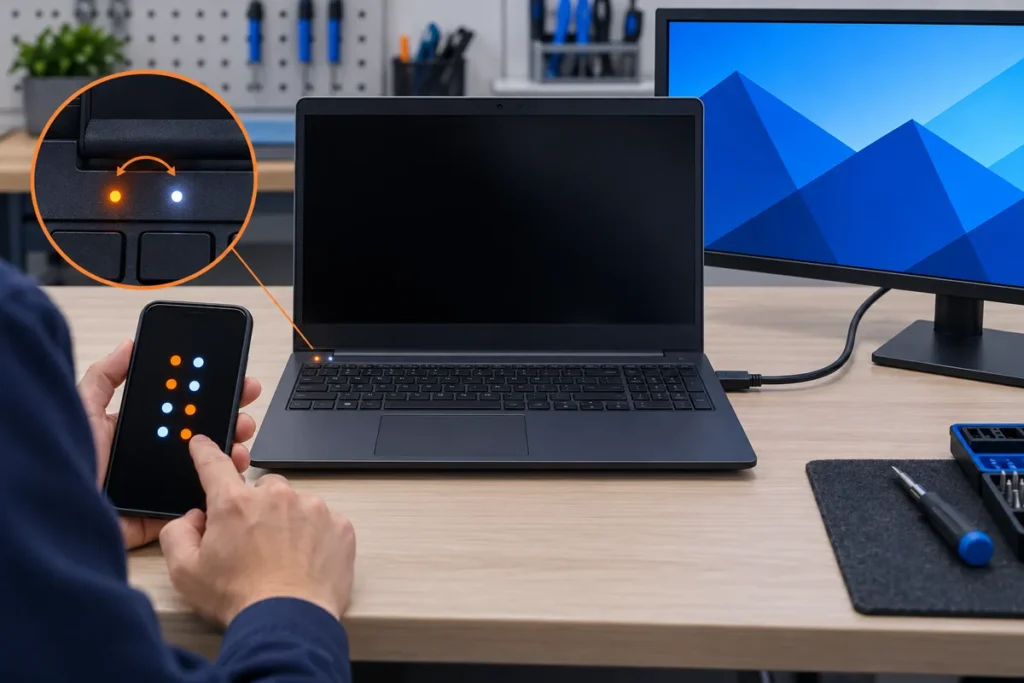
On an HP laptop black screen at power-on, a Caps Lock or Num Lock light that blinks is often an error code. HP says red blinks are the major error category and white blinks are the minor one. On a laptop without a two-color light, both kinds show as white.
Watch the light for a full cycle and count in this order: red, then white. HP says the pattern repeats until you unplug the laptop or press the power button, and that not every model can beep or blink at all. A silent, dark laptop with a steady power light is simply not giving you a code.
HP’s own example is two red blinks followed by two white ones. HP describes that as damage to the main area of the BIOS with no recovery image available, which is firmware trouble, not a Windows problem. HP publishes a meaning for each other count, and the table differs by model. I am not going to guess a count from memory, so find your exact model number on the bottom label and read HP’s page for that model.
Test the panel with an external monitor
An external monitor shows whether the laptop is drawing a picture at all. Connect a monitor or TV over HDMI, USB-C or DisplayPort, restart the laptop, and watch the external screen. A picture there means the laptop is running and the fault is in the built-in display, its cable, or the graphics driver.
HP points to a corrupted graphics driver or a failed backlight when the panel stays black while you can still hear fans or drive noise. If the external screen is blank too, HP says that points toward the graphics hardware or the BIOS, which makes the BIOS recovery below worth trying.
Two keyboard checks cost seconds. Press the display-switch key, which sits on the F4 key on many HP keyboards, or press Windows + P and cycle through the display modes. Then press Windows + Ctrl + Shift + B. Microsoft says a beep or a screen flicker means the graphics driver reset worked.
Run HP PC Hardware Diagnostics UEFI
HP PC Hardware Diagnostics UEFI tests the memory, storage and display hardware before Windows loads, so a black Windows screen does not matter to it. Press the power button, then tap Esc about once a second until the startup menu appears, and press F2.
Run the component tests for memory and the hard drive or SSD first, then the display test if your menu has one. Connect the external monitor before you start. Then a failed built-in panel cannot leave you staring at nothing while the tests run, and you can still read the results.
When a test fails, HP gives a 24-digit Failure ID. Write it down exactly, because HP’s support work starts from that code. A memory or storage failure points to a part. A display failure that shows up even here, outside Windows, points to the panel or its cable. That is a repair job.
If the Esc menu never appears, HP also offers the diagnostics as a download that runs from a USB drive, which needs a second working computer. I keep a USB stick for exactly this kind of job.
Recover the BIOS with Windows key + B
BIOS recovery rewrites HP’s firmware from a saved copy when the BIOS is damaged. With the laptop off and the adapter plugged in, hold the Windows key and B, press the power button for 2 to 3 seconds, then let go of the power button but keep holding Windows and B.
The steps below follow HP’s notebook BIOS recovery page, and they work even when the screen shows nothing, so do not wait for a picture before you start:
- Turn the laptop off and connect the power adapter.
- With the laptop still off, press and hold the Windows key and the B key together.
- While you hold them, press the power button for 2 to 3 seconds.
- Release the power button only. Keep holding Windows and B; you may hear a series of beeps.
The screen can stay black while the recovery runs. Then an HP BIOS Update screen appears and the update starts by itself. Leave the adapter in and your hands off the keyboard until the laptop restarts. The blank wait is the stretch where people cut the power, and interrupting a firmware write is a bad idea on any machine.
This works because an HP BIOS update stores a copy of the previous version in the HP_TOOLS partition of the drive, and many HP notebooks can use that copy for an emergency recovery as long as the drive still works. A dead drive means nothing to restore from.
If the HP BIOS Update screen never shows, HP’s steps say to repeat them with the Windows key and V instead of B. If the power light goes off, the power button was held too long, so try again with a shorter press. HP also notes that this key-press recovery isn’t supported on business models with HP Sure Start, which announces itself on the HP logo screen at startup. HP also documents a USB version of the recovery that needs a BIOS file for your exact model, downloaded on another computer. I would only run that one with the right file in hand and the adapter attached, since a wrong BIOS file can leave the laptop worse off than it started.
Reseat the memory only if your model has a service door
HP lists a loose memory module as a cause of a laptop that powers on without a picture, and reseating it means removing the module and clicking it back in. Whether you can do that depends on the model. Some HP laptops have a memory door on the bottom, some need the whole bottom cover off, and some have the memory soldered to the board.
Look up your model’s maintenance and service guide on HP’s site before you open anything. No removable memory module in the guide? Leave it alone. If there is one, unplug the adapter, remove or disconnect the battery, and use a plastic spudger on the cover, never a flat screwdriver, because a slipped blade can gouge the board or snap a ribbon cable. I keep a spudger set and a precision screwdriver kit in the bag for this reason.
If Windows starts and then the screen goes black
When you reach the HP logo, a sign-in screen or a mouse pointer and then lose the picture, the hardware is probably fine and Windows or the graphics driver is the suspect. These steps are all from Microsoft’s blank-screen page:
- Pointer on a black screen: press Ctrl + Shift + Esc, restart Windows Explorer, or choose File, Run new task and type explorer.exe.
- No picture after a driver or Windows update: force a shutdown two or three times so Windows opens its recovery menu, then choose Troubleshoot, Advanced options, Startup Settings, Restart, and press F5 for Safe Mode with Networking.
- In Safe Mode, open Device Manager, expand Display adapters, and roll back the graphics driver if the black screen began after an update.
I go through the pointer-on-black case in more detail in the Dell black screen guide, since the Windows steps are the same on any brand. Before any step that resets or reinstalls Windows, I back up or image the drive first, and a cloud backup is the easiest way to keep copies of the files you cannot replace.
When to stop and take it to a shop
An HP laptop black screen that survives every free step above is a shop job when any of these is true:
- The battery is swollen, the case bulges, or the trackpad lifts. Do not power it on. Take it to a recycler or a repair shop.
- The hard reset, external monitor, diagnostics and BIOS recovery have all failed, and the Caps Lock light blinks the same pattern every time.
- HP’s diagnostics fail the display or the memory on a model where neither is a replaceable part.
- The screen is dark even at the BIOS level. HP says to contact an authorized repair center at that point.
- The drive clicks or the laptop will not see it. Stop powering it on and send it to a data recovery lab, because I do not do clean-room recovery and a clicking drive needs one.
Board-level repair is where I stop as well. I do not do microsoldering, and a first attempt at it can turn a repairable board into a dead one. If the laptop is still under HP’s warranty, call HP before you do anything else.
HP laptop black screen questions
What causes an HP laptop black screen with the power light on?
The laptop has power but is not showing a picture. Run the hard reset first, then connect an external monitor: a picture there points to the built-in display or its driver, and no picture points to the graphics hardware or the BIOS.
My HP all-in-one turns on but the screen is black. What now?
An all-in-one has no battery to remove, so unplug the power cord, hold the power button for about 15 seconds, then plug it back in. HP’s startup lights and the Windows + B recovery also exist on many HP desktops, but check the page for your exact model first.
Will an HP black screen cost me my files?
A black screen does not erase anything by itself. The hard reset, external monitor test, diagnostics and BIOS recovery are not meant to touch the files on the drive. Resetting or reinstalling Windows does, so back up first.
