

An ASUS laptop black screen with the power light on can be the laptop working, not failing. ASUS says that after a BIOS update, a battery disconnect, a memory swap or an EC reset, the laptop retrains its memory on the next start and shows nothing for about 5 to 10 minutes.
So the first question is what happened before the screen went dark. If you touched nothing, skip ahead to the display test. If you did, sit out the wait before you reach for any reset, because ASUS lists the reset itself as one of the things that triggers it. The order below follows ASUS’s black screen support article, with the other ASUS pages it points to filled in where the steps are thin.
Three black screens where waiting is the fix
Three ASUS black screens end by themselves if the laptop stays plugged in and untouched. They look like a dead machine, and forcing a shutdown during any of them is how a recoverable laptop becomes a repair job.

After a RAM swap, a battery disconnect or a reset
If the power light is lit and the screen shows nothing after any of the changes below, the laptop is most likely retraining its memory. ASUS puts the wait at about 5 to 10 minutes, up to 10 minutes for 64GB of memory.
- A BIOS update.
- Disconnecting or replacing the battery, including the CMOS battery.
- Replacing memory with a different capacity or brand.
- An EC or RTC reset.
Keep the charger connected and leave the power button alone. On newer machines built on Intel’s Lunar Lake platform or later, with a screen below 2880×1800 and 120 Hz, ASUS says a “Working on Memory Training” message may show. Other models stay completely dark.
At the bench I give any laptop that just had memory touched a full ten minutes on the charger before I call it dead. The cost is ten minutes. The alternative is a second reset on top of a first one that was still finishing.
A flashing battery light and nothing else
A flashing battery charge light on a black screen means the BIOS is preparing a recovery. ASUS says the screen stays black for about 5 to 8 minutes until a progress window appears, and then estimates the recovery itself at roughly 2.5 to 3.5 hours.
The same rule holds here: power connected, no forced shutdown. ASUS describes the light as the battery charge indicator on notebooks and the power indicator on desktops.
If you see a screen that says the BIOS update failed, ASUS gives three cases. One offers an automatic update after 60 seconds, or immediately if you click Yes, with the adapter connected. One needs a USB drive with the BIOS file, covered in the recovery section below. The third is a plain black screen with the power light on, which ASUS sends to the EC reset.
A gaming laptop that just changed GPU mode
On ASUS gaming laptops with NVIDIA Advanced Optimus, the display switches between integrated and GeForce graphics on its own. ASUS says that switch needs 3 to 5 seconds, and the screen goes black and flickers for that long. It is a feature, so give it five seconds before you touch anything.
Armoury Crate’s GPU Mode, found on the ROG and TUF lines, has its own rules. ASUS says it works on 2022 and later models that have both integrated and discrete graphics, that you must go from Ultimate to Standard before picking Eco or Optimized, and that switching may trigger a BitLocker recovery screen. A recovery key prompt is not a black screen, and the laptop will not go further until it gets the key.
I could not find an ASUS page that gives a fix for a screen that stays black well past those few seconds after a GPU Mode change. Treat that as the general case and keep going: external monitor, then EC reset.
Tell an ASUS laptop black screen from a dead display
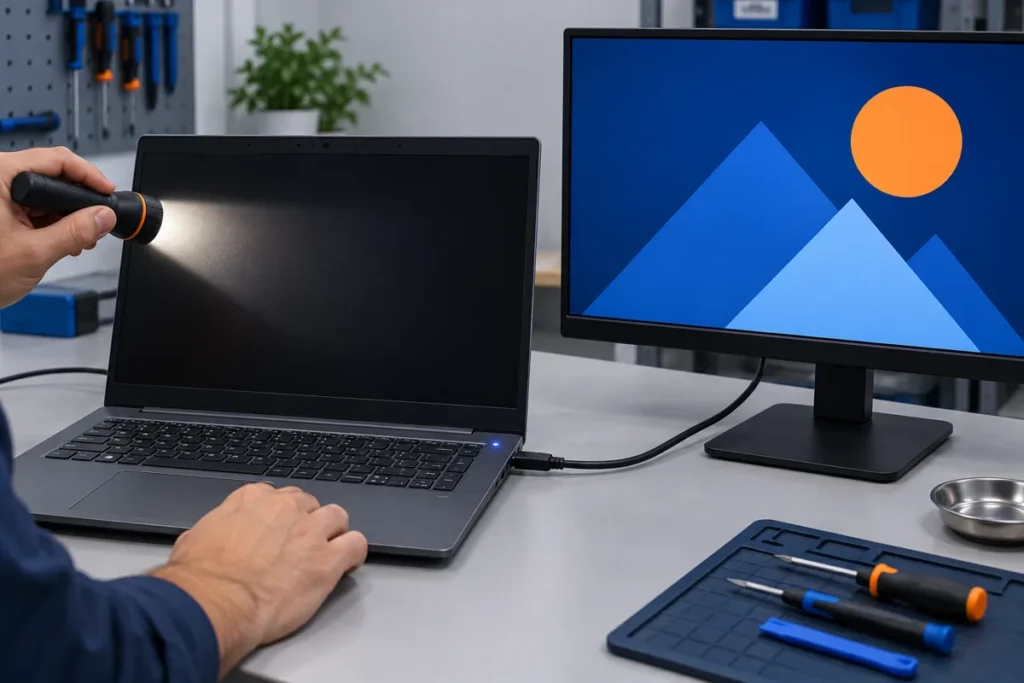
Connect an external monitor, press the Windows logo key + P, and see whether the monitor shows a picture. If it does, the laptop is running and the fault is in the built-in screen, its cable or the display driver. That one test splits the problem in half.
Before the monitor, spend ten seconds on the keyboard. On ASUS’s keyboard chart, F4 lowers display brightness and F5 raises it, F7 changes the keyboard backlight, and F8 toggles the display mode. Fn + Esc switches the F-row between hotkeys and standard function keys, so on some laptops you need Fn held down. A lit keyboard tells you the board has power. It says nothing about the screen.
Then run the ASUS sequence in this order:
- External monitor. Windows logo key + P cycles the display modes. A working monitor means the next stop is the graphics driver from ASUS’s support site.
- Display reset. Press Windows logo key + Ctrl + Shift + B. ASUS says this resets display settings and sometimes clears the problem.
- Strip it down. Unplug USB drives, memory cards, printers, discs and any external monitors. ASUS wants the laptop tested bare.
- Undo hardware changes. If you added a drive or memory before the trouble started, take it out or put the old part back.
- EC reset, next section.
If the external monitor works but shows only a blank or odd picture, I’d stop and try another cable and another monitor before blaming the laptop. If the monitor shows your desktop, copy your files off before changing anything else.
The ASUS EC reset: 40 seconds with the adapter in
The EC is a chip on the motherboard that controls power management and several hardware components. ASUS’s reset page lists battery, keyboard, touchpad and startup problems as reasons to reset it, so it is the reset to try when a laptop will not start.
- Remove every external device: drives, printers, memory cards, dongles, discs.
- Turn the laptop off.
- Connect the power adapter.
- Hold the power button for 40 seconds.
- Release it and press the power button once to start.
Some models use a 20-second design instead. On those, the power light starts flashing rapidly after about 15 seconds, and you keep holding through the 3 to 5 seconds of flashing and let go when it stops. The full steps are on ASUS’s EC reset page.
ASUS’s two pages disagree on one detail. The black screen article says to disconnect the adapter, reset, then reconnect. The reset page keeps the adapter connected for the hold. I follow the reset page because it is about the reset itself, and if nothing changes I repeat it once with the adapter out, which is my reading of the other page and not an ASUS instruction.
Expect a slow first start afterward. An EC or RTC reset sends the laptop back into memory training, so the same 5 to 10 minute blank screen can follow the reset that was meant to cure it. Wait it out before you decide the reset failed.
Neither ASUS page asks you to open the case for this. Taking the back off to unplug the internal battery is a repair step, and I leave it for the stop list near the end.
Run MyASUS diagnostics if you can see anything
MyASUS can test the display, memory, storage, battery and fan. In the Windows app, System Diagnosis has a Customized option that includes a Display check, and a failed test lists the error items and lets you start a repair request from the same screen.
When Windows will not start, use MyASUS in WinRE. Press the power button and tap F12 repeatedly until the Choose an option screen appears, then pick Troubleshoot and MyASUS in WinRE. Some models use F9 instead. If the entry is missing, ASUS says the laptop does not support it, and the tool needs an Intel 10th generation or newer, or a Ryzen 4000 series or newer, processor.
The WinRE display test asks you to judge by eye whether the picture looks normal, so it needs something on a screen. If a test fails, ASUS’s tool shows a QR code, a test report and a diagnosis code. Write the code down. ASUS’s repair form uses it.
If the panel and an external monitor both stay dark, skip this section. Every version of MyASUS needs a picture to work with.
Get into the BIOS with F2, then load defaults
With the laptop completely off, hold F2 and press the power button. Release F2 when the BIOS screen shows. That is ASUS’s method for notebooks, and it works before Windows loads, so a BIOS screen on the panel proves the display hardware is alive.
If you reach it, loading the defaults is the next free check. In the standard UEFI screen press F9, confirm with OK, then press F10 and confirm to save and exit. On a MyASUS in UEFI screen, press F7 for Advanced Settings, then F9 and Confirm. ASUS adds that restoring defaults does not remove a BIOS password.
A BIOS screen with a Windows black screen after it points at the operating system or the driver. A laptop that gives you no BIOS and no picture on an external monitor either is where the last free fix comes in.
The last free fix: BIOS recovery from a USB drive
ASUS’s BIOS recovery needs a second computer and a USB drive formatted FAT32. It rewrites the firmware from a file, so use the file for your exact model and do not run it casually. HP handles this differently: many HP laptops restore the BIOS from a key combination instead, as the HP black screen guide explains.
- On the other computer, download the latest BIOS file for your model from ASUS’s support site, the one listed for the EZ Flash utility.
- Extract it. Rename the extracted file to your model number plus .bin, for example X1505ZAAS.309 becomes X1505ZA.bin.
- Copy the .bin file to the root of the FAT32 USB drive.
- Plug the drive into the dead laptop, connect the adapter, and press Ctrl + R repeatedly as you power it on.
- When the ASUS EZ Flash screen appears, select the .bin file and confirm the update.
On some models Ctrl + R does nothing. ASUS says to try Ctrl + Home or Ctrl + Fn + Left arrow instead. ASUS also wants the battery at 20 percent or more and the power connected throughout, with no forced shutdown while it writes.
Do not interrupt the write once it starts. ASUS’s failed-update screens exist because a forced shutdown during a BIOS update is what leaves a laptop in this state to begin with.
If Windows loads and then the screen goes dark
If you see the Windows welcome screen and the picture dies on the desktop, ASUS points to the graphics driver. Boot into Safe Mode, then reinstall the driver from ASUS’s support site.
On a laptop with two graphics chips, such as Intel plus NVIDIA, ASUS says to update both. If you are on a gaming laptop in Eco mode, the discrete GPU will not appear in Device Manager, and ASUS says that is expected, so do not read its absence as a failure.
The Explorer restart and the Safe Mode route are Windows steps, the same on any brand, and the Dell black screen guide walks through them.
When to stop and send it to a shop
An ASUS laptop black screen that survives the full wait, the EC reset, the external monitor test and the BIOS recovery has stopped being a desk fix. These are my stop signs:
- No picture on the panel or an external monitor after the EC reset and a full 10 minute wait.
- A flashing battery light that never produces the progress window after the 5 to 8 minutes ASUS describes. That cutoff is my call, not an ASUS figure.
- A failed MyASUS display or memory test.
- A black screen that began after a drop or a spill.
- A swollen battery or a bulging case. Do not charge it. Take it to a recycler or a repair shop.
The case is where home repairs go wrong. One owner described the sequence after a routine cleaning:
“So, I open the back panel of my laptop once a year to clean the accumulated dust. The first thing I always do is unplug the battery from the motherboard. But this time while doing that, I saw a very small spark from the connector…” [excerpt]
– r/Asustuf, September 2026 (10 upvotes)
A small spark at a battery connector, a loose bracket and a stick of memory that will not seat is the kind of job where a shop is cheaper than a second laptop. Before any repair that touches the drive, I back it up or image it. I do not do board-level microsoldering, and a clicking drive goes to a data recovery lab.
If the laptop is still under ASUS’s warranty, start with ASUS. A failed MyASUS test can open the repair request for you.
ASUS laptop black screen questions
How long should an ASUS laptop stay black before I reset it?
After a BIOS update, battery disconnect, memory swap or EC reset, wait up to 10 minutes with the power light on. With a flashing battery light, wait 5 to 8 minutes for a progress window. A GPU switch on a gaming laptop takes only 3 to 5 seconds.
How do I force an ASUS laptop to turn on?
Run the EC reset: remove all accessories, connect the adapter, hold the power button for 40 seconds, then press it once to start. Models with the 20-second design flash the power light first, and you release the button when the flashing stops. If it still shows no sign of power after that, work through the full ASUS won’t-turn-on checklist.
ASUS laptop black screen but the keyboard lights up: is the screen dead?
Not necessarily. The keyboard backlight only shows the board has power. Connect an external monitor and press Windows logo key + P. A picture there means the laptop is running and the built-in screen, its cable or the display driver is the problem.
