

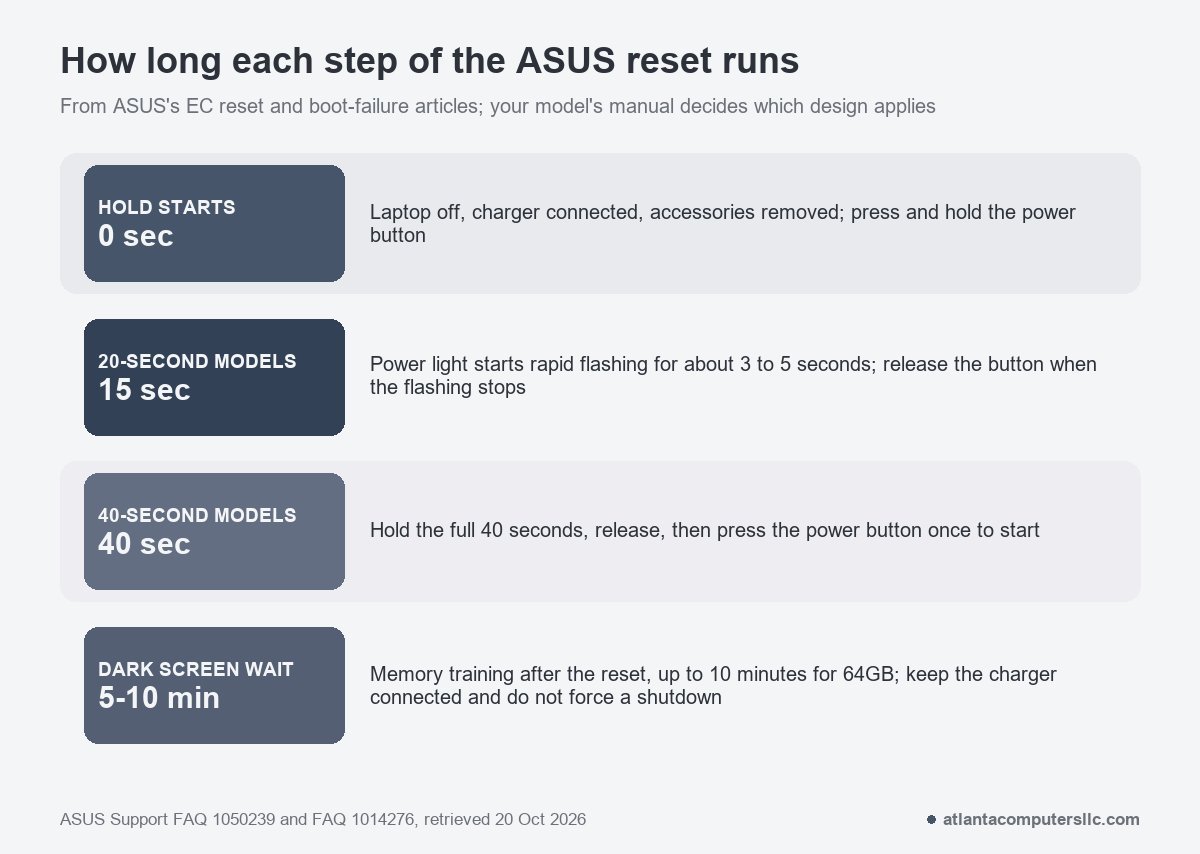
When an ASUS laptop won’t turn on and gives no sign of life, the free fix worth trying before a screwdriver comes out is ASUS’s EC reset. Plug in the original charger, remove every accessory and hold the power button for 40 seconds. Some models use a 20-second design instead, where the power light flashes rapidly after about 15 seconds and you let go when the flashing stops, as ASUS’s reset article lays out.
Rule out a laptop that is awake but dark before you hold anything down. A lit power light, a spinning fan or a backlit keyboard means the machine has power, and that case belongs in the ASUS laptop black screen guide. Everything below is for an ASUS that does nothing at all when you press the button.
A dark ASUS charge light: what ASUS’s own table leaves out
ASUS documents two lights on its notebooks. Its power indicator comes on when the laptop is on and blinks slowly in sleep. The two-color battery charge indicator is the one to read while the charger is connected, and ASUS’s indicator article gives it four states.
| Charge light | What ASUS says it means |
|---|---|
| Solid white | Plugged in, battery between 95% and 100% |
| Solid orange | Plugged in and charging, battery below 95% |
| Blinking orange | Running on battery, below 10% |
| Off | Running on battery, between 10% and 100% |
Read the table with the charger in the wall. White or solid orange means power is reaching the laptop even though it won’t start, so jump ahead to the hold. A charge light that stays dark is the case the table has no row for, because every “off” entry assumes the laptop is running on its battery. That gap is my reading of the table, not a line ASUS prints. It does point the same way as ASUS’s boot-failure article, which says a missing power light can come from an adapter that isn’t supplying power or from a fault in a primary component.
ASUS says the power indicator varies from model to model and sends owners to the manual for theirs. If your lights don’t match the table, that manual has the final word.
Strip it down to the laptop and one charger
ASUS’s no-power checklist runs from cables to the reset, and each step rules out something that costs nothing.
- Seat the cord, the adapter and the wall plug firmly, then swap the extension cord and the outlet for ones you know work. ASUS also wants any switch on the extension cord looked at.
- Use the adapter and cord that came with the laptop, or ones that match the original specification. ASUS’s battery article warns against mixing adapters between different ASUS products, because their power output can differ.
- Look the adapter and cable over for damage. ASUS says a damaged one should be replaced at an authorized service center.
- Unplug everything else: keyboards, mice, drives, printers, memory cards, discs, anything in the card reader, and external monitors.
- Undo recent hardware changes. If you added a drive or memory before the trouble began, ASUS says to remove it or put the old part back.
Two more ASUS suggestions suit a laptop that has been sitting. Reseat the battery if it is removable. If the laptop hasn’t been charged in a while, connect the charger and leave it overnight, which ASUS says may help revive the battery.
Nothing on that list needs a screwdriver, which is why it goes first.
The ASUS hold: 40 seconds, or 20 with a flash
ASUS calls this an EC reset and pairs it with an RTC reset in the same article. ASUS describes the EC as a chip on the motherboard that controls hardware components and power management. ASUS lists battery, keyboard, touchpad and startup problems as reasons to run it.
- Remove the external devices, as above.
- Turn the laptop off.
- Connect the power adapter.
- Hold the power button. On a 40-second model, hold it for the full 40 seconds. On a 20-second model, the power light starts flashing rapidly after about 15 seconds and keeps going for about 3 to 5 seconds. Release the button once the flashing stops.
- Press the power button once to start the laptop.
ASUS says some models have the 20-second design and others the 40-second one. It never says how to tell which you own. Reading its two descriptions together, a light that stays steady past the 15-second mark means you keep holding toward 40. That is my reading, not an ASUS instruction, and your model’s manual settles it.
Plug the adapter in before the hold. ASUS’s boot-failure article words the same step as disconnecting the adapter, doing the reset, then reconnecting it, while the reset article spells out the sequence with the adapter connected first. The steps above follow the reset article, since it is the page devoted to the reset.
ASUS’s reset article lists no battery step. Pulling an internal battery connector is a different job, and it comes after this hold has failed, not before. Other brands drain power differently. Lenovo’s reset holes get their own Lenovo guide, and the Dell guide splits a hard reset from an RTC reset, so don’t carry this hold across to a different make.
After the reset the screen can stay dark for ten minutes
After an EC or RTC reset, a BIOS update, a battery disconnect or a memory swap to a different capacity or brand, ASUS says the laptop runs a full memory training on its next start. The screen shows nothing while it runs. ASUS puts the wait at about 5 to 10 minutes depending on memory size, up to 10 minutes for 64GB, and says to keep the laptop on power and avoid a forced shutdown.
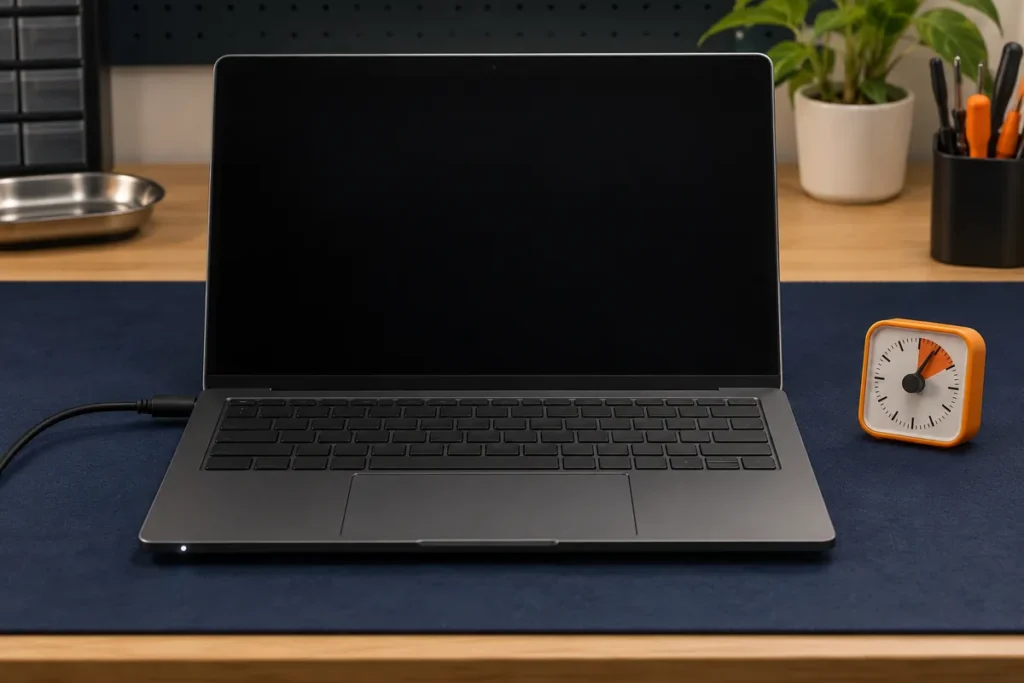
Your own hold can therefore produce a dark screen that looks like failure. Set a timer for ten minutes, leave the charger connected and keep your hands off the power button, because minute three feels like minute ten. Holding the button again mid-wait is how a working laptop gets treated as a dead one.
If the power light is lit and the screen is still blank after the full ten minutes, you have moved from a no-power problem to a display or startup one. The black screen guide picks it up from there, including what else triggers the wait.
If you cleaned it, opened it or added memory first
A laptop that dies right after someone has been inside it points at the work, and ASUS’s checklist says as much: remove or restore any drive or memory added before the problem. One r/ASUS thread shows the other common version, a cleaning job.
“Model: ASUS ROG Zephyrus G14 GA401 I attempted to clean the fans as they were making a loud whirring noise, and in the process tore some tape. Now, it won’t turn back on. I’ve tried removing the battery from its place and putting it back, trying to turn it on both with and without the charger plugged in. Nothing has worked. I’m new to fiddling with hardware, so any advice or instructions are greatly appreciated!”
– r/ASUS, September 2026 (35 upvotes)
The thread never says how it ended, and its best-voted reply asked whether the battery was fully seated on its connector on the motherboard. That is the first thing to rule out after any teardown.
Going back in? Shut the laptop down, unplug the charger and disconnect the battery before touching anything else. I do that on every machine. ASUS’s support site has the manual for your model, so read it before you open anything. Then look for a battery cable that sits loose or a memory module or drive that has shifted, and put each back as it was. A battery that has swollen, with a lifted case or a trackpad pushed upward, is a stop sign: don’t charge it, and take it to a recycler or a repair shop.
It lights up but never reaches Windows
An ASUS that wakes, shows the logo and then stalls is no longer a no-power case. ASUS keeps separate articles for each stall point, and its article on a device that cannot enter Windows gives the repair route.
- Reach the repair environment. With the laptop off, hold F9 and press the power button, and keep holding F9 until the repair screen appears. Some models need F12 instead. ASUS also describes a fallback: force a shutdown by holding the power button for 15 seconds three times, once after startup, once at the ASUS logo and once when Windows restarts, powering on again each time. The next start opens the repair environment.
- Run Startup Repair. From the repair screen choose Troubleshoot, then Advanced options, then Startup Repair.
- Run the built-in diagnostics on newer models. ASUS says System Diagnostics in the BIOS works even when Windows won’t boot, on laptops with Intel 12th Gen or later, or AMD Ryzen 6000 or later. Press Esc at startup, choose Enter Setup and, on a consumer notebook, click System Diagnostics. A failed test produces a QR code, a report and a diagnosis code to hand to ASUS support.
Startup Repair and System Restore can change the Windows install, and ASUS’s Reset this PC offers a Remove everything option that erases all personal files. I back up or image the drive before any repair that touches it, and I keep a USB recovery stick for machines whose repair environment won’t open. If the files matter, copy them first.
Where I stop and send an ASUS out
Stop when a full 40-second hold, a ten-minute wait and a second known-good adapter all leave the laptop exactly as dead as before.
ASUS’s boot-failure article says a laptop with no power light can have a fault in a primary component. That sits on the motherboard side, past what a screwdriver kit fixes, and board-level repair is where I hand the machine to a shop.
Two more stop signs: a swollen battery, which should be recycled and never charged, and a drive that clicks, which needs a data-recovery lab rather than more power cycles. Check the warranty status on ASUS’s support site before anyone opens the case, since ASUS’s own articles send owners to its service centers for damaged adapters and for charging faults that persist.
When you contact ASUS, give them the exact model name from the label, what the lights did when you pressed the button, whether the screen ever came on, and which of the steps above you have already done.
ASUS laptop won’t turn on: quick answers
How do I force an ASUS laptop to turn on?
Remove all accessories, connect the charger and hold the power button for 40 seconds, or until the rapid flashing stops on a 20-second model, as ASUS’s EC reset article describes. Then press the power button once and give a dark screen ten minutes.
Should I take the battery out to reset an ASUS?
ASUS’s EC reset article lists no battery step and calls for the charger to be connected. Its charging article asks only that a removable battery be reseated and that a battery left uncharged for a while get a night on the charger, both before the reset.
Can a phone or USB-C charger start an ASUS laptop?
ASUS recommends the bundled charger, or a certified one whose output meets or exceeds the model’s recommended charging wattage. A weaker USB-C charger triggers a Slow Charger warning, and ASUS says the battery can keep draining while you use the laptop.
What if my ASUS laptop won’t turn on even after the 40-second hold?
Wait the full ten minutes with the charger connected, because the dark screen after a reset may be memory training. If nothing lights up after that, try another adapter that matches the original specification, then take it to an ASUS service center.
