

When a Lenovo laptop won’t turn on, the fix is usually a power drain, and the kind depends on the model line. Many ThinkPads have an emergency-reset hole on the bottom, IdeaPads and Legions have a Novo hole that opens a menu, and a Lenovo with neither gets a power-button hold of at least 10 seconds, as Lenovo’s no-power article lays it out.
Turn the laptop over before you try anything else. Your machine’s underside and side edges show which of those resets it has, and that picks the steps below. A spinning fan or a lit light with only the picture missing is a black-screen fault, which needs different tests.
Check the case first: three Lenovo holes and what each one does
Lenovo puts small holes in its cases for two different jobs, and mixing them up sends you down the wrong path. Here is what you may find.
- The emergency-reset hole. ThinkPads carry it on the bottom of the case. Lenovo’s ThinkPad guides describe it as the way back when the computer stops responding and the power button won’t turn it off. A straightened paper clip cuts the power supply for a moment.
- The Novo hole or button. IdeaPads put it on a side edge or near the power button, and the 2020 Legion 5 guide shows it too. Pressed with the laptop off, it opens a startup menu without cutting power.
- Neither. Lenovo says some systems do not have the reset hole, and it points to the bottom view page of the user guide to check.
To open that guide, enter the model or serial number on Lenovo’s PC support site, pick Guides & Manuals, then User Guide. The label on the underside carries the model name, and the guide’s bottom view page shows whether the hole exists and where it is.
I turn a dead Lenovo over before I reach for a screwdriver. A hole means the reset costs one paper clip.

Charger and charging light, in Lenovo’s order
Power comes first, because every reset below assumes the laptop can get current. Lenovo’s no-power article starts there.
- Plug the adapter straight into a wall outlet. Skip power strips, surge protectors and docking stations.
- Leave it charging for at least 5 to 10 minutes. Lenovo says some batteries are designed to operate only when charged to a certain level, 10 percent or more.
- Read the label on the adapter and confirm it is the correct one for this model.
- Try another Lenovo-approved adapter, a different cable and a different outlet if the charging light stays off.
- Seat the plug firmly at the laptop end.
Lenovo’s charging light says more than it seems to. Lenovo’s ThinkPad T480s guide, its IdeaPad S540 guide and its 2020 Legion 5 guide describe it the same way: white when the laptop is on AC power and the battery is at roughly 90 percent or more, amber when it is on AC power and below that, off when no AC power is detected. A light that stays off with the adapter plugged in points at the outlet, cable or adapter first. A white or amber light on a laptop that still won’t start means power is arriving, so go on to the resets.
ThinkPads add one more clue. According to the T480s guide, the indicator in the lid logo and the one in the power button blink three times when the machine is first connected to power. I can’t promise every model does that, so treat a missing blink as a hint and not a verdict.
No hole on the case: the 10-second power drain
With neither a reset hole nor a Novo hole on the case, Lenovo’s article gives this sequence.
- Unplug the power cord and disconnect every external device.
- Remove the battery if it is removable. A built-in battery stays where it is.
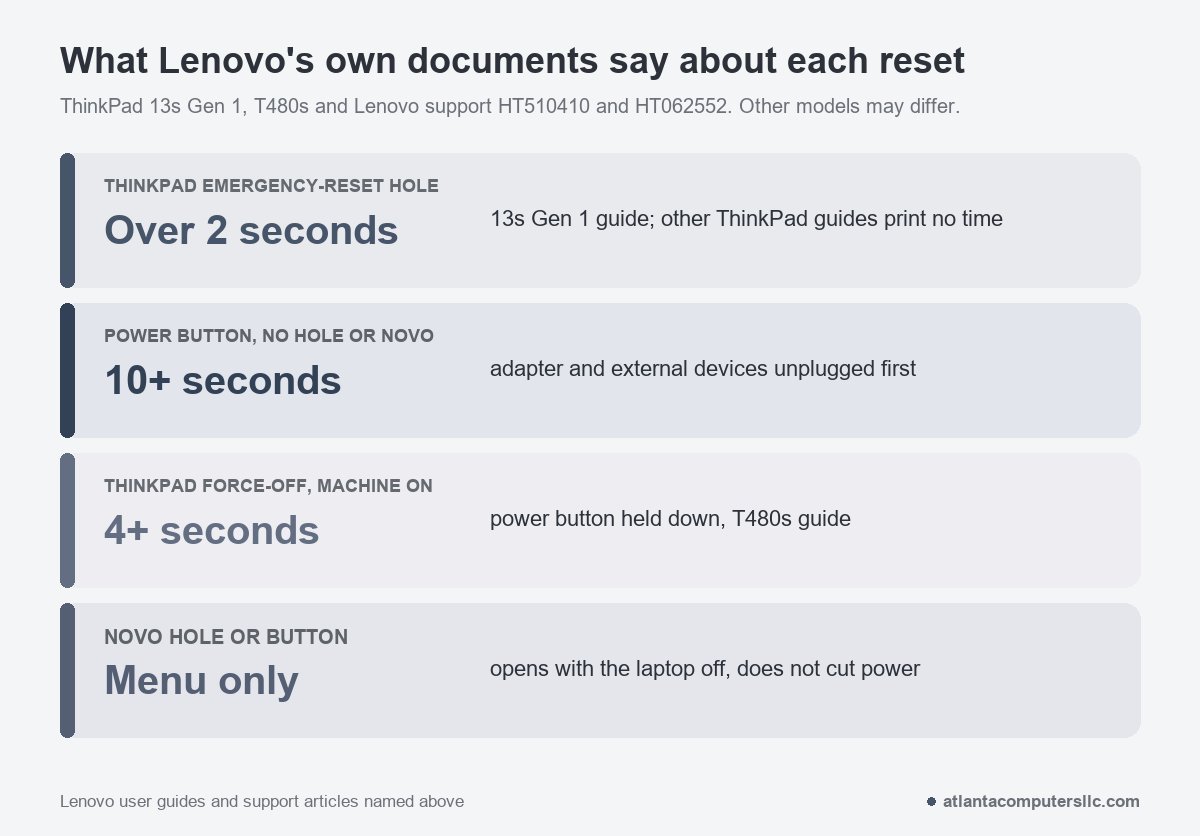
- Press and hold the power button for at least 10 seconds.
- Plug the power back in and turn the laptop on.
One r/Lenovo reply, to an owner whose laptop would not boot after a charger swap, asked for a much longer hold:
“Try holding the power button for 30 seconds, did you use a genuine charger?”
– r/Lenovo (8 upvotes)
Lenovo’s page asks for at least 10 seconds, so a longer hold does no harm. Its second half is the better lead, because Lenovo’s article tells you to try a Lenovo-approved adapter when the charging light stays off.
For another brand, the Dell and Acer versions of this reset use different holds and have their own pages: Dell laptop won’t turn on and Acer laptop won’t turn on.
ThinkPad emergency-reset hole: steps and seconds
On a ThinkPad with the hole, the reset takes three moves. Lenovo’s T14 Gen 5 and T16 Gen 3 guide lists them, and the ThinkPad T480s guide says the same.
- Disconnect the laptop from AC power.
- Push a straightened paper clip into the emergency-reset hole to cut the power supply for a moment.
- Connect AC power again and turn the laptop on.
Seconds are where the guides differ. Lenovo’s ThinkPad 13s Gen 1 guide says to hold the clip in the hole for more than two seconds. Its T14 Gen 5 and P16v Gen 2 guides print no time, and Lenovo’s article on a PC that won’t restart after a BIOS update says only to press and hold. So hold it past two seconds, and treat a longer figure from a forum as unconfirmed, because none of the Lenovo documents I read prints one.
Lenovo’s T480s guide lists this exact symptom: the computer will not turn on with a fully charged battery. Its fix is to remove the AC adapter, reset through the hole, reconnect the adapter and press power. For the embedded-controller and memory error codes 0001, 0002, 0281 and 0282, the same guide adds a wait of one minute after the clip, before power is reconnected. Other ThinkPad guides may word that differently, so read the one for your model.
On a frozen ThinkPad that is still on, hold the power button for four or more seconds to turn it off, the T480s guide says, and use the hole only if that fails.
Lenovo’s no-power article adds that if the reset works, the power button may be the problem, and it points you to Lenovo support. A laptop that starts after the clip but ignores the button next time is worth mentioning when you call.
On a dead ThinkPad I reach for the paper clip before the screwdriver kit. With the case shut, nothing can go wrong inside it.
IdeaPad and Legion: Novo is a menu, so use it as a test
Novo is not a power reset. Lenovo’s Novo article describes a small button or pinhole with a backwards-arrow icon, usually on the side or near the power button, pressed with the tip of an unfolded paper clip. Its menu lists system recovery, BIOS access and boot menu setup, and the exact layout depends on the software version.
Used as a test, Novo is quick. Shut the laptop down fully, because Lenovo describes pressing Novo in the shut-down state. A menu on screen means the board, the power path and the screen are alive, which is my reading and not Lenovo’s wording. That points the fault at what starts after the firmware, so try normal startup from the menu.
Should Windows still fail to load, Lenovo’s menu leads to recovery options. Lenovo’s 2020 Legion 5 guide shows the route: the Novo menu offers the UEFI/BIOS setup, a boot device menu and the Windows startup options screen, and Troubleshoot on that screen offers a reset of the computer or advanced options. I treat Reset as the last step, and I back up or image the drive first.
Check which version your model uses. On the 2020 Legion 5, the Novo hole is on the right side, and you press it with the laptop off and the lid open. Lenovo’s 2022 Legion 5 guide says to turn the computer on or restart it and press F9 repeatedly instead. An IdeaPad S540 guide puts the button on the right side too.
Know the limits. Lenovo’s Novo article is written for the ideapad brand, and it says all-in-ones and Miix tablets have no Novo button. ThinkPad guides describe the reset hole, not Novo. Go back to the power drain when no menu appears on a machine that has the hole or button.
Disable Built-in Battery is for opening a ThinkPad, not reviving one
Disable Built-in Battery is a safety step. Lenovo’s ThinkPad guides place it before any customer-replaceable part is changed, and they ask you to turn off Fast Startup in Windows first.
- In Control Panel, open Power Options, then Choose what the power buttons do, then Change settings that are currently unavailable. Clear the Turn on fast startup box and save.
- Restart, and press F1 as the logo appears to open the UEFI BIOS menu.
- Choose Config, then Power, then Disable Built-in Battery, and confirm with Yes.
- Your ThinkPad shuts itself off. Wait three to five minutes before you open it.
BIOS access is the catch. Lenovo says a ThinkPad that can’t reach it can’t use this method. A ThinkPad that won’t power on is exactly that case, so for a part swap the guides tell you to disconnect the battery cables, remove a battery Lenovo marks as customer-replaceable, or call Lenovo for one that is not.
Lenovo’s own tests when it starts but will not boot
A laptop that powers up and stalls before Windows is a different job from one that shows nothing. Lenovo has two tests for it.
UEFI Diagnostics comes first, built into the firmware. Per the ThinkPad X1 Carbon Gen 13 guide, connect AC power, turn the laptop on and press F10 immediately, then follow the screen. Esc exits, and the laptop restarts at once. Lenovo lists it for cases where you can’t log in to Windows. Older ThinkPads and other lines may use a different key, so check the model’s guide.
Hardware scan in the Lenovo Vantage app is second, and it needs a working Windows. Open Vantage, choose Hardware scan, then Quick Scan or Customize. Lenovo’s guide sends a failure you can’t resolve to Lenovo support, and says the outcome of a Hardware scan failure varies with warranty status and country.
Where I stop and send a Lenovo out
Stop when a Lenovo laptop won’t turn on even after a known-good Lenovo-approved adapter, the power drain and the hole reset (if your model has one).
Lenovo’s T14 Gen 5 guide says to call Lenovo Customer Support Center at that point, and the T480s guide’s fix for its memory and controller error codes ends in a system board replacement by a service provider only. I don’t do board-level microsoldering, so that is where I stop too.
A swollen battery is a hard stop. A bulging case or a trackpad pushed up from below means don’t charge it, don’t poke it, and take it to a recycler or a repair shop.
Files that matter more than the laptop get mentioned before anyone resets or reinstalls anything. A drive that clicks goes to a data recovery lab, not to me. Bring the model line, what the charging and power lights did, and which resets you ran when you call Lenovo or a shop.
Lenovo laptop won’t turn on: quick answers
How do I force a Lenovo laptop to start?
Lenovo’s documents that I read list no force-start key. The closest options are the ThinkPad emergency-reset hole, the Novo menu on IdeaPads and Legions, and holding the power button at least 10 seconds on models with neither.
Where is the Lenovo reset button?
On a ThinkPad it is a pinhole on the bottom called the emergency-reset hole. On an IdeaPad or Legion, the pinhole is the Novo button, usually on a side edge or near the power button. Some Lenovos have neither.
Lenovo laptop won’t turn on but the power light is on: what next?
A lit light shows power is arriving. Run the power drain or the hole reset next, then try the Novo menu or F10 diagnostics to see whether the firmware starts.
