
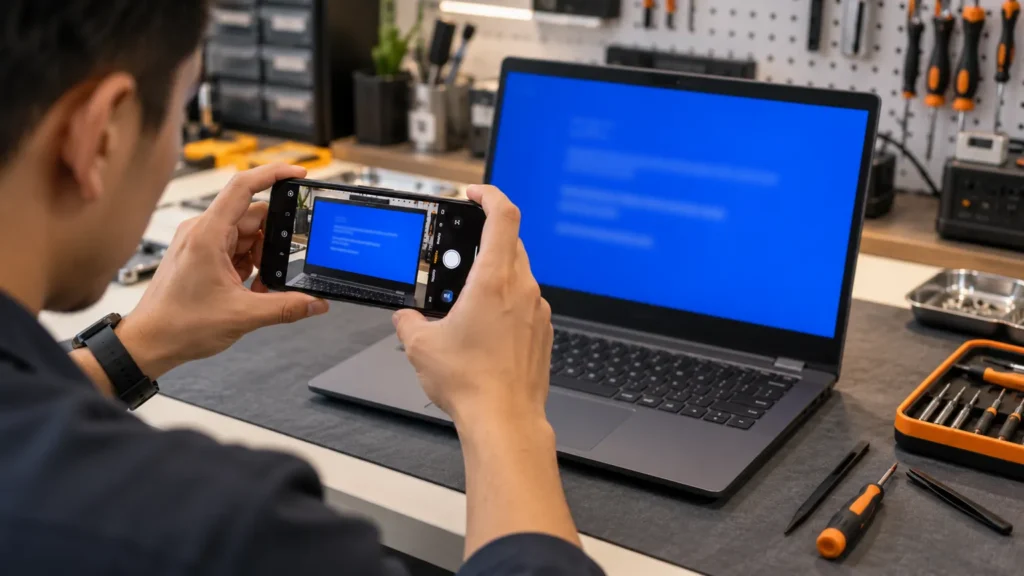
An HP laptop blue screen is Windows halting itself after an error it can’t recover from. HP’s own support page lists the fixes in a set order: turn off automatic restart, do a power reset, try System Restore, test the hardware, then update and reset. I run the hardware test early, because a failing memory module or drive makes every software fix pointless.
HP builds that test into the laptop. It opens from a key press before Windows loads, so it still works on a laptop that crashes on every start, and HP says to run it from a USB drive if your F2 menu doesn’t list it. The stop code is Windows’ own, and the common families are the same on every brand, so the Dell laptop blue screen page is the one that sorts them.
A black screen with a line or two of text can still be a blue screen. Microsoft says Windows 11 version 24H2 and later shows the same error on a black screen. A black screen with no text at all is a different fault, and HP laptop black screen covers it.
Make the stop code stay on screen
HP warns that errors can occur without being displayed while Automatic restart is switched on. Turn it off, so the laptop stays on the blue screen long enough to read.
- In Windows, search for View advanced system settings and open it.
- In the Startup and Recovery section, click Settings.
- Clear the Automatically restart check box and click OK.
- Restart the laptop.
Photograph the screen the next time it crashes. Microsoft’s examples are PAGE_FAULT_IN_NONPAGED_AREA and MEMORY_MANAGEMENT, and a module name appears at the bottom when Windows can tell which code was running. If Windows won’t stay up long enough to change the setting, skip ahead to the F11 section. A photo of whatever flashes by still helps.
Then do HP’s power reset once, because it costs nothing. Turn the laptop off, unplug the adapter, and remove discs, memory cards and every peripheral you can: printers, external drives, USB sticks. Hold the power button for about 15 seconds, reconnect the adapter and turn the laptop on. HP says some models need the battery removed or a button combination instead, and that on a business laptop you hold the Windows key and V while pressing the power button. Microsoft’s first step for a blue screen points the same way: take out any hardware you added before the error.
Esc, then F2: HP’s own hardware test
If the laptop can’t reach the desktop, HP’s UEFI version of the test is the one to use. HP’s order of operations:
- Hold the power button for at least five seconds to turn the laptop off.
- Turn it on and press Esc about once every second.
- When the menu appears, press F2.
- On the HP PC Hardware Diagnostics (UEFI) main menu, click System Tests, then Fast Test, then Run once.
The Fast Test takes about four minutes and runs in two passes. If the first pass finds nothing, click Continue and then Run once again for the second. When a part fails, HP wants a 24-digit failure ID, which you can scan as a QR code or copy from Test Logs on the main menu. Write it down before you do anything else, because it’s what a shop or HP’s support desk will ask for.
If F2 doesn’t offer the diagnostics, HP’s fallback is a USB drive: download the diagnostics from HP’s hardware diagnostics site on another computer and run them from the stick. That’s one more reason to keep a spare USB stick in the bag.
When Windows does start, HP says to use the Windows version instead and keep UEFI for laptops that can’t boot. Search for HP PC Hardware Diagnostics Windows, right-click it, choose Run as Administrator, click Computer Tests, then Start Fast Test. It takes 3 to 5 minutes or more, covers the disk, memory, a processor stress test and the battery, and locks you out of the laptop until it finishes. If the app isn’t installed, HP points to its diagnostics site and the Microsoft Store. HP’s full instructions are on its hardware failure testing page.

What the test result tells you
The System Tests cover the whole machine, and the Component Tests menu goes deeper when the stop code leans one way.
For memory, HP lists three tests: a Fast Test of three minutes or more, a Quick Test of about 10 minutes that exists only in the UEFI version, and an Extensive Test. For storage, run the Quick Test first at two to three minutes. The Extensive Test takes two hours or more and adds a SMART check and three drive self-tests.
MEMORY_MANAGEMENT is the stop code that sends me here first. Microsoft calls it a severe memory management error and suggests the Windows Memory Diagnostic for it. HP’s memory tests run before Windows loads, which is why I prefer them on a laptop that won’t stay up. For CRITICAL_PROCESS_DIED, Microsoft says a critical system process was corrupted or damaged, and its own tips include running the hardware diagnostics from the manufacturer. On this laptop, that’s HP’s.
| What you see | What I do next |
|---|---|
| A memory test fails | Click Troubleshoot if HP offers it and follow the prompts. If it still fails, write down the failure ID and stop. I don’t reinstall Windows onto failing memory. |
| A storage test fails | Copy off what I can first, then stop. A drive that clicks goes to a data recovery lab, because I don’t do clean-room recovery. |
| The Fast Test passes and the crashes go on | Run the Extensive Test. HP says to do exactly that, and it offers Run once or Loop until error. Looping suits crashes that come and go. |
| Everything passes, including the Extensive Test | The hardware is probably fine. HP says that when the Extensive storage test passes, the issue might not be the drive, so move on to the software steps below. |
| The menu won’t open, or the laptop crashes before it appears | Go to the F11 section. If it won’t power on at all, read HP laptop won’t turn on. |
When Windows won’t load: F11 and Safe Mode
HP’s way into the Windows recovery screens is a key, not a button sequence. Turn the laptop off and wait at least five seconds. Turn it on and press F11 about once every second until the Windows loading screen appears.
If a language or keyboard layout screen shows up, pick yours. On the Choose an option screen, click Troubleshoot, then Advanced Options. System Restore is on that list. Choose a restore point from before the first crash, click Finish and confirm. HP is blunt about the next part: don’t interrupt System Restore once it starts, or you risk corrupting the drive.
For Safe Mode, stay in the same menu. Microsoft’s route is Troubleshoot, Advanced options, Startup Settings, Restart, then 4 or F4 for Safe Mode, or 5 or F5 for Safe Mode with Networking. Safe Mode loads a minimal set of drivers, so a laptop that crashes normally but survives there usually points at a driver or a startup program.
If F11 does nothing, Microsoft’s fallback uses only the power button. When the Windows logo appears, hold the power button until the laptop shuts off. Do that twice, and the third start should show Automatic Repair. That screen lists Startup Repair, System Restore and Uninstall Updates, which is the one to try if the crashes started after an update. Microsoft notes that some updates can’t be uninstalled.
Have the BitLocker recovery key ready first. Microsoft says some of these recovery tools ask for it on an encrypted drive.
If the hardware passes: HP Support Assistant, DISM and SFC
HP says many blue screens clear after an update, and it names two routes. HP Support Assistant is the first. Search for it in Windows and make sure it’s version 8 or later. On the My Dashboard tab, find the laptop and click Updates, then let it analyze, pick the listed updates, install them and restart when prompted. It handles BIOS updates too. It isn’t available if Windows is in S mode, so use Windows Update there.
BIOS updates are the one place I slow down. HP’s own warning is that installing the wrong BIOS could stop the computer working, and that you shouldn’t turn off or restart the laptop until the update finishes. I plug in the charger, back up the drive, and don’t flash a laptop that’s still crashing every few minutes. I get it stable in Safe Mode first.
Windows Update is the second route, and Device Manager is quick to look at while you’re there. Microsoft says to look for any device marked with an exclamation point, update its driver, and disable or uninstall the device if that doesn’t help.
If the stop code keeps coming back, repair the system files. Open Command Prompt as administrator and run DISM.exe /Online /Cleanup-image /Restorehealth, then sfc /scannow. Microsoft’s order puts DISM first because it supplies the files SFC repairs from. Let both finish. If SFC reports that it could not perform the requested operation, Microsoft’s advice is to run it again in Safe Mode. A scan that finds nothing doesn’t clear the hardware, and a hardware fault is the one thing neither command can touch.
HP startup codes that point at the drive or memory
HP prints its own diagnostic codes on startup. They aren’t blue screens, but if one shows up on a laptop that also crashes, it has already told you where to look. HP’s list includes these:
- 3F0 Boot Device Not Found or Hard Disk Error: test the drive in the UEFI diagnostics, reset the BIOS to defaults, then use HP Cloud Recovery or reinstall Windows.
- 301, 302, 309, 30C, 3F1 or 3F2 (SMART Hard Disk Error): back up your data first, then test the drive in the UEFI diagnostics.
- 2E1, 2E2 or 2E3 (Memory error): HP says the type or configuration of the memory modules is incorrect, so remove or reinstall any recently inserted modules.
- 900, 909, 90B or 90F (CPU or System Fan): clean dust from the vents and fans, then update the BIOS.
Memory and fan errors are the ones people can sometimes act on at home. Access differs by model, so read your manual before opening anything. Unplug the adapter first, and take the battery out if the case allows it.
Before you reset: Sure Recover and a backup
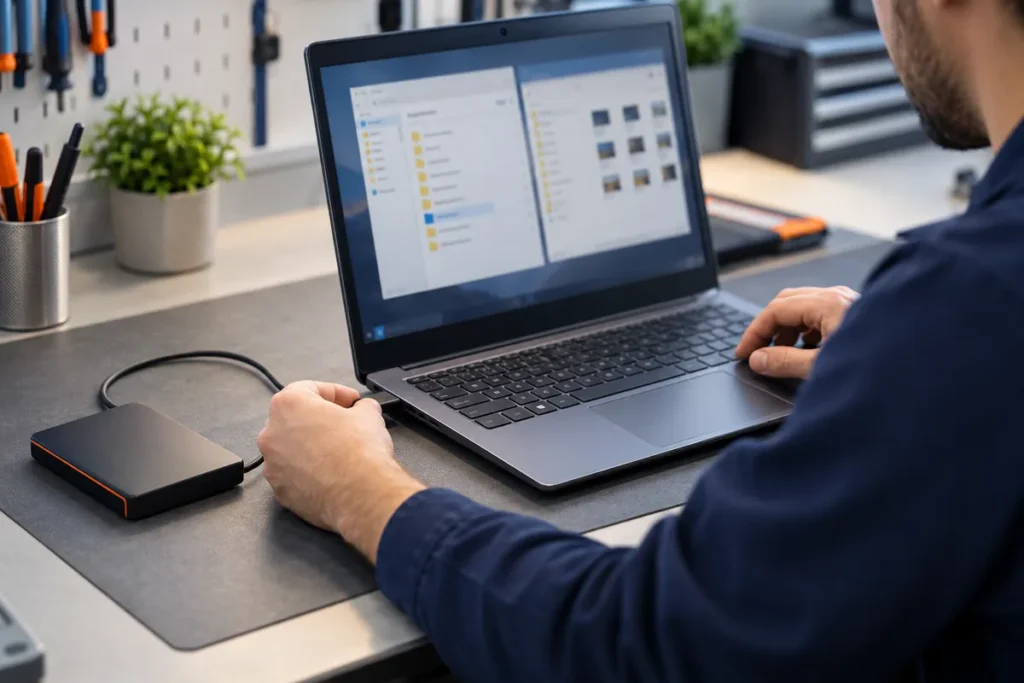
A reset is the last software step. HP says to back up all important files first, and I image the drive before any repair that touches it. A copy in cloud storage also works.
HP adds one rule other brands don’t. If HP Sure Recover is enabled, HP recommends using it for the reset. To use the Windows reset instead, you must disable Sure Recover first: press F10 repeatedly at startup to open HP Computer Setup, go to the Advanced tab, select Sure Recover, clear its check box, then go to the Main tab and choose Save Changes and Exit.
With Windows running, search for Recovery options and click Reset PC under Reset this PC. If Windows won’t start, press F11, then choose Troubleshoot and Reset this PC.
When an HP blue screen means the shop
Stop when a memory or storage test fails, or when the same stop code returns after a reset. Software has run out of road at that point.
Stop at once if the battery is swollen or the case bulges. Don’t charge it. Take it to a recycler or a repair shop.
Check the warranty before you pay anyone. HP’s support page says to enter the product serial number to see warranty status. Bring the photo of the stop code, the model number, the failure ID and a list of what you changed, so whoever opens the laptop starts where you stopped. HP walks through its own steps on its blue screen support page.
HP laptop blue screen questions
Does an HP blue screen mean I need a new laptop?
Not by itself. A failed memory or drive test means that part needs repair, and a clean test points to software, which is fixable without new hardware.
What do I do if my HP laptop blue screens after an update?
Remove the update. In Windows, open Settings, Windows Update, Update history, then Uninstall updates. From the recovery screens, Uninstall Updates and System Restore are both on the Advanced options list.
Why does my HP laptop blue screen show no error message?
Automatic restart is probably hiding it. HP says errors can occur without being displayed while that option is on, so clear the Automatically restart box and wait for the next crash.
