

Warmth under a video call or a stack of tabs is ordinary. Chromebook overheating is the version where the heat arrives with lag, a fan that won’t settle or a shutdown. Shut the machine down, let it cool on a hard surface, then use the ChromeOS Task Manager to find what is working it so hard.
Asurion’s Chromebook guide lists heavy use, blocked vents and outdated software as the usual causes, which matches what I’d expect: a program or a blocked path for air, not a dead part. ChromeOS has the tools to tell which. Diagnostics, the hard reset and the Powerwash all live inside the system, so no BIOS visit or driver reinstall comes into it. Menu names here follow Google’s Chromebook Help and shift a little between ChromeOS versions.
Chromebook overheating or just warm: which one you have
No page from Google or a Chromebook maker that I read gives a safe surface temperature, so I won’t hand you a number. What you can describe is the pattern, and the pattern points at the next step.
| What you notice | What it usually points to | Go to |
|---|---|---|
| Warm underside during a video call or with many tabs open | Heavy use; ordinary unless it lingers after the work stops | Task Manager |
| Hot with two tabs open, or a fan that never settles | A runaway tab, extension or Linux process, or blocked vents | Task Manager, then vents |
| Hot mainly while plugged in | Charging adds heat of its own, per Asurion | Fan, charger and battery |
| Slow, hot and shutting itself off | Sustained load or a cooling fault | Diagnostics |
| Bulging base, rocking case, lifted trackpad | A swollen battery | Stop and take it to a shop |
Fan or no fan changes how much of this is yours to fix. Plenty of Chromebooks have none. Acer’s page for its Chromebook 311 lists a fan-less design, and Asurion notes that some models cool passively while others carry a fan. iFixit publishes a fan replacement guide for the HP Chromebook 14-Q010DX, so older HP models are among those with one.
Chromebook overheating on a fanless model is a case problem: heat leaves through the shell, there is no fan to clean, and airflow around it matters more.

Cool it down and give it air
Start with the free part. Shut the Chromebook down and unplug the charger. Asurion suggests 15 to 30 minutes of rest before you use it again, and says to hold off on using it while it charges, since charging adds heat of its own.
- Put it on a desk or table. Asurion lists soft surfaces, which block the vents, among the common causes of a hot Chromebook, so a bed or couch is the wrong place to test.
- Keep it out of direct sunlight.
- With the Chromebook off, shine a flashlight along the vents and the seams. Lint and dust show up fast.
- Clear the vent openings from the outside with compressed air, still powered off. Asurion gives the same advice. Do not take screws out for this step.
If the same hot spot returns on a hard surface with clean vents, the load is coming from inside the software. That’s the next step.
Find the load with the ChromeOS Task Manager
Press Search + Esc to open the Task Manager. Samsung’s support page names that shortcut, and Asurion’s Chromebook page gives the same one. Every tab, app and extension gets its own row, so the process that is cooking the machine shows up by name.
- Press Search + Esc. If nothing opens, use Chrome’s menu: More, then More tools, then Task Manager.
- Click a column heading to sort. Google’s Chrome Help sorts by selecting Memory, and the same click on a CPU column, where your version shows one, sorts by processor use.
- Look for a tab you forgot, an extension, or a row labeled Background page. Google flags that last label in its steps for speeding up Chrome.
- Select the row and choose End process.
Any unsaved work in that tab is lost, so save first. Leave a row alone if you can’t tell what it is.
Give it a couple of minutes after you end the process. If the fan quiets and the underside cools, you’ve found it. If a different row climbs to the top, the load is spread across several tabs and the answer is fewer tabs.
Extensions and Linux: loads that aren’t tabs
An extension can keep working in every tab at once, which is why a Chromebook with two tabs can still run hot. Google’s factory-reset page tells you to turn extensions off one at a time and test after each, and its page on crashes says to uninstall any apps or extensions you added recently. To do it, open Chrome’s menu, choose Extensions, then Manage Extensions, and switch one off.
Linux is the other quiet one. Google’s setup page says Linux is off by default, so it matters only if you or someone else turned it on. Check Settings, then About ChromeOS, then Developers, then Linux development environment. If you don’t use it, Remove under “Remove Linux development environment” turns it off. Skip that step if your coding files live there.
The same Linux page lists hardware acceleration, including GPU and video decode, among the things not yet supported. As the page reads today, that leaves a Linux app doing graphics or video work leaning on the processor alone, which makes Linux a sensible suspect when the heat starts the moment a Linux program opens.
Let Diagnostics test the CPU and battery
Select the time at the bottom right, open Settings, then About ChromeOS, then Diagnostics. Typing Diagnostics into the launcher works too. Google says the app needs ChromeOS version 90 or later, and its Diagnostics help page lists the CPU, memory, battery and connectivity sections.
The CPU section starts with a graph of usage that shows which applications take the most processor time. Four tests follow: stress, cache, floating point accuracy and prime search. Per Google, the CPU tests report on consumption, current usage, temperature and speed. Which models actually display a temperature reading, the page doesn’t say, so I can’t promise yours does.
Google’s tip says a failed test may indicate CPU failure or improper device cooling, and it names the manufacturer as the next stop. Google also warns that the tests stress the device and slow it down. Run them after the cooldown with your tabs closed. If the Chromebook shuts off in the middle of a test, write down when, because that detail helps whoever services it.
The Battery section shows health, cycle count and electrical current, and its discharge test measures the rate of charge and discharge over a fixed time. The Chromebook charging guide covers what to do with those results. If the Connectivity tests are what you need, the Wi-Fi guide covers that part.
Update, hard reset, Powerwash: in that order
Settings, then About ChromeOS, then Check for updates comes first. Google’s slow-Chromebook steps start with installing any pending system update, and it costs nothing.
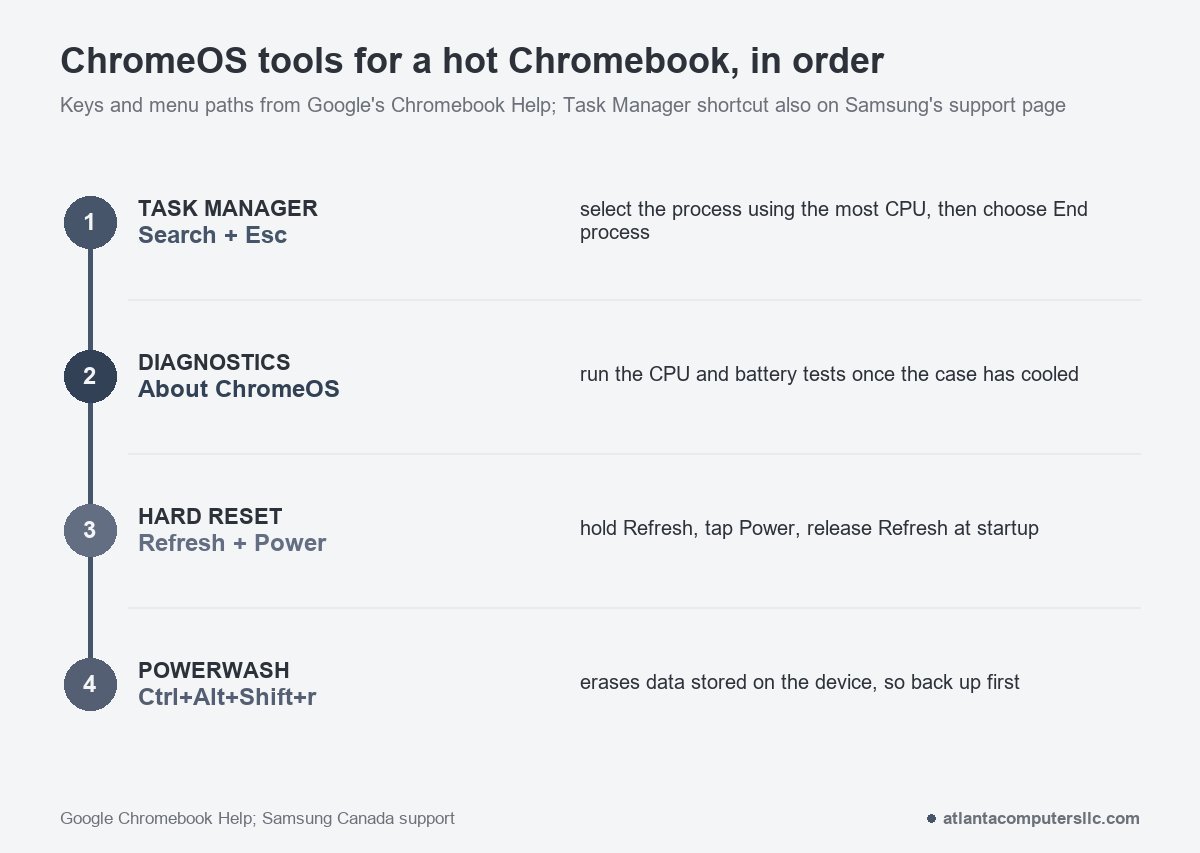
Next is the hard reset. Google tells you to try it only after other fixes have failed, because it restarts hardware such as the keyboard and touchpad and might delete some files in your Downloads folder. Turn the Chromebook off, press and hold Refresh, tap Power, and release Refresh when it starts. Google’s hardware reset page also gives Back + Refresh + Power held for at least 10 seconds. On a tablet it is Volume Up and Power for at least 10 seconds.
Powerwash is the last software step, and it erases data. Google puts it after the extension test and the hard reset. Copy Downloads to Google Drive or an external drive first. It’s the same rule I follow at the bench before any repair that touches the disk.
Then sign out, hold Ctrl + Alt + Shift + r, select Restart, and in the box choose Powerwash, then Continue. The account you sign in with afterward becomes the owner account. A school or work Chromebook can’t be reset this way, so the administrator does it.
Asurion says a reset helps if the cause is software and won’t fix a failing battery or internal damage. If Chromebook overheating returns on a freshly wiped machine, the software was never the cause.
Fan, charger and battery: when the hardware is the cause
If the Chromebook has a fan, dust is the usual suspect. An iFixit answer for the HP Chromebook 14-Q010DX blames dust buildup in the fan and points to the published replacement guide.
Chromebook brands differ a lot here: Acer, ASUS, HP, Lenovo and Samsung each build their cases their own way. Look up your exact model’s service manual and your warranty before any screw comes out.
If you do go in on a machine out of warranty, unplug the charger first, and disconnect the battery if the manual shows how. I wouldn’t open a school or work Chromebook. That’s the IT desk’s job.
The charger comes into it too. Asurion notes that charging naturally produces more heat, so a Chromebook that is warm on the charger and cool off it may be doing nothing wrong. If it runs hot only while charging, try the original charger or one with the same rating.
Stop and take it to a shop if
- The base rocks, the trackpad lifts or the case seams are splitting. That’s a swollen battery. Unplug it, stop using it and take it to a recycler or a repair shop.
- The Chromebook shuts itself off on light use after the cooldown, the clean vents, the Task Manager pass and a Powerwash.
- A Diagnostics CPU test fails. Google’s tip points at the CPU or its cooling, and it sends you to the manufacturer.
- The charging connector is cracked or loose, or the adapter is damaged.
- It belongs to a school or an employer. The IT desk handles warranty repair and replacement.
A machine that shut off from the heat and now won’t start again has its own steps in the Chromebook won’t turn on guide. Save the Diagnostics results if you ran them, and give the manufacturer your exact model number.
Questions that come after the fixes
How do I fix Chromebook overheating?
Shut it down, let it cool on a hard surface, then press Search + Esc and end whatever uses the most CPU. After that, turn off extra extensions and update ChromeOS. Reset it only if heat remains.
Do Chromebooks have fans?
Some do and many don’t. Acer lists a fan-less design for its Chromebook 311, and Asurion says models differ. On a fanless machine, hard surfaces and clear vents do the cooling work.
Does charging make a Chromebook hotter?
Yes, Asurion says charging naturally produces more heat. Warmth on the charger is not a fault by itself, but heat with only one or two tabs open is worth the Task Manager.
Does a Powerwash fix an overheating Chromebook?
Only when software caused it. A Powerwash erases data stored on the device, and Asurion says a reset won’t repair a failing battery or internal damage.
