

If your chromebook won’t charge, plug both ends of the cable in firmly, try a different outlet, and leave it connected for at least 30 minutes before judging anything. Google’s sequence moves to a hard reset only after that. The cheap parts come first: the outlet, the cable, the port and the charger.
What the Chromebook does when you plug it in decides where to look. A light that comes on with a screen that stays dark is one case. No light at all is another. Charging that stops short of full is a third, and it can be a setting rather than a fault. Most machines on my bench were Dell, HP and Lenovo laptops, with fewer Chromebooks, so the steps here come from Google’s Chromebook Help and the makers’ own support pages, not from memory.
Read the charging light first
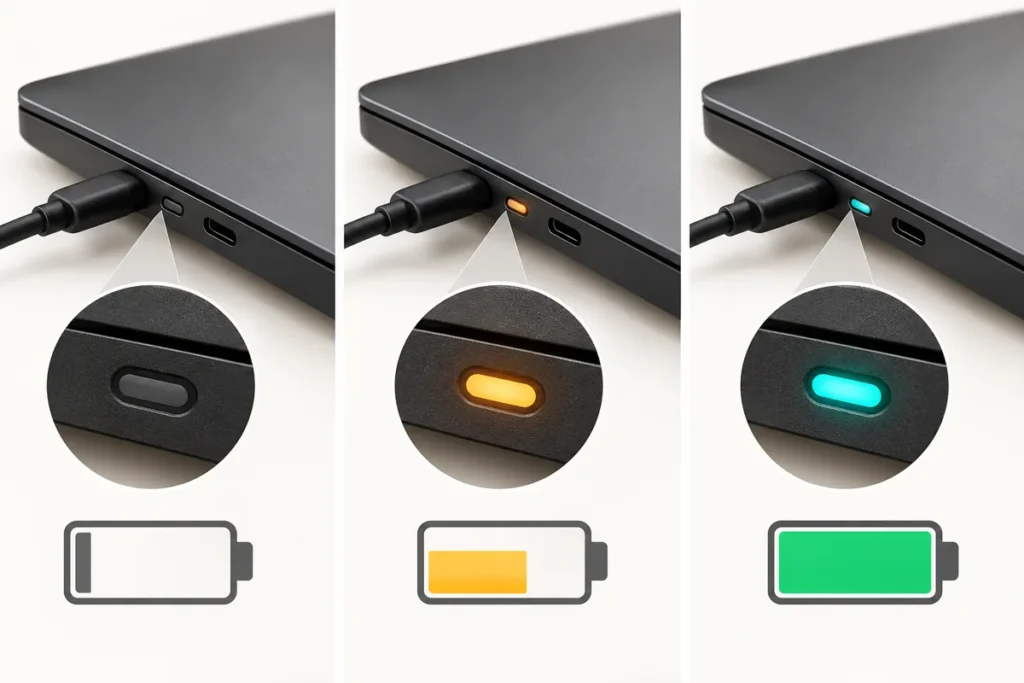
Google says a light usually turns on when you plug a Chromebook into power. It is the fastest test you have, but the colors are not standard. Red means charging on one maker’s Chromebook and a low battery on another’s.
| Your Chromebook | Light | What it means | Source |
|---|---|---|---|
| Samsung Chromebook | Red | Charging | Samsung support |
| Samsung Chromebook | Green | Fully charged | Samsung support |
| Samsung Chromebook | Blue | Power is on | Samsung support |
| Lenovo N21 Chromebook | Orange | Charging | Lenovo support |
| Lenovo N21 Chromebook | Green | Full charge | Lenovo support |
| Lenovo N21 Chromebook | No light | Not charging | Lenovo support |
| Pixelbook Go | Solid orange | Charging | Google Pixelbook Help |
| Pixelbook Go | Solid white | Fully charged | Google Pixelbook Help |
| Pixelbook Go | Blinking red | Low charge | Google Pixelbook Help |
| Pixelbook (2017) | Solid white | Charging | Google Pixelbook Help |
| Pixelbook (2017) | Solid green | Fully charged | Google Pixelbook Help |
Find your model in that list, or in the manual for your exact model if it isn’t there. With the light off and a charger you know works, the Chromebook is not charging, and Lenovo’s N21 page says so in as many words. The next section covers that case.
When your Chromebook won’t charge: outlet, cable, port, charger
Work down this list and test the Chromebook after each step. Google’s hardware troubleshooting page puts the first three at the top.
- Push the cable all the way into the Chromebook and into the wall or power strip.
- Try a different outlet. A lamp or a phone charger tells you in seconds whether the outlet has power.
- Unplug the charger from the wall and from the Chromebook. Plug it back into the Chromebook first, then the wall.
- If the Chromebook has USB-C ports on both sides, move the charger to the other one. Google’s Pixelbook help says that model charges from a port on either side, so one dead port doesn’t look like a dead Chromebook.
- With the Chromebook off and unplugged, look into the charging port with a flashlight. Lint packs into these ports. Lift it out with a wooden toothpick, never metal.
- Swap in the charger and cable that came with the Chromebook, or a USB-C charger rated for at least what the original one was. The rating is printed on the original.
The last step matters more than it looks. Lenovo’s N21 page says substitute cables from other makers may deliver more or less power than the Chromebook is built for. Google’s Pixelbook page adds that a Type-C to Type-A charger cable may give less power, charge more slowly, or fail to charge at all while the device is on, and it recommends the original charger or a Made for Google one.
Dell’s Latitude Chromebook Enterprise line has its own rule. Per Google’s Enterprise help, the Latitude 5300 2-in-1 and 5400 take either USB-C or a 7.4 mm barrel charger, and the barrel port accepts only official Dell chargers. A third-party barrel charger brings up a notification, and the battery may not charge. The Latitude 7410 and 7410 2-in-1 charge over USB-C only.
One more model-specific tip comes from the Pixelbook page. If the light blinks red after several minutes on the original charger, the battery may be deeply discharged, and Google suggests an hour on a less powerful charger, such as an older USB phone charger. That advice is written for the Pixelbook. For any other model, the maker’s own page decides.
Plugged in, light on, still won’t start
Give it time before anything else. Google’s instruction for a Chromebook that is charging but won’t turn on is at least 30 minutes on the charger, then recovery if it still stays dead. Samsung asks for longer: if the Chromebook does power on, shut it down and charge it for at least one hour.
A dark screen isn’t always a dead Chromebook. In an r/chromeos thread about a Chromebook that wouldn’t turn on, one reply offered a test worth running before any reset:
“If you can see stuff in the screen with a flashlight then the connection is fine. The backlight is dead.”
– r/chromeos (4 upvotes)
If that holds, a faint image means the machine is running and the display is the fault, which is a screen repair rather than a charging one. The original poster in the same thread later reported that the screen was only very dim, which is why it looked dead, so try the brightness keys before you decide the display has failed.
Samsung covers one more case. A light that blinks red with no power leads to recovery mode, and Samsung warns that following the on-screen USB recovery erases data stored on the Chromebook. If the screen stays blank after recovery, Samsung sends you to its service center.
Charging, but stuck short of full
A Chromebook that climbs to around 80% and sits there may be doing what it was told. Google’s Optimized charging page explains that the setting delays charging to full so the battery doesn’t sit at full charge for long periods, and it warns that with the setting on, the device sometimes won’t fully charge.
To look, select the time at the bottom right, open Settings, then System preferences, then Power. Next to Optimized charging, select Change. Adaptive charging keeps the battery around 80% and can still charge fully before you usually unplug. Charge limit caps the battery at 80%. When Adaptive charging is holding the charge, a notification appears with a Fully charge now button. Turning Optimized charging off makes the Chromebook charge to full every time.
So a battery that holds at 80% with this setting on is not a failing battery. A battery that sits at a low number, or won’t move at all, is the case the remaining steps are for.
Hard reset, and what to copy off first
Google treats the hard reset as a step for after other fixes have failed, and says it might delete some files in the Downloads folder. The bench rule is to back up before any repair that touches the drive, and a hard reset can reach Downloads, so the same rule applies. If the Chromebook still boots, copy what you need to Google Drive or an external drive first.
For most Chromebooks, turn it off, then press and hold Refresh and tap Power. Release Refresh when the Chromebook starts. Google gives a second option: hold Back, Refresh and Power together for at least 10 seconds. On tablets, hold Volume Up and Power for at least 10 seconds, then release. Lenovo’s N21 page does its reset with the charger connected, so leave it plugged in and see whether the light changes.
Older models differ, and Google’s page lists them. A Chromebox or Chromebase resets by pulling the power cable and plugging it back in. The Samsung Series 5 and Series 5 550 use a paperclip in a small hole while the adapter is reconnected. The Acer AC700, Cr-48 and Lenovo ThinkPad X131e call for removing the battery and putting it back. A current Chromebook with a sealed base uses the key combination.

Test the battery with Diagnostics
If the Chromebook boots, let it grade its own battery. Open Settings, then About ChromeOS, then Diagnostics. Searching for Diagnostics in the launcher works too. Google says the app needs ChromeOS version 90 or later. Its Battery section lists the battery’s health, cycle count and electrical current.
The discharge test measures the rate of charge and discharge over a fixed period. Google says a very low rate may point to a problem with the battery or the charging port. The page doesn’t give a number that counts as worn out, so note what the screen shows and hand it to the manufacturer if you end up contacting them.
Stop and take it to a shop if
A Chromebook that charges and starts but can’t get online has a different fault, and the Chromebook Wi-Fi guide covers it. Stop with the steps above in these cases:
- The base rocks, the trackpad lifts, or the case seams are splitting. That is a swollen battery. Unplug it, stop using it and don’t charge it again. Take it to a recycler or a repair shop.
- The charging connector is damaged or wobbles. Google’s Pixelbook page says not to plug in a device or adapter with a damaged connector. A cracked or loose port is a bench repair, not a home one.
- Charging, reset and recovery all fail. Google’s next step is the manufacturer. Forum replies suggest opening the bottom cover and unplugging the battery connector, but Lenovo’s N21 page says there is no panel with direct access to the battery and sends owners to service. That repair belongs to a shop.
- It’s a school or work Chromebook. The IT desk issued it and handles the warranty and any replacement charger.
Quick answers
How do I reset a Chromebook battery?
Most Chromebooks have no separate battery reset, and the hard reset (Refresh plus Power) is the closest thing. Google lists battery removal or a paperclip hole only for specific older models such as the Acer AC700 and Samsung Series 5.
How can I tell if a Chromebook battery is bad?
Open Diagnostics and read the Battery section for health, cycle count and electrical current, then run the discharge test. Google says a very low charge and discharge rate may mean a battery or charging port problem. A swollen case means stop, whatever the test says.
Why is my Chromebook plugged in but not charging?
The usual suspects are the outlet, the cable, a weak substitute charger or a damaged port. A battery stuck near 80% may be Optimized charging. The light on your model’s chart tells you which one you have.
