

Charge the Chromebook for at least 30 minutes first, then try a hard reset, and recover ChromeOS only if both fail. Google’s troubleshooting page sends a charging Chromebook that stays dead straight to recovery, but Google’s recovery page lists a hardware reset as a gentler try first.
Your Chromebook won’t turn on in one of three ways, and each needs a different fix. Dead means no light and no sound. Dark means it is running and the screen shows nothing. Stuck means an error message or a restart loop. I saw fewer Chromebooks than Windows laptops on my bench, so the key combinations below come from Google’s help pages and the makers’ own, not from habit.
Sort it by sign of life, then climb the ladder
Press Power once and note the light, any sound and the screen.
- Dead: no light, no sound, no picture. Start at the charger.
- Dark: a light or fan noise, but a black screen. Start with brightness and a monitor.
- Stuck: an error message, or restarts that never reach sign-in. Start at recovery.
Google’s fixes run from cheap to costly, and the price is paid in files. Charging and the screen tests touch nothing. A hard reset might delete some files in the Downloads folder, according to Google. Recovery permanently erases everything on the Chromebook’s drive, downloads included.

If the Chromebook ever reaches the sign-in screen, copy what matters to Google Drive or an external drive before the last two steps. At the bench I backed up or imaged the drive before any repair that touched it, and a recovery counts as one. A Windows laptop that won’t start follows different steps, and the Dell and Lenovo guides cover those.
Dead: charge it properly, then strip it down
Google starts by asking whether the battery is charging, and says a light usually turns on when you plug a Chromebook into an outlet. No light at all points at the power path. A light with a black screen belongs in the Dark section below.
Push both ends of the cable in fully. Try an outlet you know works. Unplug the charger from the wall and from the Chromebook, then reconnect it to the Chromebook first and the wall second. Leave it for at least 30 minutes, which is Google’s figure. ASUS asks for at least an hour, so give a long-dead battery the hour.
The Chromebook charging guide covers light colors by maker, ports and chargers in detail. I won’t repeat it here.
Once the wait is over, strip the setup down to the bare machine. ASUS’s no-power page lists the tests:
- Unplug every USB device and memory card. If it starts, add them back one at a time to find the culprit.
- On a Chromebook you have never used, turn it off, plug in the adapter and turn it on again. ASUS says a new Chromebook’s battery starts out in shipping mode.
- Try a different adapter with the same voltage.
- Remove the adapter and press Power on battery alone.
Change one thing at a time. If it starts, you want to know which change did it.
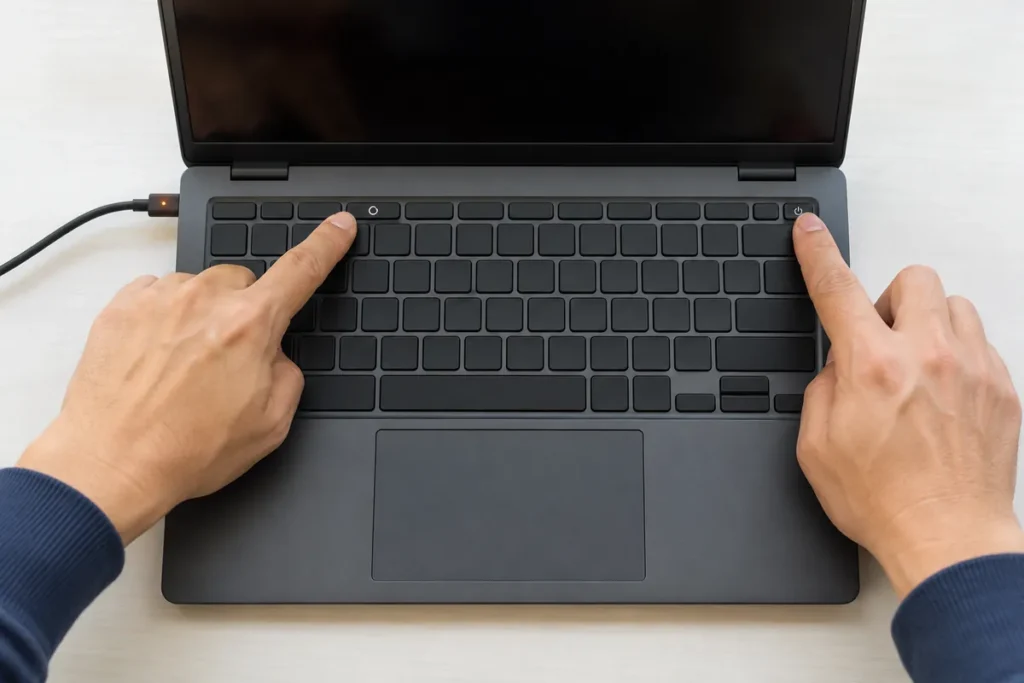
Hard reset: the keys, and the Downloads warning
Google calls the hard reset a step for after other fixes fail, and warns that it might delete some files in the Downloads folder. It restarts the hardware, such as the keyboard and touchpad.
For most Chromebooks, turn it off, press and hold Refresh, and tap Power. Release Refresh when the Chromebook starts. Google gives a second option for the same job: hold Back, Refresh and Power together for at least 10 seconds. On a tablet, hold Volume Up and Power for at least 10 seconds, then let go.
A few older models use a reset button, a pulled power cable or a removed battery, and Google’s page names them. Chromebooks come from many makers, including Acer, ASUS, Dell, HP, Lenovo and Samsung, so check the manual for your exact model number before opening the case. Check your warranty terms first as well.
The test that it worked is simple: the Chromebook reaches the sign-in screen. If it doesn’t, the next section is where to look.
Dark: running, but the screen shows nothing
A black screen does not prove a dead Chromebook. Three quick tests separate a dead machine from a dead display:
- Press the brightness-up key on the top row several times.
- Tilt the lid and shine a flashlight across the screen. A faint picture suggests the Chromebook is running and the display is the weak part.
- Connect an external monitor. Google’s monitor page lists HDMI, DisplayPort, DVI, VGA and USB-C connections, and some need an adapter cable. iFixit uses the same test: if the monitor shows a picture, the Chromebook works and the built-in screen is the fault.
One r/chromeos poster believed a Chromebook was dead until the flashlight test showed otherwise:
“However, the reason why I couldn’t see was because the chromebook’s brightness is low, and I can’t turn it up! I literally have to use a flashlight in order to see what’s on the screen.”
– r/chromeos (4 upvotes)
That poster still has a screen problem, just not a dead computer. A picture on the monitor with a dark built-in display means a display repair, and that belongs to a shop.
If the screen stays completely blank after the hard reset, Google documents a last-resort verification bypass: press and hold Power, double tap Refresh, release Power, then do the whole sequence a second time. Read the catch first. An administrator can block it, and if it reboots the device, user data is erased and the firmware is left in an unsecured version. Google adds that the device restarts automatically after 15 minutes.
I would not run that sequence on a Chromebook holding files you haven’t copied off.
Stuck on an error or restarting: recovery
Google’s name for the worst error is “ChromeOS is missing or damaged,” and its page for a Chromebook that turns off and on again and again gives one fix: recover your Chromebook. Recovery removes ChromeOS and reinstalls it. Google says it permanently erases everything on the drive, even downloaded files.
Google notes that for older Chromebooks, updates may not be supported and recovery isn’t possible. If your model is old, the recovery screen may not offer the internet option below.
- Disconnect everything attached, such as a mouse or an external drive.
- Enter recovery mode: hold Esc and Refresh, press Power, then let go of Power. Let go of the other keys when a message appears. On some models the second key is Maximize. On a Chromebook tablet, hold Volume Up, Volume Down and Power for at least 10 seconds.
- Choose Recover using internet connection and follow the prompts. The Chromebook restarts by itself when it finishes.
The USB route is for models that don’t offer the internet option. You need a second computer with Chrome, either another Chromebook or a Windows or Mac machine, plus a USB flash drive of at least 8 GB that you don’t mind erasing. Install the Chromebook Recovery Utility extension on the second computer. It asks for the Chromebook’s model number, which Google says appears at the bottom of the error message. After it builds the drive, choose Recover using external disk on the Chromebook.
If the utility reports “An unexpected error has occurred,” erase the drive and try again, or use a different USB drive. Google says some drives don’t work well with recovery. A recovery stick lives in my kit, but a Chromebook’s recovery drive is built on a second computer for that one model, so any 8 GB drive will do.
Where DIY ends
- Recovery fails on two different USB drives. Google’s next step is the manufacturer, and its help page lists support pages for Acer, ASUS, Dell, HP, Lenovo, Samsung and others.
- A monitor shows a picture but the built-in screen stays dark. That is a display repair.
- The base rocks, the trackpad lifts or the case seams split. That is a swollen battery. Unplug it, stop using it and take it to a recycler or repair shop.
- No light on a charger you know works, after the reset. The fault is probably past what a home fix reaches, and board-level work is outside what I do.
- It’s a school or work Chromebook. Google says to ask your administrator for recovery help, and a managed Chromebook can’t be factory reset by its user.
Light colors and battery access differ by maker, so read your model’s manual before you open anything. Google lists battery removal as a reset step only for a few older models.
Chromebook won’t turn on: the short answers
How long does it take for a dead Chromebook to turn on?
Google says to charge a Chromebook for at least 30 minutes before trying again, and ASUS asks for at least an hour. If it stays dead after that, move to a hard reset.
How do I force restart an unresponsive Chromebook?
Turn it off, press and hold Refresh, tap Power, and release Refresh when it starts. Google’s other option is holding Back, Refresh and Power for at least 10 seconds. Both might delete some files in Downloads.
Why is my Chromebook black but the light is on?
Google describes the light you usually see at the charger as a sign the battery is charging, so it shows power arriving, not a running machine. Try the brightness key, a flashlight and an external monitor, then a hard reset.
