
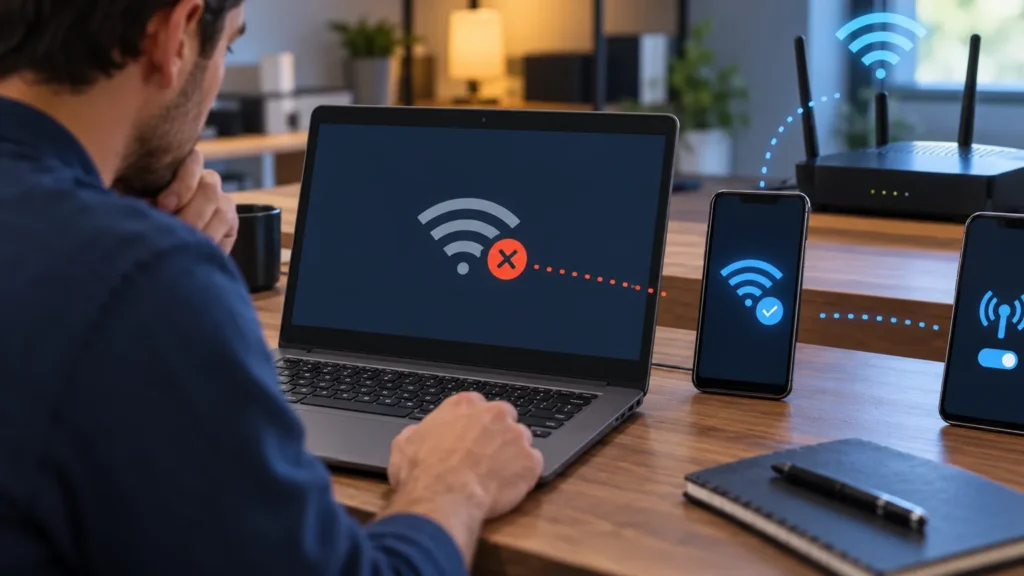
When your chromebook won’t connect to wifi, work out first whether the Chromebook or the network is at fault. Join a phone to the same Wi-Fi. Then put the Chromebook on that phone’s hotspot. Two quick tests, a few minutes, and you know which fixes are worth your time.
On a Windows laptop I would reach for a driver reinstall or a BIOS reset about now. A Chromebook doesn’t hand you either, so the ladder is shorter: free checks, Google’s built-in Diagnostics app, then two resets that erase data. Every menu path here comes from Google’s Chromebook Help. Menus shift between ChromeOS versions, so match the wording rather than the position on screen.
Is it the Chromebook or the network?
If a phone also fails on the same Wi-Fi, the router or the internet service is at fault. If everything connects but crawls when the whole house is online, the internet speed calculator shows whether the plan covers your household. If the phone works and only the Chromebook fails, the Chromebook is the suspect, and a phone hotspot is the quickest way to prove it.
One r/computerhelp poster had restarted a Chromebook three or four times before noticing that a phone and a PC were fine on the same network:
“I’ve restarted it 3 times maybe 4 now and it still will not connect at all and I really don’t wanna get rid of my old laptop I can afford a new one I don’t think it’s the router bc my phone is working fine and my pc is too”
– r/computerhelp, February 2026 (6 upvotes)
That reasoning is mostly sound, and the hotspot test closes the gap. A router can still refuse a single device, because Google’s Chromebook Help notes that some administrators restrict access by a device’s MAC or IP address.
- The phone fails too. Restart the modem, then the router, then the Chromebook. Asurion’s walkthrough unplugs the router for at least 30 seconds and waits at least 2 minutes before reconnecting. If the Chromebook joins near the router but drops in far rooms, that is a coverage problem, and mesh and extender setups are the fix.
- The phone works, and the Chromebook works on the hotspot. Only your home network is refusing it. Forget the network (step 4 below), then look at the router’s access settings.
- The Chromebook fails on the hotspot too. The problem is on the Chromebook. Keep going down the ladder.

Free fixes first when your Chromebook won’t connect to WiFi
Test the connection after each step, and stop at the first one that works.
- Select the time at the bottom right, open the Wi-Fi quick settings, and check that the Wi-Fi toggle is on. If it is, switch it off, wait a few seconds, and switch it back on.
- Restart the Chromebook. Save open work first.
- Go to Settings, then About ChromeOS, then Check for updates. With no Wi-Fi, use the phone hotspot, or a wired Ethernet connection through a USB adapter, which Google’s own wired steps use.
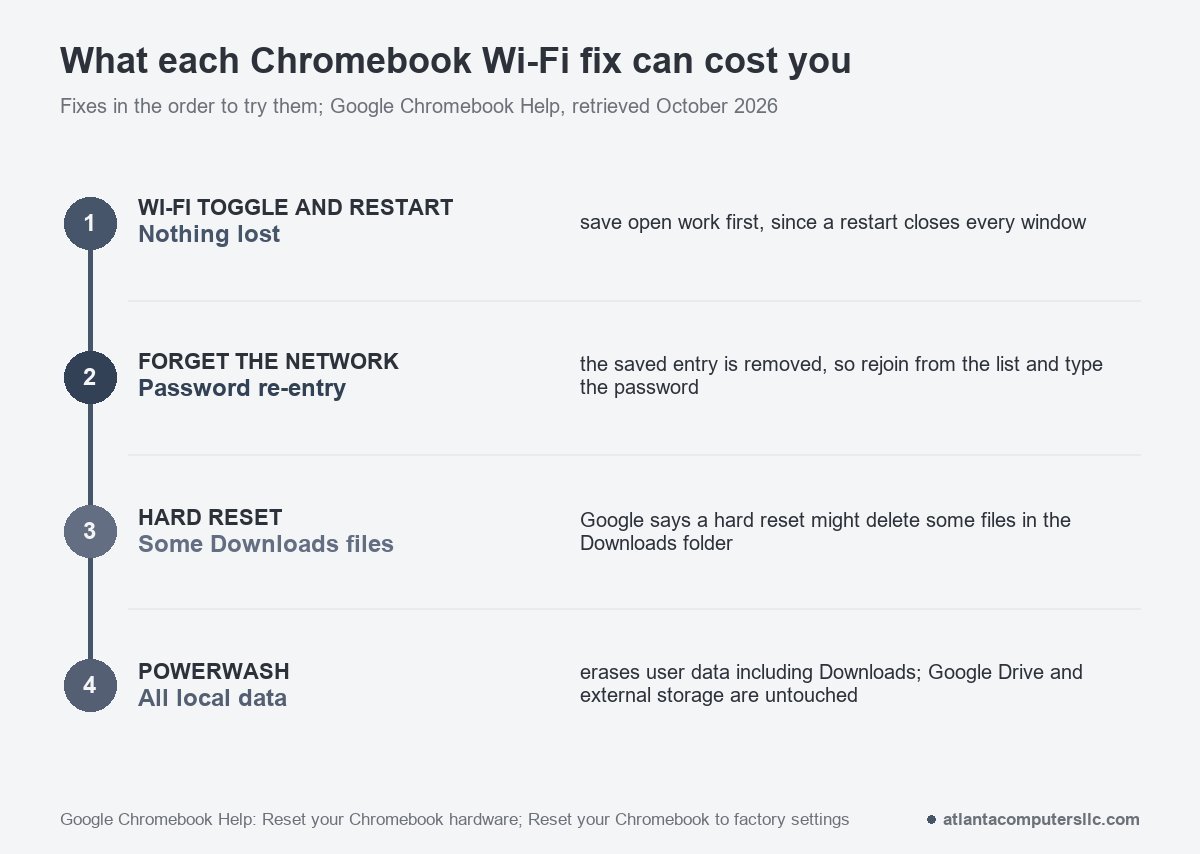
- Forget the network. Go to Settings, Network, Wi-Fi, Known networks, select More next to the network name, then Forget. Pick it from the list again and type the password. Have the password in hand before you start, because a forgotten network has to be joined again from scratch.
A hidden network takes one extra move: Add connection, then Add Wi-Fi, then the network details.
Let Diagnostics name the failure
Open Settings, then About ChromeOS, then Diagnostics. Searching for Diagnostics in the launcher works too. It sits inside Settings, so there is nothing to install, and Google says it is available on ChromeOS version 90 and up. The Diagnostics help page describes a Connectivity test that checks Ethernet, Wi-Fi, cellular and Google Services, and it starts on its own for the connection you are using.
The result decides your next move. A DNS error has its own set of Google steps. Another Wi-Fi failure sends you back to the connection steps above. If the test still fails after those, select Save test details, which writes a text file of the results, and hand that file to the manufacturer.
A Chromebook that joins the network but loads nothing is a different failure from one that can’t join at all. The radio works, so look at what sits behind it: a DNS fault, or a sign-in page that never appeared. On café, hotel or school networks, Google’s connection help says to browse to a site that starts with http:// instead of https:// to find the sign-in page. If your administrator allows it, use a private window with Ctrl + Shift + n. If the page still won’t appear, turn off Chrome extensions.
School and work Chromebooks follow someone else’s rules
A managed Chromebook can fail on a network that your phone joins without trouble. Google’s help says administrators may hide networks so only certain people can use them, and some restrict access by MAC or IP address. Enterprise networks can also need a server certificate, which the administrator supplies.
If IT asks for the addresses, select the Wi-Fi network, then the information icon at the top of the box. The IP and IPv6 addresses show there, and the MAC address is the one labeled Wi-Fi. When other devices connect and the Chromebook doesn’t, Google’s help points to a hostname allowlist, and that is an administrator task. Google’s admin help also suggests signing in with a Guest account, if the device offers one, to see whether the failure follows the user account.
Send IT the Save test details file from Diagnostics rather than a message saying the Wi-Fi is broken. It saves a round of questions.
Hard reset first, Powerwash last
Google calls the hard reset a last resort before a factory reset. It restarts hardware such as the keyboard and touchpad, which makes it the nearest thing a Chromebook has to the power-drain reset I would try on a stubborn Windows laptop. It is also one of the steps in the Chromebook charging guide. Turn the Chromebook off. Hold Refresh, tap Power, and release Refresh when it starts. The shortcut is Back + Refresh + Power held for at least 10 seconds. Tablets use Volume Up and Power instead, again for at least 10 seconds. Google warns that a hard reset might delete some files in the Downloads folder, so copy anything you can’t lose before you try it.
Powerwash is the factory reset. Sign out, hold Ctrl + Alt + Shift + r, select Restart, then choose Powerwash and Continue. Sign in with your Google Account afterward, and that account becomes the owner account. Everything stored on the device is erased, Downloads included. Files on Google Drive or an external drive are not touched. Work and school Chromebooks can’t be reset this way, so that one goes through the administrator.
I back up before any repair that touches the drive, and a Powerwash is one of those. Copy Downloads to Drive or an external disk first. Setup needs a connection of its own, so keep the hotspot or the Ethernet adapter ready if your home network is the thing that failed.
When to stop and send it in
Stop if Diagnostics fails on every network, the hotspot included, and the problem survives a Powerwash. At that point the Wi-Fi hardware is the suspect, and Google’s own advice is to save the test results and contact the manufacturer.
A Chromebook under warranty, or one a school issued, belongs with the maker or the IT desk. I wouldn’t pry one open for this, and Google’s advice at this point is the manufacturer. Meanwhile, a USB Ethernet adapter keeps the machine online.
Questions that come after the fixes
What if my chromebook won’t connect to wifi on just one network?
Forget that network and join it again, then compare against a phone hotspot. If the hotspot works, the fault sits in that network’s settings or an administrator’s restrictions, not in the Chromebook’s radio.
Why does my Chromebook say connected but nothing loads?
The Chromebook has joined the router but can’t reach the internet. Run Diagnostics. A DNS error has its own Google steps, and a public network may want a sign-in page opened through an http:// site.
Does a Powerwash fix Wi-Fi problems?
Google’s hard reset help sends you to a factory reset only after the hard reset fails. A Powerwash erases local data and may change nothing, so back up Downloads first and wipe the device last.
