
PS5 Overheating: Fixes From Sony’s Own Guides, in Order
PS5 overheating starts with airflow in Sony’s own guidance: when the too-hot message appears, turn the console off, let it cool, move it somewhere well ventilated, and check that nothing blocks the vents. Dust, a closed cabinet and a hot room are the other causes Sony’s pages name.
On the gaming PCs I build, airflow gets checked before fans or thermal paste. Sony’s order for the console is the same, so the steps here run from free checks to the point where Sony’s warranty text says to stop. The ventilation numbers come from the PS5 safety guide for the slim model, and the original and Pro guides repeat the same ventilation rules.
PS5 overheating: what to do in the first few minutes
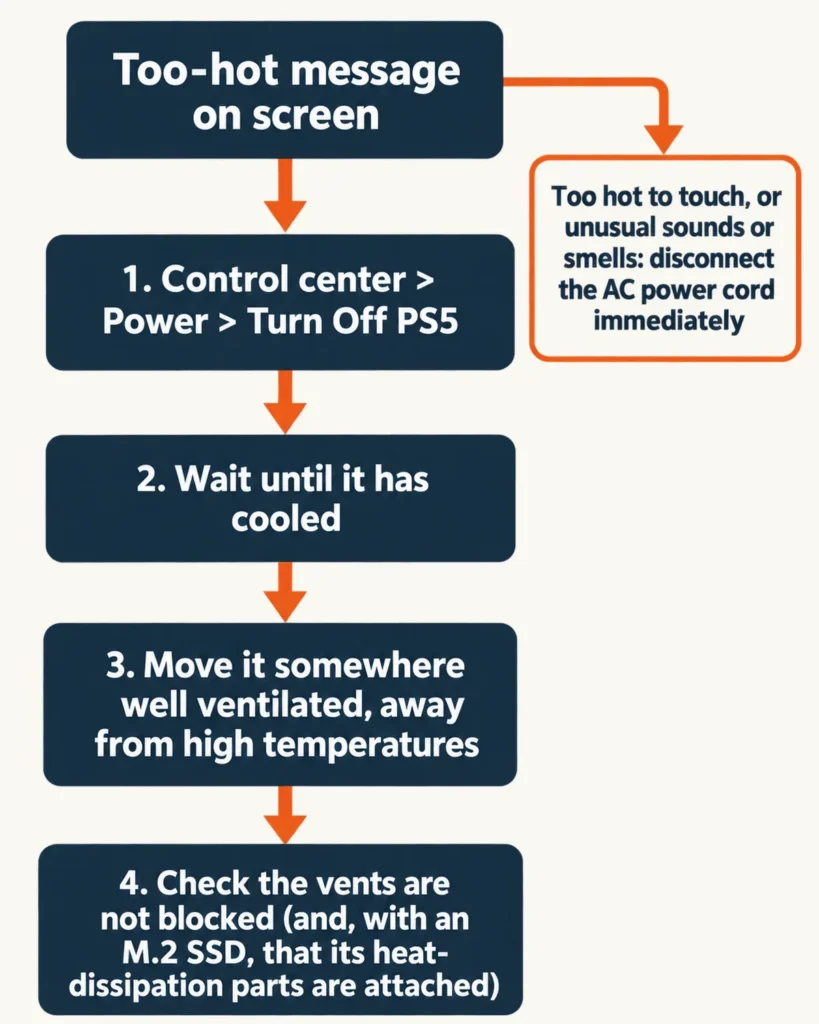
Sony’s safety guide says you will see a notification on screen when the console becomes too hot. The slim model’s guide adds that continued use while the message displays may lead to the console becoming non-operational. For the original model, Sony’s guide says continued use may lead to damage or malfunction.
- Turn the console off from the control center (Power, then Turn Off PS5) rather than pulling the plug. Sony’s power-saving page warns against disconnecting the AC power cord while the power indicator is lit or blinking, because data can be lost or corrupted and the console can be damaged.
- Let it cool. Sony gives no wait time, so wait until the case no longer feels hot to you.
- Move it to a well-ventilated spot that isn’t subject to high temperatures, then check that the vents aren’t blocked.
- If you added an M.2 SSD, check that its heat-dissipation parts haven’t come loose from the drive. Sony’s slim and Pro guides include that check.
One case skips the orderly shutdown. Sony’s guide says to stop use and disconnect the AC power cord immediately if the console gives off unusual sounds or smells, or becomes too hot to touch.
Don’t wait for a light to tell you. Sony’s power indicator page lists a pulsing red light as “Console Overheating” under the PS4 console entry. The PS5 entries cover white, blue and orange states and have no overheating light, so on a PS5 the on-screen message is the signal to act on.
Is a loud fan the same as overheating?
No. Sony says the cooling fan can run louder than usual during some games and apps, and calls that normal because the fan is spinning faster to cool the system. If you hear a loud fan with no message and no shutdown, that is cooling at work; the message or a shutdown is what calls for the checks.
I draw the same line on PCs: a fan ramping up under load is the cooler doing its job, and a machine that shuts itself off is the failure. The Chromebook overheating guide runs on that split too. Sony’s support page on console noise is where the “normal” wording comes from, and it is followed by the same airflow list used in the next section.
Free checks for PS5 overheating: placement, room and the base
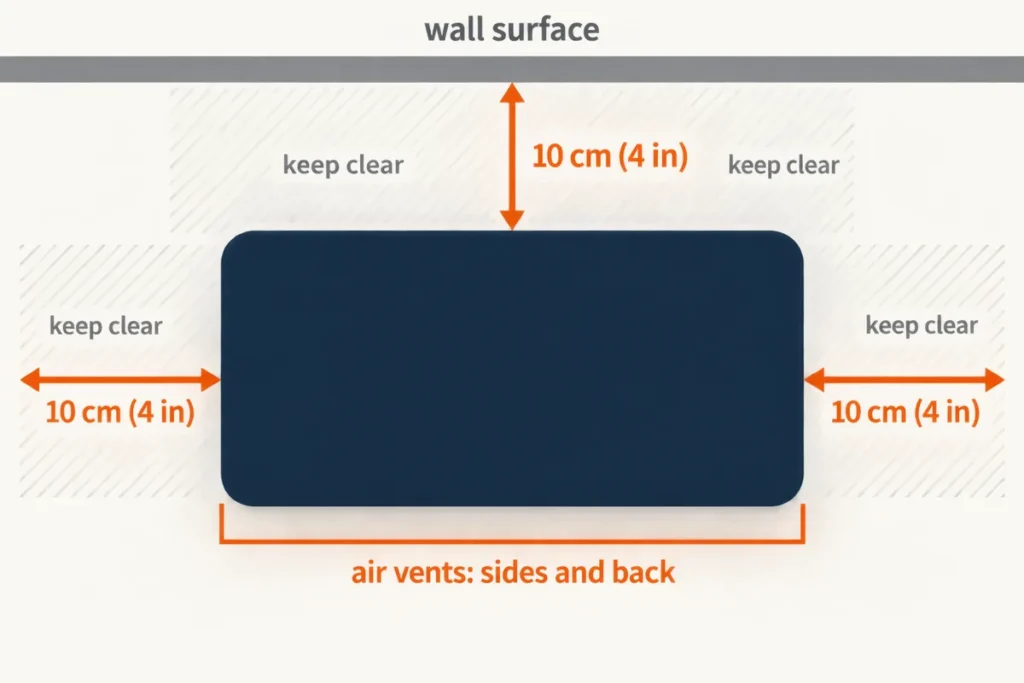
The noise page asks for the air vents on the sides and back to be unobstructed, with at least 10cm of free space around each side of the console. Sony’s safety guide words it as at least 10 cm (4 in) away from a wall surface. Two pages, two wordings: if you aren’t sure which applies, leave 10 cm on every side that has a vent.
The same pages list what to avoid:
- Carpets or rugs with long fibres.
- Narrow or cramped spaces.
- Covering the console with cloth.
- A closed cabinet or any place where heat can build up.
- High temperatures, high humidity or direct sunlight during operation.
Sony’s setup page says to always attach the base or feet before use and shows the console in either a vertical or a horizontal position. On the slim and Pro models, standing it up needs the vertical stand, which is sold separately. Sony’s pages don’t rank one position above the other for cooling, so the position matters less than the space around it.
If the console lives in a TV cabinet, a Reddit reply to a PS5 Pro owner with a loud fan gives a test that costs nothing:
“Try putting it in a completely un-enclosed place first. If the problem persists, then it very likely has a fault. If the problem resolves, the cabinet you have it in normally isn’t adequate for airflow.”
– r/PS5pro, July 2026 (9 upvotes)
That test follows from Sony’s rule against closed cabinets. Run a full session with the console in the open. If the message stays away, you’ve found the cause.
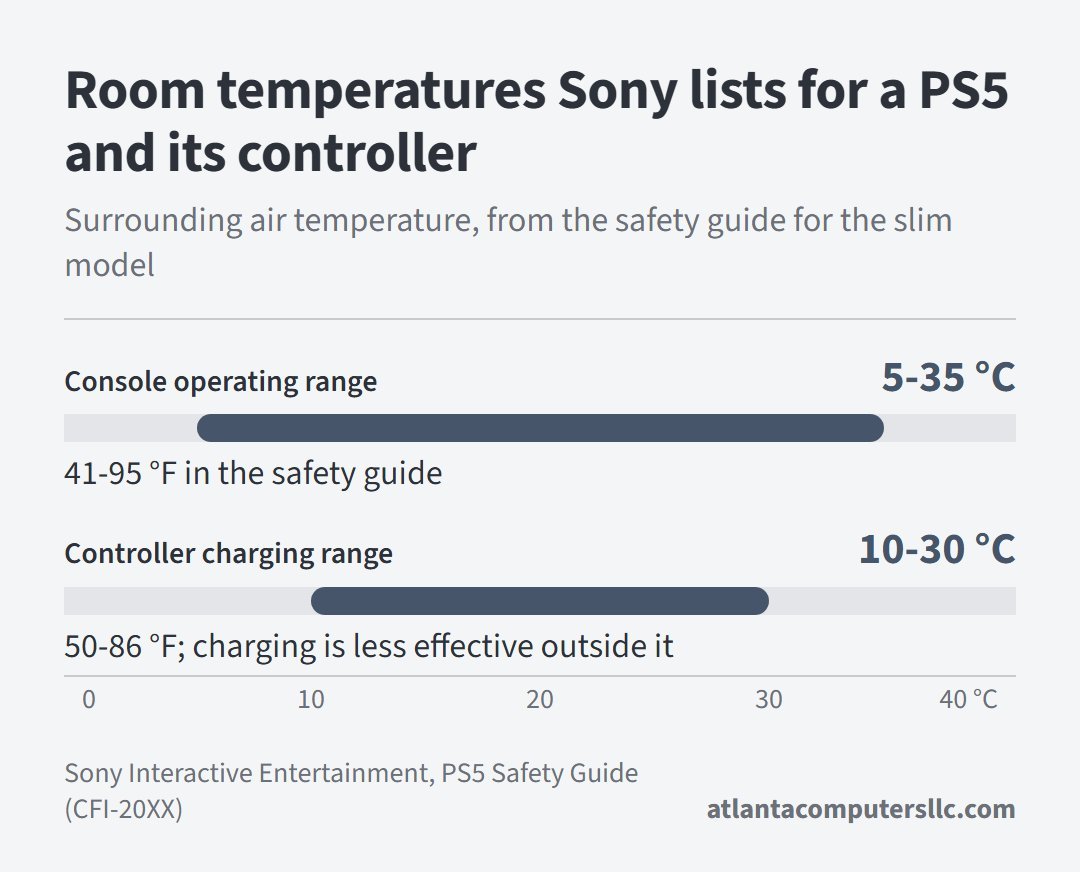
Room temperature is the other free variable. Sony’s safety guide gives an operating temperature of 5 °C to 35 °C (41 °F to 95 °F) for the console. Controller charging gets its own window in that guide, 10 °C to 30 °C (50 °F to 86 °F). If your room climbs past 95 °F, the console is outside what it is rated for, and no amount of cleaning fixes that.
Expansion storage is the one hardware add-on that changes the picture. Sony’s M.2 install page says not to use an M.2 SSD without a heat-dissipation mechanism such as a heat sink or heat transfer sheet. If your drive arrived bare, or its heat sink came off, rule that out first.
Cleaning the vents the way Sony documents it
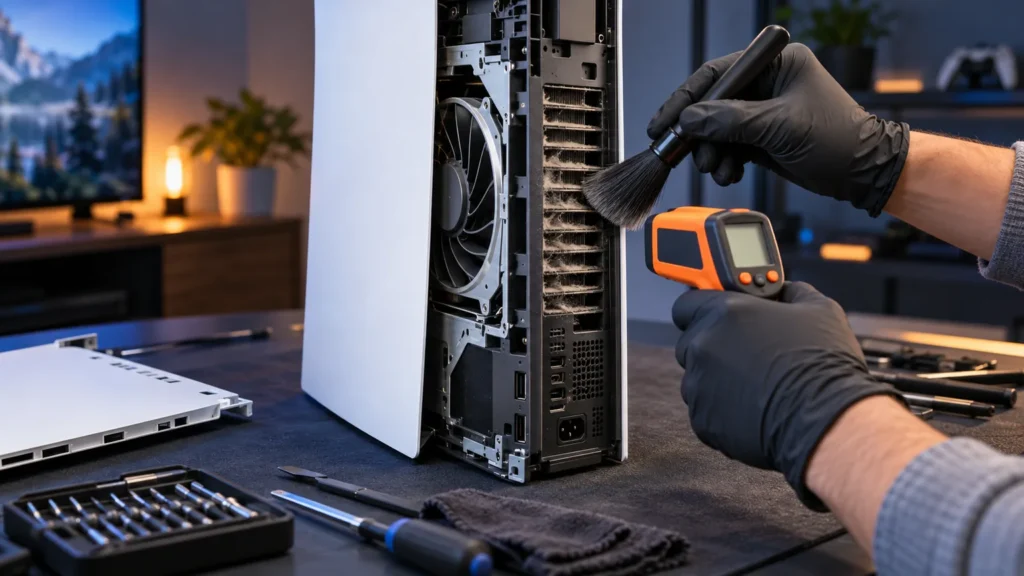
Sony’s noise page says not to let dust build up in or around the vents, and gives the method: disconnect the AC power cable from the rear of the console first, then use a low-powered vacuum cleaner on the dust in and around the vents. Sony’s sequence for the console begins the way a PC cleaning does: power down, unplug, and let it cool before anything opens.
Sony’s safety guide for the slim model goes further and recommends a handheld vacuum cleaner for dust buildup, plus removing the covers to vacuum the dust trapped underneath. Sony’s pages name a vacuum and say nothing about compressed air, so reach for the vacuum.
Sony’s cover steps for the slim model run like this. Other models have different covers, so check the guide for your model number first.
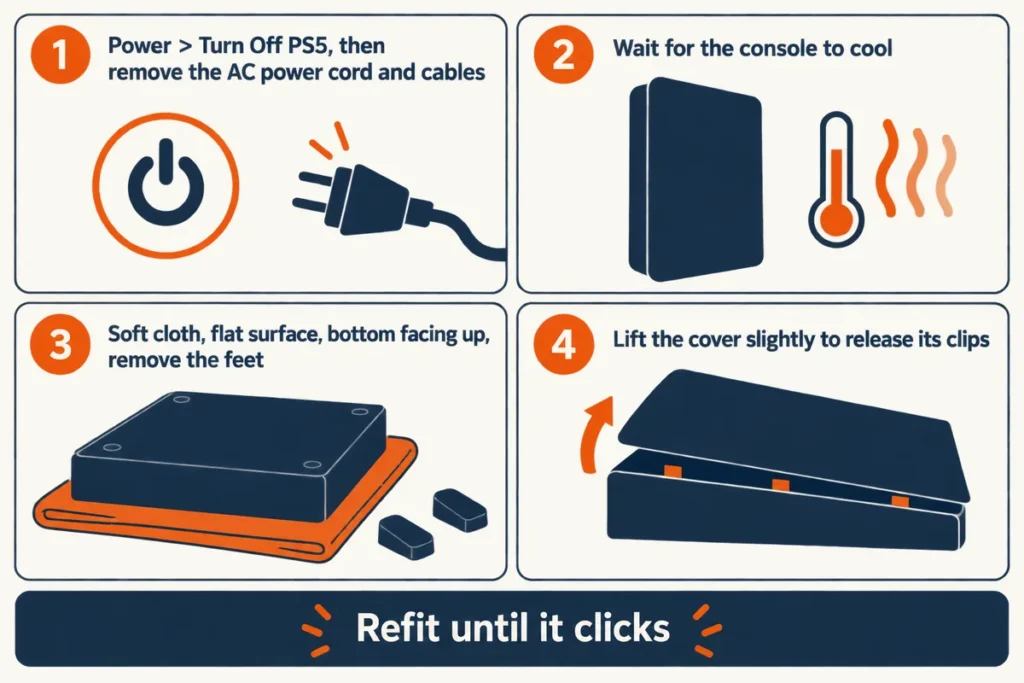
- Go to the control center and select Power, then Turn Off PS5. The screen goes blank, the power indicator flashes white, and then it turns off.
- Remove the AC power cord and cables, and wait for the console to cool. Sony warns that the main unit is hot immediately after use.
- Put the console on a soft cloth spread over a flat surface, with the bottom facing up and the front side facing you, and remove the feet.
- Lift the cover slightly away from the console to release its clips, then take it off.
- Vacuum, then refit the cover by lining up its clips with the holes and pressing until it clicks.
A cover that isn’t seated properly matters more than it looks. The guide says covers installed incorrectly may cause the main unit to overheat, and the original model’s guide says not to use the console without its cover, because of fire, electric shock and malfunction risks.
Where Sony’s warranty text draws the line
Removing the side covers is a maintenance step Sony publishes. Past them, you are working outside what Sony publishes, and the paperwork changes. The safety guide says to never disassemble or modify the console, and states that there are no user serviceable components inside.
The limited hardware warranty in the slim model’s guide covers material defects for one year from the original purchase date, in the United States and Canada. It excludes damage caused by service from anyone who isn’t Sony or an authorized provider, and damage caused by opening the product, or any action taken within it, by such a person.
Repair videos and forum threads go further than that. Online Tech Tips mentions replacing the liquid metal between the main chips and the heatsink, and advises against following guides that expose the motherboard. Several Reddit threads describe re-applying it. Sony publishes no owner steps for that job, and the warranty clause above is the reason to let Sony or an authorized provider do it.
Advice on forums goes past the covers quickly. A reply to a student whose console kept shutting off after a move reads:
“The holes in your power supply are blocked. Take fan out and look down inside the bottom of the unit you will see the black power supply vent holes blocked. Moreso if you vape indoors. Clean them and it wont shut down again”
– r/PS5HelpSupport, August 2026 (2 upvotes)
Taking the fan out is past Sony’s documented covers, so it falls under the exclusion above. The smoke point does match Sony’s guide for the original model, which says not to place the console where there is excessive dust or cigarette smoke, because residue on internal components may cause the console to malfunction. Whether that stops the shutdowns is one person’s result, and Sony states nothing of the kind.
When the message keeps coming back
If PS5 overheating returns with clear vents, 10 cm of space, the console out of its cabinet and a room under 35 °C, placement is no longer the cause. Send it to Sony instead of opening it further.
A console that shuts off by itself, feels hot to the touch or gives off an unusual smell belongs with PlayStation Repairs, which Sony’s indicator page points owners to. In the first year in the US and Canada, check the warranty text above before you pay anyone.
Edge cases after the checks
Why does a PS5 overheat when it isn’t dusty?
Dust is only one cause in Sony’s documents. The others are blocked or covered vents, a closed cabinet, a room above 35 °C, covers that aren’t seated correctly, and an M.2 SSD without a heat sink. Run through those before assuming a hardware fault.
Is it safe to keep playing through PS5 overheating?
No. Sony’s guides say continued use may lead to damage or malfunction, and the slim model’s guide says the console may become non-operational. Turn it off, wait, and fix the airflow before the next session.
