
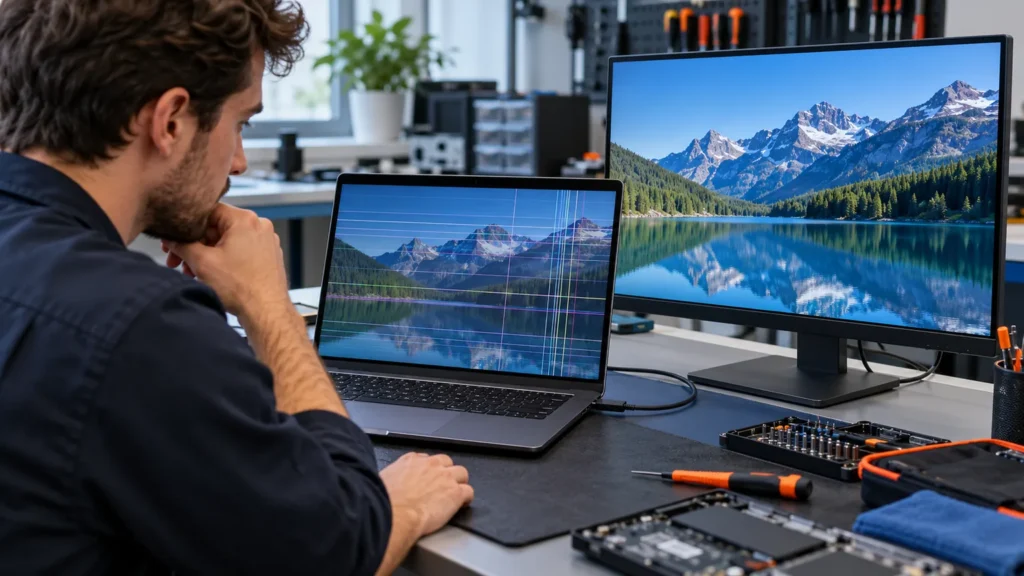
Two tests sort lines on laptop screen problems: do the lines show before Windows loads, and does an external monitor show them too? Lines before Windows that the monitor lacks mean the screen or its wiring needs repair. Lines on both screens point to the graphics hardware. Lines only inside Windows point to the driver or a display setting.
Dell, HP and Lenovo laptops filled most of my bench, and I run the checks in the same order on all three: external monitor, then the maker’s screen test, then driver changes last. A driver change that does nothing costs an hour. A skipped test can send you after the wrong fix.
A screen that is simply dark, with no picture at all, belongs with the Dell laptop black screen or Lenovo laptop black screen checks. Lines that flicker or pulse share their first test with the HP laptop screen flickering and ASUS laptop screen flickering pages.
Plug in a monitor and compare
Connect a known-good monitor with HDMI, DisplayPort or another compatible cable. Press Windows key + P, choose Duplicate or Extend, and look at both screens at once. Dell’s laptop display guide reads the clean result this way: if the external monitor displays correctly, the laptop’s own screen may have a hardware problem.
Only that clean-monitor reading comes straight from Dell. The other two follow from it by elimination. Lines on both screens sit earlier in the chain, at the graphics driver, a display setting or the graphics hardware. Lines only on the monitor leave the laptop out of it, so swap that monitor’s cable and port first.
Give the monitor a few minutes of normal use before you decide. Lines that come and go can stay away for a quick look.
Test the screen before Windows loads
The screens that appear before Windows starts do not use your graphics driver, your refresh-rate setting or any app. Dell’s test page says its screen tests check the screen hardware only, not Windows settings, graphics drivers or software. That is why a test like this settles an argument that driver changes cannot.
Dell. Shut the laptop down, unplug external monitors, USB devices and docks, and connect the charger. Hold the D key, press the power button, and keep holding D until solid colors appear. The screen cycles through black, white, red, green and blue.
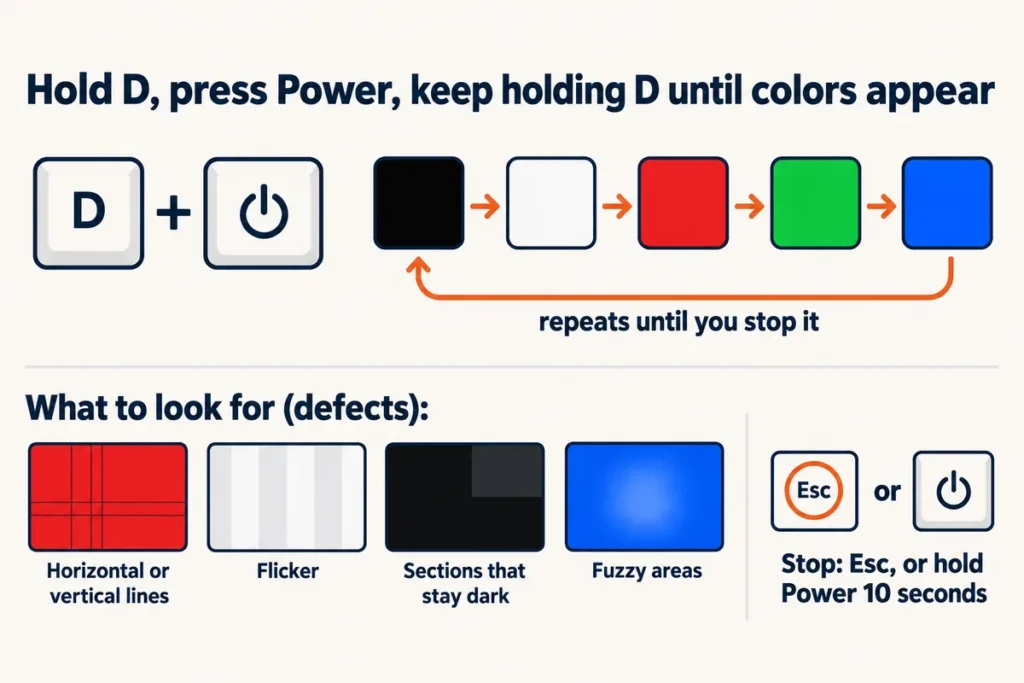
Watch every color of the sequence for horizontal or vertical lines, flicker, dark sections and fuzzy areas, because a real fault usually shows on more than one color. Esc ends the test, and so does holding the power button for 10 seconds. On newer models with an updated BIOS the test can also flash the battery or power light, and the pattern is worth writing down (Dell’s LCD self-test page).
HP. Hold the power button for at least five seconds to turn the laptop off. Turn it on, press Esc about once a second, and press F2 when the menu appears. That opens HP PC Hardware Diagnostics (UEFI); if the F2 menu does not offer it, run the diagnostics from a USB drive.
HP’s Component Tests menu has a Video group with three tests: Palette Check at about 1 minute, Video Memory Fast Check at about 3 minutes and Video Memory Check at about 20 minutes (HP’s hardware-failure page).

Read an HP pass with that limit in mind. A pass says the video memory and the color components tested fine, which is not the same as a clean panel. Watch the HP logo and the menus themselves for lines, since those screens also run without Windows.
Lenovo. Plug in the charger and open Lenovo’s UEFI Diagnostics before Windows loads. On a ThinkPad or ThinkBook, press F10 quickly and repeatedly when the Lenovo logo appears. On an IdeaPad, Yoga, Legion or LOQ, open the Novo Button Menu instead: press the Super key (usually on F9 or Insert) with the laptop off or right after power-on, or press the small Novo button if your model has one. Lenovo says the way into that menu differs by product, so check your model’s user guide if neither works. The Display test paints a pattern on the screen and then asks whether it was painted correctly (Lenovo’s UEFI diagnostics guides).
Any brand. The BIOS or UEFI setup screen is another screen that appears before Windows. If the lines are on it, Windows is out of the picture. The BIOS guide lists the key for each maker.
Read both results together
Lines before Windows, clean on the monitor. The fault is in the screen or the wiring behind it. Nothing in these tests tells the panel from its cable, and I would not guess from the outside. Either way the next step is a repair, not a setting.
An r/Asustuf thread shows the sequence on a real laptop. A commenter said to look for the lines in the BIOS, and the owner came back with both results.
“Check if the lines are present in BIOS too. If they are, it’s probably a hardware issue (the screen itself, or perhaps a loose/damaged ribbon cable between your motherboard and display).”
– r/Asustuf, May 2026 (2 upvotes)
The owner’s answer: “Yep. It’s there in the BIOS. Tried connecting it to my TV and works fine”
– r/Asustuf, May 2026 (1 upvote)
Lines in the BIOS plus a clean TV is the screen-or-wiring verdict. The BIOS lines take Windows out of the picture, and the TV shows the laptop can still send a clean image.
Lines before Windows, and on the monitor too. Windows is already ruled out, and the lines follow you to a second screen, so the fault sits in the graphics hardware or the board that feeds both screens. That is my reading, because the maker pages only cover the clean-monitor case. Board-level work is the one repair I don’t do, so this is where I would stop.
Clean test, lines only in Windows. A clean test clears the screen hardware and nothing else, as Dell puts it. The driver and the settings are still open, so go on to the next section.
Clean test, clean monitor, lines that come and go. Run the test again while the lines are showing. A test run at a quiet moment says nothing about the moment the lines return.
Lines on laptop screen that only show in Windows
These steps are Microsoft’s flicker-and-scramble fixes plus the maker’s updates, in the order that costs least. The HP laptop screen flickering page walks through the driver and refresh-rate steps in full, and they are the same on any Windows laptop.
- Reset the graphics driver. Press the Windows logo key + Ctrl + Shift + B. Restart if the lines stay.
- Roll back the display driver if the lines began after an update. In Device Manager, expand Display adapters, open the adapter’s Properties and choose Roll Back Driver on the Driver tab. A grayed-out button means Windows has no earlier driver to return to.
- Update the driver, then reinstall it. If updating changes nothing, uninstall the device with the box to remove the driver ticked and restart so Windows reinstalls it. The box can be missing outside safe mode.
- Check resolution and refresh rate. Set the resolution Windows marks as recommended, then try the other rates under Settings > System > Display > Advanced display.
- Install the maker’s latest BIOS and graphics driver. HP’s screen-issues page recommends both for software display problems.
One more check costs nothing while the lines are on screen. Take a screenshot and open the saved image. Lines that are on the real screen but missing from the picture were added after Windows drew it, which fits a display fault. Lines that are in the image come from Windows or the graphics side.
An r/laptops owner reported that exact result.
“when I take a screenshot, it by itself isn’t messed up but the actual display is messed up”
– r/laptops, September 2026 (1 upvote, excerpt)
That is one owner’s report, not a maker test. I treat it as a clue that backs up the pre-Windows test, never as a replacement for it.
Shapes, lid angle and when to stop
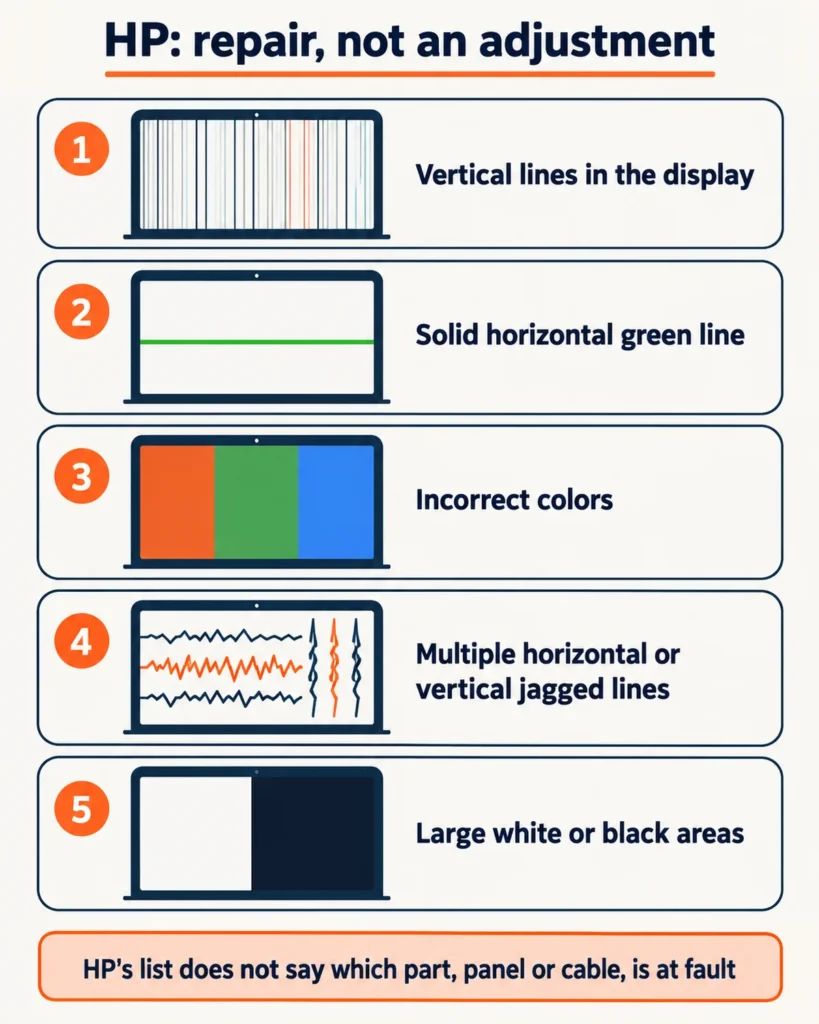
HP’s screen-issues page names looks that need a repair rather than an adjustment: vertical lines in the display, a solid horizontal green line, incorrect colors, multiple horizontal or vertical jagged lines, and large white or black areas. It also says a cracked LCD can show diagonal or jagged lines, and that this damage can be detected as early as the BIOS-level startup. The list does not sort the looks by part, so a green line or a black one does not tell you whether the panel or the cable is at fault (HP’s screen-issues page).
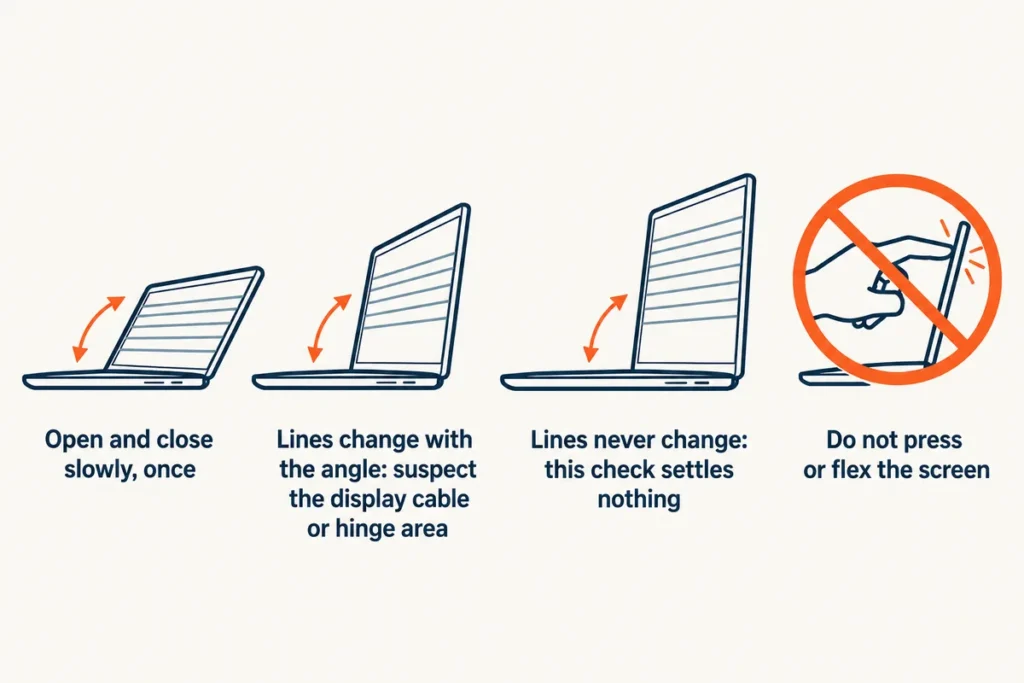
Open and close the lid slowly, once, while the lines are showing, and watch whether they change with the angle. HP’s Tech Takes page ties flicker that appears when you move the screen to loose or damaged internal connections, and I read lines that change with the angle the same way: the display cable or the hinge area is the suspect. Lines that stay the same at every angle settle nothing. I don’t press on the bezel or flex the corners to chase the lines, because a test that can crack a panel isn’t worth running.
Stop and arrange a repair if any of these is true:
- The lines show on the HP logo screen, in a maker’s self-test or in the BIOS.
- The lines stay on the laptop panel while the external monitor is clean.
- The lines change as the lid moves.
Write down which test showed the lines and on which colors, take a phone photo of the screen, and contact the maker’s support, because warranty status sets the repair options. HP points damaged displays to an authorized repair center. Opening the case to reach the display cable is a repair job in itself: unplug the charger, disconnect the battery where the case allows, and expect a spudger and precision screwdrivers. If you have never opened a laptop, hand that part off.
Copy your files to another drive while the picture is still readable, the same habit I follow before any repair that touches the disk. An external monitor keeps the laptop usable until then.
Lines on laptop screen: follow-up answers
How do I get rid of horizontal lines on a laptop screen?
It depends on where they show. Lines that appear only inside Windows can respond to the driver reset, a rollback and a refresh-rate change, in that order. Lines that show in the BIOS or a maker’s screen test have no setting to change, and HP lists multiple horizontal or vertical jagged lines among the conditions where the screen requires repair.
Why am I seeing lines on my computer screen?
Either Windows is drawing something wrong, or the display hardware is failing. A driver or display setting causes the first kind and the lines vanish in the BIOS. A fault in the screen, its cable or the graphics hardware causes the second kind and the lines stay in the BIOS and in the maker’s screen test.
Can I keep using a laptop with lines on the screen?
Often yes, through an external monitor. HP notes that a laptop with a damaged display can still be used by connecting it to one. Back up your files first, since a screen that is getting worse can stop being readable.