
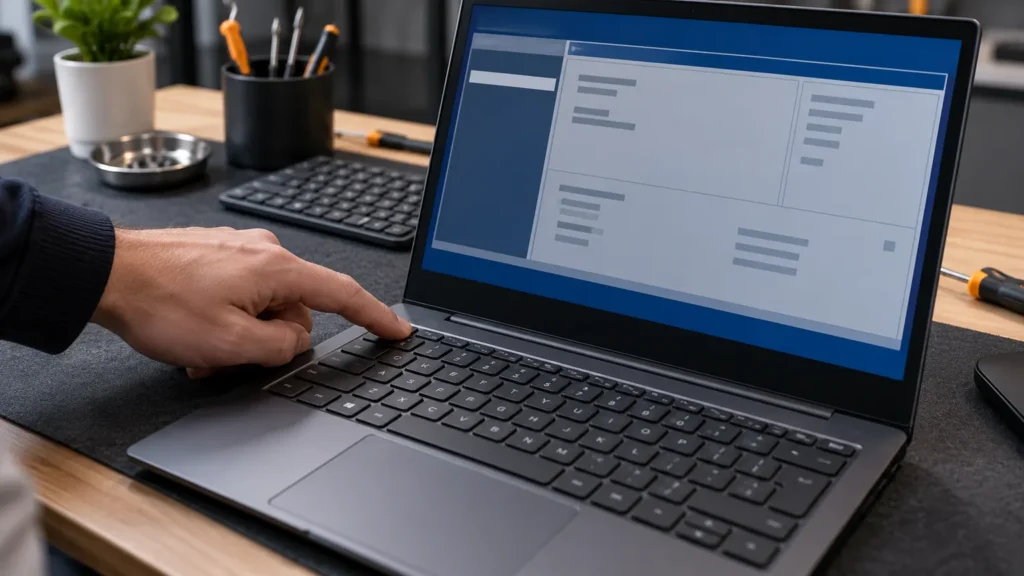
How to get into BIOS comes down to one question: does Windows still start? If it does, restart through Settings and Advanced startup and pick UEFI Firmware Settings, with no key to time. If it doesn’t, tap your maker’s setup key at the logo: F2 on a Dell, Esc then F10 on an HP, F1 on a ThinkPad.
Dell’s setup article uses BIOS, UEFI, system firmware and System Setup for the same screen, and Windows labels it UEFI Firmware Settings. Whichever name your menu shows, that is the screen you want. Most machines on my bench were Dell, HP and Lenovo, so those rows lead the table below.
Windows route: how to get into BIOS without timing a key
To get into BIOS from Windows 11, restart through Advanced startup and choose UEFI Firmware Settings. The computer opens setup on its own, so no key needs timing, which makes this the better route for any machine that boots too fast for a keypress.
Microsoft’s Surface UEFI page prints the Windows 11 path, and Dell’s article adds the confirmation prompt:
- Open Settings, then System, then Recovery.
- Next to Advanced startup, select Restart now. If Windows asks you to confirm, select Restart now again.
- On the Choose an option screen, select Troubleshoot.
- Select Advanced options.
- Select UEFI Firmware Settings.
- Select Restart. The computer restarts once more and opens setup.
On Windows 10 the first steps differ: Settings, then Update & Security, then Recovery, then Restart now. Lenovo’s support page lists both paths, and everything after Restart now is the same.
Don’t mix up UEFI Firmware Settings with Startup Settings on the same menu. Startup Settings holds options like Safe Mode and never opens firmware.
If you can reach the sign-in screen but not the desktop, select the Power icon, hold Shift and select Restart. Keep holding Shift until the Choose an option screen appears, then follow the same path from Troubleshoot. Administrators can also open a terminal as administrator and run shutdown /r /fw /t 0 to restart straight into setup, which Dell says works on nearly all current Dell systems.
Sometimes UEFI Firmware Settings is missing from Advanced options. Dell gives three causes: the PC started in legacy boot mode, the drive uses the older MBR partition style, or the Windows Recovery Environment is off or damaged. Press the Windows key + R, type msinfo32 and look at the BIOS Mode line; Legacy explains the missing option, and the brand key in the next section is the way in.
I start here on any machine that still boots, because a menu click can’t miss the way a keypress can.
BIOS key by brand, with the page that says so
These keys are pressed as the machine powers on, at the logo. Each row comes from the maker’s own support page or manual, which is why the last column exists: I trust a key only once it’s on a page the maker wrote. Models differ, so your own manual outranks this table.
| Your machine | Press | Timing and catches | Where the maker says so |
|---|---|---|---|
| Dell laptop or desktop | F2 | Tap about once a second from the Dell logo. F12 opens a one-time boot menu with a BIOS Setup entry. | Dell Support, article 000126121 |
| HP laptop or desktop (consumer) | Esc, then F10 | Press Esc repeatedly until the Startup Menu opens, then F10 for BIOS Setup. On a desktop, power off and wait five seconds first. | HP Support, consumer notebook and desktop BIOS Setup pages |
| Lenovo ThinkPad, ThinkCentre, ThinkStation | F1 | Tap repeatedly as the logo appears. Some models need Enter first; at the Startup Interrupt Menu, press F1. | Lenovo Support, HT500222 |
| Lenovo IdeaPad | F2 or Fn + F2 | Press immediately and repeatedly; it may take several attempts. The Novo button opens a Novo Boot Menu with BIOS Setup. | Lenovo Support, HT500216 |
| ASUS laptop | F2 | From a full shutdown, hold F2 while pressing the power button, and release F2 when setup appears. Some older desktops use Del. | ASUS Support, FAQ 1008829 |
| Acer Aspire 3 or Aspire 5 | F2 | Press it while the Acer logo is on screen. F10 saves and exits. | Acer Aspire 3 / Aspire 5 user’s manual |
| Microsoft Surface (Pro 4 and later, Laptop, Go, Book, Studio) | Volume-up + power | Shut down and wait about 10 seconds. Hold volume-up, press and release power, and let go at the UEFI screen. | Microsoft Support, How to use Surface UEFI |
| MSI laptop | Del | Press it continuously during startup. If it fails, check the keyboard, then turn off Fast Startup. | MSI Support, Unable to Access BIOS Settings |
The habits differ, so copy the one in front of you. Dell asks for a tap about once a second and warns that holding the key can trigger a keyboard error message, while ASUS wants the opposite: hold F2, press power, and let go when setup shows. HP and Lenovo say to press repeatedly.
HP adds that its method depends on the processor, the BIOS version and the manufacture date. If the first try ends in Windows, shut down and run it again.
F12 is a separate door on a Dell and an IdeaPad. It opens a one-time boot menu, and both makers list a setup entry on it.
Why the key misses, and what to change
Dell names Fast Startup as the usual reason Windows begins loading before F2 lands. With Fast Startup on, Shut down doesn’t fully power off the hardware, so the next start skips part of the sequence and the window shrinks. Fast Startup only affects Shut down, not Restart, so choose Restart and tap the key as the machine comes back on.
If you see the Windows logo with spinning dots, the window has already closed. Restart and tap sooner.
Lenovo and MSI both say to switch Fast Startup off when the key won’t take. Open Control Panel, then Hardware and Sound, then Power Options, and from Choose what the power buttons do select Change settings that are currently unavailable. Clear Turn on fast startup and save. I treat a missed key as a timing problem until the steps above rule it out.
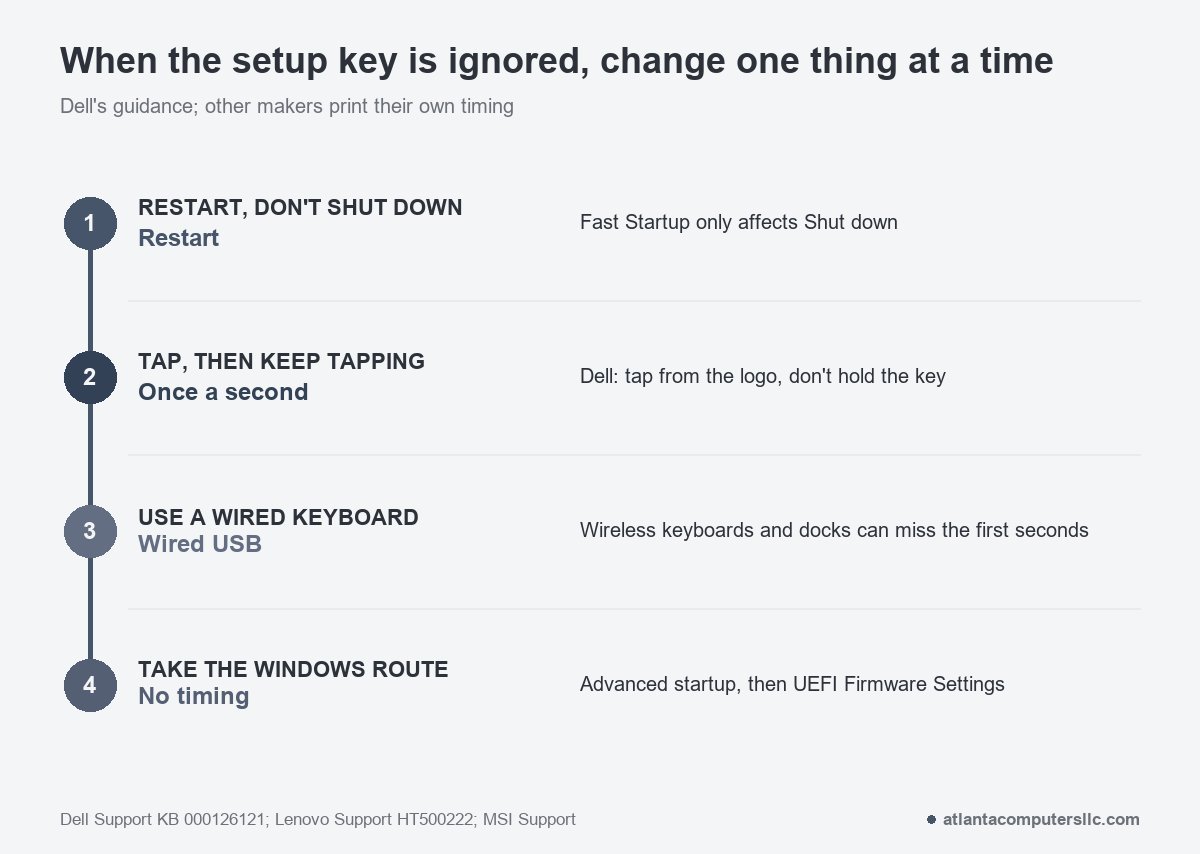
The keyboard matters as much as the timing. Dell says wireless and Bluetooth keyboards often don’t respond before Windows loads, and docking stations, USB hubs and KVM switches can delay detection. Plug a wired USB keyboard straight into the computer. On some Dell laptops the top row defaults to brightness and volume, so if a plain F2 dims the screen, press Fn + F2.
A built-in keyboard that ignores every key at startup is a different problem. The UEFI screen makes a clean test for it, and my Surface keyboard article uses that test.
When Windows will not start
When Windows won’t start, the Windows route may not be on offer, because it depends on the recovery environment working. The key is the dependable way in, and Dell says F2 works independently of Windows.
IdeaPad owners have a third door. With the laptop shut down, press the Novo button and choose BIOS Setup from the Novo Boot Menu, as Lenovo’s IdeaPad page describes. My Lenovo won’t-turn-on article covers where the Novo and reset holes sit.
If nothing appears at all, no key will help yet. I wouldn’t hammer one on a dark screen. Dell’s advice is to unplug USB drives, printers and external monitors, and on a desktop with a separate graphics card to confirm the monitor cable sits in the card rather than the motherboard port. Then tap F12 and run Diagnostics. Dell treats a dark screen as a likely hardware fault, not a key problem. The HP black screen article covers BIOS recovery, and the ASUS one uses F2 setup to load defaults.
Hand the machine to a shop when a BIOS password blocks you on a machine that isn’t yours to open up, or when the screen stays dark after those steps. On its consumer notebooks, HP says it can’t reset a forgotten BIOS password and the system board has to be replaced. Dell says it can’t remove or recover a BIOS administrator password on a work computer, which makes it an IT desk job.
A Mac has startup options instead
Apple’s startup page describes startup options, not a BIOS screen. On an Apple silicon Mac, hold the power button as it starts until the startup options screen appears; on an Intel-based Mac, hold Option (or Alt) at startup to open Startup Manager.
Before you change anything inside BIOS
Looking around is safe. Dell says you can exit without saving at any time and that browsing doesn’t trigger BitLocker. Changes are where the risk sits, and in my view the Windows route is the safer way to reach them.
- Suspend BitLocker first if you will change Secure Boot, the TPM setting or the boot mode. Dell warns that BitLocker treats such a change as a hardware change and asks for the 48-digit recovery key at the next start, and without the key you may be locked out. I back up the drive first whenever a change could keep Windows from starting.
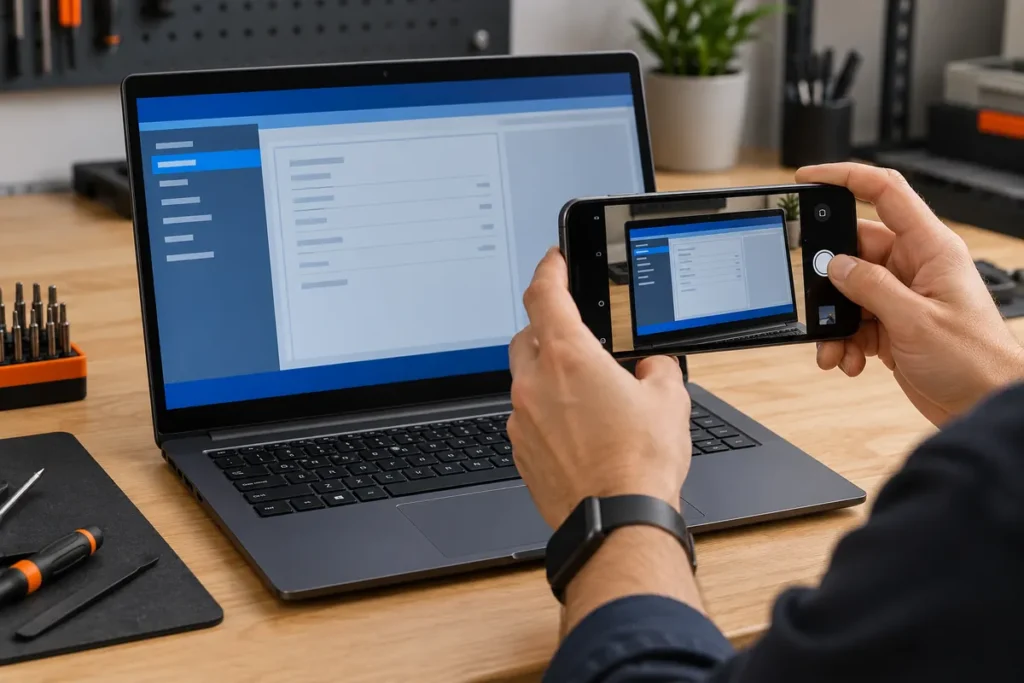
- Change one setting at a time and write down the original value. Dell’s advice is the same, and its setup screen offers Restore Settings or Load Defaults if something misbehaves afterward. A phone photo of each screen costs nothing.
- Exit without saving when you’re unsure. HP’s notebook menu has an Exit Discarding Changes entry, and its desktop page says Esc leaves the utility without saving.
- Don’t set a BIOS password you might lose. HP says it can’t reset one. Microsoft says a Surface UEFI password can’t be reset and Microsoft can’t retrieve it.
- Update BIOS only with the maker’s own tool. HP’s wording is “Only install BIOS updates from HP,” because a bad install can leave the computer unable to start or be recovered. HP also says to keep the power cord connected during the update.
Short answers on getting into BIOS
Is it F10 or F12 for BIOS?
Neither works on every brand. HP opens a Startup Menu with Esc and uses F10 for setup. Dell and Lenovo IdeaPad use F12 for a boot menu with a setup entry, and F2 as the direct key.
How do I get into BIOS without the F2 key?
Restart through Windows: Settings, System, Recovery, Advanced startup, then Troubleshoot, Advanced options and UEFI Firmware Settings. Or use your brand’s other key, such as Esc on an HP or F1 on a ThinkPad.
Can I get into BIOS without restarting?
No. Dell states that BIOS setup runs before Windows loads, so a restart is always required. The Windows route does the restart for you.
