
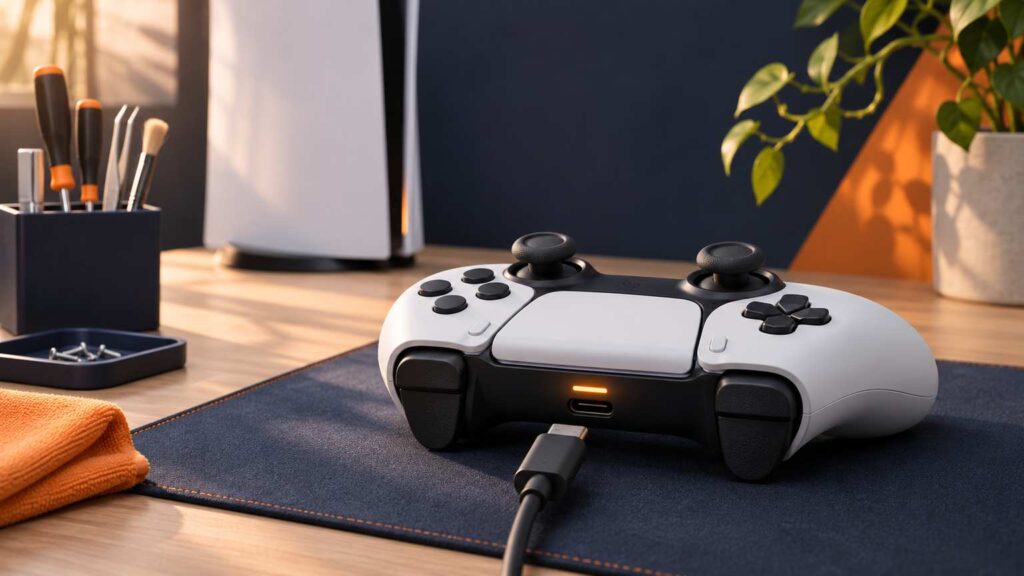
Treat a PS5 controller not charging as a cable, port or rest-mode problem until a swap, a setting and a reset have ruled them out. Plug the DualSense into the console while it’s on, open Accessories in the Control Center, and watch the battery icon. If it never animates, work through the checks in this order, cheapest first.
The order follows PlayStation’s support pages for charging a controller and for resetting it, and it ends where that second page ends, at PlayStation Repairs.
Read the battery icon before you change anything
With the console on, press the PS button and choose Accessories in the Control Center. Sony says an animated battery icon with a lightning bolt means the controller is charging, and that the icon stops animating and shows three bars once it’s full.
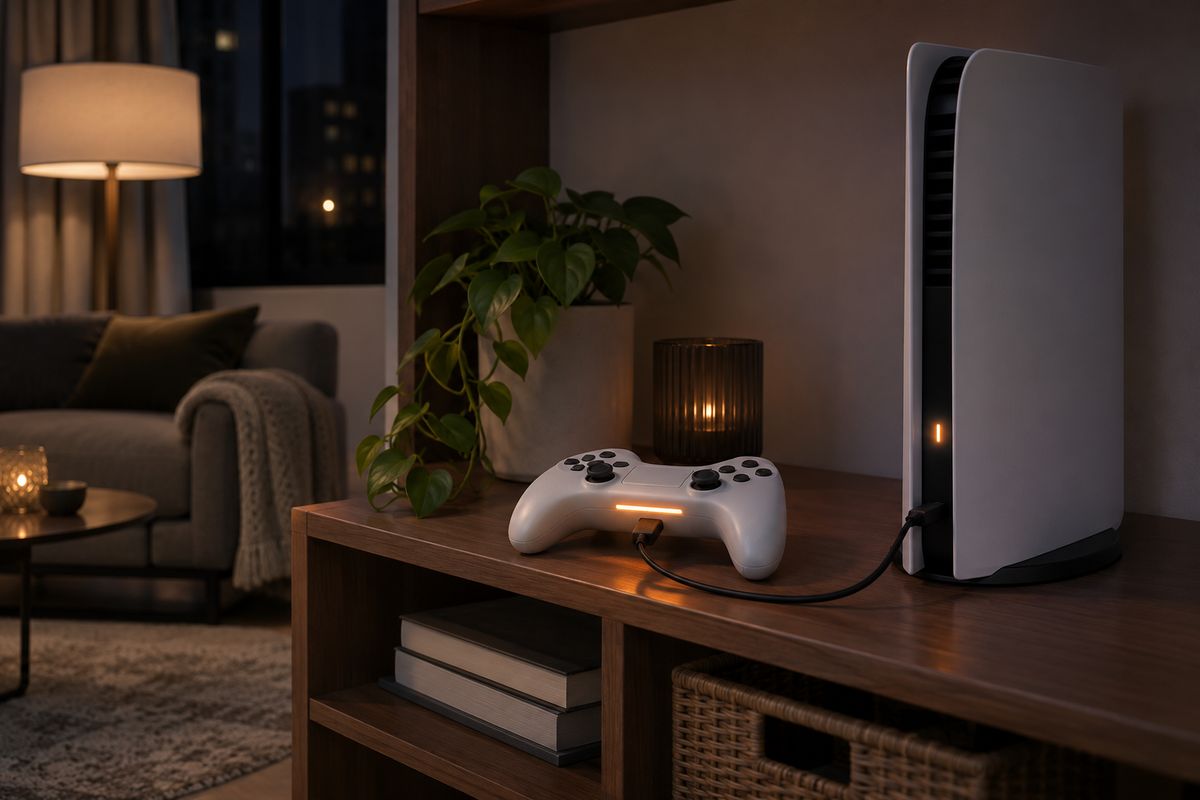
In rest mode the signal changes: the light bar blinks orange slowly while the pad charges and turns off when it’s done.
A dark light bar after a long charge can be a finished charge, not a failure. Check the battery icon before you change anything else. It takes a few seconds.
Swap the cable and the port before you blame the pad
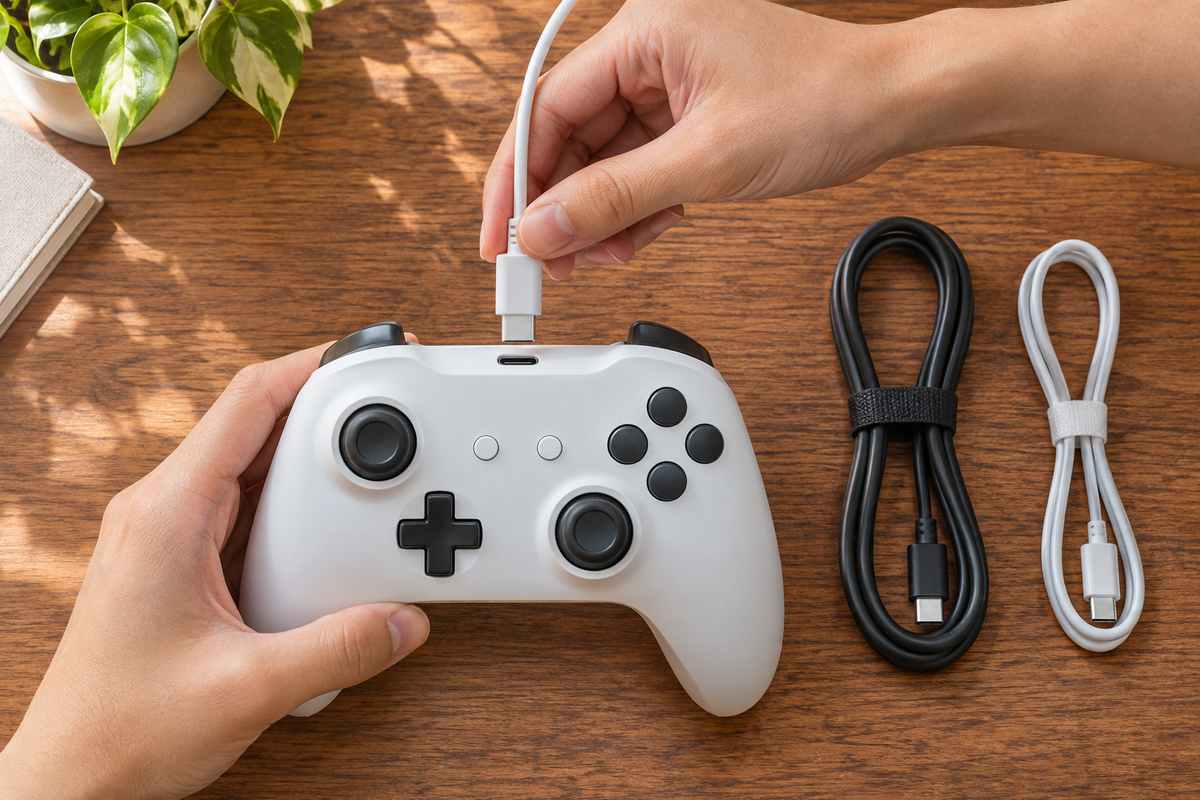
Use the USB cable that came with the console or the controller, and plug it into a different USB port on the console. PlayStation’s controller page lists exactly that as the first fix, and adds that a cable marked “charge only” can’t be used, so look for “charge and sync” or “charging and data.”
The console has four USB ports, two on the front and two on the back, so there are three more to try. Which ports are USB-C depends on the model group: the CFI-1000 console has one Type-A and one Type-C on the front, while the CFI-2000 and CFI-7000 consoles have two Type-C on the front. The back ports are Type-A on all of them.
A cable can look fine and still be the wrong type. One r/PS5HelpSupport commenter, whose two controllers had quit charging, reported what fixed it.
“Yeah I bought a Sony official usbc-usbc charging cable and plugged it into the console and it recharged my controllers. I also bought a charging dock and it works as well”
– r/PS5HelpSupport, August 2026 (1 upvote)
When a USB device on a PC build is dead on arrival, I swap one thing at a time: a different cable, then a different port. Do the same here, and glance at the battery icon after each swap so you know which change did it.
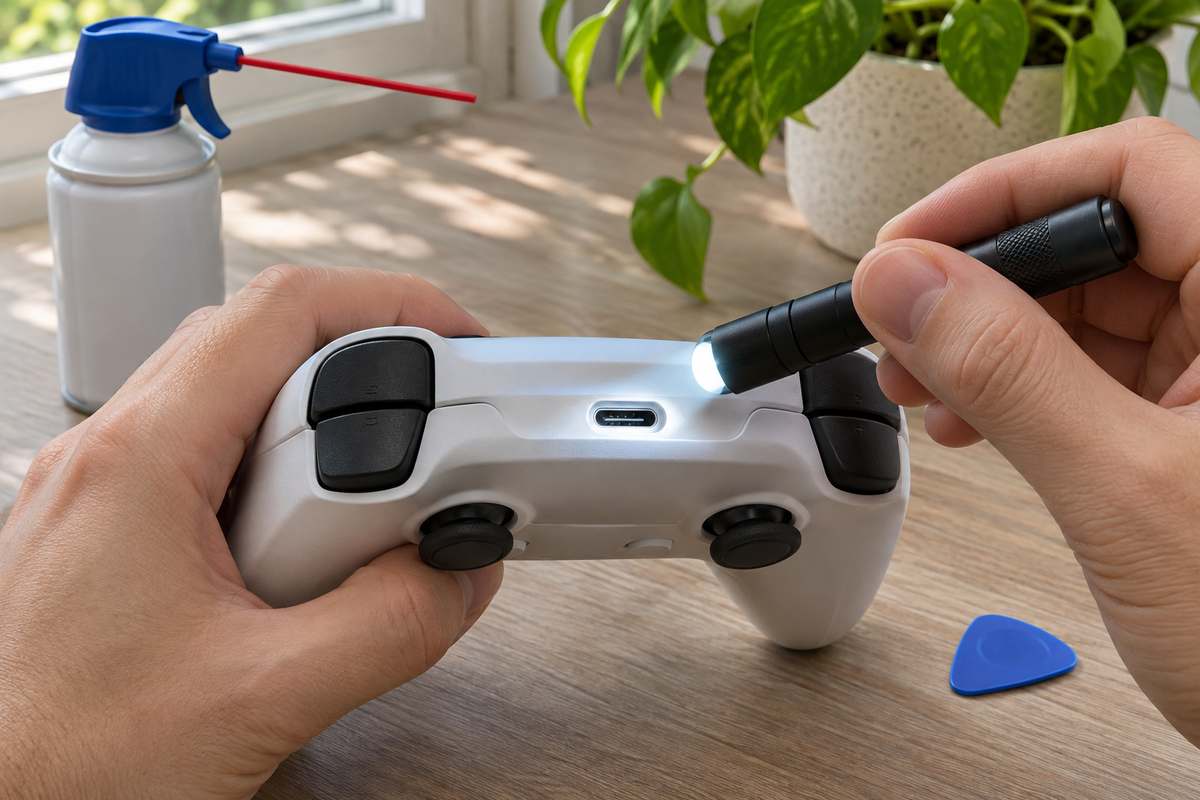
Then look into the controller’s own USB-C port with a light. If the plug doesn’t seat all the way, lint in the port is a suspect. iFixit’s troubleshooting page says to keep anything metal out of the port, and to use an air duster and a non-conductive tool. If you spot burns or chipped parts at the port, the port itself is the likelier fault. That’s a repair job.
Charges with the console on but not in rest mode
If the pad charges only while the PS5 is running, the console probably isn’t powering its USB ports in rest mode. Go to Settings, then System, then Power Saving, then Features Available in Rest Mode, and set Supply Power to USB Ports to Always or 3 Hours.
A console from the CFI-2000 model group adds a third choice, Adaptive. It sets the charging time from the battery level of the controller you had plugged in before the console went to rest. Sony’s page says the setting exists only on that model group, so a missing Adaptive entry on an older console is expected. Nothing’s broken. Adaptive works with the DualSense, the DualSense Edge, the PS VR2 Sense controller and the Access controller, so an Edge owner follows the same steps.
Order matters with Adaptive. Connect the pad first, then put the console to rest. A different device you plug in afterward may not charge, or may not get the optimized charging time. Power to the ports also stops after a while if nothing is connected.
Check the result by looking at the light bar once the console has gone to rest, where a slow orange blink means the console is feeding the pad and a dark bar after a long wait can mean the charge finished. If the console itself won’t start, it can’t charge anything, and PS5 won’t turn on is the problem to solve first.
Match what you see to the cause of a PS5 controller not charging
Sort the failure by where your pad does and doesn’t charge. It’s the same order I use on a laptop that won’t charge: the power source and the port first, then settings, then parts. Sony allows a computer or other USB sources, but with conditions: the cable has to meet USB standards, and not every USB charger can charge a DualSense. Asurion suggests trying a charging station too, because it helps separate a faulty USB-C port from a faulty controller.
| What you see | Points to | Next step |
|---|---|---|
| Charges while the console is on, not while it rests | The rest-mode USB power setting | Set Supply Power to USB Ports |
| Charges from the console, not from a wall charger or a PC | That power source or its cable | Charge from the console, or try a charger that meets the USB standard |
| Won’t charge from any cable, port or source | The pad’s USB-C port or its battery | Look in the port, reset the pad, then PlayStation Repairs |
| Charges, but the battery empties quickly | A worn battery | Reset once, then PlayStation Repairs |
The third row is the one that ends at a repair, because a pad that fails on every cable, port and source has stopped being a cable problem.
Reset the pad, then update it
The pin reset costs nothing. Sony’s page wants the console off first and the reset button held for at least 5 seconds, and then you pair the pad again with the official cable.
- Turn off the PS5.
- Disconnect the controller from the USB cable.
- Find the reset button in the small hole next to the Sony logo on the back of the controller.
- Press and hold it for at least 5 seconds with a pin or a similar tool.
- Connect the controller to the console with the official USB cable that came with it, and press the PS button.
After the reset, update. Controller software arrives with the console’s system software, so update the console first. To start the controller update by hand, go to Settings, then Accessories, then Controller (General), then DualSense Wireless Controller Device Software.
Connect the pad with the cable, so you can see the update through.
Charges but drains fast: a worn battery
A pad that charges but empties quickly points to a worn battery. Sony’s troubleshooting page sends “Battery issue” to PlayStation Repairs, not to a home fix. Reset the pad once, since that costs nothing, then take the repair route.
Owners do swap the cell themselves. On an r/playstation thread about a DualSense that wasn’t holding a charge, one commenter described the result.
“…how old is the battery? You can order a new battery and replace the one is the controller. I did that for both of mine and the battery life is even better than than when I first bought it.”
– r/playstation, July 2026 (4 upvotes)
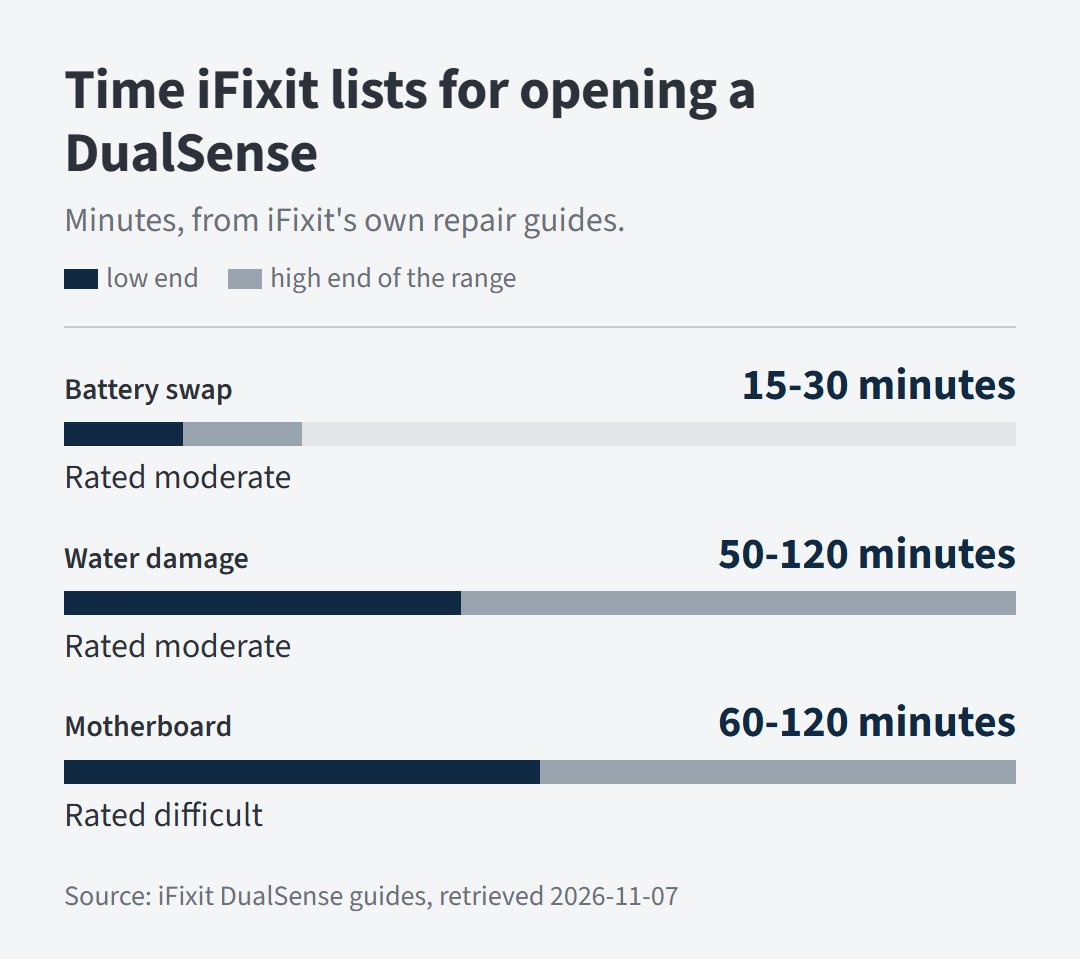
That’s one owner’s account, and it isn’t a route Sony’s page offers. Before you open the shell, know what it takes. iFixit lists its battery guide at 15 to 30 minutes and rates it moderate. Its water-damage guide runs 50 minutes to 2 hours, also moderate, and its motherboard guide runs 1 to 2 hours and is rated difficult.
When to stop and go to PlayStation Repairs
Stop when the cable and port swaps, the rest-mode setting, the pin reset and the update haven’t brought back the animated battery icon. At that point Sony’s own list ends at PlayStation Repairs. The free options are used up.
Stop sooner if you notice a loose port, a burnt smell, a bulging shell or liquid inside the pad. Take it off the cable and don’t keep trying chargers. If the pad charges but won’t pair, that’s a different fault, covered in PS5 controller not connecting. Stick drift is its own entry on Sony’s list.
Two leftover cases
Does a PS5 controller charge with the console switched off?
Sony’s charging pages list the console being on or in rest mode as the states where a controller charges, so a fully powered-off console isn’t covered. Put the console in rest mode and set Supply Power to USB Ports as described above.
PS5 controller not charging and the light bar stays dark: what now?
A dark light bar on every cable and port leaves the pin reset and then PlayStation Repairs. Check the battery icon before you decide, because a light bar that’s off can also mean a finished charge in rest mode.