
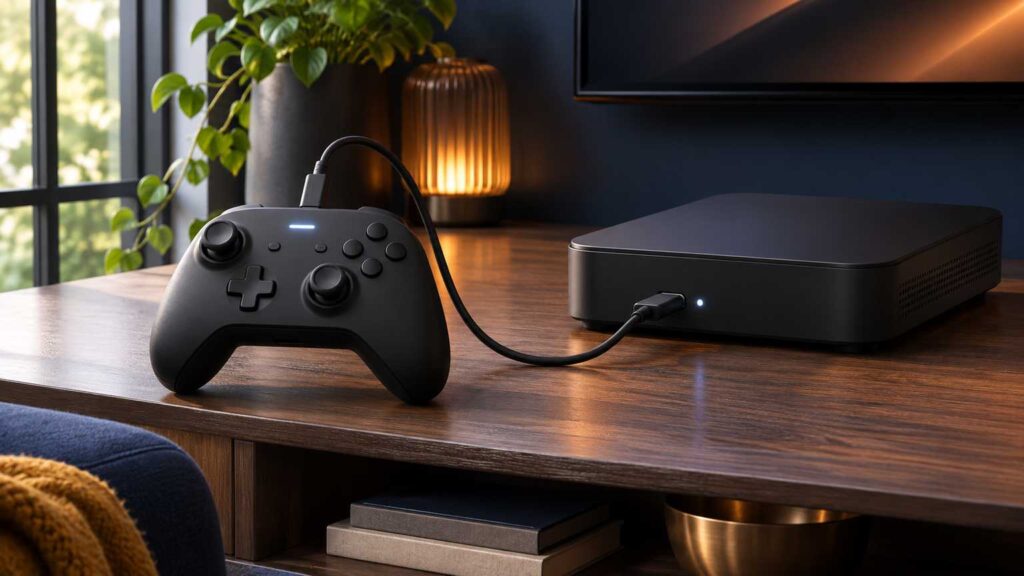
An Xbox controller not connecting is usually a weak battery or a lost pairing. Put in fresh batteries, hold the Xbox button for 5 to 10 seconds to power cycle the controller, then pair it again with the console’s Pair button. If it works on a USB data cable but not wirelessly, look at the batteries and the console next.
The order below follows Xbox Support’s page for a controller that won’t connect or turn on and its pairing page: free checks first, the cable test next, firmware after that, and replacement last.
Xbox controller not connecting: start with batteries and a power cycle
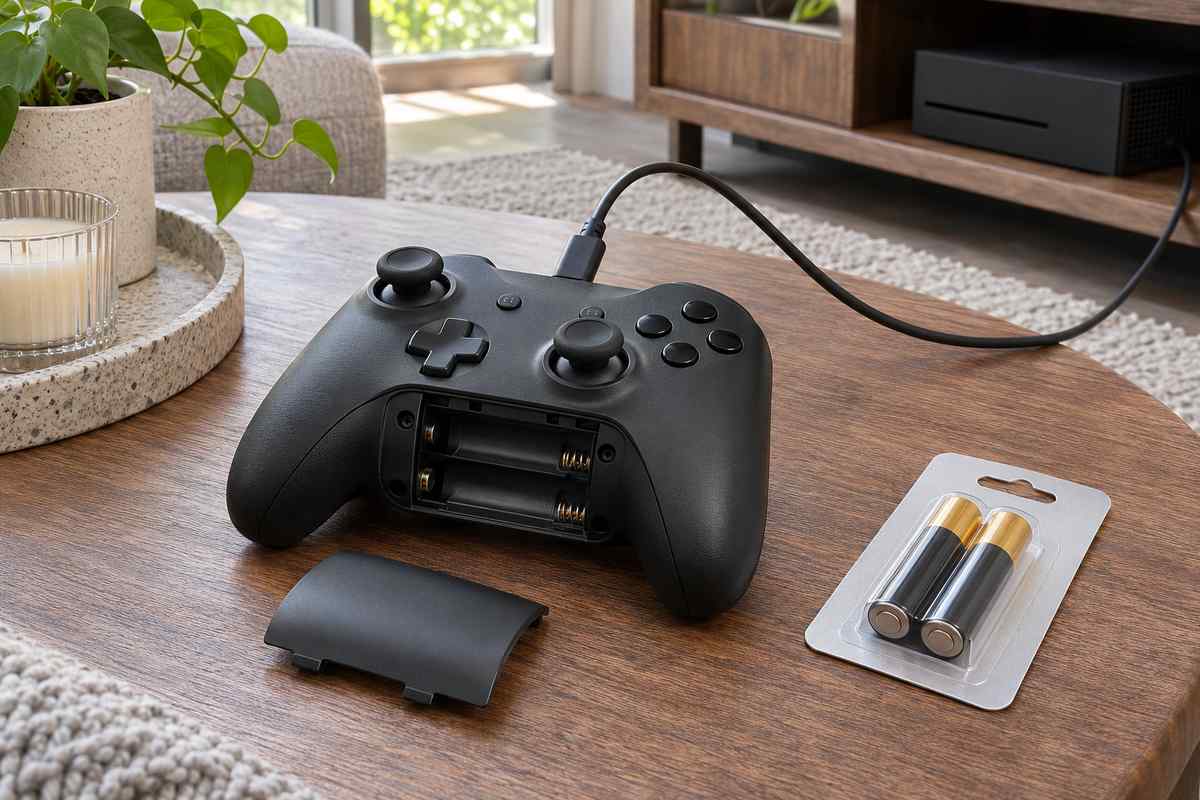
Swap the batteries before anything else, even if the controller still lights up. Low batteries can cause connection problems while the controller still has power, and a rechargeable pack should be charged fully.
- Put in fresh AA batteries, or fully charge the rechargeable pack.
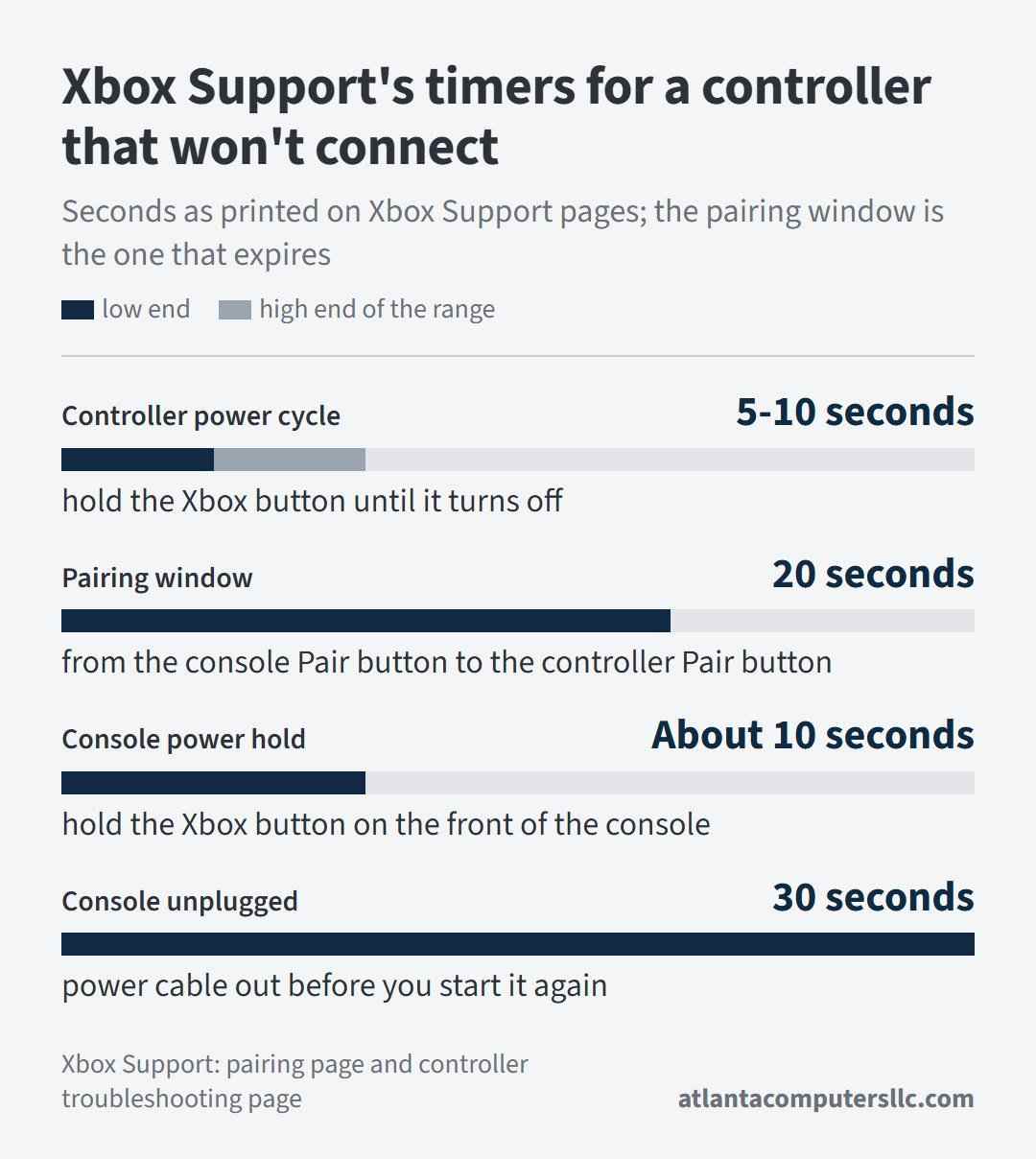
- Hold the Xbox button for 5 to 10 seconds, until the controller turns off.
- Wait a few seconds, then hold the Xbox button again to turn it back on.
Watch the button after step 3. A light that flashes and then stays lit means the controller found the console. A light that keeps flashing means it’s still searching, and the next section is the fix.
Pair it again with the console’s Pair button
Press and release the Pair button on the console. Within 20 seconds, hold the Pair button on top of the controller until the Xbox button flashes a few times. When the button stays lit, the controller is connected.
- Switch the console on.
- Hold the Xbox button on the controller to turn it on. It flashes until it connects.
- Press and release the Pair button on the console.
- Within 20 seconds, hold the controller’s Pair button, the round one on the top edge, until the Xbox button flashes a few times.
- Let go and wait for the Xbox button to stay lit.
Each model puts the console’s Pair button somewhere different:
- Series X: front right, above the USB port
- Series S: front left, to the right of the USB port
- One X and One S: front right, below the power button
- Original Xbox One: a round button on the side, around the corner from the disc tray
An Xbox One controller works with a Series X or Series S, so an older pad isn’t the reason it won’t pair. A console accepts eight wireless controllers. If you have a second controller that still works, you can skip the Pair button: open the guide, then go to Profile & system > Settings > Devices & connections > Controllers & headsets > Connect a device.
Several replies in one r/XboxSupport thread told the poster to press the buttons rather than hold them down. One commenter described the rhythm.
“You simple press the one on the Xbox one time and hold the one on the controller until it starts blinking wich means it’s searching for a signal and you can let go while it does that.”
– r/XboxSupport, October 2026 (3 upvotes)
Same sequence as the steps above: one press on the console, one hold on the controller, inside the 20-second window.
Test it on a USB cable before you blame the console
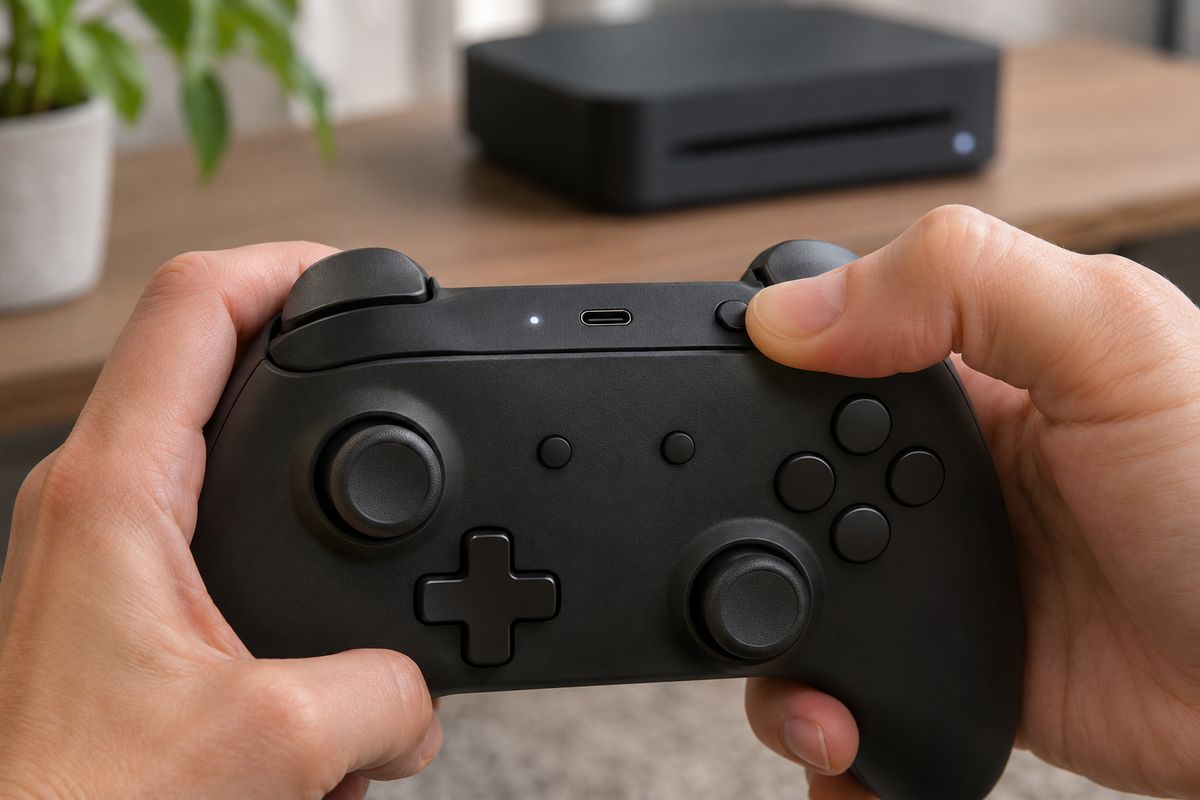
Plug the controller into the console with a USB cable that supports data transfer. If it works on the cable, the controller is alive and the fault is in the wireless link, the batteries or the console. If it fails on a cable you’ve already checked, the controller is the problem.
When a USB device acts up on a PC, I try a second cable and a second machine before I touch any software. Xbox Support gives the same advice here: a different cable, a different port, or a different device.
- Power cycle the console. Hold the Xbox button on the front of the console for about 10 seconds, until it shuts down.
- Unplug the console’s power cable for 30 seconds, plug it back in, and press the Xbox button to start it.
- Connect the controller with a USB-C cable (Series X|S and Elite Series 2 controllers) or a micro-USB cable (Xbox One controllers). Make sure the cable carries data and doesn’t only charge.
- Wait for the controller to light up and respond.
Batteries matter in this test. Alkaline batteries don’t power the controller while it’s wired, so a pad with dead batteries can look perfect on a cable and still fail the moment you unplug it. A poster in r/XboxSeriesS described exactly that: connected by cable, stayed connected after unplugging, but never started wirelessly. Power, not pairing, was the top reply’s diagnosis.
“This is not a pairing issue, this is just an energy problem. Powering the controller on needs more power than keeping it on, so if you have a battery with low charge, faulty or just a bad one, this can happen.”
– r/XboxSeriesS, May 2026 (4 upvotes)
One commenter’s view isn’t proof, but it fits the battery step in the first section. If the pad connects on a cable and drops off without one, put in a brand-new set before you spend time on anything else.
When a PC or phone had the controller last
A controller paired with a PC doesn’t carry that pairing back to the console. You have to re-sync it to the console with the Pair button or a USB cable, the same steps as above.
The controller that comes with a Series X or Series S can hop between a Bluetooth device and the console. Double press the Pair button while it’s on Bluetooth, and it switches to the last Xbox Wireless connection it used. To go back, hold the Pair button to start pairing mode: it reconnects to the Bluetooth device you just used and searches for new ones at the same time.
Going the other way, to pair the controller with a Windows PC over Bluetooth:
- Turn the controller on, then hold the Pair button for three seconds until the Xbox button flashes rapidly.
- On the PC, open Settings > Bluetooth & devices (Windows 10: Settings > Devices > Bluetooth & other devices) and turn Bluetooth on.
- Choose Add device > Bluetooth, then pick Xbox Wireless Controller from the list.
Everything else, in that same menu, is for PCs with Xbox Wireless built in. That’s a different connection from Bluetooth. Pair one controller at a time over Bluetooth; more than one at once isn’t recommended. If a controller works on a cable but not over Bluetooth on the PC, restart the PC and install the latest Windows updates, as the troubleshooting page says.
Update the controller firmware
On the console, open the guide and go to Profile & system > Settings > Devices & connections > Controllers & headsets. Select the three-dot button under the controller. If the first button says No update available, the firmware is current. If it says Update, select it and follow the steps.
On a PC, install the Xbox Accessories app from the Microsoft Store and connect the controller with the app open. If an update stalls, disconnect accessories such as a stereo headset adapter or chatpad. You can also leave the controller on a data cable for up to 5 minutes, because the update can finish in the background.
A recent update can itself affect Bluetooth connections. Xbox Support has a separate page for that case, titled “My XBOX controller has connection issues after the last update.”
When Xbox Support says to replace the controller
Stop troubleshooting if the pad fails on a data cable you’ve checked in another port or on another device. A controller that won’t power on even when wired goes in the same group. Xbox Support’s answer in both cases is replacement, and its replacement request page checks warranty status and sets up an order.
Wet or dropped controllers belong in this group too: no pairing step fixes damage, and prying the shell open to look won’t help.
If the same controller connects to a PC or another console but never to yours, the controller is fine and the console is the suspect, which makes Xbox Support the next stop for the console. On a PlayStation instead? PS5 controller not connecting covers Sony’s order for the DualSense.