
PS4 Controller Not Charging? What to Check First
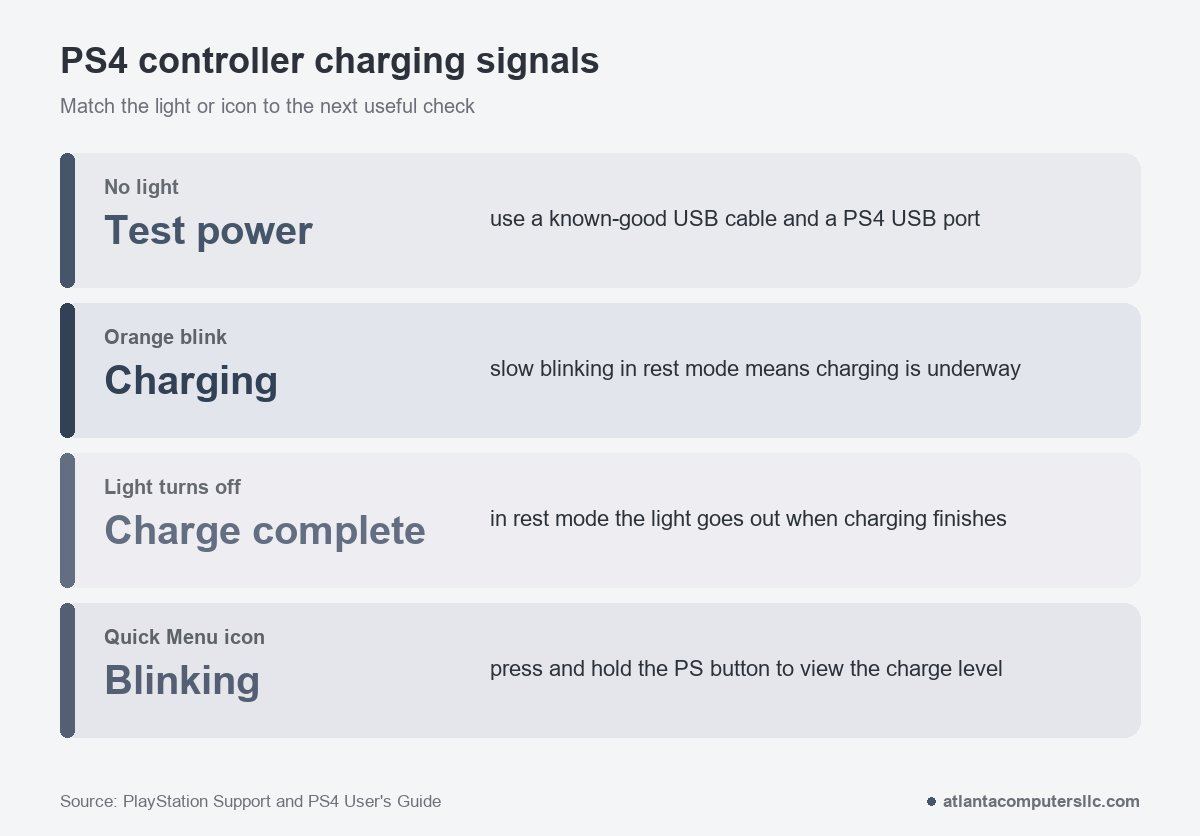
For a PS4 controller not charging, start with a known-good USB cable and a USB port on the PS4 itself. A slow orange blink in rest mode means charging is underway; when charging finishes, the light bar turns off. Verify those signals before resetting the controller or buying a battery.
PlayStation’s DUALSHOCK 4 support page says the on-screen battery icon blinks while charging and gives an approximate charge time of 2 hours from empty. Begin with the power path, then move to the rest-mode setting and Sony’s reset.
PS4 controller not charging: match the signal first
The light bar and the on-screen icon separate a charge in progress from a connection that needs work. No light does not, by itself, prove that the battery has failed. It means the cable, power source and charging path still need to be tested.
With the PS4 in rest mode, the light bar slowly blinks orange while the controller charges and turns off when charging is complete. A dark light bar after a full rest-mode charge can therefore be normal. With the console on, press and hold the PS button to open the Quick Menu; PlayStation says its battery icon blinks during charging.
Isolate the power path on the PS4
Use the console as the reference power source, because Sony’s own charging instructions use a PS4 that is on or in rest mode. If a wall adapter fails but the same controller and cable charge from the console, the controller can accept a charge; the unsuccessful wall setup has not proved a battery fault. Sony’s page does not give a general approval for every wall adapter.
- Turn the PS4 on. Connect the controller to one of the console’s USB ports with a USB cable you know works.
- Try another USB port on the console if there is no charging response. Sony’s reset instructions allow a front or rear PS4 USB port.
- Leave the controller connected and watch the light bar. Press and hold the PS button to view the battery icon in the Quick Menu.
- Give an empty battery time to charge. PlayStation’s estimate is approximately 2 hours from no remaining charge, so a brief connection is not a full charging test.
A DualSense has different charging cues. For that model, use the PS5 controller charging checks rather than carrying this PS4 light-signal sequence across.
Set up rest-mode charging, then reset
For charging in rest mode, open Settings > Power Save Settings > Set Features Available in Rest Mode > Supply Power to USB Ports and select an option other than Off. That menu path comes from the PS4 User’s Guide, and the console must be on or in rest mode for the controller battery to charge.
The same guide recommends charging between 10°C and 30°C (50°F and 86°F) and warns that charging outside that range may be less efficient. Battery life also varies with use and the environment, so the light and icon are better verification points than a stopwatch alone.
Use Sony’s five-second reset after power checks
When the cable, console ports and rest-mode setting have not resolved the issue, follow PlayStation’s reset instructions in this order:
- Turn off and unplug the PS4 console.
- Disconnect the DUALSHOCK 4 from the official USB cable.
- Find the tiny hole on the back of the controller. Use a small, unfolded paper clip to press and hold the recessed reset button for at least five seconds.
- Reconnect the controller to a front or rear PS4 USB port with the official USB cable.
- Press the PS button to pair the controller with the console.
If nothing changes after the reset and the known-good cable and port test, stop. Repeating the same sequence does not move the diagnosis forward, and PlayStation directs persistent controller issues to its repair service.
When the battery or port needs repair
Suspect the battery or the USB port only after the cable, console ports, rest-mode setting and official reset have all been ruled out. Hardware is the last stop on this list, not the first guess. One Reddit reply went straight to replacement:
“batteries don’t last forever. They are cheap to replace.”
— r/playstation (5 upvotes)
That comment is an owner’s opinion, not a diagnosis. A battery can wear out, but Sony also qualifies battery life by use and environment. Do not buy a replacement before the external power path and official reset have been ruled out.
The more common hardware culprit sits ahead of the battery: the charge port. The DualShock 4 charges over a Micro-USB connector, not USB-C, and after years of plug-ins the port can loosen, collect lint, or the small charging board it sits on can fail. The tell is a plug that only charges when held at an angle, or that falls out of the jack entirely. iFixit’s DualShock 4 repair guides treat that USB charging assembly as a replaceable board, while a separate port-level guide covers the soldered connector itself; the first is a careful DIY part swap, the second is soldering work.
Stop and take it to a shop if the USB plug will not stay seated, the port moves, or a known-good cable and the console’s ports produce no charging signal after the reset. Forcing the plug or repeatedly bending it to hold a connection can turn a charging interruption into a damaged connector. The stop point is the same when the controller charges but immediately loses its charge again: a technician needs to assess the battery and the charging board.
PS4 controller charging questions
Why is my PS4 controller not charging in rest mode?
Set Settings > Power Save Settings > Set Features Available in Rest Mode > Supply Power to USB Ports to an option other than Off. A slow orange blink indicates charging; the light bar turns off when charging finishes.
What if my PS4 controller charges but will not connect?
A charging signal confirms power delivery, not pairing or a stable wireless connection. When the battery icon or orange light confirms charging but the pad still will not pair, use the PS4 controller connection steps for that separate fault.