
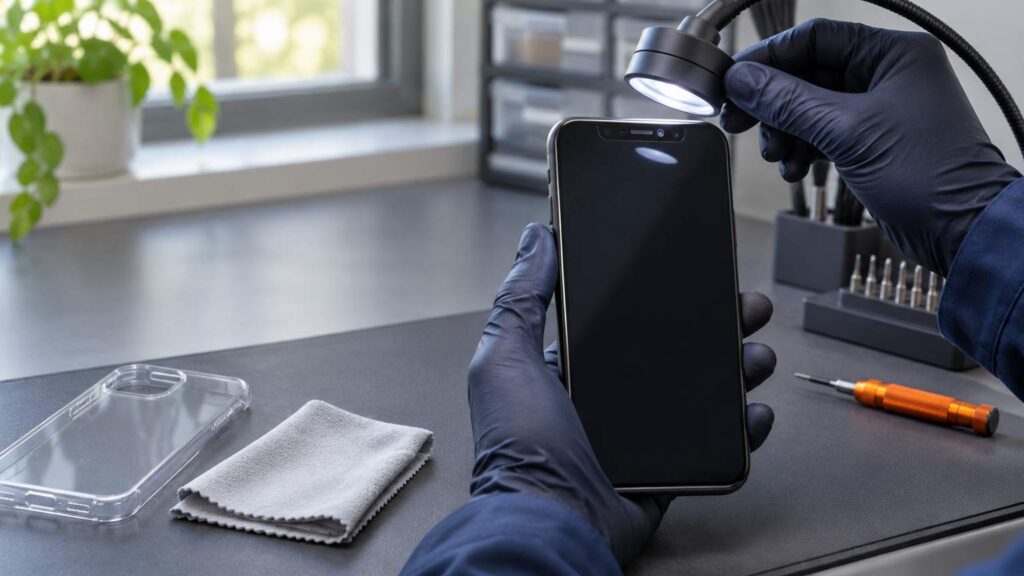
Face ID not working usually comes down to a blocked camera, a setting, your angle or a passcode rule, and you can fix every one of those at home. A message that says a problem was detected with the TrueDepth Camera, or a setup that keeps failing, points to hardware and a service visit.
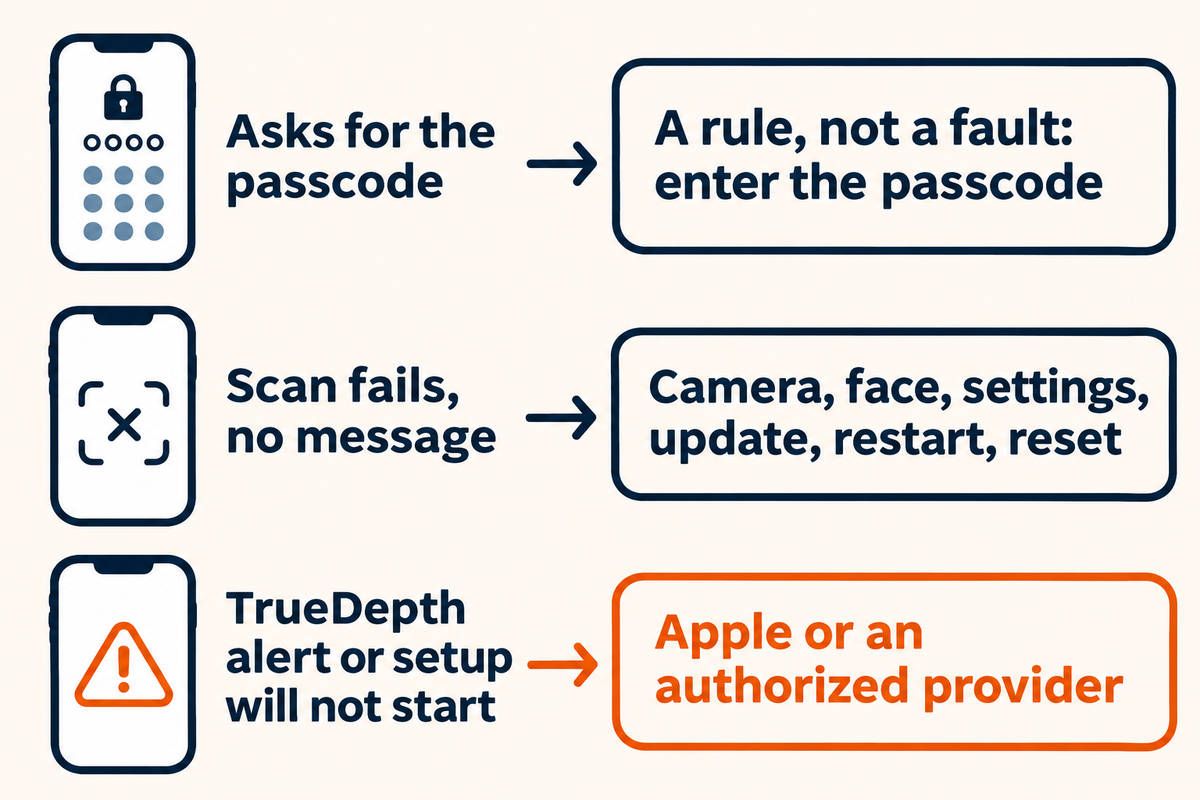
Read the screen before you change anything. A passcode prompt after a restart is a rule, a scan that fails is usually a camera, face or setting problem, and only the TrueDepth alert or a setup that can’t start points at the phone itself.
Why does my iPhone ask for a passcode instead of Face ID?
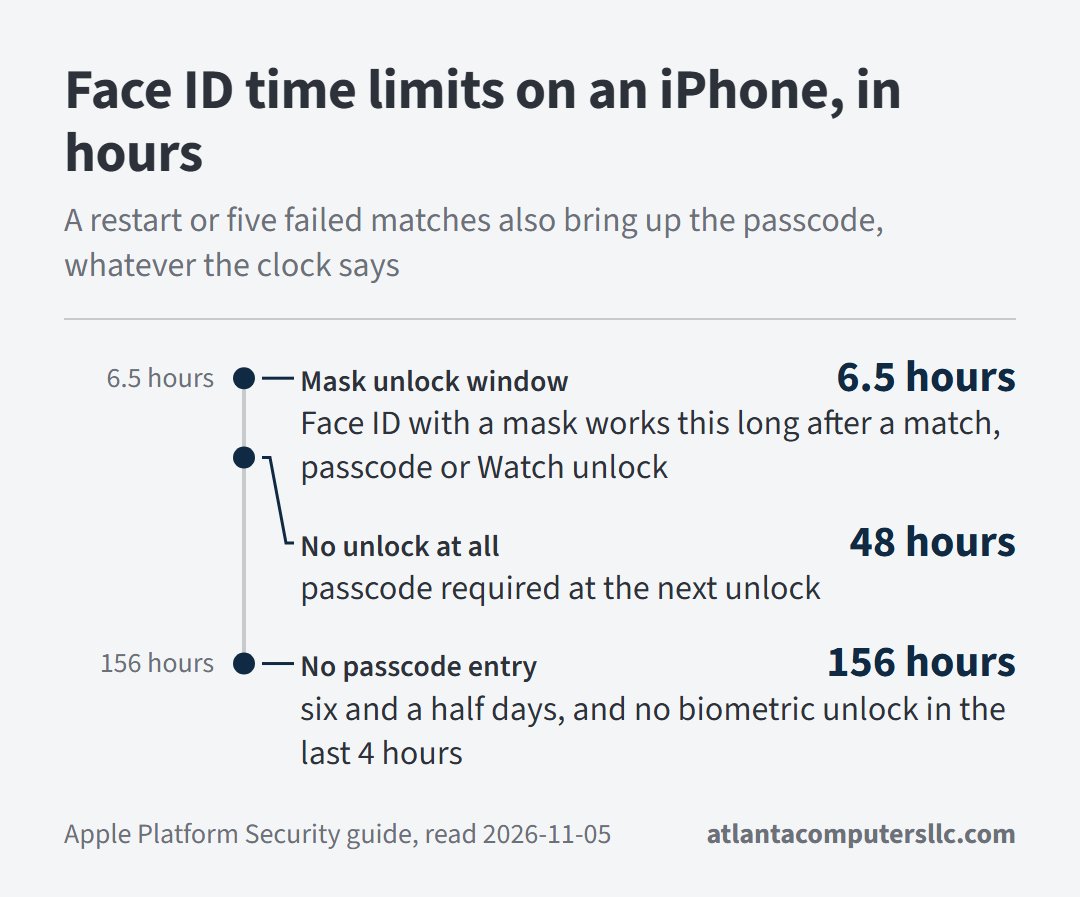
Apple requires the passcode in set situations, and none of them is a fault: right after a restart, after 48 hours without an unlock, and after five failed matches, among others.
The 48-hour rule counts time since the phone was last unlocked. A second rule watches the passcode itself: if you haven’t entered it for 156 hours (six and a half days) and Face ID hasn’t unlocked the phone in the last four hours, the phone asks for it.
A remote lock command does the same. So does opening the power-off or Emergency SOS screen with the volume and side buttons and then tapping Cancel. Five failed matches also require it, and the phone can offer it after fewer. All of this comes from Apple’s Platform Security guide.
Face ID with a mask runs on its own clock. It stays available for 6.5 hours after a Face ID match, a passcode entry or an unlock with an Apple Watch, and each one extends it by another 6.5 hours.
If a passcode prompt is all you see, enter the passcode and use the phone.
Face ID not working and no message: clear the camera and your face
Face ID reads you through the TrueDepth camera at the top of the screen, and anything in the way ruins the read. On a laptop the checks run cheapest first, with a retest after each one. The same order works here, because a pass then points at one cause.
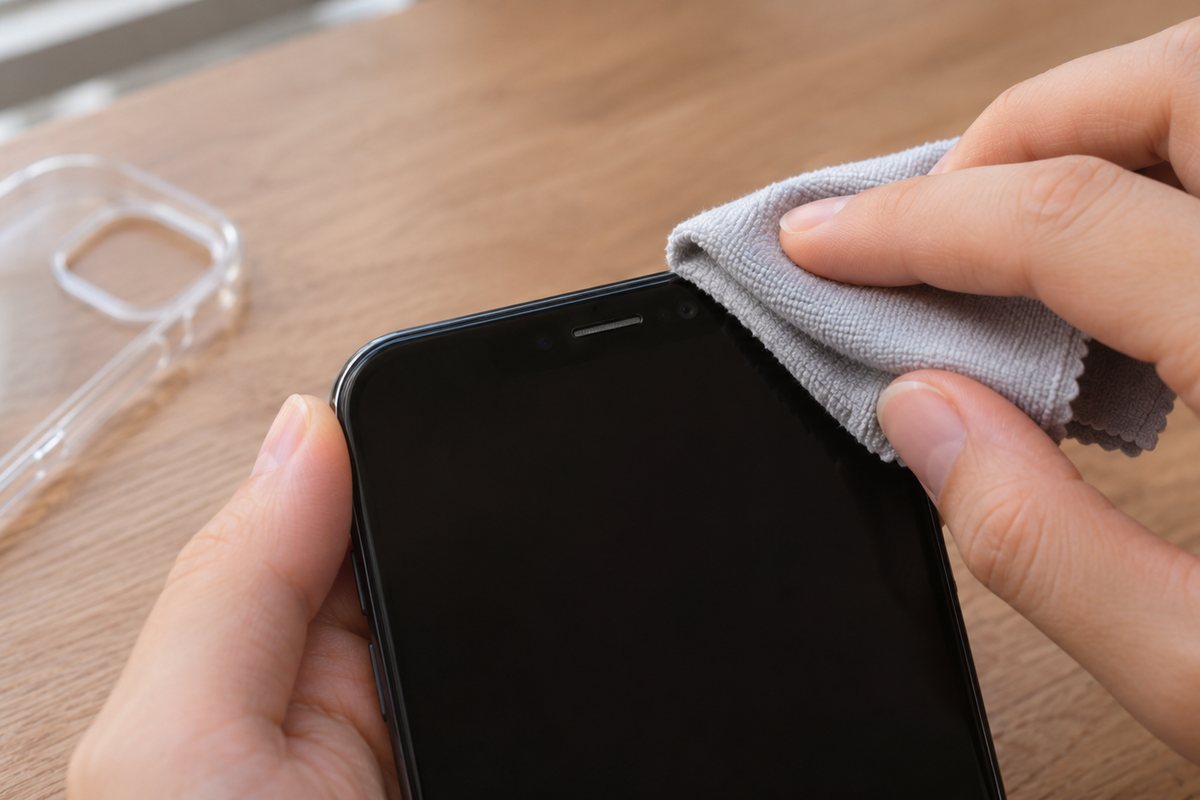
- Wipe the camera area, then take off the case and the screen protector for one test.
- On an iPad, or an iPhone 18 Pro held sideways, keep your finger and palm off the camera.
- Show your eyes, nose and mouth. By default Face ID won’t work with anything over your mouth and nose.
- Hold the phone an arm’s length away or closer, 10 to 20 inches from your face.
- Face the camera. An iPhone 13 or later running iOS 16 or later works in portrait or held sideways. Earlier iPhones work only in portrait.
Those five steps follow Apple’s Face ID troubleshooting page. On iPhone 18 Pro models, the same page puts the camera at the top of the device toward the left corner, and it lists backlight from the sun, heavy makeup and beauty masks as things to remove or avoid.

If the display stays dark or won’t wake, Face ID has nothing to scan. That’s the iPhone black screen problem, which has its own order of checks.
Does Face ID work with sunglasses?
Often, but not always. Face ID works with many sunglasses. A pair made to block certain kinds of light can block the infrared light the TrueDepth camera uses, so take them off for the test. Face ID with a mask isn’t designed to work with sunglasses at all.
Settings that change what Face ID will accept
Open Settings, then Face ID & Passcode. Check that Face ID is set up and that each feature you want is switched on: iPhone Unlock, iTunes & App Store, Wallet & Apple Pay, Password AutoFill and Other Apps. A switch that’s off for one feature can look like a failure in just that feature.
Face ID with a Mask needs an iPhone 12 or later on iOS 15.4 or later, and it works only in portrait. Wear the mask too high or too close to your eyes and the phone might not unlock, because your eyes must stay visible. If you wear glasses, tap Add Glasses on the same screen. You can add up to four pairs.
If your look changes a lot, add an alternate appearance from the same screen. Facial hair and heavy makeup are Apple’s examples. Face ID keeps learning as you change, so an alternate appearance is for a look that really is different.
Require Attention for Face ID lives somewhere else: Settings, Accessibility, Face ID & Attention. With it on, the phone unlocks only while you’re looking at it. Turning it off helps if meeting that requirement is hard for you, and it’s off automatically if you enable VoiceOver during setup. It also lowers security, so use the switch as a short test or an accessibility choice, per Apple’s user guide.
Update, restart, then reset Face ID
Install the latest iOS first. As of November 5, 2026, Apple’s security releases page lists iOS 27.2, released October 26, 2026, as the latest version for iPhone 11 and later. Back up, plug in, then go to Settings, General, Software Update and tap Download and Install.
Then restart. On an iPhone X or later, hold either volume button and the side button until the power-off slider appears, drag it, and wait 30 seconds. Hold the side button until the Apple logo shows, enter your passcode when the phone starts, and try Face ID again.
If it still fails, reset Face ID. Go to Settings, Face ID & Passcode, tap Reset Face ID, then tap Set up Face ID and scan again. That’s the last step Apple’s page lists before service.
Owners in one September 2026 thread disagreed about how far to go beyond that. An iPhone 18 Pro owner on r/iphone18pro posted a restore routine that an Apple Store representative had described by phone. The top reply, with 33 upvotes, pushed back:
“Or just wait a few days for an update that will for sure fix the issue. A full reset and set up is a lengthy and tedious process and it might not even work for everyone.”
– r/iphone18pro, September 2026 (33 upvotes)
Another owner replied that the reset “wasn’t lengthy” and took seven minutes in total. Apple’s own page doesn’t list a restore from a computer, so Reset Face ID is the last rung you climb yourself.
Messages that mean hardware: stop at the alert
One message ends the home routine: “A problem was detected with the TrueDepth Camera. Face ID has been disabled.” It shows on iPhone X and later. Apple’s page on the alert says iOS 14.6 or later ran diagnostics and found an issue with the camera, whose lasers might be disabled for safety if the device malfunctions or is damaged. Update to the latest iOS. If you still can’t enroll your face or unlock with Face ID, you need service.
The same applies when setup keeps asking you to position your face in the frame without moving on, or when the camera isn’t working and you can’t set up Face ID. The rest of the phone keeps working. Face ID, Animoji, Memoji and some other front-camera features might not.
Stop and take the phone to Apple or an Apple Authorized Service Provider if any of these is true:
- The TrueDepth alert is still there after the latest iOS is installed.
- Reset Face ID is done and setup still can’t start, or keeps asking you to reposition your face.
- Face ID quit after a drop or after the phone got wet.
- Face ID quit after a front camera repair. The Finish Repair and Face ID Issue labels cover that case.
Why is my Face ID not working all of a sudden?
A sudden failure comes from one of four places: a passcode rule, a covered camera, a stale update or a TrueDepth fault. Run the checks above in order, then read the screen, because only the TrueDepth alert means service.
A July 2026 post on r/iphone shows how the last case arrives. An iPhone 12 restarted by itself, asked for the passcode, then said Face ID wasn’t available. An update and several restarts changed nothing. The top comment called it a hardware failure. In a follow-up reply the same commenter said the owner most likely needed a repair, then added:
“Sometimes parts just fail as time goes on. But this can happen from a drop or even water. Sometimes you can be the most careful person in the world and this can still happen to you.”
– r/iphone, July 2026 (124 upvotes)
Drops and water are the cause that comment names. Nothing in Apple’s alert wording says which one hit a given phone.
Can Face ID be repaired?
Yes. Apple says a trained technician using genuine front camera parts should replace a failed front camera. You can go to an Apple Store, an Apple Authorized Service Provider or an Apple Repair Center, or to an independent provider that has genuine Apple parts.
Don’t open the phone yourself. Apple warns that improper repair, or nongenuine parts in the laser systems, might stop the safety mechanisms from working and could injure eyes or skin. A phone that has stopped starting altogether is a different problem, covered in iPhone won’t turn on.
Before I repair anything on a laptop that touches the drive, I back it up or image it first. Do the equivalent here while the phone still turns on: make sure a recent backup exists before it goes to a service counter.
After a genuine front camera goes in, Face ID stays off until calibration finishes. Settings, General, About shows Finish Repair next to TrueDepth Camera until Repair Assistant completes it. On an iPhone 14 or later, a replaced front camera won’t work at all unless you complete the repair or restore the phone. A Face ID Issue message can appear when the part is nongenuine, came out of another iPhone, isn’t working as expected, or was never fully calibrated.
On an iPhone 12 or later, Settings, General, About lists the parts and service history, including whether the front camera was ever replaced. Genuine means Apple parts and processes were used. On an iPhone 16 or later, Used means a camera from another iPhone of the same model was installed and calibrated.