
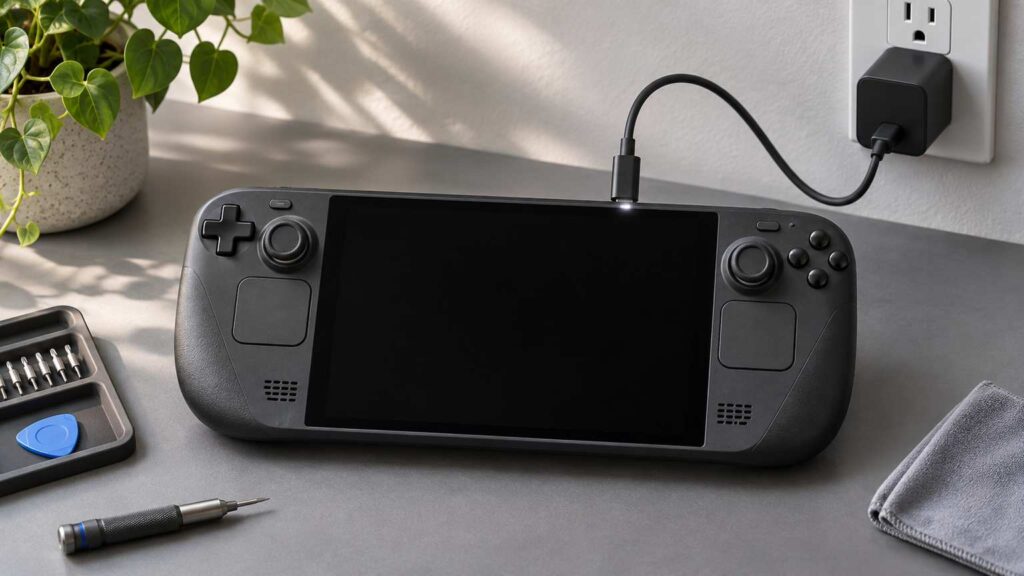
A Steam Deck that won’t turn on is usually flat, frozen with the screen off, or sitting in Battery Storage Mode, where the power button does nothing until a charger is connected. Put it on the charger, hold the power button for 10 seconds, then press it once.
If your Steam Deck won’t turn on after that, the button combinations and recovery menu come next, in an order that keeps your games and saves on the drive for as long as possible.
Steam Deck won’t turn on? Look for any sign of life first
A Deck that makes any sound, lights the screen backlight or spins the fan is running, so the problem is the display or the software, not power. iFixit’s Steam Deck guide uses exactly that check to separate a black screen from a unit with no power.
Hold the Deck close, press the power button once, and sort what you got into one of three groups:
- Nothing at all: no LED by the charge port, no sound, no fan. Start with the charger section below.
- Sound or fan, but a black screen: the Deck is on. Connect it to a TV or monitor through a dock or USB-C adapter; a normal picture there means the Deck’s own screen is the fault.
- The Steam logo, then a stall or a loop: power is fine. Skip ahead to the recovery section.
Put it on the 45W charger and watch the port LED
The Steam Deck charges only through the USB-C port on its top edge, and Valve’s tech specs list a 45W USB-C PD 3.0 power supply for it. Plug that charger straight into a wall outlet and look at the small LED beside the port.
A lit LED means power is getting in. A dark one points at the charger, the cable, the outlet or the port. Test them one at a time.
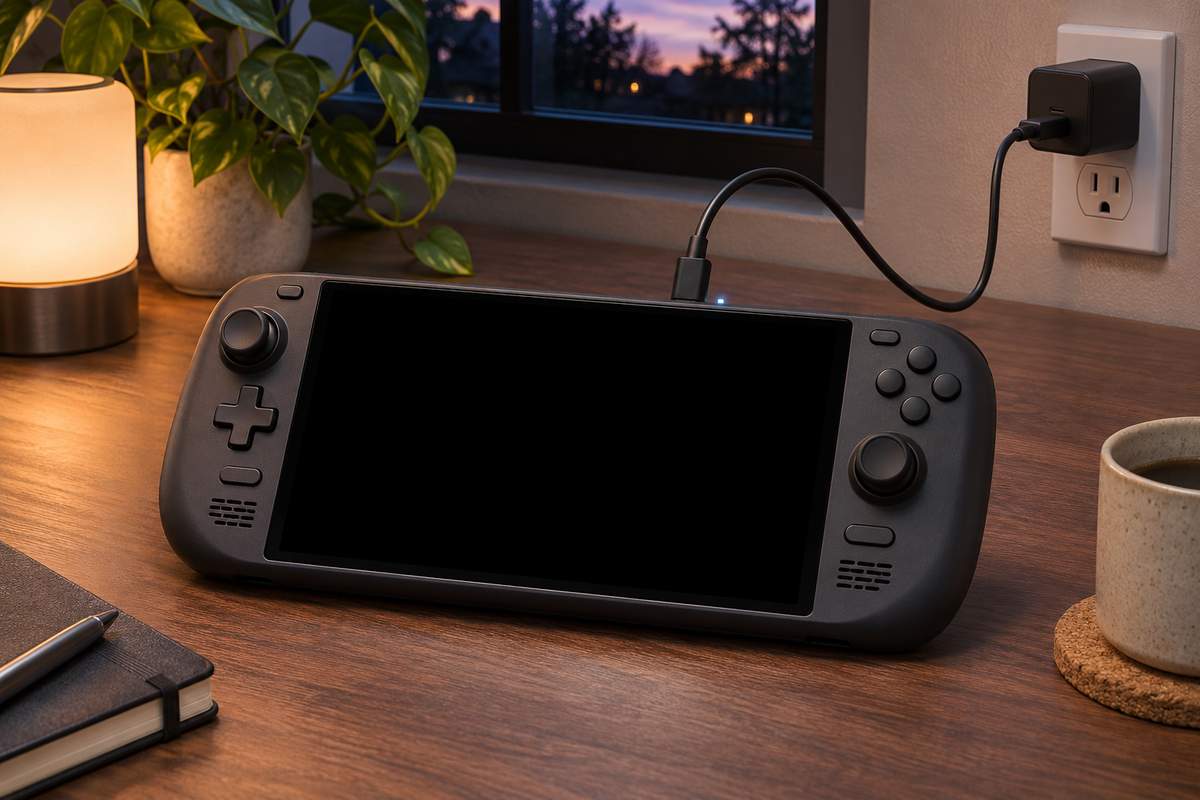
iFixit’s advice is to try the Deck’s charger on another USB-C device, try another device’s charger on the Deck, and use an outlet you know works.
Battery Storage Mode ignores the power button
Battery Storage Mode switches the battery off, and in that state the power button does not respond at all. iFixit’s Steam Deck guide says the Deck needs external power to wake from it, and that new Decks ship with the mode turned on.
That is why a brand-new Deck, or one that sat in a drawer, can look dead out of the box. Connect the charger first, give it a short while, and only then press power. A battery run all the way down can behave the same way, as this owner noticed:
“Mine did something similar when it was drained to 0% battery. Maybe leave it for a while”
– r/SteamDeck, September 2026 (28 upvotes)
Check the port with a meter if the LED stays dark
Look into the port with a flashlight first. iFixit says to clear lint with compressed air and a shaved toothpick and never to put anything metal in there. A charger plug that sits at an angle or wobbles is the usual sign of packed debris.
On a laptop that won’t power on, a multimeter goes on the DC jack before I blame the board, the same adapter-first order as the HP laptop won’t turn on checks. A USB-C power meter does the same job for a Deck. iFixit lists about 15 V at about 1.6 A for a booted Deck at idle, which multiplies out to roughly 24 W.
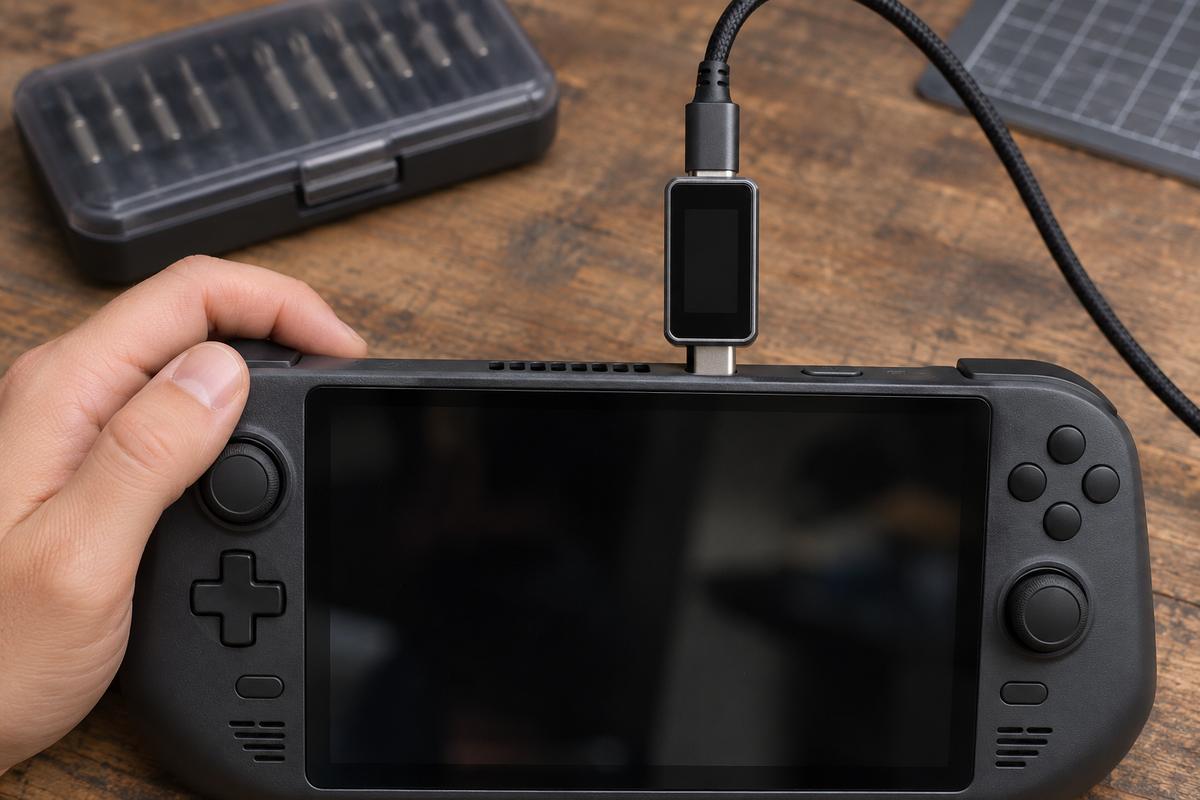
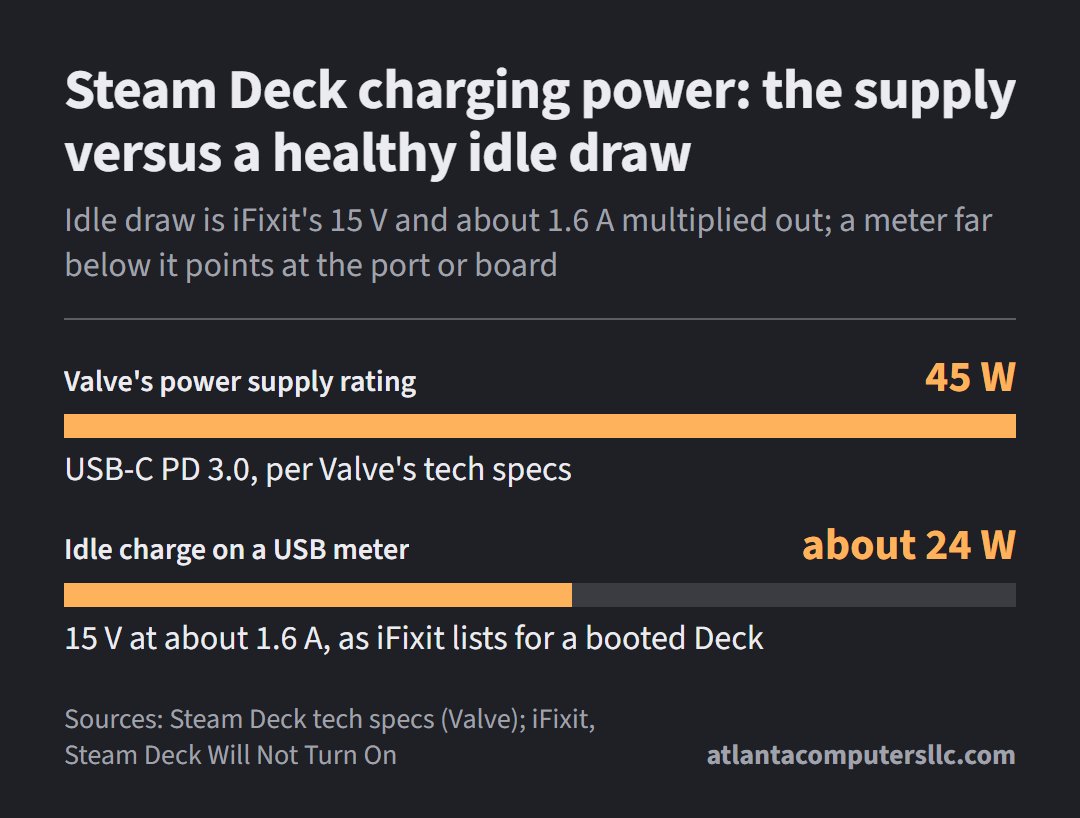
That 24 W comes from multiplying iFixit’s two numbers for one state, a booted Deck at idle. It is not a Valve figure. A Deck that is off or flat will read differently, and a meter that shows no voltage at all on a good charger points at the port or the board.
Hold the power button for 10 seconds
Valve’s own instruction for fully powering down a Steam Deck is to hold the power button for 10 seconds, and it recommends doing it with the charger connected. If the Deck froze with the screen off, this gets it fully off so a normal start can follow.
- Leave the charger connected.
- Hold the power button for a full 10 seconds, then let go.
- Wait a few seconds and press the power button once, normally.
One r/SteamDeck answer gave the same advice:
“In this economy?? Try holding the power button down for about 10-12 seconds”
– r/SteamDeck, May 2026 (55 upvotes)
The owner who asked replied in the same thread that the Deck booted after the long hold.
Valve’s recovery page gives one hold time, 10 seconds, both for getting the Deck fully off and for starting its recovery steps, and it lists no longer hold to try. If 10 seconds on the charger does nothing, move on to the combinations.
The button combinations, and what each one opens
Each Steam Deck button combination starts from a Deck that is fully off and opens a different screen. Valve documents the boot menu and the SteamOS recovery menu, and iFixit documents the BIOS route, so getting the right button matters.
| Hold this, then press Power | What opens | Use it when | Documented by |
|---|---|---|---|
| Nothing (hold Power 10 seconds) | A full power-down | The Deck is frozen or seems dead | Valve, SteamOS Recovery page |
| Volume Down | The boot menu | You need to boot from a USB recovery drive | Valve, Windows Resources page |
| Volume Up (+) | The BIOS | You want proof the board and screen work | iFixit, Will Not Turn On guide |
| The “…” button, held until a menu appears | The SteamOS recovery menu | It powers on but SteamOS won’t load | Valve, SteamOS Recovery page |
Reaching the BIOS is good news. iFixit’s reading is that a Deck that gets that far is more than likely crashing before it boots, which is a software problem you can work on at home with the recovery menu below.
Volume Down opens the boot menu and Volume Up opens the BIOS, so if one combination shows nothing, try the other before you decide the Deck is dead.
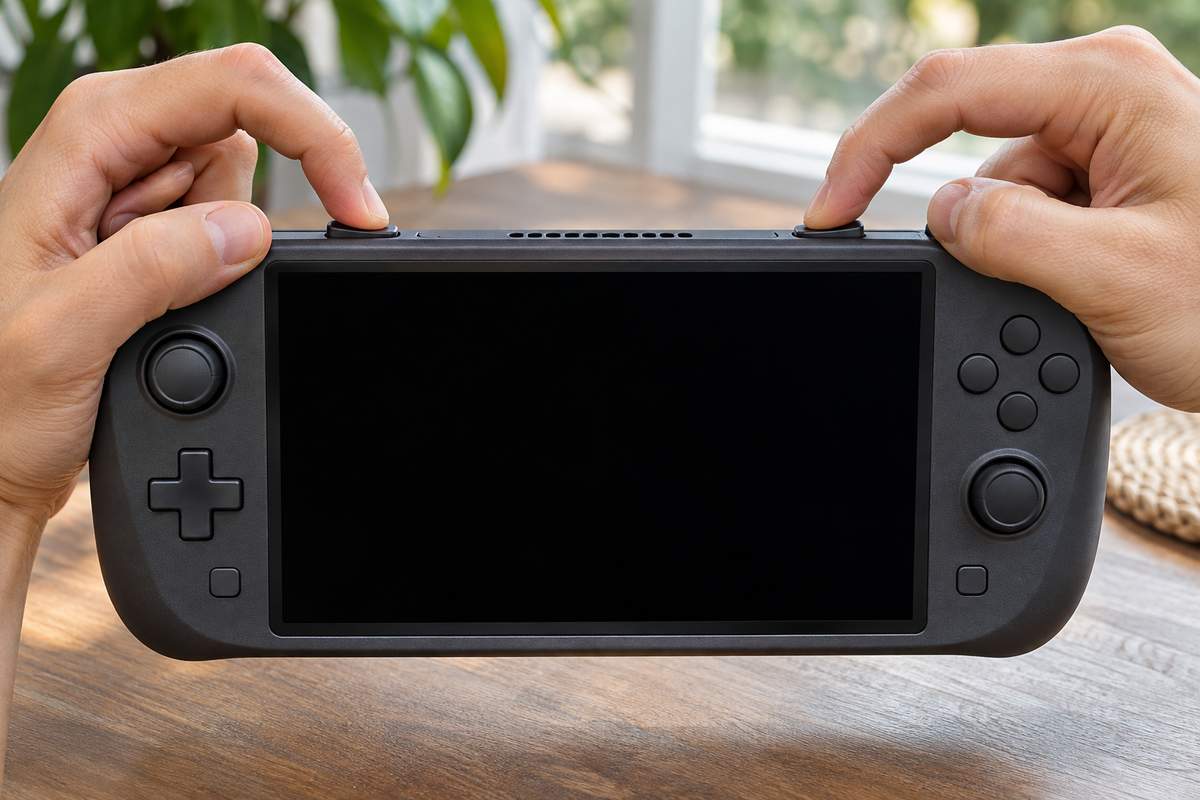
Stuck at the logo or on a black screen: recover without wiping first
The SteamOS recovery menu can roll a Steam Deck back to its previous system version without deleting games or saves. Valve’s recovery page describes that option, “Previous B”, for a Deck that broke after an update or a system change.
Work through the options in order of how much they erase:
- Previous B (rollback). Fully power down, hold the “…” button, press power and keep holding “…” until the SteamOS menu appears. Pick the second option from the top, “Previous B”. Valve says it keeps user data such as installed games and saves.
- Factory Reset. Only if the Deck still boots into Steam: Steam button, Settings, System, Factory Reset. It clears all local data and reinstalls Steam.
- Erase user data from the recovery menu. Same menu as Previous B, and it erases all local user data.
- Re-image SteamOS. Boot a recovery drive from the Volume Down boot menu. Valve warns this wipes everything on the device.
Before anything that touches the drive, I back it up or image it; on a Deck that still boots, that means copying off any screenshots or mods you care about while you still can. Valve’s RMA guide says the same thing in plainer terms: it is not responsible for data lost in a repair.
When the port, battery or board is the problem
A dark LED on a known-good charger, after the 10-second hold, means a hardware fault. iFixit notes that the Deck’s USB-C port is soldered to the board, so replacing it is a soldering job, not a part swap.
Stop and send it in if:
- The LED stays dark on two chargers you have confirmed on other devices.
- The back shell is separating, the screen shows a discolored patch, or the housing bows. iFixit lists those as signs of a swelling battery. Stop, unplug it and leave the battery alone.
- The Deck took a drop or got wet just before it died.
Valve’s limited warranty runs one year from the date of shipment. It does not cover a problem caused by a repair or modification done outside a Valve-designated service center. If the Deck is inside that year, open a claim through Steam Support before you open the shell: select the device, select the issue, and Valve’s RMA guide takes it from there.
A Nintendo Switch has its own reset and charging routine, covered in Nintendo Switch won’t turn on.
FAQ: dead battery, OLED models and a red light
My Steam Deck won’t turn on after the battery died. What now?
A Steam Deck drained to zero can need time on the charger before the power button does anything. Leave it on the 45W charger with the port LED lit for a while, then hold power for 10 seconds and press it once.
Is a Steam Deck OLED that won’t turn on any different?
A Steam Deck OLED uses the same first steps on Valve’s pages: the charger, the 10-second power-down and the same “…” and Volume Down combinations. Valve’s current tech specs page, which covers the OLED, lists the same 45W USB-C PD 3.0 supply.
What does a red or blinking light on a Steam Deck mean?
Valve’s support pages on recovery and warranty don’t publish a meaning for a red or blinking LED. Any light at all at least shows power reaching the Deck, so do the 10-second hold, try the combinations, and open a Steam Support ticket if it keeps blinking.
Valve keeps its recovery steps on the SteamOS Recovery and Troubleshooting page, and iFixit’s Steam Deck Will Not Turn On guide covers the hardware checks with photos.