
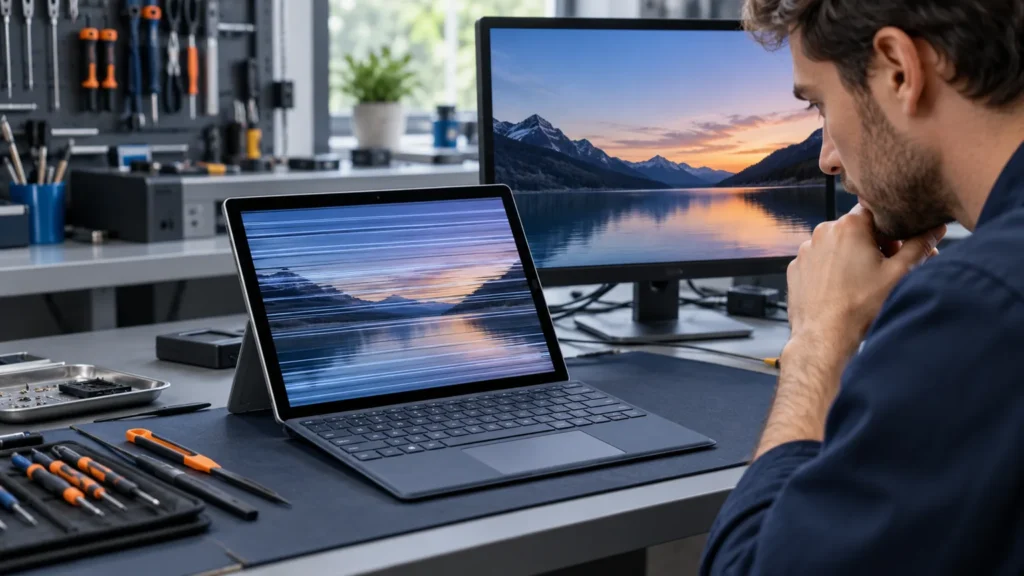
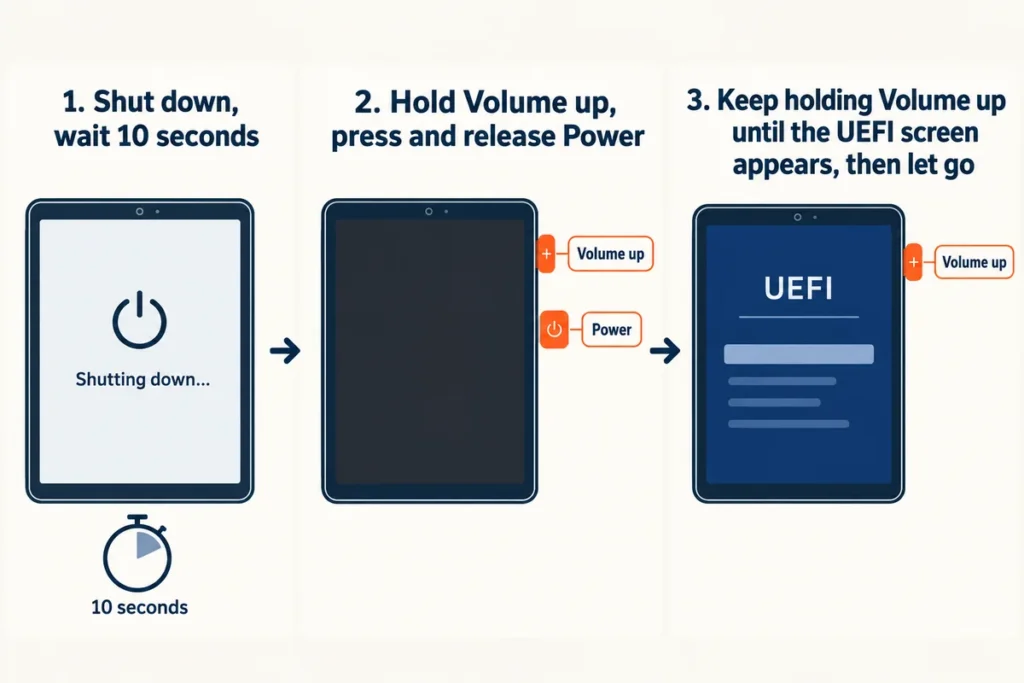
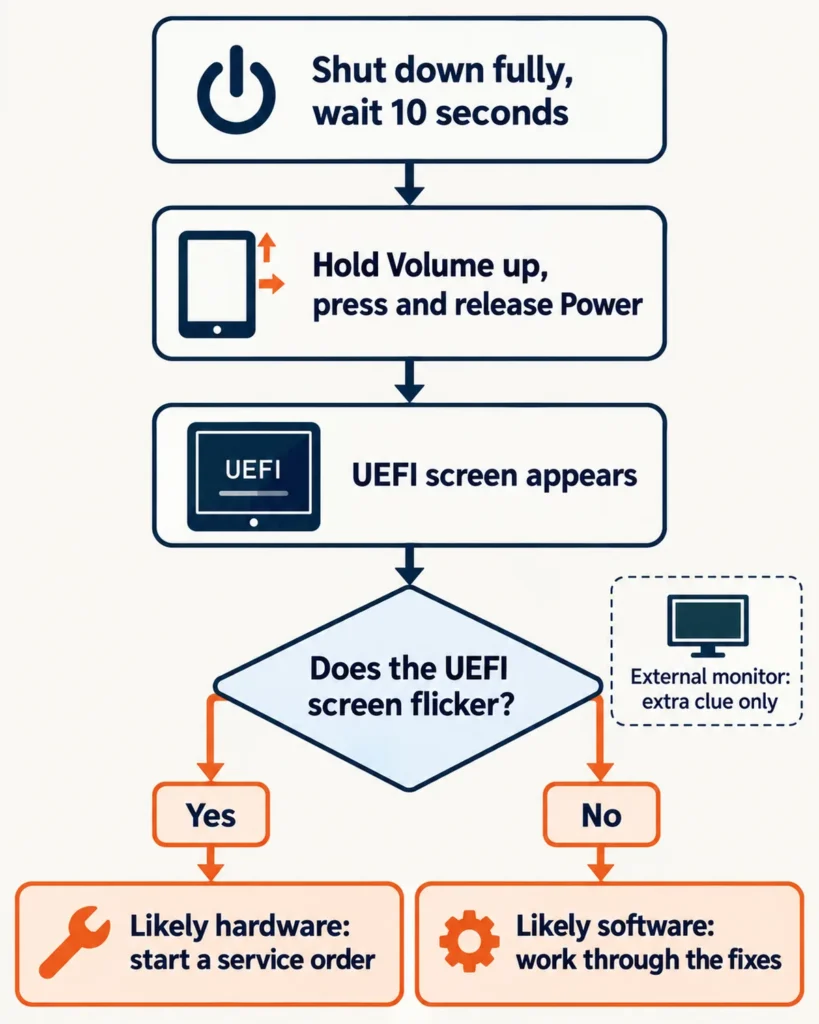
From a full shutdown, hold volume up while you press the power button to boot the Surface into UEFI, then watch the screen. If the Surface Pro screen flickering shows up there too, Microsoft’s flicker page points at hardware and a service order. If UEFI is steady, the cause is software, and the steps below are the ones to work through.
Surface devices were a smaller share of my bench than Dell, HP or Lenovo, so the model-specific steps below follow Microsoft’s Surface support pages instead of my memory. I run that order on any laptop: free tests, then settings, then parts, then a service order.
Run the UEFI test and the external-monitor test first
UEFI is the firmware menu that loads before Windows. A flicker that is already there points away from Windows drivers, which is why this test comes before any setting change.
- Shut the Surface down from Start > Power > Shut down, then wait 10 seconds.
- Press and hold the volume-up button, and at the same time press and release the power button.
- Keep holding volume up through the Surface logo, and let go when the UEFI screen appears.
- Watch the UEFI screen for a minute or two. Flicker that comes and goes needs patience.
Surface Pro 4 and later use that sequence; the Pro 3 and earlier have an older firmware menu. Windows can open UEFI as well if the buttons won’t cooperate: Settings > System > Recovery > Advanced startup > Restart now, then Troubleshoot > Advanced options > UEFI Firmware Settings. Laptops from other makers use different keys, and the BIOS entry page lists them.
Next, plug in an external monitor using the port or adapter your model has, and see whether it flickers too. A moderator on Surface Forums asked a Pro 4 owner to do exactly that. The external monitor stayed steady while the built-in screen kept misbehaving, so the owner blamed the panel, paid for a new screen, and reported the problem was still there afterward. One monitor test is a clue, not a verdict. Read it together with the UEFI result.
| What you see | What it points to | Next move |
|---|---|---|
| UEFI steady, external monitor steady, built-in screen flickers only in Windows | A Windows setting, driver or firmware on the built-in panel path | Work through the fixes in the next section |
| UEFI steady, external monitor flickers in Windows too | The graphics driver or a Windows display setting; the panel itself looks fine | Same fixes, starting with updates and the driver reinstall |
| UEFI flickers, external monitor steady | The built-in display or its connection | Skip the settings and start a service order |
| UEFI flickers and the external monitor misbehaves too | Hardware, with the exact part unclear from outside | Service order |
UEFI is the deciding test here. Rows two and four are my reading of the monitor result, not the support page’s wording. The fourth row has a real example: a Surface Pro 7 owner on Microsoft’s Q&A site described flicker and horizontal lines from power-on, and an external monitor was affected too. After a full reset failed to help, the reply called it a likely hardware failure and sent the owner to assisted support.
Fixes for Surface Pro screen flickering when UEFI looks clean
Go in this order, cheapest first. After each step, leave the Surface idle on the desktop for a few minutes, since several owner reports describe flicker that only shows on static content.
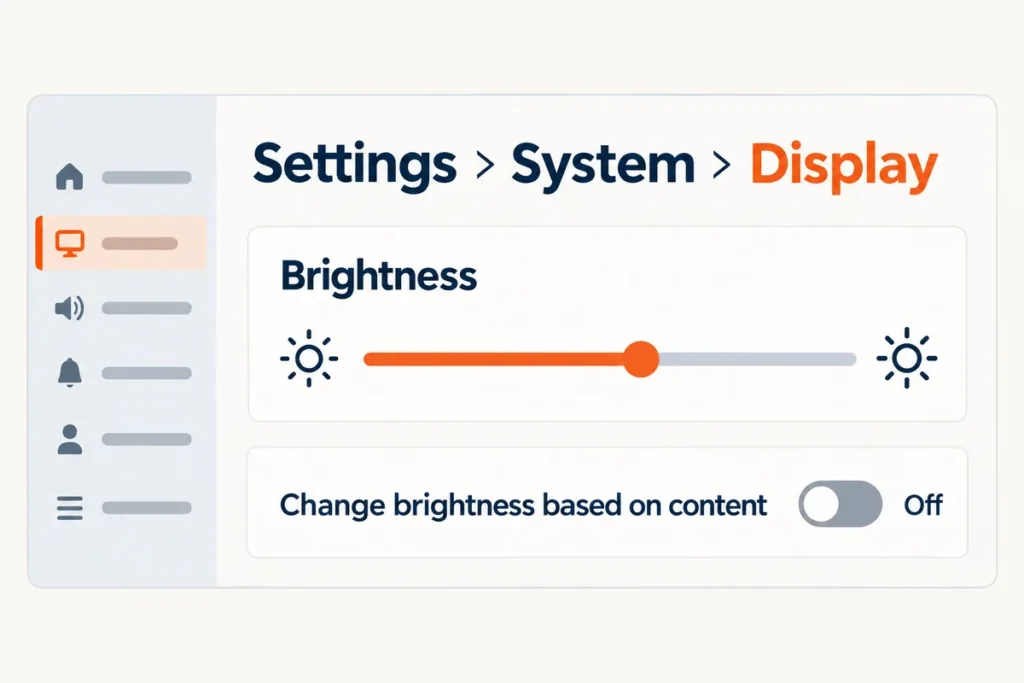
- Content adaptive brightness. Brightness and contrast follow what is on screen, which saves battery. Plug the charger in first: that switches the feature off temporarily, so flicker that stops on power and returns on battery points straight at it. To turn it off for good:
- Windows 11: open Start > Settings > System > Display > Brightness and set “Change brightness based on content” to Off.
- Windows 10, which lost support on October 14, 2025: move the battery slider on the taskbar to Best performance.
A reply on an r/Surface post about flicker on a new Arm-based Surface Pro tried the same switch:
“My X2 Elite did something similar briefly. I turned off auto brightness adjust and it didn’t come back. Def could be some driver issues with the new X2s.”
– r/Surface (2 upvotes)
- Surface and Windows updates. Open the Surface app, expand Help & support and look at the update status. Select Check for updates when updates are waiting; it opens Windows Update. Install everything, restart and test again.
Don’t swap in a generic graphics driver from Intel’s site. An Intel staff reply on the company’s community forum says the driver on a Surface Pro 7 should be one of the customized drivers provided by Microsoft, adds that generic Intel drivers on Surface usually aren’t approved, and points to the bundled Surface driver package instead. Owners in the same forum thread say Windows kept putting the Intel driver back after they removed it, and the flicker came back with it.
- Intel graphics power settings. Only Intel-processor models have these. To see which you have, open the Surface app, expand Device information, select View More and read the Processor line.
- Install Intel Graphics Command Center from the Microsoft Store, then choose System and Power.
- Move Display Power Savings to Off and test.
- Panel Self Refresh comes next if the flicker remains: switch it off as well.
- Refresh rate and power mode. Open Settings > System > Display > Advanced display and pick a fixed rate under Choose a refresh rate. Where a Dynamic refresh rate toggle exists, which needs a display with variable refresh at 120 Hz or higher, turn it off for the test. Then open Settings > System > Power & battery and set Power mode to Better performance or Best performance. Refresh-rate sync is a possible cause on the flicker page, but it gives no steps, so treat the rate change as a test.
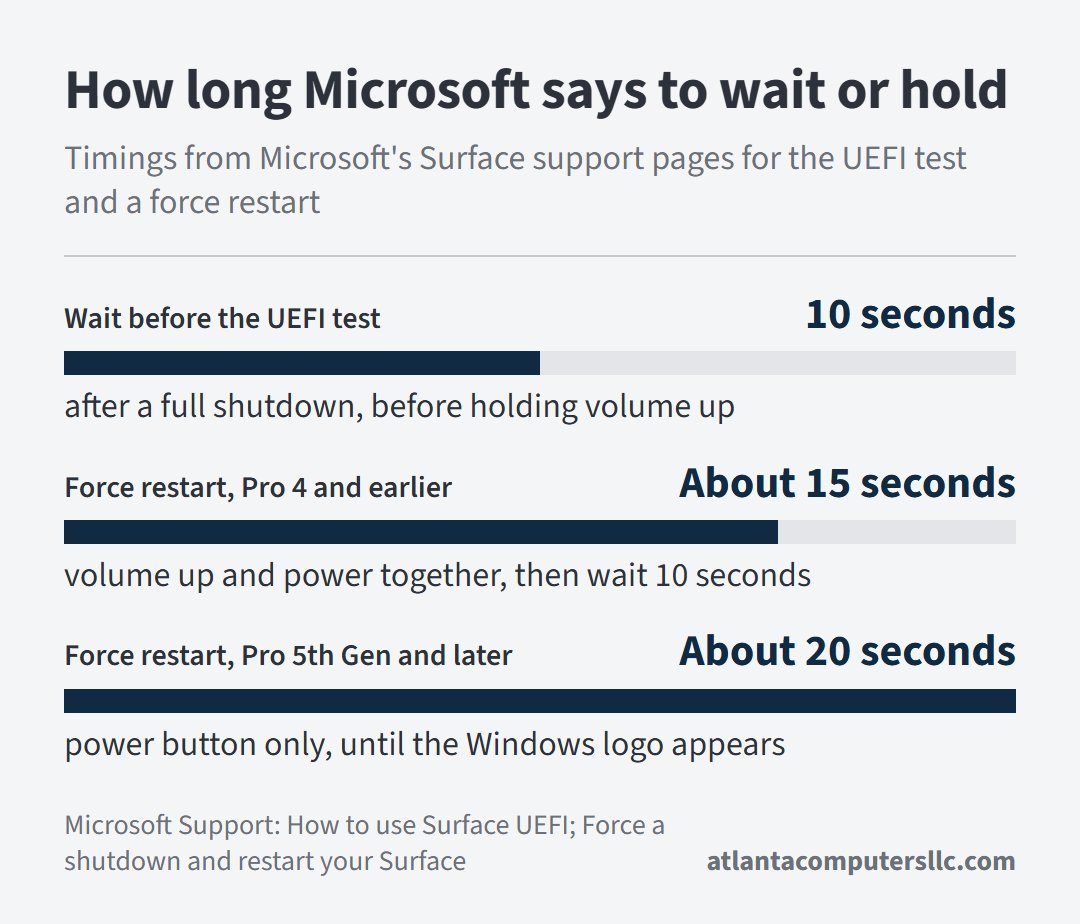
- Force restart. On a Surface Pro 5th Gen or later, shut down from Start, then hold the power button for about 20 seconds. Keep holding if the logo appears after a few seconds, until it appears again. On the Pro 4 and earlier, hold volume up and power together for about 15 seconds, release both, wait 10 seconds, then press power once.
Surface Pro 7 owners get one extra step. Long stretches powered on, sleep included, are the trigger the flicker page names for its flicker and lines. Shut it down from Start, because closing the lid or tapping the power button only sleeps it, and leave it off for at least 48 hours; a weekend works. After that, shut down fully for one night a week.
The waits and holds from the steps above, side by side:
- Surface Diagnostic Toolkit. Select Start, search for Surface Diagnostic Toolkit and run it; it comes from the Microsoft Store if it isn’t installed. Its tests include touchscreen and display brightness, and a run averages 15 minutes or less, though it can take an hour or longer. Skip tests that don’t apply.
- Reinstall the display drivers. Not on a Surface Pro X: the page warns that after uninstalling drivers there, only a full system reset brings them back.
- Right-click Start and open Device Manager.
- Expand Monitors, right-click the Surface panel entry (it may read Surface Calibrated Panel or Surface Display), select Uninstall device and tick “Attempt to remove the driver for this device” if it appears.
- Expand Display adapters, uninstall the listed adapter the same way and restart.
- Open Settings > Windows Update > Check for updates and install what shows up.
- Reset. I back up or image the drive before any repair that touches the disk, and a reset counts, so copy your files first (the cloud backup page compares the options). Then follow the Restore or reset Surface steps, or reset from a USB recovery drive. If the screen still flickers afterward, the instruction is to submit a service order.
Surface Pro 4: flicker, scramble and the replacement window
Pro 4 owners face their own rules because of what Microsoft calls a scramble: the image shifts horizontally or vertically very quickly, looks fuzzy, may show overlapping duplicate images that can look static or interlaced, and touching the screen can temporarily calm it. On the Surface Pro 4 page, a scramble is described as unfixable with a firmware or driver update. Replacement was free for three years from the date of purchase, for scramble only.
Confirming a scramble uses the UEFI test from earlier. A scramble visible on the UEFI screen counts. Without it, the page says the symptom is not a scramble. The same page defines flicker as a different set of symptoms, so a Pro 4 whose brightness merely pulses sits outside that offer by the page’s wording.
A Pro 4 bought new is almost certainly past the three-year window, since the model came out in 2015. The page still lists the offer and states no end date, which makes the warranty lookup at support.microsoft.com/devices the quick way to find out where your unit stands. An old Pro 4 that flickers in Windows but not in UEFI is still worth the full software list above.
When UEFI flickers too: service, not settings
A flicker that survives into UEFI, or survives a reset, is a service case, and Microsoft lists three routes: send the device in on a service order, use an Authorized Service Provider, or self-repair.
Sending it in means creating a service order, printing a shipping label and checking the warranty first. In-person help through an Authorized Service Provider exists only in some countries. Self-repair is framed as out-of-warranty work for people with the skills and tools, with service guides that list the display module among replaceable parts on recent Pro models.
I wouldn’t open a Surface for a flicker. I don’t do board-level repair, and a flicker that shows in UEFI may or may not be the panel itself, so I’d let the service diagnosis decide. Back up anything you care about first. The Pro 4 page says a replacement unit is shipped, and a replacement won’t carry your files.
Returning a new-enough Surface for a swap can be the fastest fix. One r/Surface commenter reported exactly that:
“my initial Surface Pro 9 was flickering exactly like this, returned it and got another Pro 9. no flickering. Suprised there’s flickering even with 12th gen.. must be hardware”
– r/Surface (3 upvotes)
One safety line applies to every laptop and tablet: if the case looks swollen, unplug it and stop using it. A swollen battery goes to a recycler or a repair shop, never back on a charger.
What owners of newer Surface models are reporting
Newer-model reports come from community posts, not Microsoft statements, and none of them establishes a defect, so treat each one as one owner’s experience.
In October, r/Surface had a post titled “Surface Laptop Ultra Screen Flicker – Flickergate 2026”, and one user there wrote that their Surface Pro 4 had the same issue 11 years ago. A separate post’s title says the first Surface Laptop Ultra firmware update fixes screen flickering, and a commenter in the Flickergate post asked whether the poster had installed the latest firmware, since the release notes said it addressed flicker.
On the Arm-based Surface Pro post, the owner wrote that the flicker didn’t happen in UEFI, and a commenter added that it stopped with the driver removed, which would fit the “UEFI steady” row in the table above. Exchange was the owner’s plan. Whatever the model, the order stays the same: UEFI first, updates and firmware second. Other makers have their own versions of the same test; the HP laptop flicker page covers that machine.
Surface flicker FAQ
Why is my Surface Pro screen flickering?
Microsoft’s flicker page names three possible causes: display settings, hardware issues, and a refresh rate that isn’t syncing properly with the graphics card. Hardware shows itself in the UEFI test, which separates it from the other two.
Why does the flicker stop when I plug in the charger?
Connecting the power supply temporarily disables content adaptive brightness and contrast. If the flicker stops on the charger and returns on battery, that feature is the likely cause, and turning it off in Display settings confirms it.