
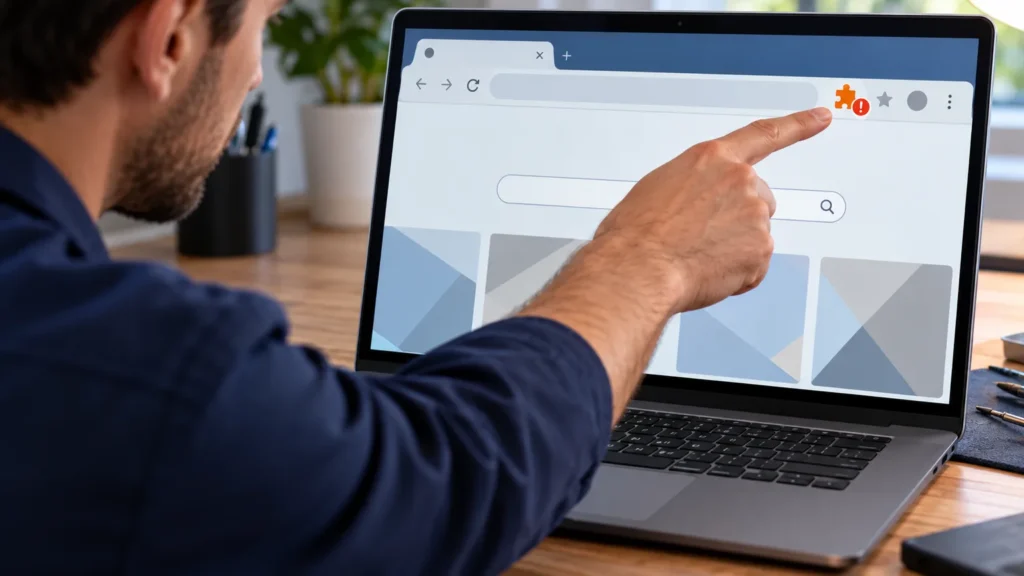
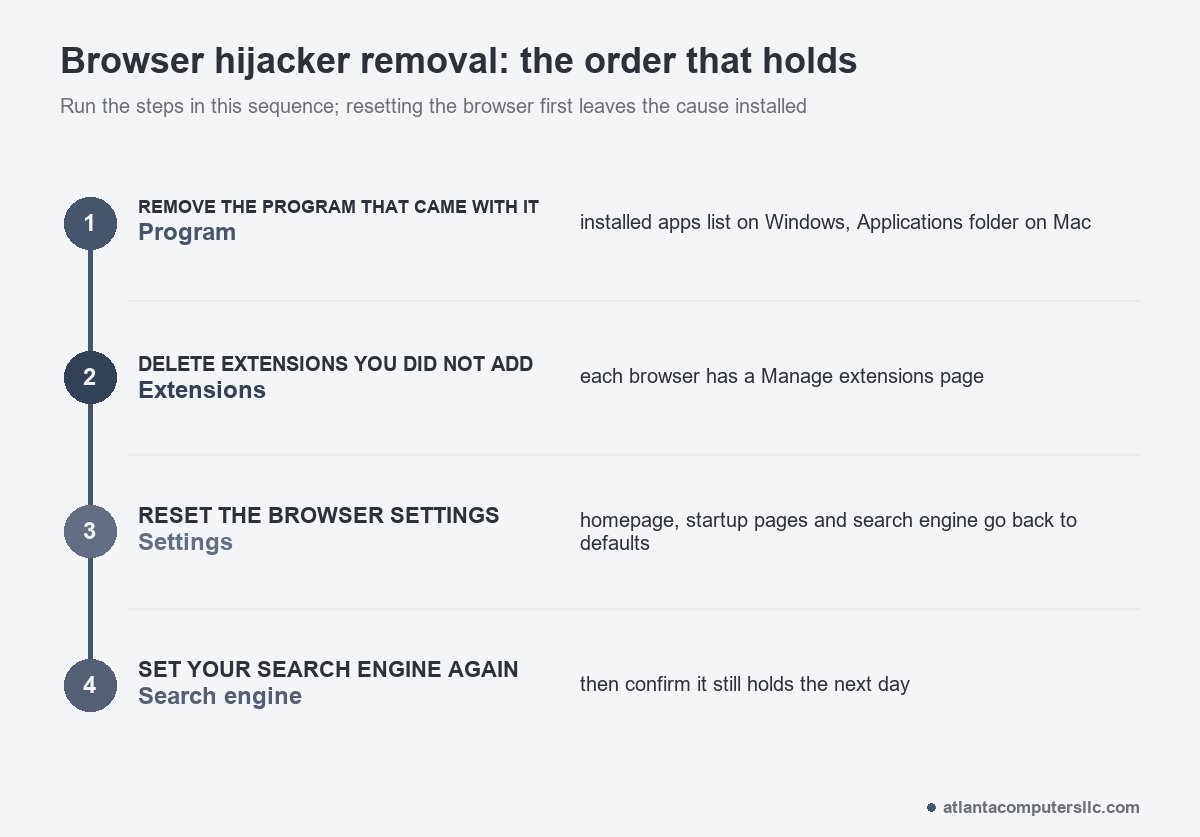
Browser hijacker removal takes three moves in a fixed order: uninstall the program that came with the hijack, delete the extensions you didn’t choose, then reset the browser’s settings. If the changes return afterward, something on the computer or a policy is putting them back, and that is the part to chase.
Toolbars were the old way to crowd a browser. Extensions and settings changes do the same job now: a search engine that flips to Yahoo, a homepage you never set, or a “Managed by your organization” line on a computer that has never seen an office. The steps here come from Google, Microsoft, Mozilla and Apple’s own support pages.
How can you tell your browser has been hijacked?
A hijacked browser shows changes you didn’t make: a search engine or homepage that keeps changing, extensions or toolbars that come back after you remove them, and redirects to pages you never asked for. Google lists these same signs on its Chrome Help page for unwanted software.
One odd setting isn’t proof. The pattern is. A setting you fix that flips back, or an extension that reappears after you remove it, means something is still working against you.
Both major browsers keep watch for this. Chrome checks its settings every time it launches and restores the default search engine, homepage, startup pages, pinned tabs and extensions to known-safe values when a program has changed them. Edge does the same for the default search engine and the new tab page, and shows a notice when it steps in. If you’ve seen either notice, treat it as a strong sign that third-party software has been editing your browser.
Which program caused the hijack, and how do you remove it?
Open the installed programs list and remove anything you don’t recognize, starting with software that appeared around when the trouble began. Google says to do this before resetting the browser. On Windows it’s Settings, then Apps, then Installed apps. On a Mac it’s Finder, then Applications.
At the bench I read the program list before I touch the browser. Reset the browser first and you wipe the symptoms while the program that caused them stays installed.
On Windows, select the app and choose Uninstall. A name that means nothing to you deserves a lookup from another device before it goes. Chrome’s help pages note that installing an application on Windows or Mac can add a Chrome extension along with it, which is why the program and the extension usually travel together.
On a Mac, right-click the program in Applications, choose Move to Trash, then empty the Trash. Two System Settings pages that Apple documents are worth a look afterward. Under General, Device Management lists configuration profiles. Select a profile you didn’t install and delete it there. If the delete option won’t work, Apple says the Mac may be managed, and some profiles can only be removed by an administrator. Under General, then Login Items & Extensions, select any login item you don’t recognize and remove it.
Run a scan once the programs are gone. Windows Security, which comes with Windows, has a Virus & threat protection page for this. The full scan, the offline scan and the Windows reset are covered step by step in the guide on how to remove a virus from a laptop, so they aren’t repeated here.

How do you do browser hijacker removal in Chrome?
Remove every extension you didn’t install on purpose, then reset Chrome’s settings. Extensions live under More, Extensions, Manage extensions. The reset sits under More, Settings, Reset settings, Restore settings to their original defaults. Google says your saved bookmarks and passwords stay put.
- Open Chrome, select More at the top right, then Extensions, then Manage extensions.
- Select Remove on each extension you don’t recognize, and confirm.
- Select More, then Settings, then Reset settings, then Restore settings to their original defaults, then Reset settings.
- Close Chrome and open it again.
The reset changes the default search engine, homepage, new tab page, pinned tabs, content settings, cookies and site data, and it switches extensions off. Google adds that the changes apply on every device where you’re signed in to Chrome, so the reset reaches your other computers too. Turn back on only the extensions you trust, from the same Manage extensions page. Google’s page on removing unwanted ads, pop-ups and malware lays out the same order: programs first, then the reset.
The shortest version of this advice came from a reply in r/computerviruses:
“Delete extensions, reinstall chrome, run av scan”
– r/computerviruses, June 2026 (10 upvotes)
The reinstall is rarely needed. Google points to uninstalling and reinstalling Chrome when the settings menu is missing or won’t open, and then warns that a program may be changing Chrome’s settings, which sends you back to the program list.
How do you remove a hijacker from Microsoft Edge?
Select Extensions beside the address bar, choose Manage extensions, and remove anything you didn’t add. Microsoft says Edge also turns off extensions that change your default search engine or new tab page without permission, and restores those two settings itself when third-party software alters them.
To remove an extension, right-click its icon and choose Remove from Microsoft Edge, then Remove. If the icon isn’t showing, open Extensions and use More actions next to it. When Edge has turned an extension off by itself, leave it off. Switching it back on from Manage extensions undoes the protection.
Look at the search engine afterward. In Edge, go to Settings and more, Settings, Privacy, search, and services, then Search and connected experiences, then Address bar and search. The dropdown under the address bar setting shows the engine Edge is using right now.
Edge also has a settings reset. Run it after the extension and search engine steps, not before, for the same reason as in Chrome: whatever made the changes is still installed.
How do you refresh Firefox after a hijack?
Firefox calls its reset Refresh Firefox. Open the Help menu, choose More troubleshooting information, then select Refresh Firefox. Mozilla says it keeps bookmarks, history, passwords, cookies and autofill data, and removes extensions, themes, added search engines, website permissions and modified preferences.
Firefox moves your old profile to a desktop folder named Old Firefox Data. Mozilla warns that the folder holds sensitive information, so delete it once you’re sure nothing is missing.
Uninstall the suspect program first, as above. A refresh clears the extensions but not the software that put them there.
Why does my search engine keep changing to Yahoo?
Something other than you is changing it: an extension, a program that installed one, or a browser policy. Yahoo is a real search engine, so the name matters less than the fact that the setting won’t stay put. Removing whatever makes the change is what ends it.
To stop Yahoo from hijacking Chrome, work in this order. Remove the program, remove the extensions, reset Chrome, then choose the engine yourself: More, Settings, Search engine, Change. Google adds that if you set a search engine and it won’t take, you may have malware.
To get rid of a browser hijacker for good, fix the cause before the setting. A setting you fix while the cause is still installed gets switched back. Search from the address bar the next day to confirm it held.
On Edge, the Address bar and search page above is the place to set it. If Edge keeps restoring the default and showing a notice, that’s Microsoft’s protection working, and the notice itself says third-party software made the change.
What does “Managed by your organization” mean on a home computer?
It means a policy is controlling part of Chrome, such as which extensions are installed, and an administrator at a school or company normally sets those. On a personal computer nobody should be doing that. Type chrome://management in the address bar to see which extensions are managed.
Google’s Chrome Help page on managed browsers says the label appears at the bottom of the More menu. Two addresses give the detail. The chrome://management page lists the extensions your organization installed, and chrome://policy lists the policies it set.
For a personal device, Google lists six steps:
- Confirm Chrome isn’t signed in to a work or school account. An address on a custom domain such as @company.com means managed, and @gmail.com means personal.
- Review chrome://policy for anything you don’t recognize.
- Remove unwanted programs.
- Remove extensions you don’t recognize.
- Reset Chrome settings.
- Close Chrome, reopen it, and restart the device.
When the label survives all six, the hijack isn’t living in Chrome’s settings. It sits somewhere that reapplies the policy. A user-written guide in Google’s Chrome Help Community describes a case like that: forced Chrome and Edge extensions that kept coming back because a Windows scheduled task reinstalled them. One reply says Chrome’s policy label cleared after a registry cleanup while Edge still routed searches through the hijacker’s site. That is a single user’s report, and the registry and scheduled task cleanup it describes isn’t something to attempt from a forum post.
The Mac equivalent is the Device Management page covered earlier. A profile there that you didn’t install, and can’t remove, is the same kind of lead.
When should you stop and take it to a repair shop?
Stop when the hijack returns after you’ve removed the program, deleted the extensions, reset the browser and scanned with Windows Security. A change that keeps coming back means something is reapplying it, and finding that means digging through the registry and scheduled tasks. That is repair-shop work.
- The “Managed by your organization” label or the Yahoo search engine returns after every fix.
- A Mac profile in Device Management won’t delete, and you know the Mac isn’t managed by an employer or school.
- You typed banking or email passwords while the problem was active. Change them from a different device, which the virus removal guide covers.
Copy off the documents and photos you can’t replace before anyone reinstalls Windows.
Browser hijacker removal FAQ
How serious is a browser hijacker?
Many reroute your searches to earn ad revenue for someone else, which is an annoyance. In more serious cases they install spyware, so treat one as a reason to scan the whole computer, not only the browser. Norton’s malware blog describes both.
What is a free tool for browser hijacker removal?
Windows Security comes with Windows 10 and 11 at no extra cost, so run it first. Community threads also name Malwarebytes and its AdwCleaner tool as a second opinion, and you can read the vendor’s own terms before you install anything. For a longer-term choice that won’t drag the laptop down, see virus protection that doesn’t slow your computer down.
Will resetting my browser delete bookmarks and passwords?
No, not in Chrome or Firefox. Google says a Chrome reset leaves saved bookmarks and passwords alone, and Mozilla says Refresh Firefox keeps both. Both resets switch off or remove extensions, so turn back on or reinstall only the ones you trust.
