

Unlimited cloud backup covers an unlimited amount of data from one computer, not unlimited use of the account. Backblaze’s terms license its Computer Backup plan per device, and Carbonite’s support pages describe unlimited data on one PC.
The limits that bite are smaller and show up later: a second laptop in the house, a drive left unplugged, a file you deleted five weeks ago. I back up or image a drive before any repair that touches the disk, so I care less about the headline on a plan than about what it still holds on day 31.
What does unlimited cloud backup cover?
Unlimited cloud backup covers the amount of data from one computer under ordinary use, and the vendors define “ordinary” in their own terms. Backblaze limits the plan to individual computers and directly attached external drives. Carbonite ties it to one PC per subscription.
Every vendor line in this section comes from pages I read on October 19, 2026. Plans and settings change, so confirm the current page before you rely on one.
Backblaze’s Terms of Service (effective April 16, 2026) say “unlimited” applies to ordinary, intended use. Computer Backup is designed for individual computers and directly attached external drives, and the terms rule out servers, data centers and shared storage. A NAS needs its own backup plan, and the RAID calculator covers how its drives split into usable space. If your usage materially exceeds typical patterns, Backblaze can require you to change your configuration or reduce your data volume, and it can throttle or suspend an account that keeps consuming disproportionate resources after notice.
| Your situation | Backblaze (Terms and help pages) | Carbonite (support pages) |
|---|---|---|
| A second computer in the house | Licensed per device; an account can’t be extended to more computers, drives or users | Each computer needs its own subscription |
| A USB drive you plug in | Directly attached external drives are covered | Safe Basic doesn’t back up external drives; Plus and Prime support one |
| That drive sits in a drawer for a month | Backed-up data may be removed if it stays disconnected more than 30 days; the 1-Year setting keeps it up to a year | Backed-up data is removed after 30 days or more unplugged |
| You delete or overwrite a file | Old versions kept 30 days by default; 1-Year and Forever settings need client 7.0 or newer | A deleted file leaves Carbonite’s servers within 30 days |
Carbonite’s pages are written around plans named Safe Basic, Plus and Prime. If your plan carries a different name, read the page that matches it.
IDrive isn’t in the table because its Windows FAQ is built around an account storage quota, down to an entry on what to do after a quota warning. It does back up USB and external drives that are in the backup set and reachable when the job runs.
An unlimited plan fits one computer whose drives stay attached most of the time. It fits badly if one account is shared across a household or a backup drive lives in a drawer.
What happens to deleted files and unplugged drives?
Backblaze keeps changed and deleted file versions for 30 days by default. Backblaze and Carbonite both remove an external drive’s backed-up data after it has been unplugged for 30 days (Backblaze says more than 30, Carbonite says 30 or more).
After 30 days, updated, changed and deleted versions drop out of a default Backblaze backup and only the current version stays; that’s the Version History page. Client 7.0 or newer can raise the window to one year or Forever. The longer setting only protects what changes after you switch it on.
Versions already cleared aren’t brought back.
Drives get stricter treatment. Backblaze’s external-drive page asks for a reconnect at least once every 30 days and sends missing-drive alerts at 14, 21 and 28 days. The best-practices page wants more: drives attached and Backblaze running continuously for four hours at least once every two weeks. Carbonite draws the line at 30 days or more unplugged, after which the drive’s backed-up data is removed.
IDrive works differently. Its FAQ keeps 30 previous versions of a file (10 for accounts created before 11-07-2018) and doesn’t count those versions against the quota.
The drive line is the one I look for first. A drive in a drawer feels safe, and the plan has quietly stopped counting it.
How long does the first upload take?
Backblaze says the first backup depends on the speed of your internet connection, and its best-practices page says the initial backup should be able to finish within 30 days. The computer has to stay on and awake while it runs.
Carbonite’s page agrees: speed comes down to your bandwidth and the amount of data you picked, and upload speed is the number to watch. The download time calculator works for uploads too: enter the size of what you picked and your upload speed. Backblaze adds housekeeping. Keep the computer on at night and prevent sleep during the first backup, because a laptop asleep in a bag isn’t uploading anything. Later backups send only new or changed files, so the first one is the long one.
Files in use can’t be backed up either. Backblaze’s supported-data page uses an email program as the example: its data file stays locked while the program is open, so close it at least daily if you leave it running.
If your first upload would run past a month at your connection speed, the best-practices page tells you to contact support for other options. I’d want that answer before trusting a plan with the only off-site copy.
Is OneDrive or Google Drive a backup?
A synced folder mirrors changes, so a deletion on the PC becomes a deletion in the cloud. With Drive for desktop mirroring, a file you trash is trashed everywhere, per Google’s help page. Personal OneDrive accounts get 30 days from Microsoft to restore deleted files.
That’s a sync service doing its job. A backup service keeps older versions on purpose, so a mistake on Monday can still be undone on Friday.
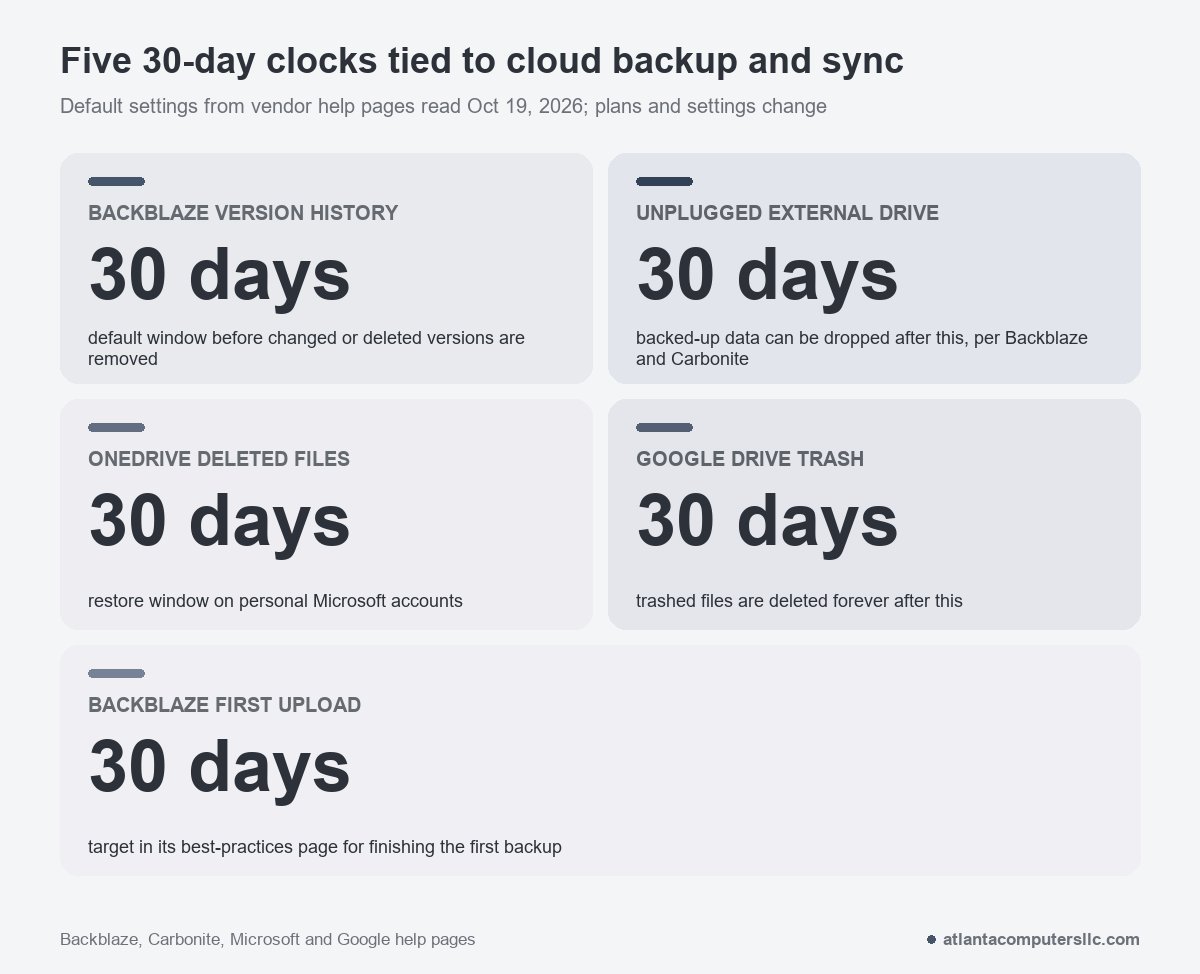
The big sync services run on a 30-day clock too. Files moved to Google Drive’s Trash are deleted forever after 30 days, or at once if you empty the Trash. On a personal Microsoft account you can restore files or folders deleted in the last 30 days; work or school accounts get 93 days unless an administrator changed the setting.
CISA’s ransomware guide says to keep backups offline, because many ransomware variants try to find and delete or encrypt backups they can reach. A synced folder is reachable from the PC by design. By that logic it’s a poor home for the only copy of anything you can’t replace.
How do you set up a 3-2-1 backup with one cloud copy?
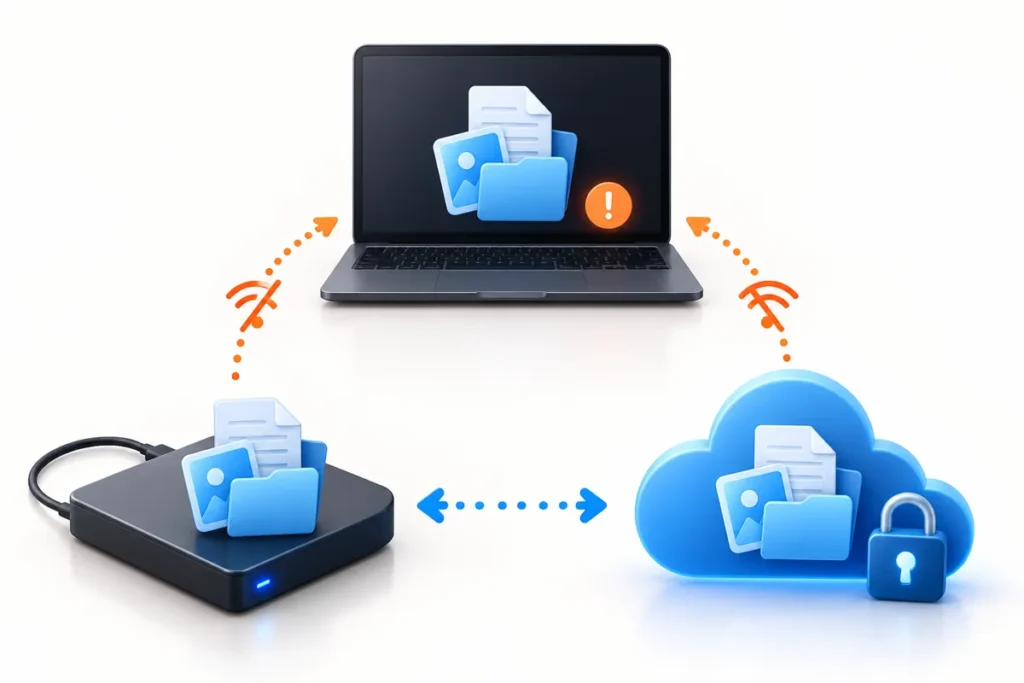
CISA’s 3-2-1 rule means three copies of important files, on two kinds of storage media, with one copy kept off-site. For a home PC that’s the internal drive, an external drive and a cloud service.
The mapping is short. Copy one is the drive you work from. Copy two is an external hard drive. Copy three is the cloud service, which is also the off-site copy and the second type of media. CISA’s small-business backup page gives a hard drive and the cloud as its example of two media types.
There’s a catch with the external drive. CISA’s ransomware guide wants backups kept offline, while Backblaze and Carbonite want the drive reconnected within 30 days. Those two goals pull apart. I’d let the cloud service handle the drive it can see, and keep a separate offline drive that you copy to by hand and the service never touches.
Put together, the pages suggest a rule. Lean on the unlimited plan for one computer and the drives that stay attached to it. Treat anything on a drive that travels or sits unplugged as needing the offline copy. Expect a second computer to need its own subscription on both vendors’ terms.
The internal drive matters more on a laptop with soldered storage, where the files and the board fail together. I covered that in the laptop buying checklist.
One r/selfhosted commenter, talking about an off-site archive copy, described its role this way:
“The idea is it should be a “oh shit, I have no other choice” scenario.”
– r/selfhosted (19 upvotes)
How do you test a restore?
Restore three files you would miss into a new folder, open each one, and include a file from every drive the plan claims to cover. CISA tells you to test backup procedures so data can be restored both fully and partially.
- Pick three files: a document, a photo, and one from the external drive if the plan covers it.
- Start the restore from the service’s own app or web page and send the files to a new folder, never over the originals.
- Open every restored file. A restore can finish and still hand back a file that won’t open.
- Time the web download. Backblaze says restore time over a web download depends on your connection speed, so a large restore on a slow line takes a while.
- If you use IDrive, restore the external-drive file with Local Restore. Its FAQ says files backed up from external or mapped drives can’t use Restore to original location.
Run the test once after setup, and again after you change the plan, the computer or the drive.
A dead computer changes the restore, because the web download needs a second machine. Backblaze’s help page describes ordering a USB restore drive that ships to you and can be returned for a refund within 30 days of receiving it. Carbonite’s Courier Recovery mails a copy of your files on an external hard drive, but only to U.S. subscribers restoring to Windows or Mac, and the article says to uninstall Carbonite on the old machine before you request it so the backup isn’t changed.
Hand the drive to a data recovery lab if it clicks, grinds or drops out between boots, and keep it powered off until then. A backup service can’t read a drive the computer can’t see, and clean-room recovery isn’t bench work. I send those out.
