
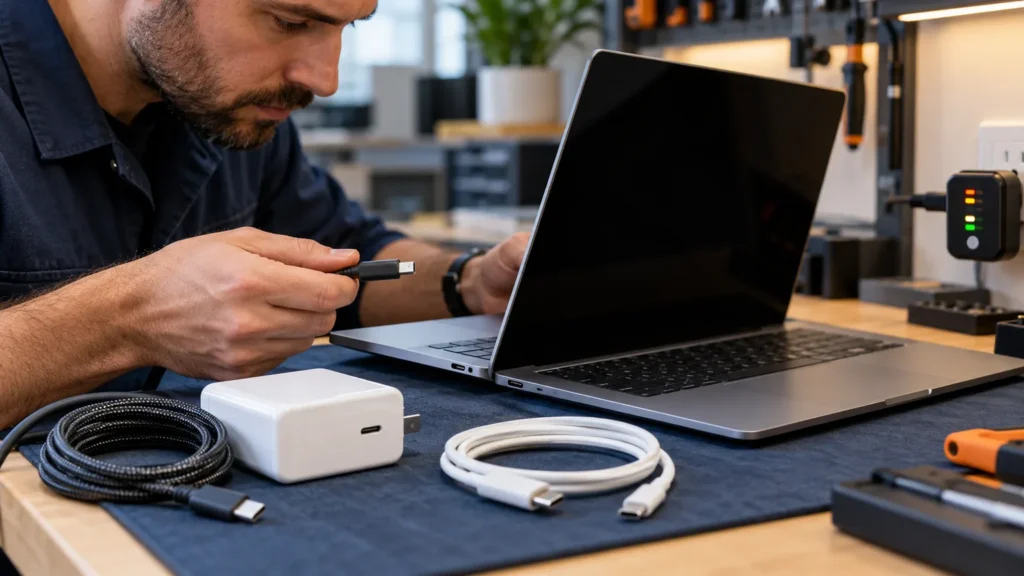
When a MacBook won’t turn on, swap the charger and cable first, then hold the power button for about 10 seconds. Apple’s own checklist for a Mac that does not start opens with those two steps, and neither costs anything.
I run every no-power check in the same order: free fixes, then parts, then a shop. MacBooks were the minority on my bench, so for anything Apple-specific I read the key sequences and the seconds straight off Apple’s support pages. Which sequence applies depends on the year of the laptop, and the year takes about a minute to find even when the screen is dead.
Charge it properly before anything else
A flat battery and a dead MacBook look the same from the outside, so rule out the power path first. Apple’s page on a battery that will not charge lists four parts to inspect: the port, the charging cable, the power adapter and the removable AC wall adapter. Anything damaged stops being used.
- Cable. Not every USB-C cable can charge a laptop, and Apple recommends the one that shipped with the Mac. A cable pulled from a drawer proves little.
- Adapter. A low-wattage adapter, a phone charger for example, can give a Mac enough power to run without enough to charge, Apple says.
- Wall piece and outlet. The part with the blades pulls off the adapter. Apple suggests trying another Apple AC wall adapter or an extension cable, and a different outlet.
- Port. Unplug the adapter, then wipe the port with a soft, dry, lint-free cloth.
- Line noise. Unplug the adapter from the wall, wait 60 seconds and plug it back in. Apple lists this as a fix for electrical interference on the circuit.
One r/macbookrepair poster with an M5 MacBook Pro reported no light on the MagSafe charger after the laptop, closed and carried to the next class, would not respond. A dark connector is a reason to test the cable and the outlet before blaming the Mac. It does not prove either one.
Then wait. The battery page gives one charging time: a Mac that has been in long-term storage may need 20 minutes on its power adapter before it will run. That figure is for storage, and Apple states no time for a laptop that simply ran flat overnight. I treat the same 20 minutes as a minimum before judging a charger bad.
Keep the laptop out of a hot, closed space while it charges. Apple says Mac laptops work best at 50 to 95 F, and says an adapter buried under a blanket can switch itself off to avoid overheating.

The 10-second power hold, the way Apple words it
Press and hold the power button for about 10 seconds, let go, then press it once normally. That is step two on Apple’s page for a Mac that does not turn on, and the page gives the same instruction for Apple silicon and Intel models.
On a MacBook with Touch ID, the power button is the Touch ID key. Apple’s blank-screen page adds that you press it down firmly, not tap it as you would to sign in.
Next, unplug everything except the charger: printers, drives, USB hubs, phones. Apple says an accessory or its cable can be the reason a Mac will not start. Repeat the hold with nothing attached. If the laptop starts, reconnect the accessories one at a time and the culprit shows itself.
While you press, watch and listen. A fan spinning up, a chime or a glow from the keyboard means the Mac has power, and the screen section further down is the one you need. Silence and darkness send you to the model-year check.
Date the MacBook first: the model year picks the reset
Three generations of MacBook reset differently, and a laptop with a black screen cannot open About This Mac to say which one you have. The serial number can.
Flip the laptop over. Apple says the serial number is usually printed on the underside, near the regulatory markings. Type it into checkcoverage.apple.com and the page returns the model name with its year. If the logic board was replaced in a past repair, Apple warns the printed serial may no longer be active, and names account.apple.com as one place to find the current one.
Then sort by Apple’s own lists:
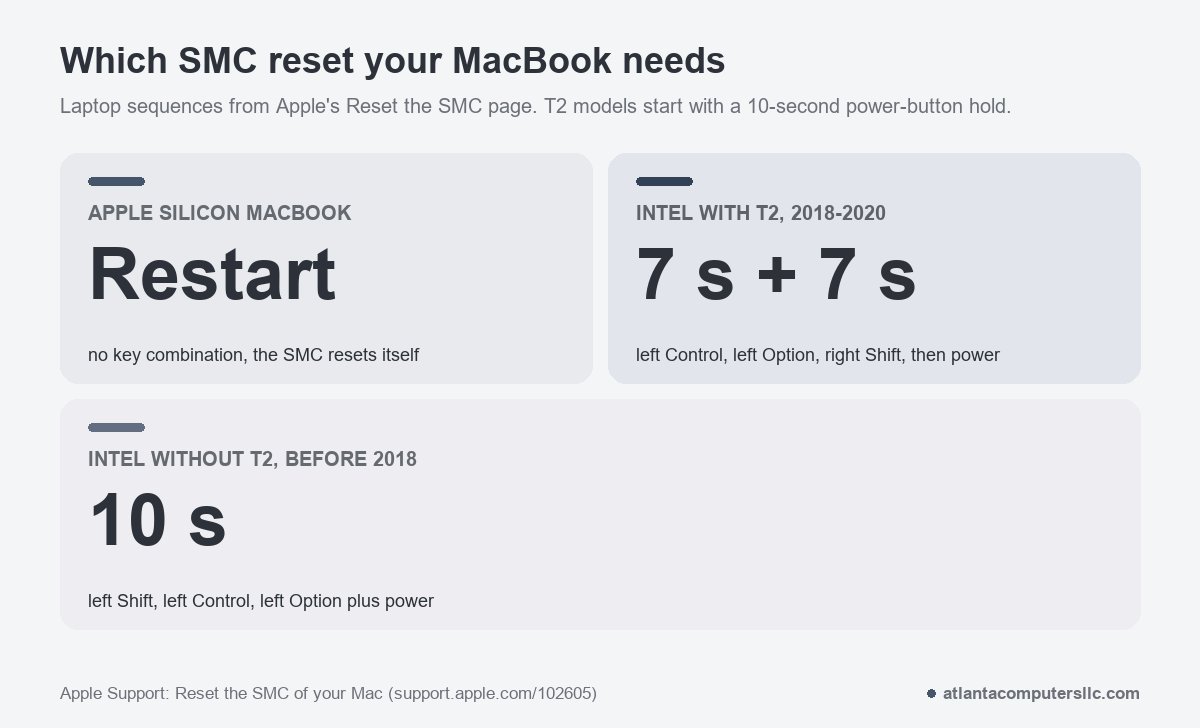
- Apple silicon: MacBook Pro introduced in 2021 or later, the 13-inch M1 from 2020, MacBook Air introduced in 2022 or later, and the M1 Air from 2020. There is no SMC reset to run. Apple says the SMC resets automatically on these, so with the laptop plugged in you restart it, or shut it down and press the power button.
- Intel with the T2 chip: MacBook Pro and MacBook Air introduced from 2018 through 2020, not counting the two M1 models.
- Intel without T2: Intel MacBooks introduced before 2018.
If yours is Apple silicon, skip the next section. The 10-second hold and the screen and recovery steps still apply to you.
Intel MacBooks: the SMC reset, key by key
The SMC, short for system management controller, runs the power button, battery charging, USB port power, the fans and the sleep and battery lights. Apple says you most likely do not need to reset it, and lists a Mac that will not turn on and a battery that will not charge among the reasons to try on an Intel model. The reset leaves NVRAM and PRAM untouched.
T2 MacBooks, 2018 through 2020
- Shut the Mac down, hold the power button (or the Touch ID key) for 10 seconds, release it, wait a few seconds, then turn it on. If it behaves, stop here.
- If the trouble persists, shut it down again. On the built-in keyboard, hold the left Control key, the left Option key and the right Shift key. Apple notes the Mac might turn on at this point.
- After 7 seconds, keep those three down and press and hold the power button as well. If the Mac is on, it will shut off.
- Hold all four keys for another 7 seconds, then release them.
- Wait a few seconds, then press the power button.
Older Intel MacBooks without T2
- Shut the Mac down.
- On the built-in keyboard, hold the left Shift, left Control and left Option keys.
- With those three held, press and hold the power button too.
- Keep all four down for 10 seconds.
- Release everything, then press the power button.
The Shift key is where people slip. The older sequence uses the left Shift, and the T2 sequence uses the right one. Apple’s page gives each sequence separately, so use the one that matches the year you found. A desktop iMac uses neither: it gets a power cord pull instead.
Awake but black: telling the screen from the Mac
If the fan spins, the keyboard lights or a chime plays but the display stays dark, the MacBook has power and the question moves to the screen or to macOS. One r/macbookair poster with a 2022 M2 Air described that after the battery hit 0%: no picture, no keyboard backlight, but the startup chime when the power button was pressed. One of the replies is a tidy test.
“You checked the screen brightness? Also does it still work if you plug it into an external monitor?”
– r/macbookair, September 2026 (4 upvotes)
Press the brightness-up key first, since a panel dimmed to nothing looks dead. Then connect an external display. If the desktop appears there, macOS is running and the built-in panel or its cable is the suspect, which is a shop job. A Mac stuck before macOS loads may show nothing on a monitor either, so a blank monitor settles nothing.
With no picture anywhere, Apple’s blank-screen steps come next. Hold the power button for up to 10 seconds until the Mac turns off, then turn it on again. If that fails, start from macOS Recovery:
- Apple silicon: with the Mac off, press and hold the power button until “Loading startup options” or the Options icon appears, then click Options and Continue.
- Intel: press the power button, then immediately hold Command and R until an Apple logo or a spinning globe shows.
Once Recovery loads, use Disk Utility to repair the startup disk and restart. If the screen is still blank, Apple’s next step is to reinstall macOS from Recovery. A Mac that powers up and then stops at the Apple logo follows the same Apple pages, and the iMac guide walks through that stall and the NVRAM reset for Intel models.
When a second Mac is needed: revive or restore
Revive and restore are Apple’s names for repairing a laptop’s firmware from another Mac. They apply only to Apple silicon and T2 MacBooks, and Apple calls the need rare. Its examples include a power failure that interrupts a macOS installation, a startup to an exclamation point in a circle, and a blank screen that nothing else clears.
You need a second Mac of any model running macOS 14 or later, online, plus a USB-C to USB-C cable that carries both data and charging. Apple rules out a Thunderbolt 3 cable. Revive comes first because it does not erase the Mac. Restore wipes it to factory settings.
The key sequence that puts the laptop into DFU mode differs between Apple silicon and T2, and Apple says the timing matters. Follow Apple’s revive and restore page step by step rather than from memory.
A restore touches the disk, and I back up or image a drive before any repair that does. A MacBook that won’t start cannot be backed up in that moment, which is the argument for a cloud backup set up before the bad day.
When to stop and hand it over
Take the MacBook to Apple, an authorized provider or a recycler as soon as any one of these is true. None of them gets better with another round of power-button presses.
- The trackpad is lifted, the case is bulging or the lid will not close flat. These can point to a swollen battery. Do not press the power button and do not charge it.
- Liquid got into the laptop. Unplug it, leave it off and stop trying the power button.
- The charger is swapped, the 10-second hold is done, the SMC reset is done on an Intel model, and nothing happens. Apple’s page ends the same way: if the MacBook still won’t turn on, it might need service.
- Recovery will not load, or a revive attempt fails.
Apple warns that repairs by untrained people, or with non-genuine parts, can affect the safety and function of the device. I don’t do board-level microsoldering, and a MacBook that fails every step above is that kind of job. If it does turn on for a moment, copy off what matters before anything else.
MacBook won’t turn on: quick answers
How do you force start a MacBook?
Hold the power button, or the Touch ID key, for about 10 seconds, release it, then press it once normally. Apple gives those steps for any Mac that does not turn on. Unplug the accessories and repeat if nothing happens.
How do I start a dead MacBook Pro?
Charge it on a cable and adapter you trust, give it time, then do the 10-second hold. The charging time on Apple’s battery page is 20 minutes, for a Mac out of long-term storage. Intel models can then try the SMC reset for their generation.
What if my MacBook won’t turn on even when it’s plugged in?
Treat the charger as the first suspect. Apple says a cable not made for charging, or a low-wattage adapter, can leave a Mac plugged in but not charging. Swap both, wipe the port with a dry lint-free cloth and try another outlet.
How do I revive a dead Mac?
Reviving means repairing the firmware from a second Mac over USB-C, and it applies only to Apple silicon and T2 MacBooks. Run the power and reset steps first. Revive keeps your files, and restore erases them.
