
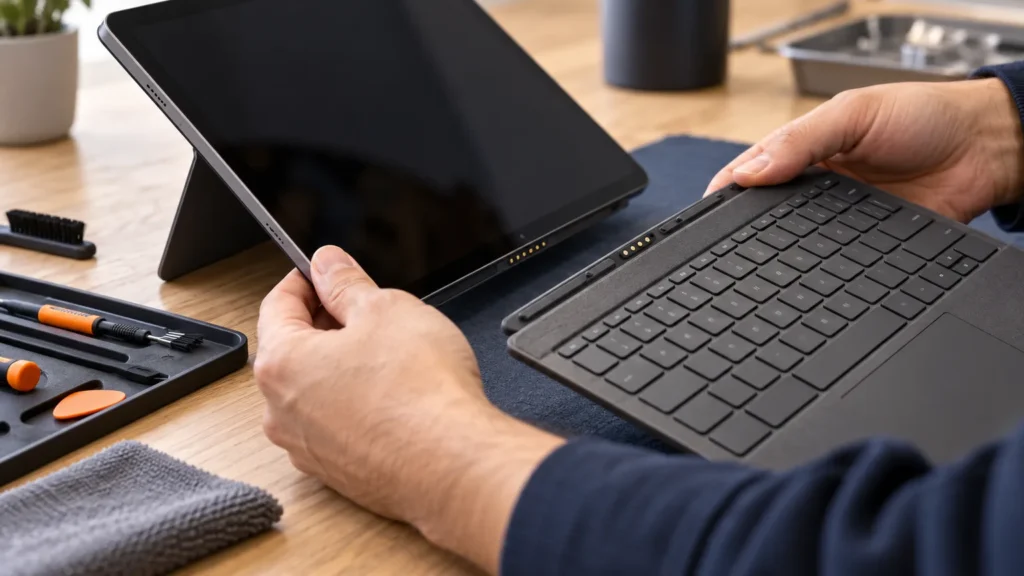
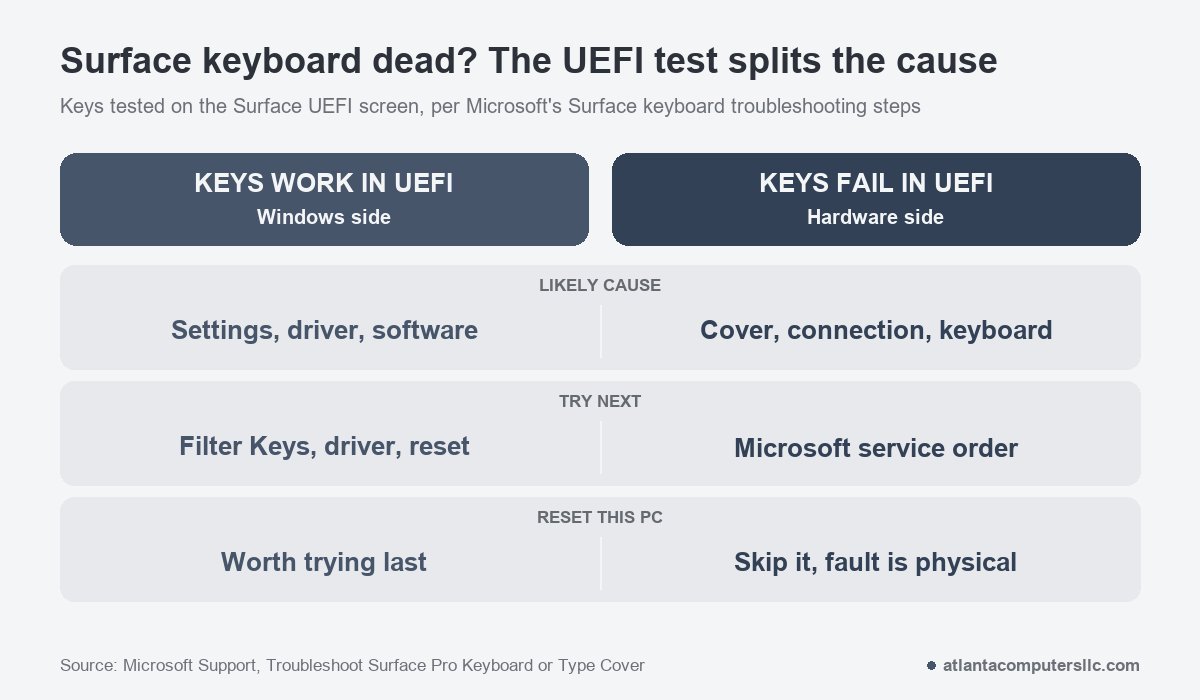
With a Surface keyboard not working, one test tells you which half of the machine to blame: try the arrow keys on the Surface’s UEFI screen. Keys that respond there point to Windows. Keys that stay dead there point to hardware, and Microsoft calls dark Caps and Fn lights on a cover a possible hardware fault.
The fixes depend on the keyboard. A Surface Pro or Surface Go keyboard is a detachable cover that connects along a magnetic edge. A Surface Laptop keyboard is part of the base, so there is nothing to reseat.
Which Surface keyboard do you have?
If the keyboard snaps off the bottom edge of the screen, it is a Type Cover or Surface Pro Keyboard, and it starts with the detach-and-restart steps. If it is built into the base, as on Surface Laptop models, start with the UEFI test and the Windows-side fixes.
A Surface Book keyboard base detaches too. Microsoft’s keyboard troubleshooting page lists Surface Book among the models it covers, and the restart, UEFI and Windows-side steps below apply to it. Microsoft keeps a separate page for Surface Book detach and attach problems.
Get typing back first. With touch or a mouse, open Start, then Settings, then Accessibility, then Keyboard, and turn on the On-Screen Keyboard toggle. On Windows 10 the setting sits under Ease of Access. A USB or Bluetooth keyboard works as a stand-in, but check which ports your model has before you buy one.
A working external keyboard proves Windows can accept typing. It doesn’t prove the Surface’s own keyboard is healthy, because a driver fault and a dead cover look the same from the outside. Surface machines were a small share of what crossed my bench next to Dell, HP and Lenovo laptops, so I take the Surface-specific steps from Microsoft’s support pages and say where each comes from. The sorting habit is the one I use on every laptop, down to a Dell that boots to a black screen: separate the hardware from the operating system before touching either.

Type Cover and Surface Pro Keyboard: detach, restart, reattach
Unplug the Surface, detach the cover, shut down, hold the power button for 20 seconds, then reattach the cover so every magnet touches the bottom edge. Microsoft lists this sequence first for a Surface Pro or Surface Go keyboard that won’t connect, drops out at random or works only some of the time.
“My surface pro keyboard isn’t working despite not experiencing damage or anything to the laptop. It’s a magnetic keyboard and is refusing to connect.”
– r/Surface (9 upvotes)
That post describes the case this sequence is written for: no visible damage and a cover that simply stopped linking up. Run these in order, from Microsoft’s Surface Pro Keyboard and Type Cover troubleshooting page.
- Open the Surface app, expand Help & support and select Check for updates. That opens Windows Update, where you install whatever is waiting.
- Unplug the charger and detach the cover. Look at the cover’s edge and the Surface’s bottom edge for debris or damage. If the spine or the magnetic connections are dirty, Microsoft says to wipe them with a soft, lint-free cloth dampened with a small amount of isopropyl alcohol, and to pick metal debris off the cloth before moving on to another area.
- Select Start, then Power, then Shut down, and wait for the Surface to turn off. Hold the power button for 20 seconds. If the logo appears after a few seconds, keep holding until it appears again. Microsoft gives this hold for Surface Pro 5 and later, Surface Go, Surface Book 2 and 3 and every Surface Laptop.
- Reattach the cover along the whole bottom edge so all the magnets touch. A cover resting on only one end isn’t seated, so check the full length.
- Press Caps and Fn a couple of times and watch the lights. Lights that switch on and off mean the cover is talking to the Surface. Lights that never come on mean Microsoft’s page points to a possible hardware issue. Lights that work with a keyboard that still fails mean the problem may be Windows, which the next test checks.
If one key won’t respond or keeps repeating, Microsoft’s advice is to blow dust and debris out with compressed air or gently vacuum the top with a dusting brush. A cover that keeps repeating or dropping keys after that is treated as a hardware failure. On a Surface running a custom or clean Windows image, Microsoft adds that the keyboard may not be recognized until you install the latest driver package from its Surface driver download page.
The UEFI test: does the keyboard work outside Windows?
The UEFI test is a yes or no. Shut the Surface down, wait about 10 seconds, hold volume-up while you press and release power, and release at the UEFI screen. Press the up and down arrow keys. If the menu selection moves, the keyboard works outside Windows and the fault is on the Windows side.
Microsoft’s Surface UEFI page gives a second route that needs no keys, which suits a dead keyboard. Open Start, then Settings, System and Recovery. Next to Advanced startup, select Restart now. Then choose Troubleshoot, Advanced Options and UEFI Firmware Settings, and select Restart. Look and press arrows only. Microsoft warns that changing UEFI settings risks the security and functionality of the Surface.
Keys that work in UEFI mean the cover or keyboard and its connection are most likely fine. The cause is a setting, a driver or a damaged install, and the next section covers all three. Reset only after those.
Keys that fail in UEFI mean no Windows setting is involved. A Microsoft Q&A moderator answering a Surface Laptop 4 owner put it this way: a keyboard that fails even in UEFI points toward a hardware issue with the built-in keyboard. For a cover, go back through the reseating and cleaning once more, then to service. For a built-in keyboard, go to service.
Surface for Business adds one more check. Microsoft’s page describes a Devices menu in UEFI on those models only: disable the Type Cover port, exit UEFI, boot back into UEFI and re-enable the port, then see whether the keyboard functions. Home models don’t show that menu.
Surface keyboard not working in Windows: Filter Keys, Fn lock, driver, reset
When keys work in UEFI but not in Windows, check Filter Keys and the Fn light first, then install updates, reinstall the keyboard driver, and use Reset this PC with Keep my files only as the last software step.
Filter Keys comes first because it costs nothing. Microsoft says altered Sticky Keys, Filter Keys or other keyboard settings can make a healthy keyboard seem broken, with a sound when Ctrl or Alt is pressed or repeated keystrokes ignored. On Windows 11, go to Settings, Accessibility, Keyboard and scroll to the Interaction section. On Windows 10, it’s Settings, Ease of Access, Keyboard. Switch the settings off.
If only the top row misbehaves, look at the Fn key. Microsoft’s special keys page says a lit Fn light means the top row acts as F1 through F12. Press Fn again to turn the light off, and the volume, brightness and other special keys come back. Fn lock only changes what the top row does, so a dead alphabet is a different problem.
On a built-in keyboard, run the Surface app update check from step 1 here, since the cover steps don’t apply to you.
Next is the driver. Microsoft’s own keyboard pages don’t give a driver procedure, but the Microsoft Q&A moderator mentioned above suggested uninstalling and reinstalling the keyboard driver in Device Manager, then restarting the Surface. Type device manager into the taskbar search, find the keyboard entry, choose Uninstall device and restart. Microsoft’s touchscreen page warns against uninstalling drivers on Surface Pro X, where only a full system reset brings them back. I’d treat other Arm-based Surface models the same until Microsoft says otherwise, and go straight to the reset on those.
The reset is the software endpoint. Select Start, type reset into the taskbar search, then choose Reset this PC, Keep my files and Cloud download. Microsoft says it keeps your personal files and the apps that came with the PC, and removes apps, drivers and settings changes you made. I back up before any repair that touches the disk, and a reset counts even though it is built to keep files. If the keyboard failed the UEFI test, skip this step, because Windows isn’t the cause.
When to stop and send it to Microsoft
Stop when the keyboard fails in UEFI, the Caps and Fn lights stay dark, keys are cracked or missing, or keys keep repeating or dropping after you clear debris. Microsoft treats those as hardware failures and points owners to a service order.
For a service order, sign in with your Microsoft account and select the device. The serial number for a cover is near the left side or center of its spine. If a Surface Pro is out of warranty, Microsoft also suggests buying a new keyboard. Devices owned by a company or school go through Surface service options for Business and Education.
The Surface Laptop keyboard is another matter. Microsoft’s self-repair page lists a keyboard as a replaceable part for several Surface Laptop models, with service guides and parts through the Microsoft Store and iFixit. It limits self-repair to out-of-warranty devices, and it says damage from a repair done by anyone other than Microsoft or an Authorized Service Provider isn’t covered by the Limited warranty. I carry a spudger set and a precision screwdriver kit for Dell, HP and Lenovo work, and I still wouldn’t open an in-warranty Surface.
