
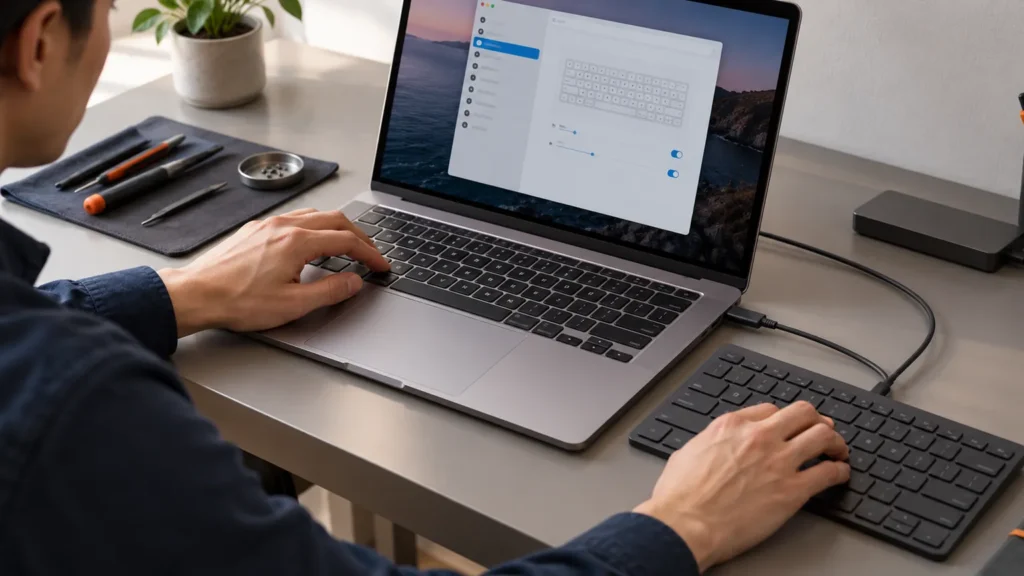
A MacBook keyboard not working can come down to one of three settings: Slow Keys, Mouse Keys or the wrong input source. Apple lists all three on its page for a Mac that doesn’t respond to key presses, and each takes under a minute to rule out before you touch a reset or a repair.
If the settings are clean, the order runs from a plugged-in keyboard, through safe mode and the resets for your type of Mac, to Apple Diagnostics, compressed air and finally service. Owners of 2015 to 2019 models should also know that Apple’s free keyboard repair program for those machines has ended.
Three settings that make a healthy keyboard look dead
Open the Apple menu, then System Settings, Accessibility and Keyboard. You may need to scroll. Apple’s page says that if Slow Keys is on, you must hold a key longer than usual before the Mac accepts it, which looks just like dead keys.
Slow Keys has a click-sound option that plays one sound when a key goes down and a different sound when the press is accepted. A tap that gets only the first sound suggests the delay is discarding it. Switch Slow Keys off and try again.
Next, go back to Accessibility and open Pointer Control. Mouse Keys moves the pointer from the keyboard, and Apple says that while it’s on you can’t use the keyboard to enter text. If you can’t click your way there, press Option-Command-F5 to open the Accessibility Shortcuts panel and clear Mouse Keys. When the Option-five-times shortcut is enabled, five taps on Option flip it too.
The third setting is the input source. Open System Settings, then Keyboard, find Text Input and click Edit, and turn on “Show Input menu in menu bar.” Open that menu and confirm the layout matches your keyboard. A wrong layout types the wrong characters instead of nothing.
Two keys have a built-in delay. Apple says the Caps Lock key must be held until its indicator light comes on, and the Media Eject key until its icon appears. A quick tap on either does nothing by design.
Keys and trackpad dead together: plug in a keyboard first
For a laptop where no built-in key works, Apple’s page names one cause first. The Mac may be showing a low battery alert you can’t see, so connect it to power or attach an external keyboard to bring the alert into view.
“Hi everyone, I’m hoping someone can help before I have to take this to Apple. My MacBook Air 13-inch M3 (2024) battery completely drained to 0%. I plugged it in, let it charge fully, and turned it back on. Since then, the built-in keyboard and trackpad have stopped responding completely. When I turn it on, it boots up normal and then gets to the login screen, but the trackpad has no haptic click/feedback at all, the cursor is stuck in the top left of the screen, I cant type my password and Caps…” [excerpt – 921 characters in full]
– r/mac, August 2026 (4 upvotes)
A hidden alert is one cause to rule out in a case like that one, not a promise that it explains every case. The pattern matters either way: keys and trackpad failing at once. Mouse Keys can do that on its own, because Apple’s Pointer Control list includes an option to ignore the built-in trackpad while Mouse Keys is on. If both inputs died together, open Pointer Control before you suspect hardware.
On a Dell or HP laptop, the first thing I do with a “dead” keyboard is plug in a USB one, because it splits the keyboard from the machine in about ten seconds. It works the same here. Use a wired keyboard if you can, since Apple advises plugging a wireless keyboard in for startup key combinations. If it types normally, macOS is accepting input, but the built-in keyboard still isn’t cleared.
With no spare keyboard, turn on the Accessibility Keyboard under Accessibility, then Keyboard. Apple describes it as an onscreen keyboard that lets you type without a physical one, and you click its keys with the trackpad or a mouse.
Locked out at the login window, unable to enter a password? Apple says anyone at that window can use Accessibility shortcuts to switch an option on temporarily. To have the Accessibility Keyboard waiting there next time, open System Settings, Lock Screen, then Accessibility Options, and turn it on while you can still log in. That setting asks for an administrator password.
If the whole Mac is frozen, hold the power button for up to 10 seconds until it turns off, then start it again. On laptops with Touch ID, that button is the Touch ID key.
Safe mode, SMC and NVRAM: what your MacBook actually has
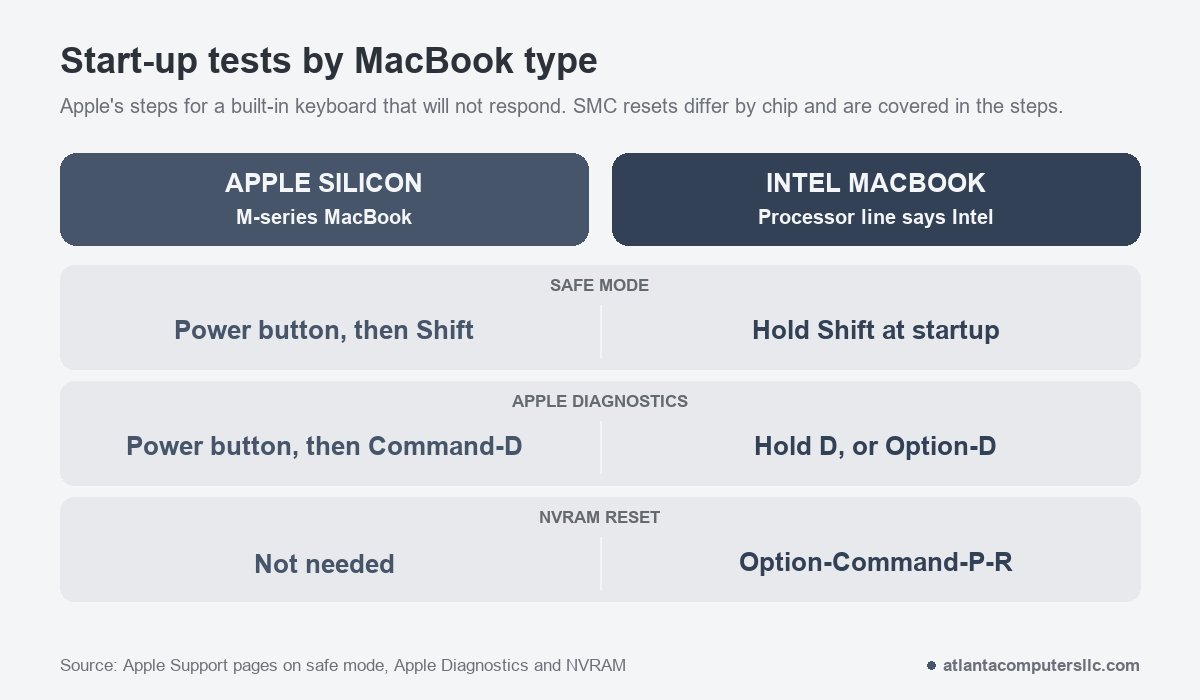
Open the Apple menu and choose About This Mac. A line labeled Chip means Apple silicon. A line labeled Processor with an Intel name means an Intel MacBook, and the steps below split on that line.
Apple silicon MacBooks
Safe mode shows whether software loading at startup is blocking the keyboard, which is what Apple says it’s for. Shut the Mac down completely, then follow these steps.
- Hold the power button until “Loading startup options” appears.
- Select a volume.
- Hold the Shift key, then click Continue in Safe Mode. The Mac restarts, and the login window shows “Safe Boot” in the menu bar.
Holding Shift needs a working key, so use an external keyboard if the built-in one is dead. Type at the login window. If the keys work there but not in your normal session, a startup item or login app is the suspect.
The other two resets are short stories. Apple says the SMC resets automatically on an Apple silicon Mac: with the Mac plugged in, restart it, or shut it down and press the power button again. The NVRAM steps don’t apply and aren’t needed.
Intel MacBooks
For safe mode, turn the Mac on or restart it, then immediately hold Shift until the login window appears. You should see “Safe Boot” in the menu bar. Apple adds that a Mac may need a few seconds to recognize the keyboard as it starts, so wait a moment before pressing.
The NVRAM reset is Intel-only. Shut down, turn the Mac on, then immediately hold Option, Command, P and R together. Release after about 20 seconds, even if the Mac seems to restart on its own.
The SMC reset depends on whether the MacBook has the Apple T2 chip. Apple lists MacBook Air and MacBook Pro models introduced in 2018 through 2020 as T2 machines, excluding the M1 models from 2020. Hold Option while choosing Apple menu, System Information, then look under Controller or iBridge for “Apple T2 chip.”
With the T2 chip:
- Shut down, hold the power button for 10 seconds, release, wait a few seconds and turn the Mac on.
- If the problem remains, shut down again and hold these built-in keys: left Control, left Option and right Shift.
- After 7 seconds, add the power button and keep all four held for another 7 seconds.
- Release, wait a few seconds, then press power.
Without the T2 chip:
- Shut down, then hold left Shift, left Control and left Option.
- Add the power button while holding them and keep all four down for 10 seconds.
- Release all keys and press power to turn the Mac on.
Be realistic about this one. Apple lists charging, power, fan, heat and camera problems as the reasons to reset the SMC, and dead keys are not on that list. It does say the SMC controls keyboard backlighting, and its steps call for the built-in keyboard, which may not register keys that have failed outright. Treat it as a cheap long shot. For the longer walk through the 10-second power hold and dating your model, see the MacBook won’t turn on page.
Apple Diagnostics: test the keyboard outside macOS
Apple Diagnostics tests the internal hardware, such as the logic board, memory and wireless parts. Apple says it doesn’t check for macOS or software problems. That makes it the cleanest split available: a keyboard that fails there is hardware, and one that passes while macOS ignores your typing points back to settings or software.
Apple’s page on using Apple Diagnostics to test your Mac gives the setup. Install any macOS update you can, shut the Mac down, and unplug everything except the keyboard, mouse, display, Ethernet and power. Put the Mac on a hard, flat surface.
- Apple silicon: hold the power button until you see Options, then hold Command-D until the Mac restarts.
- Intel: turn the Mac on and immediately hold D. If that doesn’t work, try Option-D, and release when a progress bar or the language choice appears.
On macOS Tahoe 26 and later, Apple says you’re asked to choose a specific diagnostic, such as the built-in keyboard or trackpad. On earlier versions, the test runs automatically. If you see reference codes, write them down. Apple wants the code when you take the Mac to an Apple Store, an Apple Authorized Service Provider or an Independent Repair Provider.
The same idea, testing the keyboard before the operating system loads, is how a Surface is sorted. The Surface keyboard guide uses its UEFI screen for it.
Crumbs, sticking keys and spills
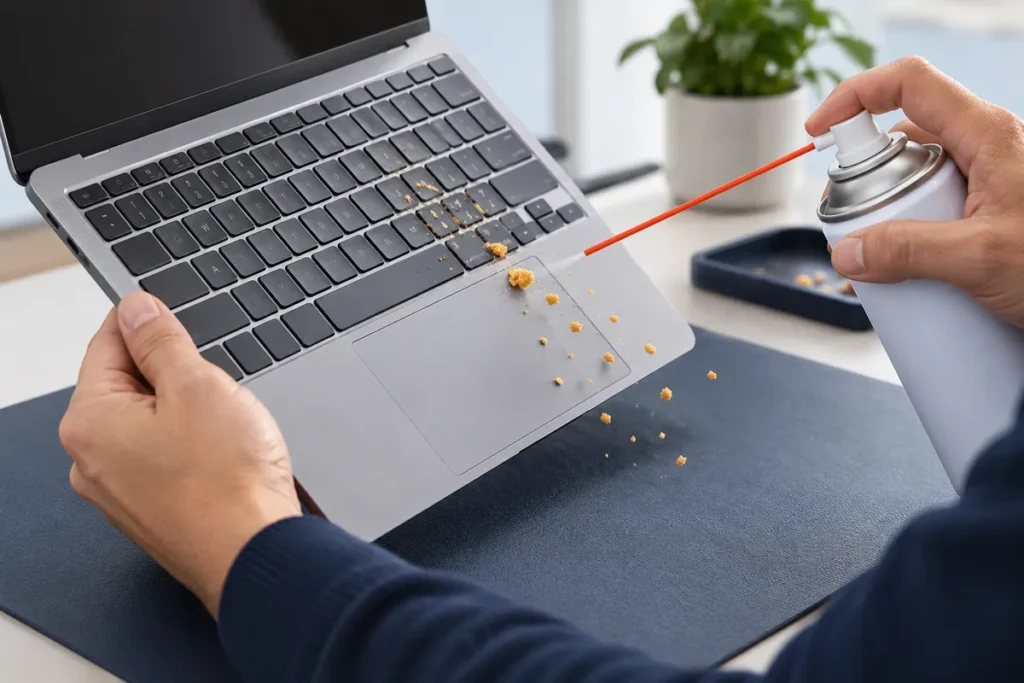
Apple publishes one cleaning method for a MacBook from 2015 or later, or a MacBook Pro from 2016 or later, that has an unresponsive key or one that feels different from its neighbors. It uses compressed air, and the angle matters.
- Use the straw that came with the can, keeping its tip about half an inch from the keyboard. Never turn the can upside down while spraying.
- Hold the MacBook at a 75-degree angle, not quite vertical.
- Spray the keyboard, or only the affected keys, in a left-to-right motion.
- Rotate the MacBook onto its right side and spray left to right again, then repeat with it on its left side.
Apple’s steps stop at compressed air, and prying keycaps isn’t part of them. If keys are still dead afterward, Apple sends you to a Retail Store or an Authorized Service Provider.
A spill is a different case. Apple says to shut the computer down and unplug the power adapter before cleaning, and to get help from an Authorized Service Provider or Apple Store as soon as possible if liquid reaches the inside. It gives no dry-it-out routine for a keyboard. For a wet USB-C port, its separate page rules out external heat, compressed air, cotton swabs and a bag of rice. Liquid damage isn’t covered by Apple’s one-year limited warranty or AppleCare Protection Plan, though an AppleCare plan for Mac adds accidental damage protection for a service fee.
2015 to 2019 MacBooks: the free keyboard repair program has ended
Apple ran a Keyboard Service Program for certain MacBook, MacBook Air and MacBook Pro models. It covered keyboards where letters repeated, letters didn’t appear, or keys felt sticky or responded inconsistently, and Apple serviced eligible machines free of charge. The program page now says it has ended, and the program isn’t on Apple’s list of active service programs.
The eligible list, from an archived copy of Apple’s page, ran across these models:
- MacBook (Retina, 12-inch) from 2015, 2016 and 2017.
- MacBook Air (Retina, 13-inch) from 2018 and 2019.
- MacBook Pro 13-inch from 2016 through 2019, in the two-port and four-port Thunderbolt 3 versions Apple named.
- MacBook Pro 15-inch from 2016 through 2019.
Apple limited the program to 4 years after a unit’s first retail sale, and it didn’t extend the standard warranty. Even a unit first sold in 2019 passed that mark years ago.
So a repeating or sticky key on one of these MacBooks is a paid service question now. Confirm your model under Apple menu, then About This Mac, and run the air method above first. If it fails, get a written quote from Apple or an Authorized Service Provider before you agree to a whole keyboard.
When to stop and book service
Stop when Apple Diagnostics reports a keyboard fault, when an external keyboard works but the built-in keys and trackpad stay dead, or when liquid has reached the inside. Stop too if the case bulges or the trackpad lifts, because a swollen battery is never a DIY job.
Quotes vary widely for the same symptom. In an older Tom’s Guide thread about a 2015 MacBook Pro, one owner reported a $500 logic-board quote, and another reported about $90 for a cable linking keyboard and trackpad, adding that the power button kept working because it uses a different connection. That spread is why I’d ask for the diagnosis in writing first. Board-level repair isn’t something I do, and a logic-board quote is where a MacBook goes to Apple.
Back up before you hand it over. Apple’s old program notice asked for the same, and a backup or drive image comes before any repair that touches the disk. A cloud backup works if you have no spare drive.
MacBook keyboard not working: quick answers
Why is my MacBook keyboard not typing?
Slow Keys, Mouse Keys, the wrong input source or a hidden low battery alert can all stop typing, and Apple’s key-presses page names them. If the settings are clean, Apple Diagnostics separates hardware from software. Debris and liquid are the other causes.
How do I unfreeze my Mac keyboard?
Turn off Slow Keys and Mouse Keys, then restart. If the Mac itself has frozen, hold the power button for up to 10 seconds until it turns off, and start it again. Apple’s page on a Mac that doesn’t respond to key presses covers the settings.
Do M-series MacBooks need an SMC or NVRAM reset for keyboard problems?
No. Apple says the SMC resets automatically when an Apple silicon Mac restarts, and the NVRAM reset steps don’t apply to it. Safe mode and Apple Diagnostics are the startup tests that do.
