
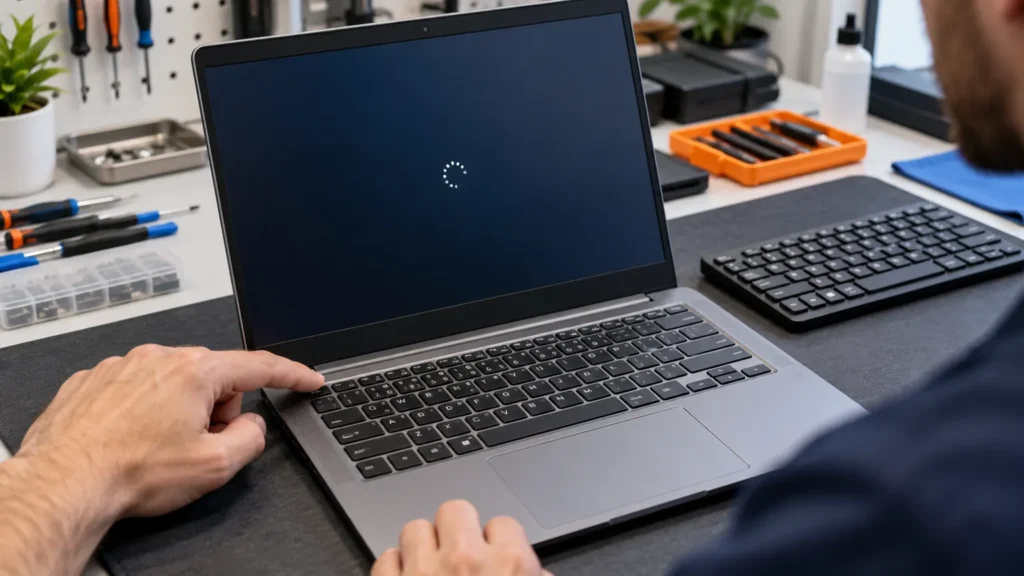
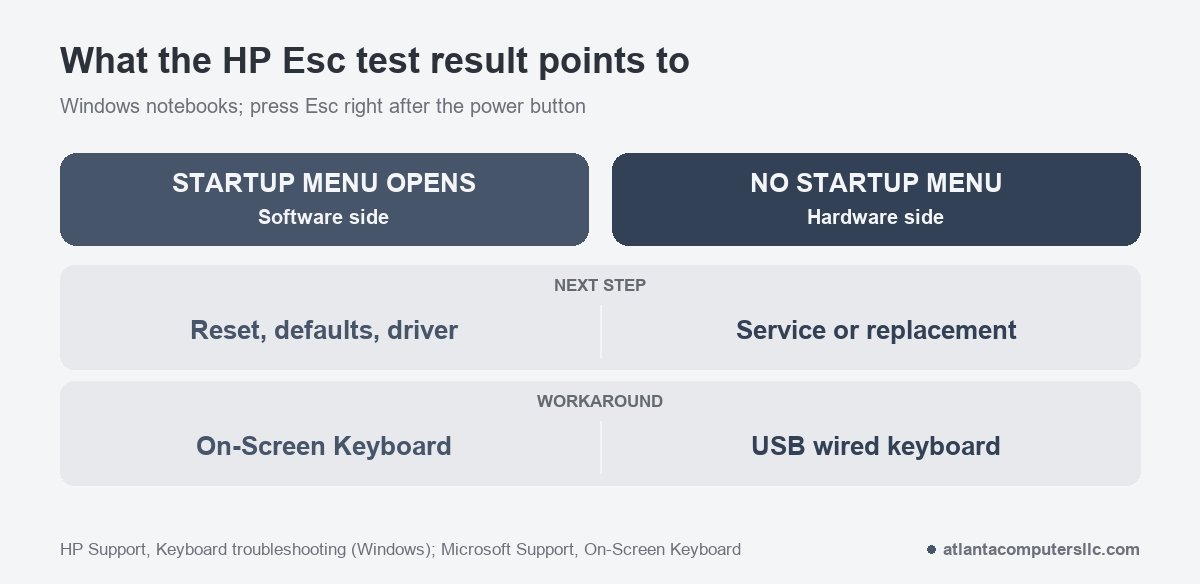
With an HP laptop keyboard not working, one test splits the fault in two: shut the laptop down, press the power button, and tap Esc. HP’s keyboard guide says that if the Startup Menu doesn’t open, the integrated keyboard hardware isn’t working and needs service or replacement. If it does open, the fault points to software.
That result decides where the next hour goes. A keyboard that answers at the Startup Menu points to software, and every software fix here costs nothing. HP was one of the brands that made up most of my bench, and I start every dead-keyboard job with this test before anything gets reinstalled.
HP laptop keyboard not working: run the Esc test first
Run it with nothing else going on, so Windows can’t muddy the answer.
- Turn the laptop off. If it won’t shut down normally, hold the power button for at least five seconds.
- Press the power button, then tap Esc about once a second until a menu appears.
- Look at the screen. Either the Startup Menu is there or it isn’t.
If the Startup Menu opens, the keyboard answers before Windows loads, which points to software. Esc only proves that one key, though. If specific keys stay dead, run the diagnostics test below before you start on Windows.
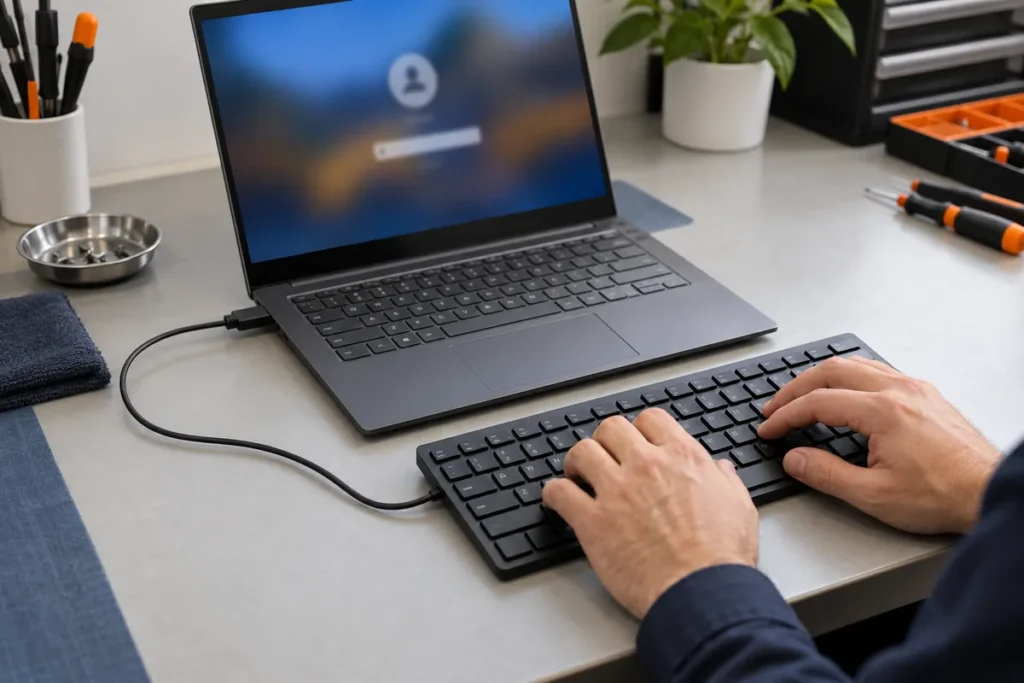
If nothing opens, HP’s guide calls it a hardware fault and says to keep using the notebook by plugging a USB wired keyboard into a USB port and restarting. Make sure you can actually see the screen first, because a black display looks the same as a missing menu. If that’s your situation, start with the HP laptop black screen guide. I’d also run the power reset in the next section once before calling the keyboard dead, since it costs nothing.
A USB keyboard keeps you working, but it isn’t a verdict. It will type whether the built-in keyboard failed in hardware or in Windows, so the Esc test is the one that separates them.
When only some keys fail, use HP PC Hardware Diagnostics instead. Power off, press the power button, tap Esc about once a second, and press F2 when the menu appears. Choose Component Tests, then Keyboard, then Run once. HP lists the keyboard test as interactive, about 3 minutes, and says it doesn’t support Bluetooth devices. If the F2 menu doesn’t offer the diagnostics, they can be run from a USB drive instead.
If Windows still loads, the Windows version of the app runs the same keyboard test: right-click HP PC Hardware Diagnostics for Windows, choose Run as administrator, then Device check, Input Devices, Keyboard Test. A failed test produces a 24-digit failure ID. Write it down or scan the QR code before you contact HP, as covered in HP’s hardware testing page.
Esc works but Windows ignores the keys
One owner on r/HPOmen described how this kind of failure arrives:
“i’m not sure what happened but i was clicking keys and now my keyboard and trackpad just stopped working for some reason and i have no idea what to do”
– r/HPOmen, September 2026 (8 upvotes)
Work through these in order. Each one is free.
- Power reset. Turn the laptop off, unplug the charger, remove memory cards and any USB devices you don’t need, and hold the power button for approximately 15 seconds. If the battery is removable, take it out first. Reconnect the charger and power on. HP adds that on business laptops you hold the Windows key and V while pressing the power button. If the laptop won’t come back on afterward, the HP laptop won’t turn on guide picks up from there.
- Load the BIOS defaults. From the Startup Menu, press F10 to open the BIOS settings, F9 to load the defaults, then F10 to accept the changes. Write down any custom setting you rely on first, and expect the menu layout to vary by model.
- Remove the keyboard devices. In Windows, open Device Manager, click View, and choose Show hidden devices. Expand Keyboards, right-click each entry, and select Uninstall. Remove every device in that category, then restart. After that restart, the keyboard should work correctly.
- Look for updates. Open HP Support Assistant, go to My Dashboard, find your computer, and click Updates. The list can include BIOS updates. On Windows in S mode, where the app isn’t available, use Windows Update instead.
Use your trackpad or a mouse for the Device Manager step, or a USB keyboard if the pointer is dead too. While you work, Microsoft says Windows key + Ctrl + O opens the On-Screen Keyboard, and the Accessibility button in the lower-right corner of the sign-in screen does the same when you can’t type a password.
Filter Keys and the other Windows settings come up on any Windows laptop. The Surface keyboard guide covers them for Microsoft’s own hardware, with its own way of telling hardware from software.
Only the F1 to F12 row is dead
If every key types except the function row, HP gives a specific answer. When pressing any function key does nothing while the rest work, HP says to replace the function key driver. Go to HP’s software and driver downloads, identify your computer, open Driver-Keyboard, Mouse and Input Devices, and install either the HP Wireless Button Driver or the HP Hotkey Support driver, depending on your Windows version and model.
Check the mode before you install anything. Many HP laptops print an icon on each function key, such as volume or brightness, and a setting called Action Keys Mode decides whether those icons need Fn. To change it, shut down, press the power button, and tap F10 to open the BIOS Setup Utility. Open System Configuration, select Action Keys Mode, and press Enter. Enabled means the printed actions work without Fn. Disabled means you hold Fn first. Press F10 to save and restart.
Some business models do it differently, and HP lists the exceptions. On the ProBook 440, 450 and 470 G4, the EliteBook Folio G1 and the Fortis series, the option is called Launch Hotkeys without Fn Keypress, under Advanced, System Options. On the ProBook 440, 450 and 470 G5 and the EliteBook 830, 840 and 850 G5, you press Fn and the left Shift key together, and with the Fn light on you must press Fn plus a function key. On those models, a function row that suddenly seems dead can simply be that mode switched on.
Keys that act wrong instead of dead
Characters appear late. HP points at Filter Keys. Search for Accessibility, select Keyboard, turn off Use Filter Keys, and clear the box that lets the shortcut key start it. Microsoft lists holding the right Shift key for eight seconds as that shortcut, so one long press can switch it on without you noticing.
One press types several characters. Open Keyboard Properties from the Windows search box, drag the Repeat delay slider to Long, then click Apply and OK.
The laptop beeps while you type. Toggle Keys beeps on the lock keys, and Sticky Keys beeps on Ctrl, Alt, Shift and the lock keys. Turn both off under Accessibility, Keyboard. Microsoft says pressing Shift five times flips Sticky Keys and holding Num Lock for five seconds flips Toggle Keys.
Wrong characters appear. Open Edit language and keyboard options, confirm the default language, and add the keyboard layout you actually use.
The backlight is off. Not every HP notebook has a backlit keyboard, so confirm your model’s specifications. Where there is one, the backlight on select products turns off after 30 seconds of inactivity, which can look like a dead keyboard in a dim room. Press any key or tap the touchpad to bring it back.
Spills, debris and stuck keys
HP’s Keyboard Error (800) steps are physical. Remove anything resting on the keyboard, clean the debris from between the keys, and run the HP PC Hardware Diagnostics keyboard test from the first section.
Liquid is different. HP’s caution is to replace a keyboard damaged by a liquid spill immediately, to avoid potential software damage. Power the laptop off and unplug it right away, and don’t keep testing keys while it’s wet.
For a key stuck down, HP says removing and cleaning it might fix it, but not while the computer is under warranty, because damage may not be covered. Contact HP first in that case.
If the warranty has ended, turn the notebook off, disconnect the AC adapter, and take out the battery if it’s removable. Slide a flat plastic pry tool no more than 1/8 inch under the key edge and lift gently. Clean the key and its slot with a cotton swab, blow out debris with compressed air, and snap the key back.
Long keys such as space and Enter may have a small metal support rod that has to go back in first. Some keyboards have no removable keys, and those go to a shop.
When to stop and take it to a shop
- The Startup Menu never opens, and the power reset didn’t change that.
- The HP PC Hardware Diagnostics keyboard test fails. Bring the failure ID.
- Liquid reached the keyboard.
- The keyboard deck looks lifted or the case seams are opening. A swollen battery is one possible cause. Power off, unplug, and take it to a shop or a battery recycler.
- The laptop is under warranty, and a key is stuck. Contact HP before you pry anything up.
Replacing a built-in keyboard means opening the laptop, so follow your model’s maintenance and service guide if HP publishes one. If a new keyboard doesn’t fix it, the cause may sit on the motherboard, and that’s board-level work I don’t do.
HP laptop keyboard not working: quick answers
How do I get my HP laptop keyboard working when it seems locked?
HP’s keyboard guide describes no lock for the whole keyboard. Check Filter Keys and Sticky Keys under Accessibility, and on the function row check Action Keys Mode in the BIOS.
How do I unfreeze my HP laptop keyboard?
Do a power reset: unplug the charger and hold the power button for approximately 15 seconds, per HP. Then tap Esc at power-on to see whether the keyboard answers before Windows.
HP laptop keyboard not working: can I plug in a USB keyboard?
Yes. HP says to connect a USB wired keyboard to keep using the notebook. The HP keyboard test doesn’t support Bluetooth devices, so use a wired one.
