
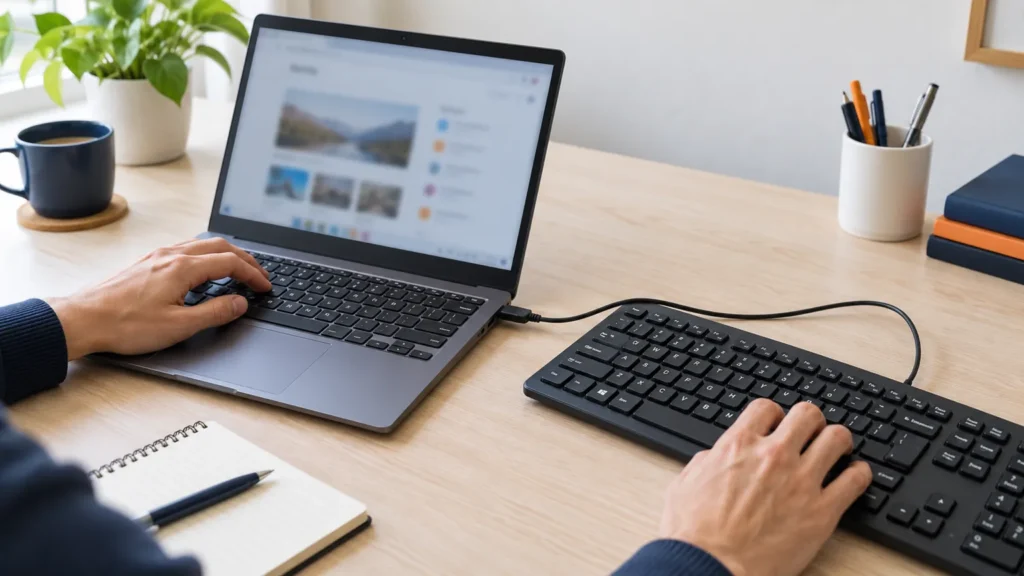
With a Chromebook keyboard not working, Google’s help page gives one order: turn the Chromebook off and on, try the keys in guest mode, hard reset the hardware, Powerwash, then contact the maker. Google’s keyboard page lists those steps, and I add a round of free settings checks ahead of them, because several settings make a healthy keyboard look dead.
Chromebooks were a smaller share of my bench than Dell, HP and Lenovo laptops, so every menu path and key combination below comes from Google’s Chromebook Help pages. Nothing here needs a screwdriver.
Chromebook keyboard not working: which kind of failure is it?
Four failures look alike from the chair: nothing types, only some keys type, the wrong characters appear, or one special key such as Caps Lock, volume or Back does nothing. Each has a different first move, and the last one is often not a fault.
- Nothing types: turn on the on-screen keyboard, then work through restart and guest mode.
- Some keys are dead or slow to register: read the settings section before any reset.
- Wrong characters: an input method problem until proven otherwise.
- One special key does nothing: see below.
Google names three cases that look broken and are not. Caps Lock is pressed as Alt + Search, or Alt + Launcher on a keyboard with a Launcher key. Volume and brightness keys do nothing once you are at the upper or lower limit of that setting. The Back and Forward keys go quiet whenever the same arrows in a browser window are grayed out, because the browser has no page to move to.
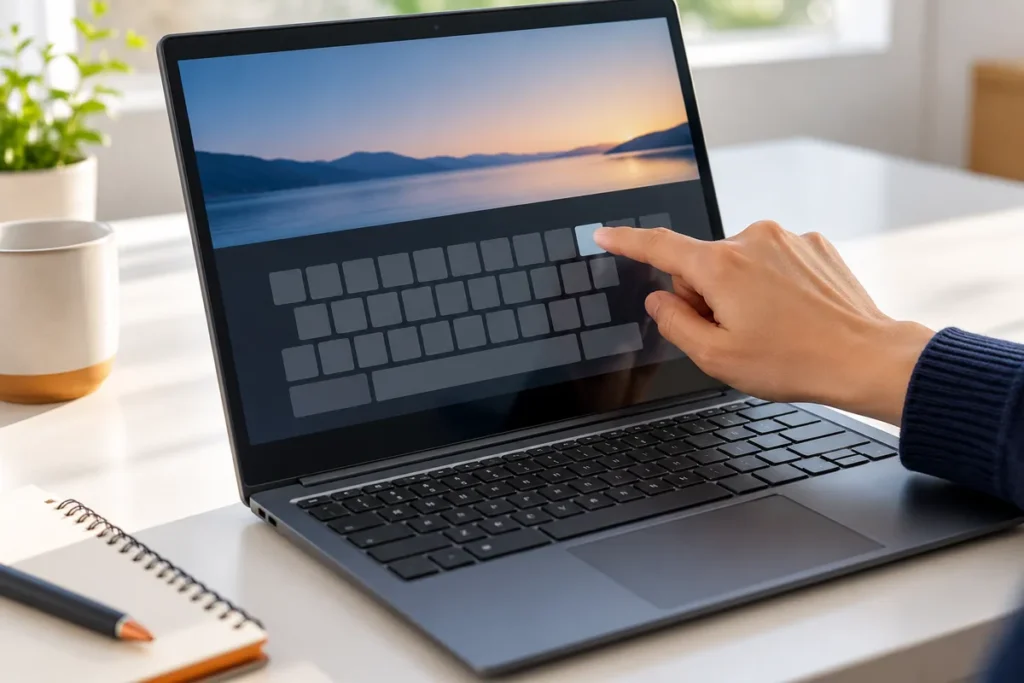
Keep typing with the on-screen keyboard
Select the time at the bottom right, choose Settings, then Accessibility, and under “Keyboard and text input” turn on On-screen keyboard. A Chromebook that folds into a tablet opens it by itself when you flip the screen over the hinge, according to Google.
You will need the touchpad or touchscreen to get there, and Dictation sits in the same list if tapping letters gets old.
Settings that make a working keyboard look dead
Google documents four settings that change how keys register, and any one of them can pass for a failed keyboard. Slow keys, Bounce keys and Sticky keys sit under Settings, then Accessibility, in the “Keyboard and text input” section. Repeat keys is the odd one out, filed under Device settings.
- Slow keys: Google says it makes a key wait to be held down for a set time before it registers. With it on, a quick tap on a perfectly good key does nothing.
- Bounce keys: adds a delay between repeated keystrokes, so the second tap of a fast double letter may not count.
- Sticky keys: lets you enter shortcuts one key at a time. Pressing Search, Launcher, Shift, Alt or Ctrl once makes it wait for the next key, pressing it twice keeps it held, and a third press releases it.
- Repeat keys: can be turned off or tuned for delay and speed. If holding a letter no longer repeats it, look here.
Turn each one off, then type for a minute. I do this before any reset because it costs nothing, and a keyboard that comes back here never reaches the Powerwash.
Two more settings cause the same confusion. Under Settings, Device, Keyboard, “Remap keyboard keys” lets you give Ctrl, Alt and Search or Launcher a different action, so a key that does the wrong thing there is a setting. For wrong letters, press Ctrl + Shift + Space, which steps through the keyboard languages you have added; Ctrl + Space goes back to the previous one. Turn on “Show input options in the shelf” under Device, Keyboard, “Change input settings”, and the current language code appears next to the clock.
Restart, then try guest mode
Turn the Chromebook off and back on first. Then sign out, choose Browse as Guest at the bottom of the screen and type there. Keys that work in guest mode point at your account, and keys that still fail send you on to the hard reset.
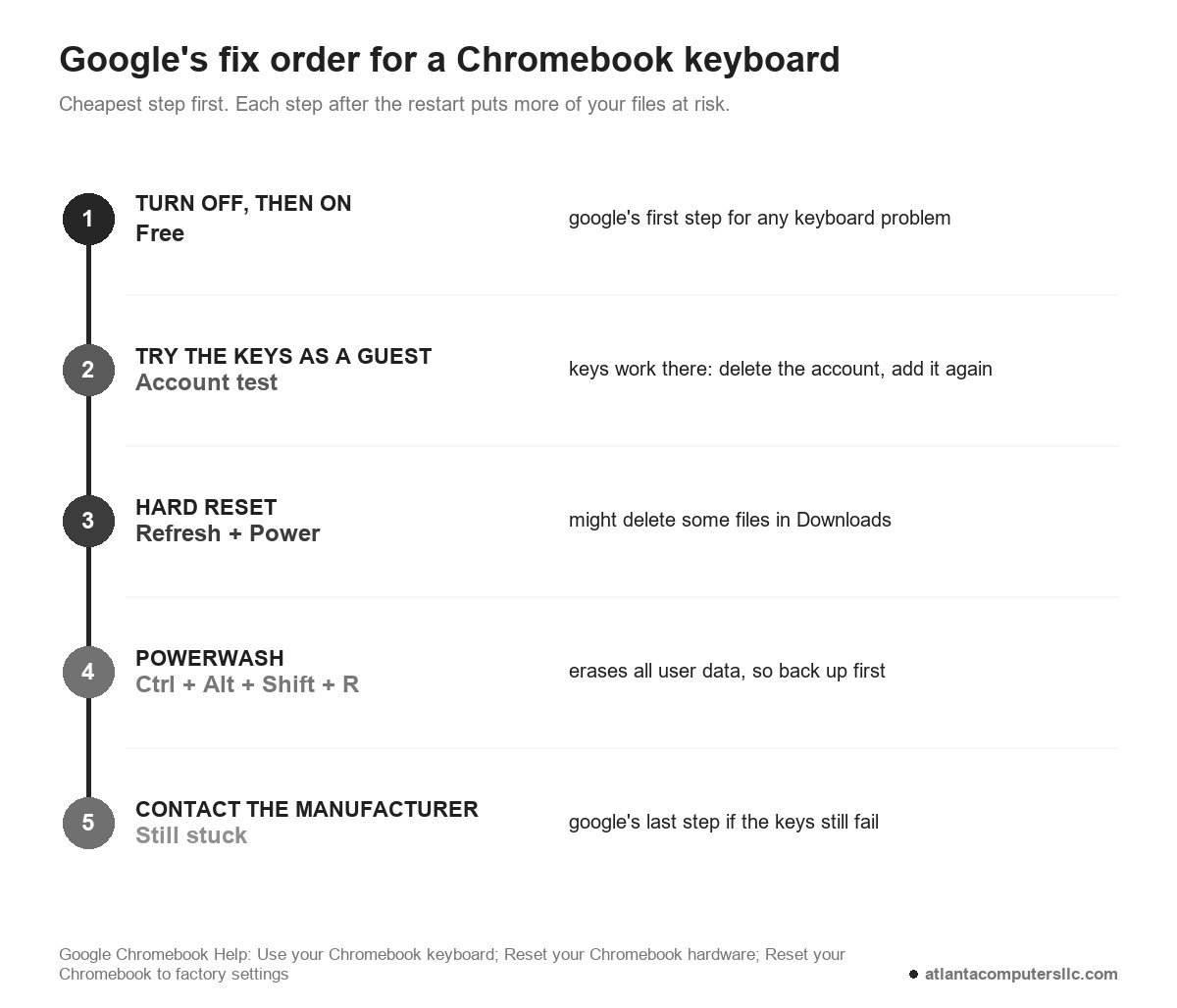
If the keys work as a guest, Google’s instruction is to delete the account that has the problem and add it again. Copy anything saved only in Downloads to Google Drive first, because I would not remove an account before checking what lives only on the Chromebook.
If Browse as Guest is missing, guest browsing is turned off. On a work or school Chromebook only the administrator can turn it back on. On a personal one, sign in with the owner account, select the time, open Settings, then “Privacy and security”, then Manage other people, and turn on Guest browsing.
Run the Diagnostics keyboard test
Open Settings, search for diagnostics, and choose Diagnostics, then Input, then The internal keyboard, and select Test. Follow the on-screen instructions and stay in that window, because ChromeOS pauses the test with a message that keys aren’t tested in another window.
Typing Diagnostics into the launcher also finds the app, and Google’s keyboard page reaches it through Settings, then About ChromeOS. Both routes open the same tool. Run it before the hard reset, since it costs no files.
Press the keys that gave you trouble while it runs. Google says only to contact the manufacturer if problems continue, so treat a key that fails here as a reason to move to the last section and not as a verdict on the part.
Hard reset, then Powerwash
A hard reset restarts hardware such as the keyboard and touchpad. Turn the Chromebook off, press and hold Refresh, tap Power, and release Refresh when it starts up. Google says it might delete some files in the Downloads folder, so try it only after the cheaper fixes.
Google’s hard reset page gives a second way, holding Back, Refresh and Power together for at least 10 seconds. On tablets it is Volume Up and Power for at least 10 seconds. A few older models use a reset button, a power cable or the battery instead, and that page lists them by name.
If the keys are still dead, Google’s next step is a factory reset. Google suggests turning off extensions one at a time and trying the hardware reset first.
Powerwash erases all user data on the drive, Downloads included. Back up first; files in Google Drive stay put. Sign out, hold Ctrl + Alt + Shift + R, choose Restart, then Powerwash and Continue, and sign in again once it finishes. That account becomes the owner account. A work or school Chromebook can’t be reset by its user, so ask the administrator.
That shortcut needs working keys. An external keyboard is the likely way to enter it if the built-in one is dead, though Google’s reset page does not cover that case.
If the Chromebook stops starting after any of this, the Chromebook won’t turn on guide covers the next step. The Surface keyboard guide is the one to use if your keyboard is on a Windows tablet.
When the keyboard itself is the problem
Every keyboard fix on Google’s pages ends the same way: contact your Chromebook manufacturer. Many companies build Chromebooks, so the keyboard part and how it comes out differ by model, and the warranty terms and the model’s manual should come before any screws.
One March 2026 r/chromeos thread shows what opening the case can cost.
“I unplugged the battery and replugged it in because i need to disable something specific and now the keyboard won’t work :/”
– r/chromeos, March 2026 (7 upvotes)
A commenter spotted two unconnected cables in the photos. The fix came from the poster.
“Thank you so much it turns out that I accidently tucked them into the bottom of the motherboard when I was lifting it up earlier!! I plugged them back in thank you so much bro”
– r/chromeos (5 upvotes)
Stop and take it to a repair shop if the keys fail in guest mode, fail again after the hard reset and still fail after a Powerwash. The same goes for a Diagnostics test that keeps failing keys, or any Chromebook where liquid reached the keyboard. Power it off first and leave the rest to the shop.
