
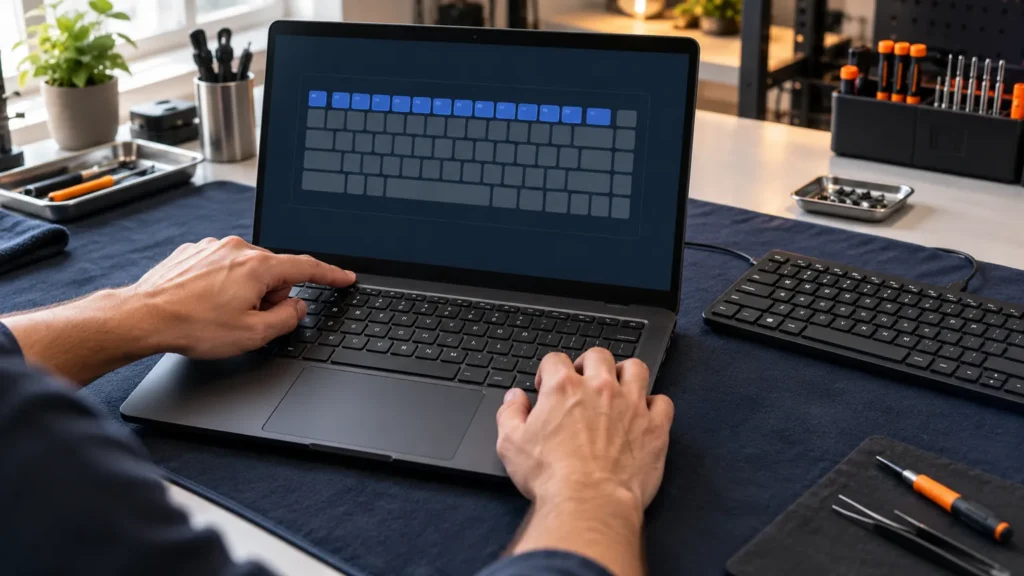
A Lenovo laptop keyboard not working falls into one of two cases, and Lenovo documents them on separate support pages: function keys that do the wrong job, and standard keys that do nothing. Function keys start with a setting you can flip in seconds. Standard keys start in Windows and work outward to BIOS and Lenovo’s own diagnostic tool.
Lenovo laptops made up a big share of my bench, and I sort the two cases before I touch a driver, because the fixes barely overlap. Not being able to type your sign-in password is the worst version of this, so the first section also covers typing without the keyboard.
Lenovo laptop keyboard not working: which keys, exactly?
Press F1 to F12, then a few letters, and note what happens. Function keys that fire the wrong action, or need Fn when they shouldn’t, point to Fn Lock or Hotkey Mode. Letters, numbers or Enter that do nothing point to Windows first, then BIOS, then hardware.
- Volume, brightness or the F-keys act backwards. Go to the top-row section.
- Letters, numbers or Enter are dead, as a block or one at a time. Go to the Windows steps.
- A key types the wrong character. Same Windows section, last paragraph.
- Nothing responds, even at sign-in. The BIOS section tests that without needing Windows.
To keep typing meanwhile, open Settings, then Accessibility, then Keyboard, and turn on the On-Screen Keyboard toggle. Microsoft also lists Windows key + Ctrl + O as the shortcut. At the sign-in screen, Microsoft says to use the Accessibility button in the lower-right corner, and Lenovo points at the Ease of access logo on the same screen. A USB keyboard works as a stand-in too, but it settles nothing about the built-in keys.
Only the top row misbehaves: Fn Lock, Hotkey Mode and Vantage
Start where Lenovo’s function-key page starts: find out what the key is supposed to do in your model’s User Guide, then make sure nothing is blocking it. A volume key does nothing when the speakers are muted, and Lenovo uses that very example.
Lenovo then splits the fix by product line. On Think-branded machines such as the ThinkPad, press Fn + Esc to turn Fn Lock on or off. On Lenovo-branded machines, the IdeaPad side of that page, the switch is Hotkey Mode in BIOS, on the Configuration tab. Set it to Disabled, then save and exit with F10 and Enter. Your User Guide lists any other lock key your model has.
| What you want | Hotkey Mode (or Fn Lock) | Bare F-key gives | Fn + F-key gives |
|---|---|---|---|
| Volume and brightness on a single press | Enabled (Fn Lock off) | The hotkey function | The legacy Fx function |
| Plain F1 to F12 on a single press | Disabled (Fn Lock on) | The legacy Fx function | The hotkey function |
Two of Lenovo’s notes save a wasted hour. If Fn + Esc works but the setting won’t survive a restart, update the BIOS or the hotkey software. If Hotkey Mode isn’t in the BIOS Configuration menu, look for a BIOS update, and know that on some models, the Yoga 900s and Yoga 910 among them, the setting was removed from BIOS and lives in Lenovo Vantage.
That leaves the software side, in Lenovo’s order. Update the hotkey software: on Lenovo’s support site choose Detect Product, then Drivers & Software, then Scan Now under Automatic Update. In Control Panel, switch to the large icons view and open Lenovo – Keyboard Manager, and look for special mappings that change what a key does. In Lenovo Vantage, open Device settings, then Input, then User defined key. Another Lenovo page words that as My Device Settings, then Input & Accessories, so look for the Input section.
The last stop is the BIOS keyboard group, which Lenovo says is often under Config and then Keyboard/Mouse. Its list wants Fn and Ctrl Key swap Disabled, Fn Sticky Key Disabled and F1-F12 as Primary Function Enabled. Swapped Fn and Ctrl keys can pass for a broken keyboard. On the bench I read these settings before I reinstall anything, since a toggle takes seconds and a driver reinstall takes a reboot and a wait.
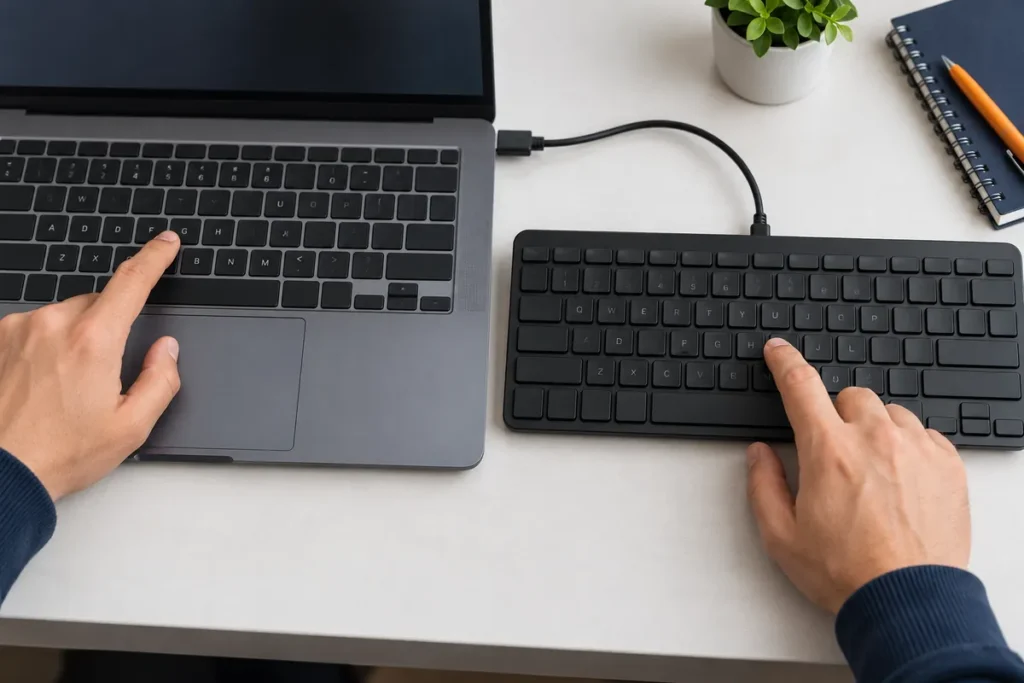
Letters or numbers dead, or the wrong ones typed: Windows first
Lenovo’s page for standard keys covers ThinkPad and IdeaPad on Windows 10 and 11, and it says to stop as soon as one step fixes the problem. Here are its steps, trimmed and reordered, with Microsoft’s accessibility shortcuts added.
- Find out where the keys fail. Type in Notepad, then in Command Prompt (Windows key + X, then Command Prompt or Windows PowerShell). Keys that work in either place mean software, so try another app and reset that app’s settings. Keys dead in both may be hardware, and Lenovo then sends you to its support site for a local service technician.
- Turn off the keyboard aids. In Control Panel, open Ease of Access, then Make the keyboard easier to use, untick every box, apply and restart. Microsoft says Windows toggles Filter Keys when you hold Right Shift for eight seconds, Sticky Keys when you press Shift five times, and Toggle Keys when you hold Num Lock for five seconds.
- Turn Game Mode off. Settings, then Gaming, then Game Mode.
- Reinstall the keyboard driver. In Device Manager, expand Keyboards, right-click the driver and choose Uninstall device. Then power the laptop off and on, and Windows installs the driver again. Use the mouse and the On-Screen Keyboard for this. If that fails, run Lenovo’s driver scan from the support site.
- Run the Keyboard troubleshooter. Settings, System, Troubleshoot, Other troubleshooters, then Run next to Keyboard. Lenovo warns that newer Windows 11 builds may no longer have some troubleshooters.
- Use System Restore if the keyboard stopped all at once, rolling back to an earlier restore point.
A key that types the wrong character is a different animal. Lenovo’s example is an H key acting as Backspace. Open the On-Screen Keyboard (Windows key + R, type OSK, press Enter) and compare it with the physical keys. If they don’t match, check the language setting: Lenovo’s page names UK instead of US English as a cause when a quotation mark shows up where @ should be. If the layout is right, update the driver from Device Manager.
Does it work before Windows loads? BIOS and Lenovo Diagnostics
BIOS and the Lenovo Diagnostics keyboard test show what the keyboard does with Windows out of the picture. Keys that respond in BIOS but not in Windows point back to settings, drivers or hotkey software, while keys that are dead in BIOS too leave Windows out of the cause.
Lenovo draws its own line at Command Prompt, which is still inside Windows. BIOS sits one step further out, because Lenovo describes the firmware as the layer that runs the power-on startup before it passes control to Windows.
On a ThinkPad, power on and tap F1 repeatedly when the logo appears. Some models want Enter held down instead, which opens the Startup Interrupt Menu, and F1 from there enters BIOS. On an IdeaPad, turn the laptop on and press F2 or Fn + F2 immediately and repeatedly, since Lenovo says it can take several attempts. F12 opens a boot menu with a setup entry, and an IdeaPad with a Novo button opens the Novo Boot Menu after a shutdown, where you pick BIOS Setup.
Fast Startup can eat the Enter prompt. Lenovo’s ThinkPad page says to hold Shift while choosing Shut Down for a full shutdown, or to turn Fast Startup off. If the screen stays dark when you try any of this, that is a display problem and not a keyboard one.
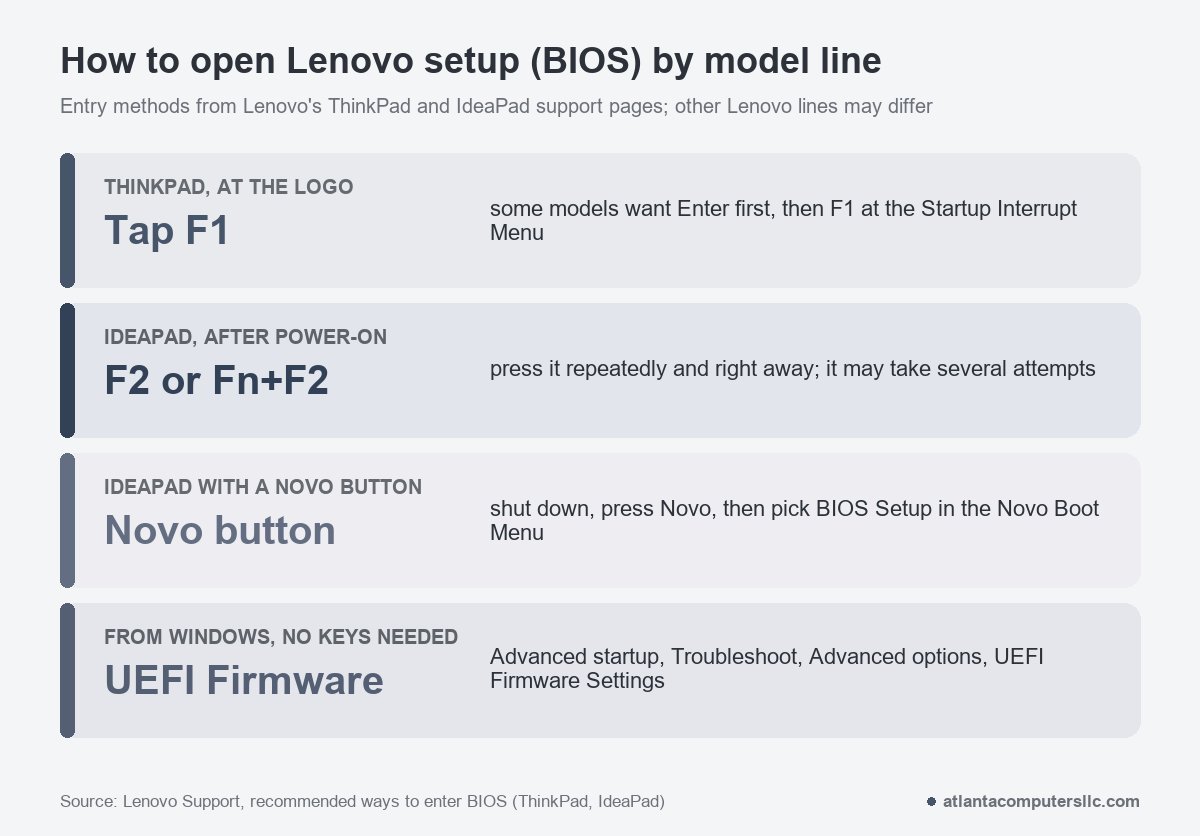
With a dead keyboard you can skip all of that. In Windows 11, open Settings, System, Recovery, then Restart now next to Advanced startup. Choose Troubleshoot, Advanced options, then UEFI Firmware Settings, and Restart. The mouse is enough. Windows 10 keeps Recovery under Update & security.
Once you’re in setup, try the arrow keys, Enter, Esc and F10. Setup screens rarely take typed letters, so a single dead letter key may not show up there at all, and this test can’t find it. What it does catch is the pattern a Reddit poster with a ThinkPad described:
“it works in the Bios but as soon as it’s up and running it doesn’t work”
– r/WindowsHelp (3 upvotes)
A keyboard that lives outside Windows and dies inside it sends you back to the driver, hotkey software and settings steps above.
For single keys, Lenovo Diagnostics Evolution, which runs on Windows 10 x64 (build 1809 or later) and Windows 11 x64, has a Keyboard module. Its Advanced Test draws a keyboard layout and logs each key you press in a history, and you finish by marking the test PASSED or FAILED. Keyboard navigation is off during the test, so a mouse or touchpad ends it. A key that never shows in the history isn’t reaching the test. The module also has backlight and volume and brightness key tests.
Dirt, spills and replacement: where DIY ends
Lenovo’s own cleaning step is modest: shut the PC down, then gently turn it over to dislodge anything lodged in the keys. If a liquid reached the keyboard, shut down, unplug the charger and stop testing.
Whether you can swap the keyboard yourself depends on the model. Lenovo’s user guide for the ThinkPad T14 Gen 5, P14s Gen 5 AMD and T16 Gen 3 files the keyboard under customer-replaceable parts, and the job starts with disabling the built-in battery. Only then do you turn the computer off and disconnect AC power and every cable. The Lenovo laptop won’t turn on guide covers where that battery setting lives. Other models are built differently, so read your model’s manual and look up the warranty on Lenovo’s support site before you open anything.
Stop and take it to a shop if the keys are dead in BIOS and in Lenovo Diagnostics, if they fail in Command Prompt and Notepad alike, or if liquid got in. A bulging battery or a base that no longer sits flat is a stop-and-recycle job: unplug it and hand it over. If the drive still boots, back up your files first, the way I do before any repair that touches the disk.
Lenovo keyboard questions
How do I fix locked keys on a Lenovo laptop?
On a ThinkPad, press Fn + Esc to toggle Fn Lock. On an IdeaPad and other Lenovo-branded models, set Hotkey Mode in the BIOS Configuration tab, and check your User Guide for a lock key.
Can I lock my Lenovo keyboard by accident?
Yes. Fn + Esc flips Fn Lock on a ThinkPad, holding Right Shift for eight seconds turns on Filter Keys, and pressing Shift five times turns on Sticky Keys, according to Microsoft. Untick every box under Make the keyboard easier to use, as Lenovo advises, and restart.
How do I reset the Lenovo keyboard?
Lenovo’s keyboard pages list no reset button or key combination for the keyboard itself. The nearest steps are uninstalling the keyboard device in Device Manager and restarting, putting Fn Lock or Hotkey Mode back, or System Restore.
Lenovo laptop keyboard not working after an update: what undoes it?
Roll back the keyboard driver: in Device Manager, right-click the keyboard, open Properties, then the Driver tab, and select Roll Back Driver. If the button is grayed out, no earlier version is installed. System Restore is Lenovo’s other option for a keyboard that stopped suddenly.
