
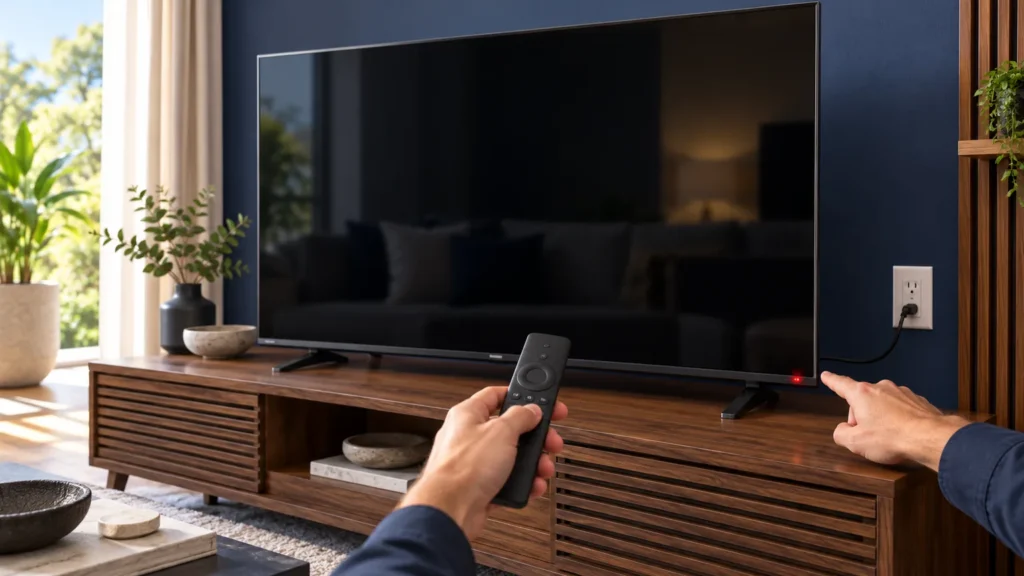
When a Samsung TV won’t turn on, look at the small red standby light before you touch anything else. Samsung’s US support page says that light is on while the TV is off and goes dark while the TV is running, so a lit, a dark and a blinking light point at three different problems.
The light sits at the edge of the set, where you aim the remote. In a bright room a red dot that size is easy to miss, so dim the lights and look again before you decide it is off.
Samsung TV won’t turn on: read the standby light first
The light’s state picks the next test, and each state has its own section below.
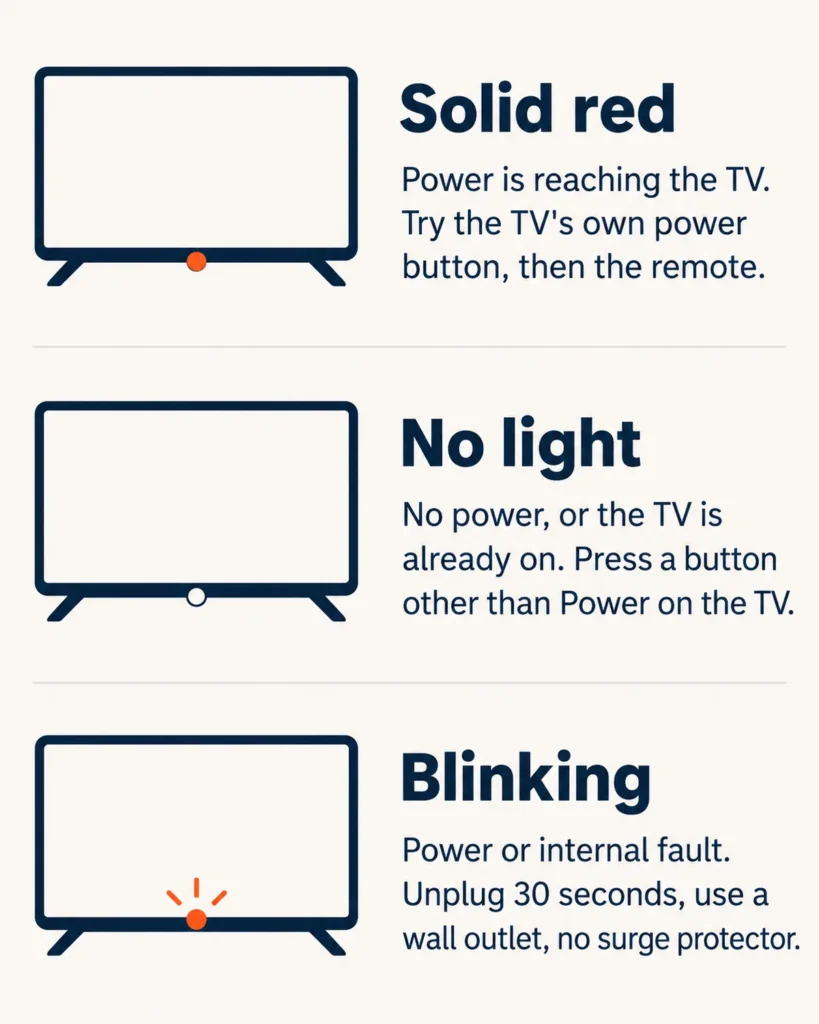
- Solid red. Power is reaching the TV. The remote is the first suspect and the TV itself the second, per Samsung’s power page, so go to the remote section.
- No light. The TV either has no power or is already on with a black screen, because the light goes off whenever the TV is on. Go to the no-light section.
- Blinking. Samsung’s Singapore page calls it a problem with the power or an internal part, and its US page calls it a sign that something is wrong with the TV. Go to the blinking section.
- Sound but no picture. The TV is running, so jump to the black-screen section.
Light on, TV dark: the remote or the TV?
A lit standby light on a TV that stays dark comes down to one test: press the power button on the TV itself. If the TV starts, the remote is at fault. If it does not, Samsung’s US power page says the TV needs service.
Where that button sits depends on the model. Samsung’s power page says most newer TVs have buttons on the back right side, and its remote page says the power button is usually in the center under the Samsung logo. Your manual settles it for your set.
A remote at fault usually gives in to one of three fixes, taken in this order:
- Reset the remote. With a battery remote, take the batteries out, hold Power for eight seconds, then put the batteries back. With a 2021 or newer solar remote, hold Return and Enter (the center of the navigation pad) for 10 seconds and pair it to the TV again.
- Look for the infrared signal. Point the remote at your phone’s camera, hold Power and watch the camera screen. A working remote shows a colored light. If none appears with fresh batteries, the remote needs replacing.
- Re-pair a Smart Remote. Stand within 1 foot of the TV and hold Return and Play/Pause for at least 5 seconds, until a message says the remote is connected. If it will not pair, unplug the TV for 30 seconds and try again.
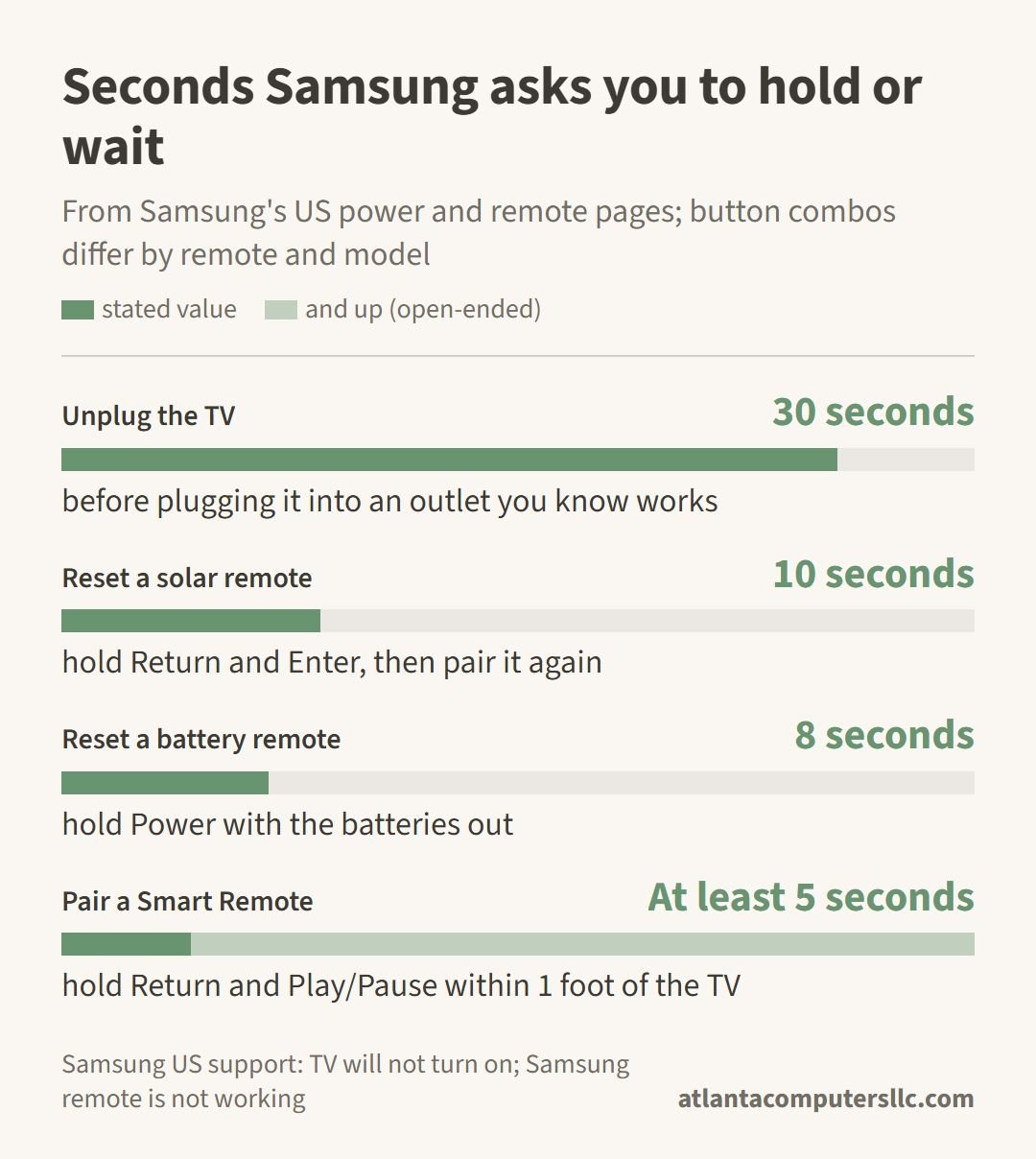
All three come from Samsung’s remote troubleshooting page, which also says dirty buttons can make a remote behave as if buttons are being pressed. One r/SamsungTV poster whose TV wouldn’t wake saw the red light flash whenever the remote came close, and the light stopped when the remote moved away or its batteries came out. A commenter read it this way:
“Sounds like you have a button stuck in your remote, probably spilled something on it at some point. Red light flashes because your remote is transmitting command from that button. Open it up an clean it if you can, or just get a new one.”
– r/SamsungTV, May 2026 (1 upvote)
That is one commenter’s read on one thread, not a Samsung finding. It is still cheap to try: pull the batteries and see whether the light settles. If the TV ignores both the remote and its own button while the light stays lit, skip to the last section.
Why is there no red light on my Samsung TV?
The light goes off whenever a Samsung TV is on, so a dark light means either no power or a TV that is already running with a black screen, according to Samsung’s US power page. Press any button except Power on the TV, without the remote, and watch the screen.
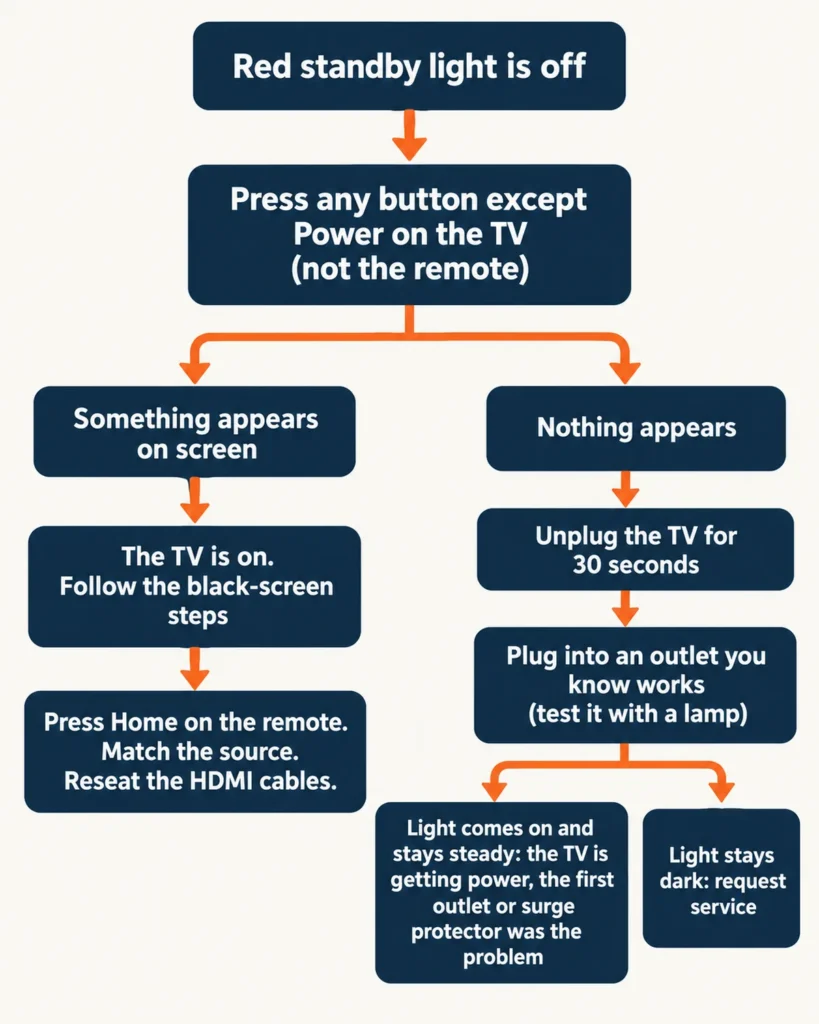
- Press a button other than Power. Anything that appears on the screen confirms the TV is on, and the fault is a black screen, not a dead set. Move to the black-screen section.
- Unplug the TV for 30 seconds. That rules out a power glitch. While the cord is out, look it over for visible damage. Samsung points to samsungparts.com for the exact cord by model.
- Plug into an outlet you know works. Test the outlet with a lamp first. If the red light comes on and holds steady, the TV is getting power and will probably start, which puts the blame on the first outlet or on the surge protector.
- Request service if the light never comes on. A TV that stays dark on a working outlet and will not start needs a repair request, per Samsung’s US power page.
This is the order I use on a dead laptop or desktop: prove the outlet and the cord before suspecting anything inside. The Dell laptop that won’t turn on page starts the same way, with a lamp in the outlet. A multimeter lives in my kit, but a lamp answers the same question for a TV.
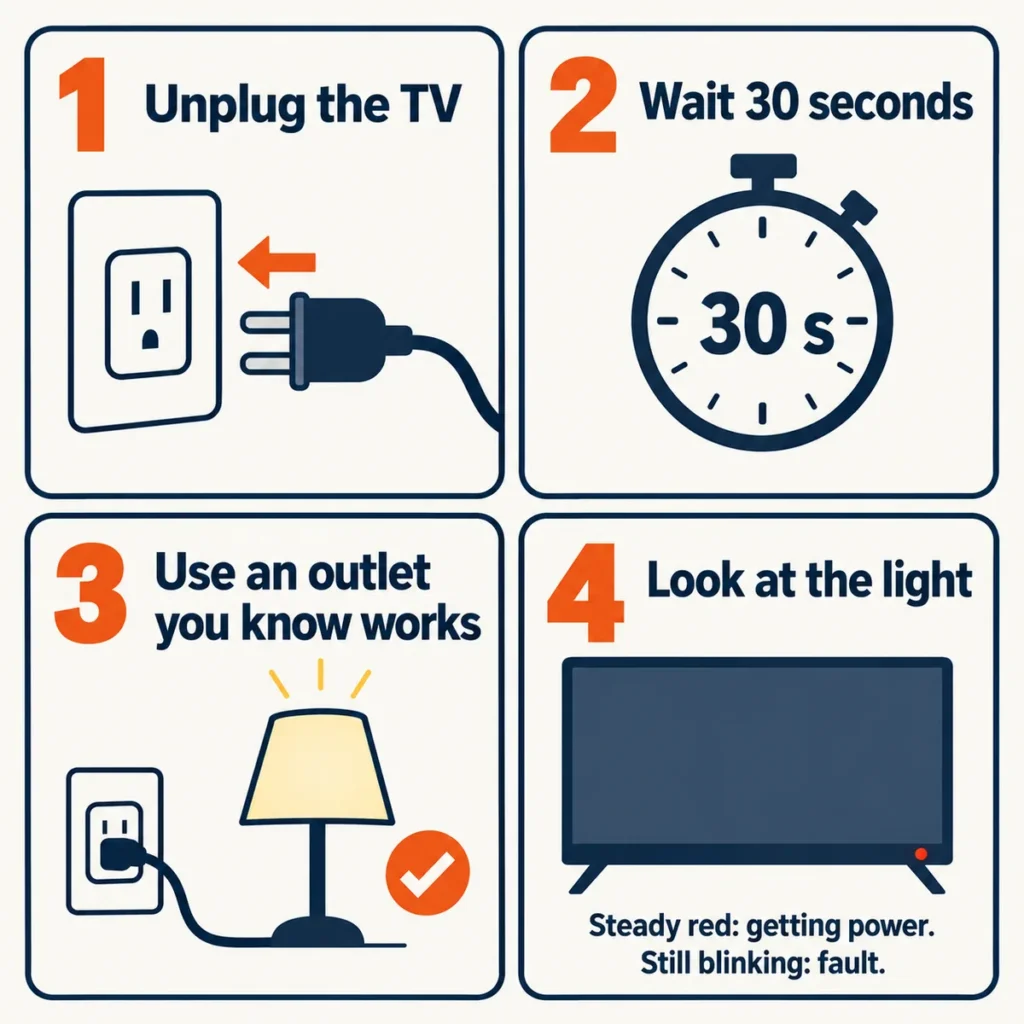
Samsung’s instructions end at unplugging for 30 seconds. An answerer on iFixit adds a step that is not in Samsung’s text: with the cord out, hold the TV’s own power button for 30 seconds to drain leftover power. Some replies in that thread say it worked and others say it did not. The step costs nothing, so try it once while the TV is unplugged.
Samsung publishes a separate page for 2024 OLED models that won’t power on. It opens the same way, with the AC cord checked at both ends, a different wall outlet, and any power strip tested with another device. Then you press Power on the Smart remote and watch the LED. An LED that stays off or does not blink points at the power board, and an LED that responds while the display stays dark also ends in a repair request.
Light blinking, or a TV that restarts itself
A light that keeps blinking after a power cycle means the fault is in the TV. Unplug it for 30 seconds, then plug it straight into a wall outlet you know works. Skip the surge protector, because Samsung’s US power page says protectors wear out and can stop supplying the voltage the TV needs. If the light turns solid, the TV will probably start.
If it keeps blinking, that page calls it a sign that something is wrong with the TV and sends you to Samsung’s Support Center.
Blink counts get a lot of attention online. Commenters in r/TVRepairHelp and r/SamsungTV tend to read two blinks as a failed screen, and a few call it the worst case. Samsung’s US pages publish no blink-code table, so treat that as a guess. The count is still worth writing down for the repair request.
A TV that keeps restarting or switching itself on
A set that flashes dark grey, tries to start and repeats until you pull the plug was answered by a Samsung community moderator with five steps: unplug for 30 seconds, look over the cord, bypass the surge protector, update the software, and turn off Power On with Mobile. That last setting is under Settings, General, Network, Expert Settings. A TV that connects to SmartThings can be switched on by compatible devices, and Samsung says abnormal power-on signals on the wireless network can trigger it.
An HDMI device such as a cable box can do the same through Anynet+, also called HDMI-CEC, which can turn the TV on when the device turns on. The switch is under Settings, General, External Device Manager. Turn it off and the TV remote no longer controls both devices.
Samsung publishes no list of warning signs for a dying TV. The two cases its pages treat as faults are a light that keeps blinking after a clean power cycle and a TV that keeps cycling on and off; both end in a repair request.
The TV is on but the screen stays black
Press Home on the remote. A menu means the TV is on but set to the wrong source or getting no signal, and no menu sends you back to the standby light. Samsung’s black-screen page opens with this case: a TV that is on and producing sound but shows nothing.
- Match the source. Set the TV to the input the device is plugged into and make sure the device is on. A cable box on HDMI 1 needs the TV on HDMI 1 and the box powered up, and a box that is off gives a black screen.
- Reseat the cables. Unplug and reconnect one cable at a time, from both ends. Replace any cable that looks damaged, then turn the device off and on.
- Run the HDMI Cable Test. Go to Settings, Support, Device Care, Self Diagnosis, Signal Information, then HDMI Cable Test. It is built for cords under 6 feet. Some models only have it after a software update and older ones lack it. A bad result means a new cable, not a repair.
- Swap the device or the port. If the TV shows a picture in any other setup, the TV is ruled out as the cause.
- On a TV with a One Connect Box, check its cable. Reconnect the One Connect cable at both ends. A bent, kinked or pinched cable has to be replaced. Disconnect the box too: if the TV then shows a message or a picture, the box is the faulty part.
If the screen is still black after all five, Samsung’s page ends with a repair request. A picture that appears and then drops out belongs with the restart cases in the blinking section.
Update or reset only if the TV stays on
Software and reset steps need a TV that stays on long enough to reach its menus, so they come after the power tests. The Samsung community moderator lists an update as a possible fix for a TV that won’t start, with a warning: if the TV turns off during the update, it could be damaged. Updates can take up to 30 minutes depending on network speed, so try one only if the set is not cutting out every few seconds.
The path is Settings, All Settings, Support, Software Update, Update Now. Do not switch the TV off until it finishes and restarts.
Checking for an update needs a network connection, and Samsung’s update page offers a USB route for a TV that is offline, using an empty FAT32 flash drive. A set that keeps dropping off Wi-Fi in its room may be a coverage problem, which a mesh system or extender can fix.
A factory reset is menu-only too: Settings, General & Privacy, Reset, then your PIN. It restores every setting except the network ones, you sign back in to each app afterward, and Samsung says Reset is unavailable while a streaming app is running. A TV that shows no sign of life never reaches that menu.
When to stop and call Samsung
Every light-state path on Samsung’s power page ends the same way: once the free tests fail, you request a repair from the Support Center. Any one of these puts you there:
- The light is lit and the TV ignores both the remote and its own power button.
- The light stays dark after a 30-second unplug and a working outlet.
- The light is still blinking on a direct wall outlet.
- The screen is still black after the source, cable, port and device swaps.
- A 2024 OLED’s LED stays off, does not blink, or responds while the display stays dark.
- The TV keeps restarting after you turn off Anynet+ and Power On with Mobile.
Do not take the back off to look for a fuse. iFixit’s answers do include fuse and relay checks on the power board, but that work needs a meter and a way to discharge the board. One r/ElectronicsRepair commenter described how much charge can stay behind after the cord is out:
“the smps input caps of the psu have still ~330V, even after a few hours after disconnect. so please, if you dont know better just dont touch it.”
– r/ElectronicsRepair, October 2026 (4 upvotes)
Board-level microsoldering is something I don’t do on any machine, and a TV power board is where I would stop as well.
Have the full model code and serial number ready, because Samsung’s community moderators ask for both, and note which light pattern you saw. If the TV is still under warranty, use that route before anyone opens the set. Samsung’s US Support Center takes the repair request.