
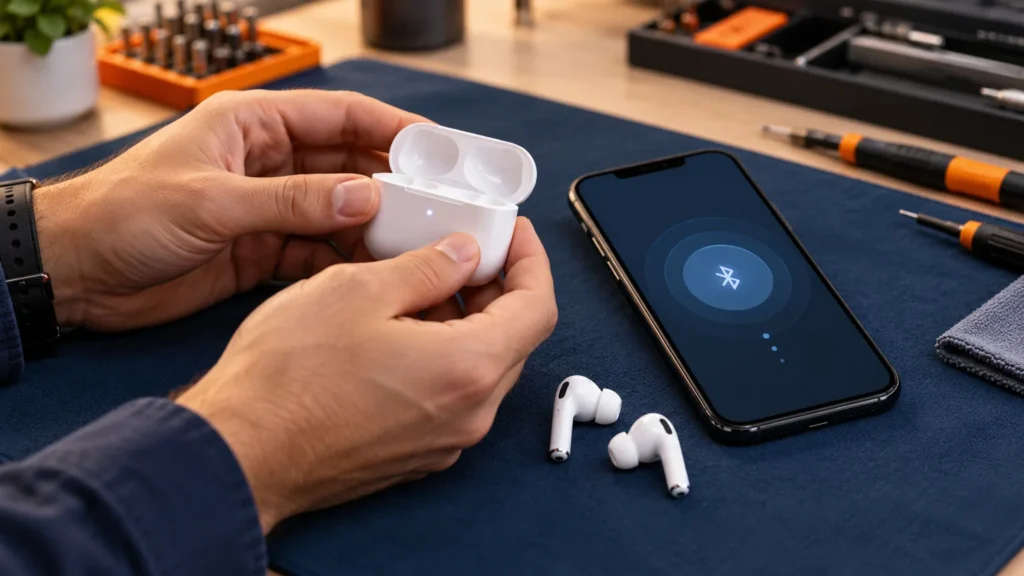
Apple’s first fix for AirPods that won’t connect is to pair them again: charge both earbuds in the case, turn Bluetooth on, then put the AirPods into pairing mode until the case light flashes white. The button or tap that does that depends on your model.
AirPods not connecting can mean three different faults: nothing pairs at all, only one earbud works, or the link keeps dropping. The first checks are the same for all three, and the fixes split after that.
Find the model before anything else. The model number is printed on the underside of each earbud and starts with the letter A. On AirPods Max it sits behind the cushion on the left ear cup. You can also read it in Settings, under Bluetooth, with the More Info button next to your AirPods.
AirPods not connecting at all: Apple’s checks in order
Test the connection after each step. Apple’s connection page sets the order, and every step rules out one cause.
- Update the iPhone or iPad to the latest iOS or iPadOS (Settings, General, Software Update). On a Mac, update macOS.
- Put both AirPods in the charging case and confirm both are charging.
- Turn Bluetooth on: Settings, then Bluetooth on an iPhone or iPad, or System Settings, then Bluetooth on a Mac.
- Take the AirPods out of the case and put them in your ears. Open Control Center, tap the AirPlay button, pick your AirPods and play audio with the volume up.
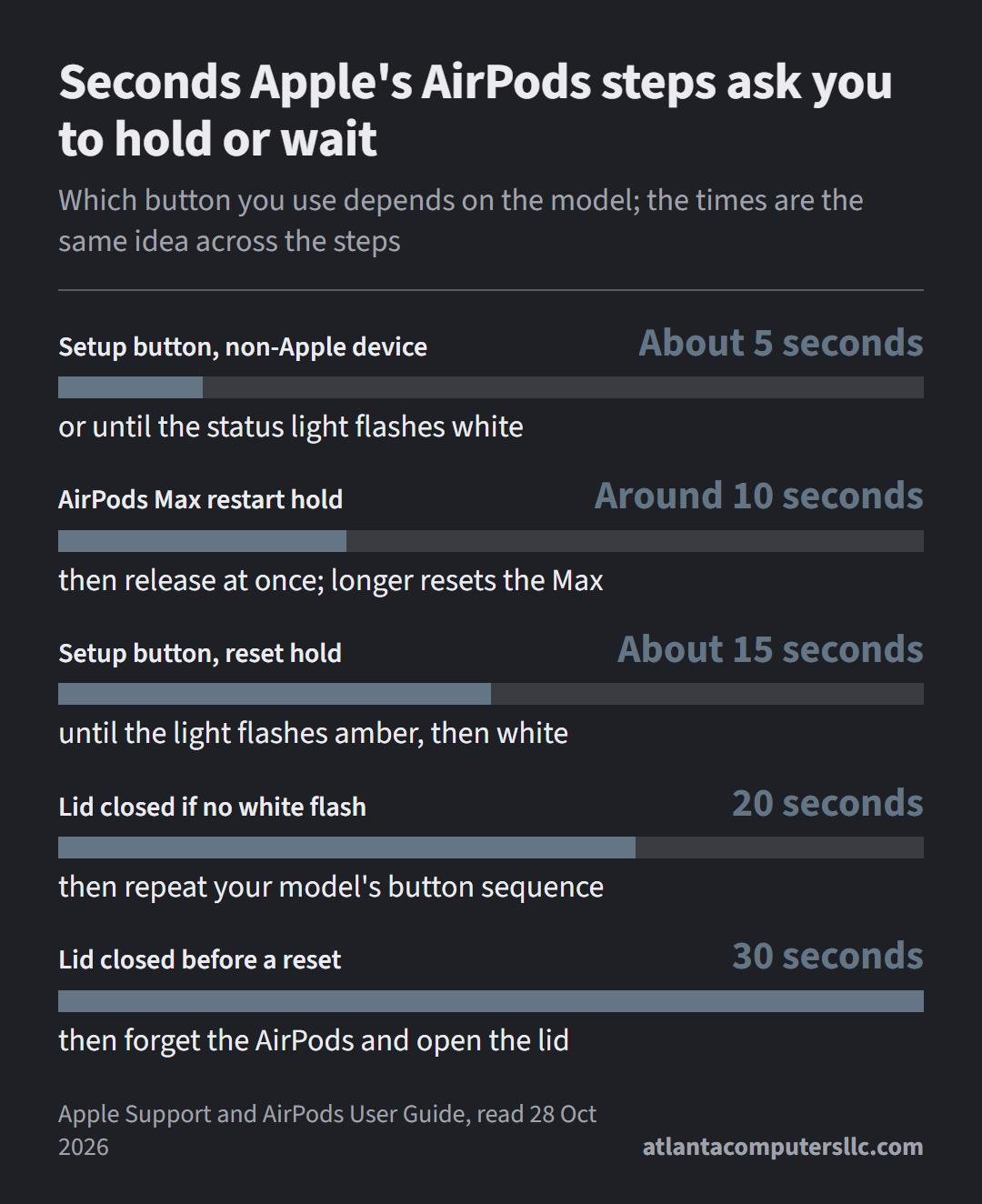
- If they’re missing from the list or won’t connect, put both back in the case, close the lid, wait 15 seconds, then open it.
- Put the AirPods into pairing mode (next section), hold the open case next to the iPhone or iPad and follow the prompts on the screen.
- Still no connection: reset the AirPods.
If the iPhone’s screen stays dark, you can’t open the Bluetooth list or see the setup animation, so start with the fixes for an iPhone black screen. A phone that shows nothing at all belongs with the iPhone won’t turn on steps instead.
A phone that lists the AirPods but won’t play through them has a stale entry. Open Settings, tap the name of your AirPods, then tap Forget This Device. That removes the AirPods from every device signed in to the same Apple Account, according to Apple’s AirPods User Guide, so each one has to pair again.
If the case is the part that won’t charge, give it at least 15 minutes on a cable. A wireless case that stays dark on a Qi charger needs repositioning. Brush debris out of the case’s charging port with a dry, soft-bristled brush and put nothing into the port, because Apple warns that it damages the metal contacts.
If the iPhone or iPad is the one refusing a cable, the iPhone won’t charge and iPad won’t charge pages come first, because AirPods can’t pair with a device that won’t stay on.
Pairing mode and reset: the buttons for each AirPods model
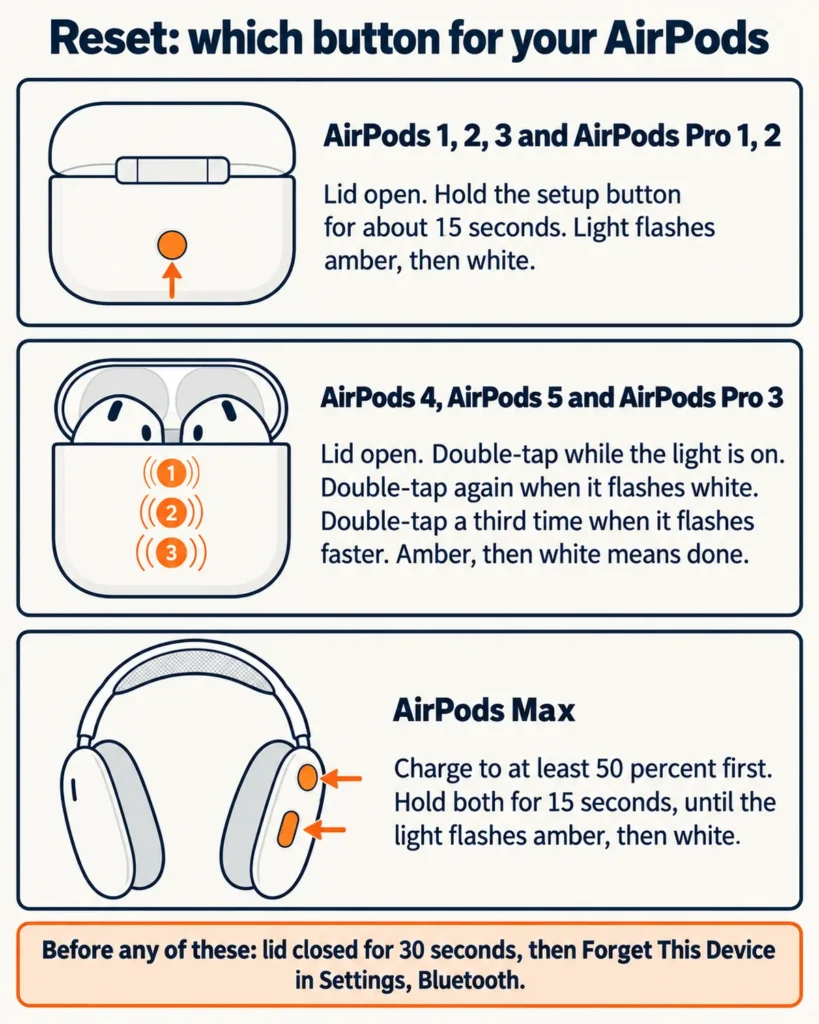
Three groups of AirPods need three different methods. Older cases have a setup button on the back. AirPods 4, AirPods 5 and AirPods Pro 3 swap that button for double-taps on the front of the case. AirPods Max use buttons on the right headphone.
| Your AirPods | Pairing mode (iPhone, iPad, Mac) | Reset to factory settings |
|---|---|---|
| AirPods 1, 2 and 3; AirPods Pro 1 and 2 (setup button on the back of the case) | Lid open, press and hold the setup button until the status light flashes white | Hold the setup button for about 15 seconds, until the light flashes amber, then white |
| AirPods 4, AirPods 5 and AirPods Pro 3 (double-tap the front of the case) | Lid open, double-tap the front of the case until the status light flashes white | Three double-taps timed to the light (steps below), until it flashes amber, then white |
| AirPods Max (headphones) | Mac: hold the listening mode button until the status light flashes white. iPhone or iPad: take them out of the Smart Case and hold them next to the phone within 60 seconds | Charge to at least 50 percent first, then hold the listening mode button and the Digital Crown for 15 seconds, until the LED flashes amber, then white |
The full reset for AirPods and AirPods Pro follows Apple’s reset page:
- Put the AirPods in the case, close the lid and wait 30 seconds.
- On the iPhone or iPad paired with them, go to Settings, then Bluetooth. If the AirPods are listed, tap the More Info button, tap Forget This Device, and tap again to confirm.
- Open the lid of the case.
- Older cases: press and hold the setup button for about 15 seconds. AirPods 4, AirPods 5 and AirPods Pro 3: double-tap the front of the case while the status light is on, double-tap again when it flashes white, then double-tap a third time when it flashes faster.
- When the light flashes amber, then white, the reset worked. Hold the open case next to your device and follow the screen to reconnect.
If the light never flashes white, close the lid for 20 seconds, open it and repeat the button sequence for your model. That is Apple’s own fallback.
A reset also wipes custom settings, which you’ll have to set up again.
AirPods Max have a lighter step before a reset. On the right headphone, hold the Digital Crown and the listening mode button together until the status light beside the charging port flashes amber, which takes around 10 seconds, then let go at once. Hold past that point and the Max reset to factory settings.
What the light on the case is telling you
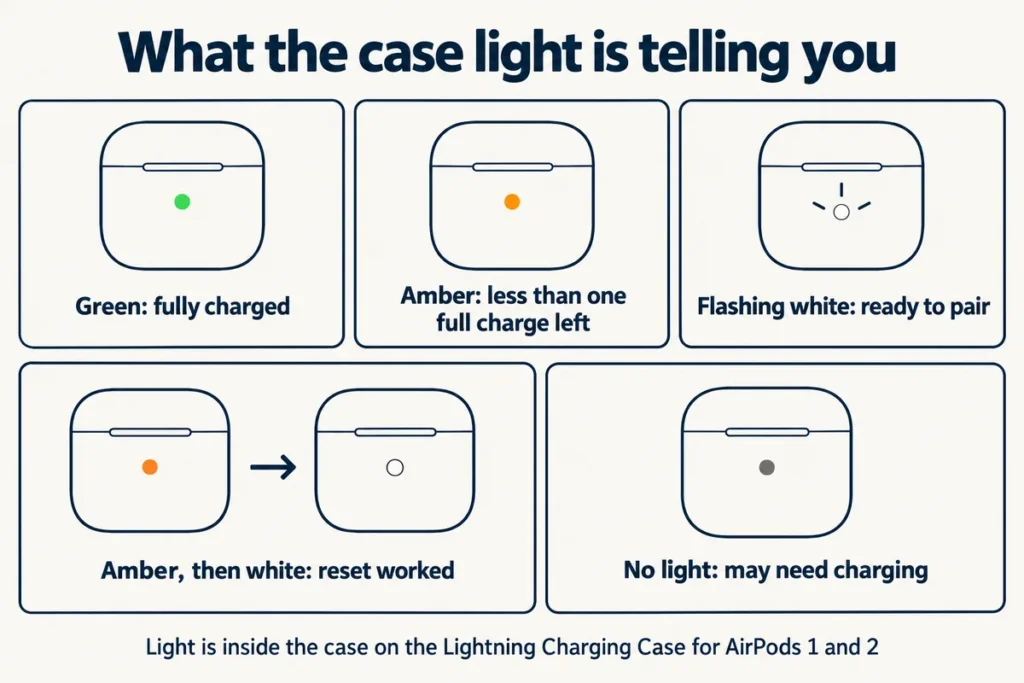
The light answers three questions: how much charge is left, whether the pair is ready to connect, and whether a reset worked.
- Green means fully charged. Amber means less than one full charge remains.
- With the AirPods in the case and the lid open, the light reports the AirPods. With the AirPods out, it reports the case.
- On AirPods 5, AirPods 4, AirPods Pro 2 and AirPods Pro 3 with current firmware, a brief pulsing amber means the AirPods or the case are under 95 percent. A brief flashing amber means the AirPods are under 95 percent and the case is under 25 percent. Both are charge readouts.
- Flashing white means pairing mode, the state the connection steps above ask for.
- Amber, then white, at the end of a reset means it worked.
- No light at all means the AirPods may need charging before they’ll respond.
On most cases the light is on the front. The Lightning Charging Case for AirPods 1 and 2 hides it inside, between the two slots. On a wireless case set on a charger, the light shows the charge level for 8 seconds.
Mac, Android and Windows PC: what changes when it isn’t an iPhone
A Mac signed in to iCloud with the same Apple Account as the iPhone should connect on its own. Put the AirPods in your ears, click Control Center in the menu bar, click Sound and choose them.
If they don’t show up, pair by hand:
- Open System Settings, then Bluetooth, and make sure it’s on.
- Put both AirPods in the case with the lid open and use the pairing-mode step for your model.
- Click Connect beside the AirPods in the Nearby Devices list.
If sound still comes out of the Mac’s speakers, pick the AirPods as the output in the same Sound menu.
Apple’s wording for everything else is “an Android phone or other non-Apple device.” Turn Bluetooth on there (on Android: Settings, Connections, Bluetooth), open the case lid, then put the AirPods in pairing mode:
- AirPods 1, 2 and 3, and AirPods Pro 1 and 2: hold the setup button for about 5 seconds, or until the status light flashes white.
- AirPods 4, AirPods 5 and AirPods Pro 3: hold the open case next to the device and double-tap the front until the light flashes white.
- AirPods Max: hold the listening mode button for about 5 seconds, or until the light flashes white.
Choose the AirPods from the device’s Bluetooth list. Siri doesn’t work on a non-Apple device, though listening and talking do, and AirPods Max keep Active Noise Cancellation and Transparency mode there.
None of Apple’s pairing pages gives Windows-specific steps. A Windows PC falls under “other non-Apple device,” so the steps above are the ones Apple gives, and the Bluetooth screen you add the device from belongs to the PC.
When a laptop won’t boot, I reach for the USB recovery stick I carry. A second, clean environment shows whether the fault is the drive or the machine. Pairing works the same way: put the AirPods in pairing mode and try them with a phone. If they connect there, the earbuds are fine and the PC’s Bluetooth is the part to chase. If they fail on every device, go back to the reset.
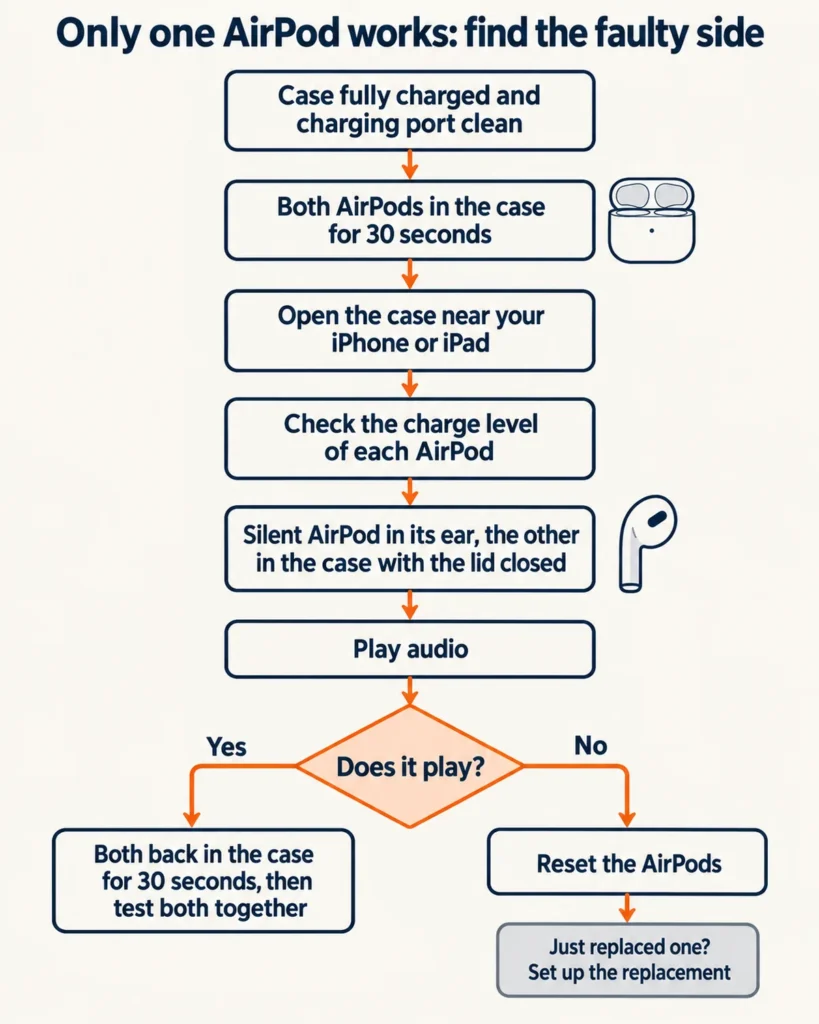
Only one AirPod connects
A one-earbud test finds the faulty side before you reset anything, and Apple’s version of it is short.
- Make sure the case is fully charged and its charging port is clean.
- Put both AirPods in the case and let them charge for 30 seconds.
- Open the case near your iPhone or iPad and check the charge status of each AirPod.
- Put the silent AirPod in the matching ear and leave the other one in the case with the lid closed.
- Confirm the AirPods are connected, then play audio.
- If it plays, put both back in the case for 30 seconds, open the case near the phone and test both.
- If it stays silent, reset the AirPods. If you just replaced an earbud, set up the replacement (the lost-AirPod section has the steps).
A bud that plays but sounds quieter is a different problem. Pull the ear tips off an AirPods Pro to look at the microphone and speaker mesh on each bud, and clean any debris with the method on Apple’s cleaning page. Then open Settings, Accessibility, Audio & Visual, scroll to Balance and make sure the slider sits in the middle.
Connected, then dropping out
Start with the battery. The iPhone warns at 20, 10 and 5 percent, and one or both AirPods chime at 10 percent and again right before they turn off, according to Apple’s charging page. A pair that cuts out around then has probably run out of charge and hasn’t lost its connection.
The other cause is the pair moving elsewhere on purpose. AirPods 2 and later, every AirPods Pro and AirPods Max can switch automatically between an iPhone, iPad, Mac, Apple Watch and Apple Vision Pro when all of them are updated and signed in to the same Apple Account with two-factor authentication.
To stop it on an iPhone or iPad, connect the AirPods, open Settings, tap their name, tap Audio & Routing if it’s shown, tap Connect to This iPhone and choose When Last Connected to This iPhone. On a Mac, the same switch sits under System Settings, Bluetooth, the Info button beside the AirPods, then Audio & Routing.
For a car or speaker that grabs the audio, go to Settings, General, AirPlay & Continuity and turn on Keep Audio with Headphones.
If none of that explains the dropouts, update the firmware and then reset.
Check the firmware version and let it update
On an iPhone or iPad with the latest iOS or iPadOS, open Settings, tap Bluetooth, tap the Info button beside your AirPods and scroll to the About section. On a Mac, open System Settings, click Bluetooth and click the Info button.
Apple’s firmware page currently lists the latest build for each model: AirPods Pro 3, AirPods Pro 2 and AirPods 4 at 9A348, AirPods 5 at 9A350, and AirPods 3, AirPods 2 and AirPods Pro 1 at 6F21. AirPods Max 1 with USB-C is at 7E108, and the Lightning version at 6F25.
Updates arrive by themselves while the AirPods charge in range of an iPhone, iPad or Mac that’s on Wi-Fi. To push one along:
- Update the iPhone, iPad or Mac and keep Bluetooth on.
- Connect the case to power, close the lid and stay in Bluetooth range.
- Wait at least 30 minutes.
- Open the lid and check the version again.
For AirPods Max, plug the charging cable into the bottom-right earphone and wait the same 30 minutes.
If the version won’t move, reset the AirPods and try again. Someone who has no Apple device nearby can book an appointment at an Apple Store or with an Apple Authorized Service Provider, which Apple names as the alternative.
Lost one AirPod or need a single replacement
Open Find My on an iPhone, tap Devices and tap the name of your AirPods. With the earbuds out of the case you can pick the left or right one. Play Sound works only when you’re near the bud. One that is out of range or flat shows its last known location and nothing more.
If it stays missing, Apple says you can buy a replacement, and its service page offers to order one for a lost AirPod or case.
The estimate for your model sits in the price tool on Apple’s service page, and Apple Authorized Service Providers set their own fees, so no figure appears here. The one-year warranty covers manufacturing faults. It doesn’t cover accidental damage or batteries that wear down from normal use, Apple states.
A replacement has to match its partner. The charging case for AirPods 4 works only with AirPods 4 earbuds, and the wireless case for AirPods 4 with Active Noise Cancellation only with the ANC earbuds, per Apple’s identification page. The model number on the underside of each bud tells you which you hold. One owner whose new right bud wouldn’t pair with the old case was given this check:
“There’s model numbers on the bottom of the bud. These should not match, but they do denominate what generation they are. Is there any chance the case does not match the original Buds? Then you may gave gotten one ANC and one non-ANC, which would cause this as well.”
– r/airpods, August 2026 (1 upvote)
In that case the numbers matched. The owner reported that both buds were ANC models (A3056 and A3055, both on Apple’s AirPods 4 (ANC) list), and when another user asked whether it ever worked, the answer was this:
“Never did. I got in contact with apple and they said the next step should be sending it in directly to them to see if its fixable.”
– r/airpods, September 2026 (1 upvote)
Apple’s setup for a replacement runs in a fixed order:
- Put both AirPods in the case, connect the case to power, close the lid and wait 20 minutes.
- Open the lid. If the status light flashes white, move on. If not, run your model’s button sequence from the reset steps.
- With the light flashing white, close the lid.
- Before tapping Connect on the setup animation, go to Settings, then Bluetooth, and use Forget This Device on any old entry for the pair.
- Open the lid, tap Connect on the setup animation and tap Done.
When a matched, charged, reset pair still won’t connect, it needs Apple. In person that means a Genius Bar or an Apple Authorized Service Provider, and the other route is a prepaid shipping box.
AirPods not connecting after Forget This Device
After Forget This Device, the AirPods come back for a new pairing once the case light flashes white. Open the lid, then press the setup button or, on AirPods 4, AirPods 5 and AirPods Pro 3, double-tap the front of the case, because those cases have no button to hold. Hold the open case next to the phone and follow the screen.
If the light never reaches white, close the lid for 20 seconds and repeat.