
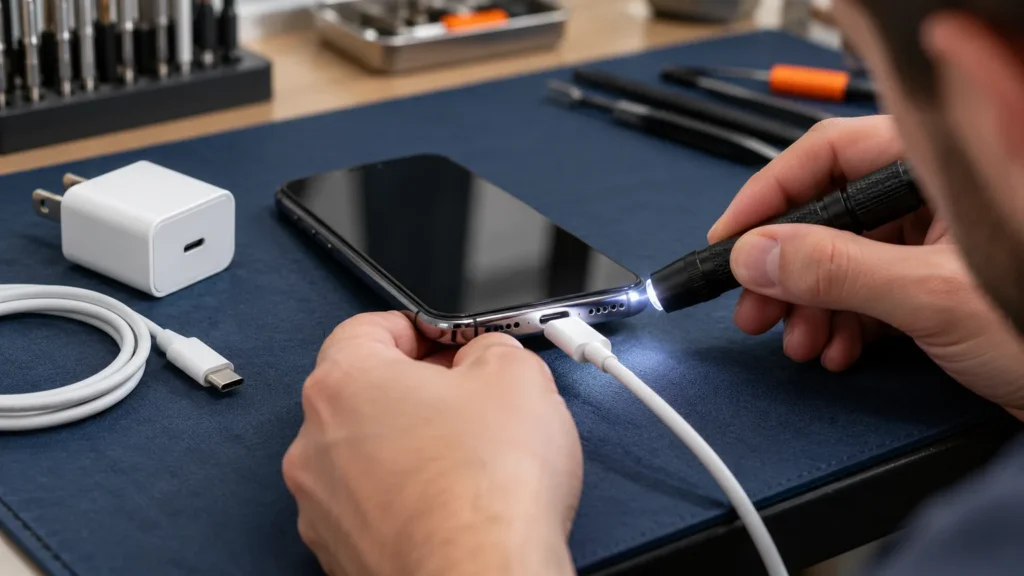
An iPhone won’t charge most often because of the cable, the adapter or lint packed into the port, so change those one at a time before you blame the battery. A phone that charges but quits at 80 percent, shows a liquid warning or only works on a pad is a different problem, and each of those has its own section below.
The port decides some of the steps for an iPhone that won’t charge. Apple says iPhone 15 and later have USB-C. Earlier models use Lightning, and the cables, the settings menus and the alert wording differ between the two.
Start by noticing what the screen does when you plug in: nothing at all, a charging icon that never moves, an alert message, or a note about temperature.
iPhone won’t charge at all: swap one piece at a time
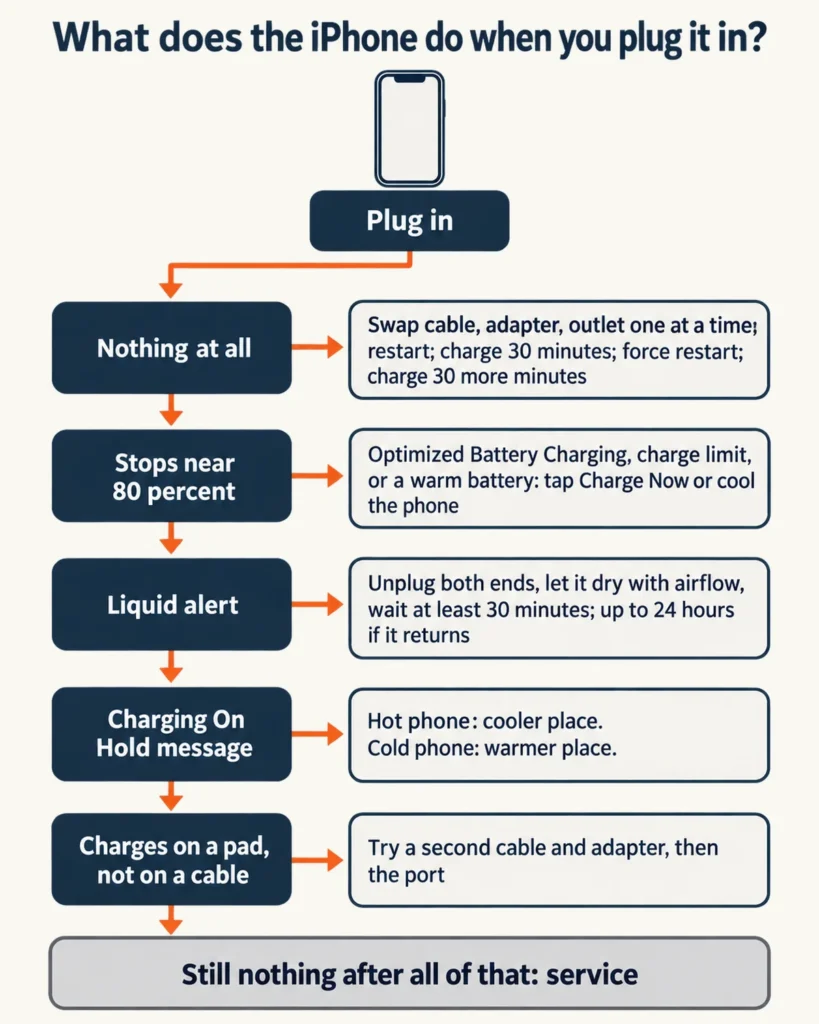
When nothing happens, change one thing per attempt: the cable, then the adapter, then the outlet or a computer’s USB port, then restart the phone. Apple’s charging page then says to let the phone charge for half an hour before trying anything else.
On a laptop that stops charging, I put a multimeter on the charger’s output before I blame the machine. A phone offers nothing to probe, so a second cable and a second adapter stand in for the meter. Try each one alone, and a pass or a fail points at one part.
- Plug the phone into a computer, a power accessory or a wall outlet. Those are the three power sources Apple’s page lists.
- Restart the iPhone.
- Look over the cable and the USB adapter for breakage or bent prongs. Apple says not to use damaged accessories.
- Press the connections firmly together at the cable, the adapter and the wall outlet, or try a different outlet.
- Remove debris from the charging port (the cleaning section below covers what Apple allows), then plug the cable in firmly.
- Let the phone charge for half an hour.
If the phone still won’t power on, or the screen shows only a battery icon, Apple’s next step is a force restart. The sequence depends on the model:
- iPhone 8 or later, and iPhone SE (2nd generation and later): press and quickly release volume up, press and quickly release volume down, then press and hold the side button until the Apple logo appears.
- iPhone 7 and iPhone 7 Plus: press and hold the side button and the volume down button together until the Apple logo appears.
- iPhone 6s or earlier, and iPhone SE (1st generation): press and hold the side (or top) button and the Home button together until the Apple logo appears.
Then charge for another half hour. A fully flat battery can take longer: Apple’s page for a phone that won’t turn on says to charge for one hour and try again, or for 30 minutes or until it starts if the low-charge battery screen shows. If the phone buzzes or rings when you plug it in but the display stays dark, that’s a screen problem rather than a charging one, and the iPhone black screen page covers it.
If the phone shows nothing at all after the half-hour, force restart and second half-hour steps, the iPhone won’t turn on page covers what to try next.
Skip the folk remedies. iFixit’s long-running answers thread on a drained iPhone has replies that warm the phone with a hair dryer, a lamp or a laptop, or that open it and feed the battery from a power supply. Apple’s charging pages contain no heat step. Its temperature page says use in very hot conditions can permanently shorten battery life, and its safety information says an iPhone battery should only be repaired by a trained technician to avoid damage that could cause overheating, fire or injury.
Lightning or USB-C: what changes at the port
iPhone 15 and later charge from any USB-C cable and power adapter that follows the USB-C standard, including USB Power Delivery, like the cable in the box. Earlier iPhones need a cable with a Lightning end, and Apple pairs a USB-C to Lightning cable with a USB-C adapter for fast charging.
When a USB-C iPhone won’t charge from the wall, Apple also lists the USB-C port on a computer as a power source, which gives you a third source to rule out a bad outlet or adapter. A weak adapter can make a phone charge slowly instead of refusing to charge. Apple’s fast-charge page lists the adapter wattage by model and says fast charging might not work when it’s too cold or too hot.
If an alert says the charging accessory isn’t supported or certified, Apple’s steps are to connect the phone directly to the charger with no adapters or other equipment in between, remove debris from the port, restart, try a different USB cable or charger, and install the latest iOS. Apple names three causes for these alerts: a dirty or damaged port, a defective or damaged accessory, and a USB charger that isn’t designed to charge devices.
Seating matters on both ports. Apple’s handling information says never to force a connector into a port. If the two don’t join with reasonable ease, they probably don’t match, so look for obstructions and make sure the connector fits the port.
Cleaning the charging port: what Apple allows and rules out
Debris in the port is one reason an iPhone won’t charge. Apple’s charging page says to remove it but names no tool, and its handling information rules out liquids, cleaning products and compressed air. Look into the port with a light first, and stop if something is packed in tight rather than forcing it out.
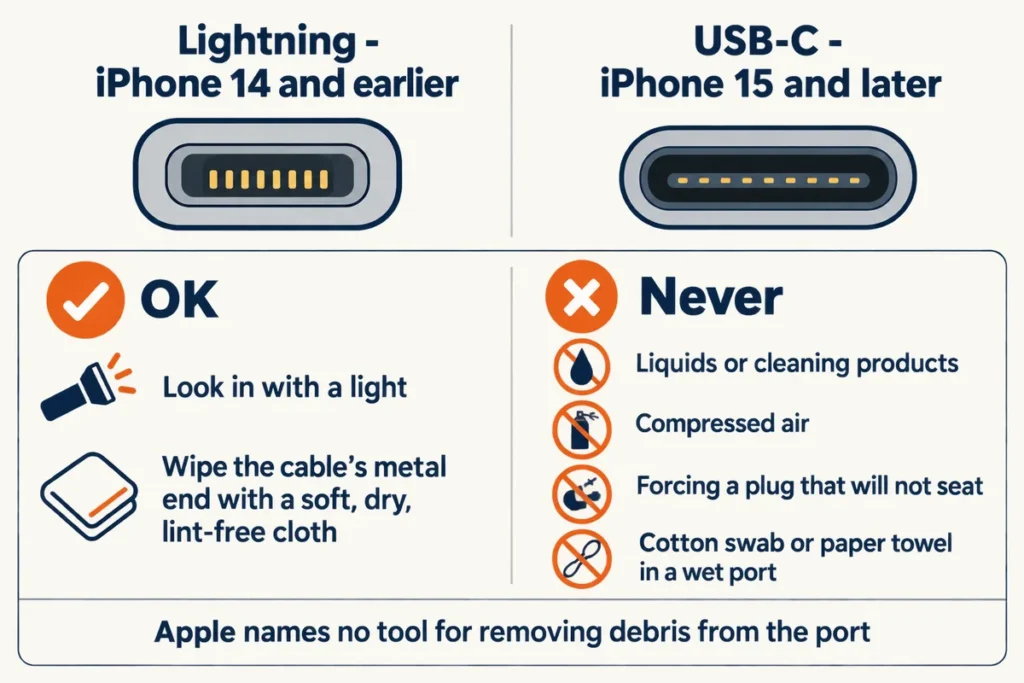
What Apple does spell out is the cable’s end. If a Lightning or USB-C cable gets warm or the iPhone won’t charge, disconnect it and wipe the connector with a soft, dry, lint-free cloth, and don’t use liquids or cleaning products on it. For a wet port, Apple’s liquid page lists a cotton swab and a paper towel among the things not to put in the connector. Apple approves no tool for either case, so the same caution makes sense for a dry port.
Toothpicks, brushes and needles come up constantly in community threads. Apple names none of them for the charging port, so nothing here recommends one. An iPhone 12 owner’s cable wouldn’t seat all the way and wiggled in the port. One reply:
“don’t try to dig in your phone by yourself, you could permanently damage it. i guess the tip is still in the port. would suggest to take it to your local repair shop to see if they can remove it or in the worst case scenario – replace the charging port.”
– r/iphonehelp, August 2026 (3 upvotes)
A slack cable can mean the plug is damaged, not only the port, so try a second cable before you decide the port is the culprit. If a light shows something lodged in the port, or a cable end has come off in it, hand the phone to a service provider.
Why does my iPhone stop charging at 80 percent?
Usually on purpose. Optimized Battery Charging, a charge limit on iPhone 15 and later, and a warm battery can each hold an iPhone near 80 percent. Apple’s page says the first slows battery aging and that the heat limit lifts once the temperature drops.
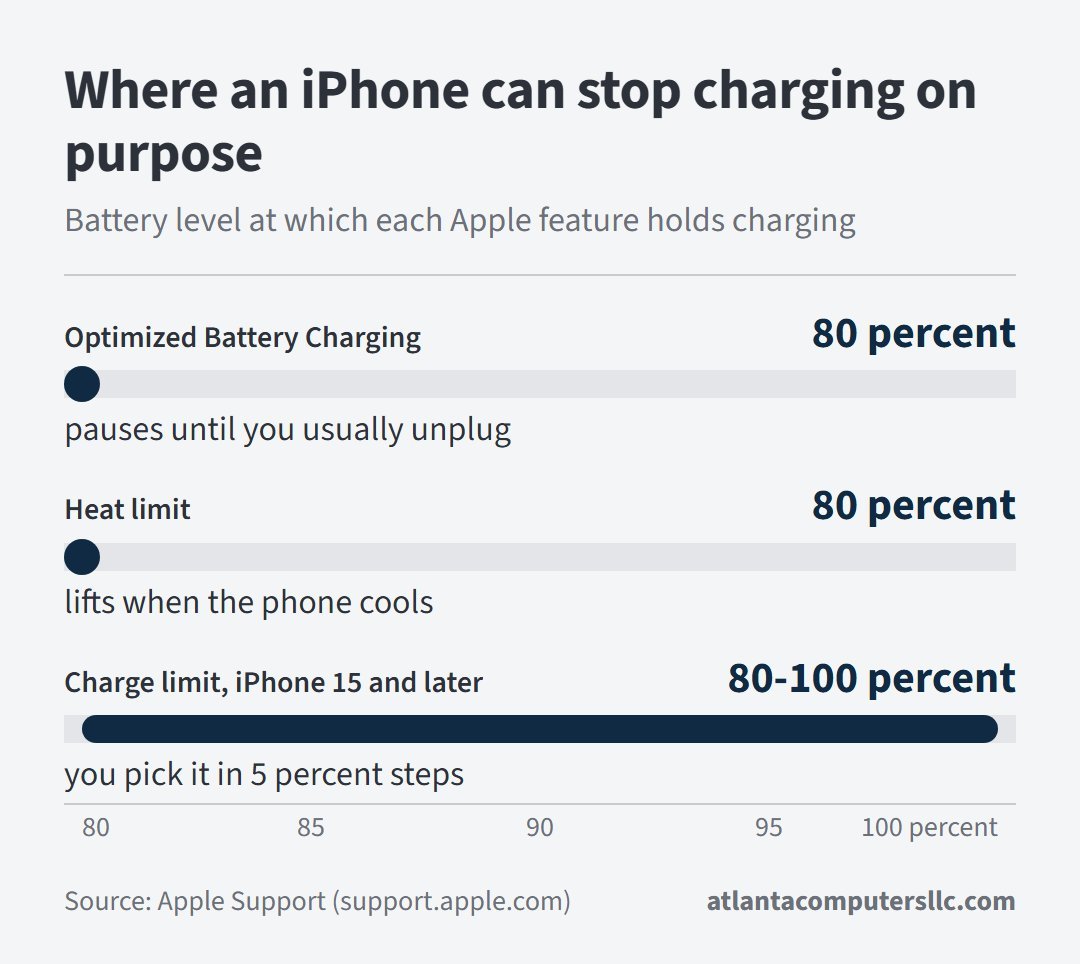
Optimized Battery Charging learns your daily routine and delays charging past 80 percent only when the phone predicts a long stay on a charger. Apple says it needs at least 14 days to learn your habits, and at least 9 charges of 5 hours or more in a given location, before it engages.
While it’s active, the Lock Screen says when the phone will be full. Touch and hold that notification and tap Charge Now to skip the wait.
On iPhone 15 and later you may also have a charge limit. Open Settings, tap Battery, tap Charging, and choose a limit between 80 and 100 percent in 5 percent steps.
Optimized Battery Charging is available when the limit is 100 percent. The phone charges to within a few percentage points of the limit and stops, then resumes if the level drops more than 5 percent while it’s connected. With a limit under 100 percent, Apple says the phone will occasionally charge to 100 percent to keep its battery estimates accurate.
On iPhone 14 and earlier, go to Settings, Battery, Battery Health & Charging, and turn Optimized Battery Charging off. Apple warns that turning off charging optimizations can increase wear on the battery and reduce its lifespan. Use the switch as a test, or tap Charge Now when you need a full battery, instead of leaving it off for good.
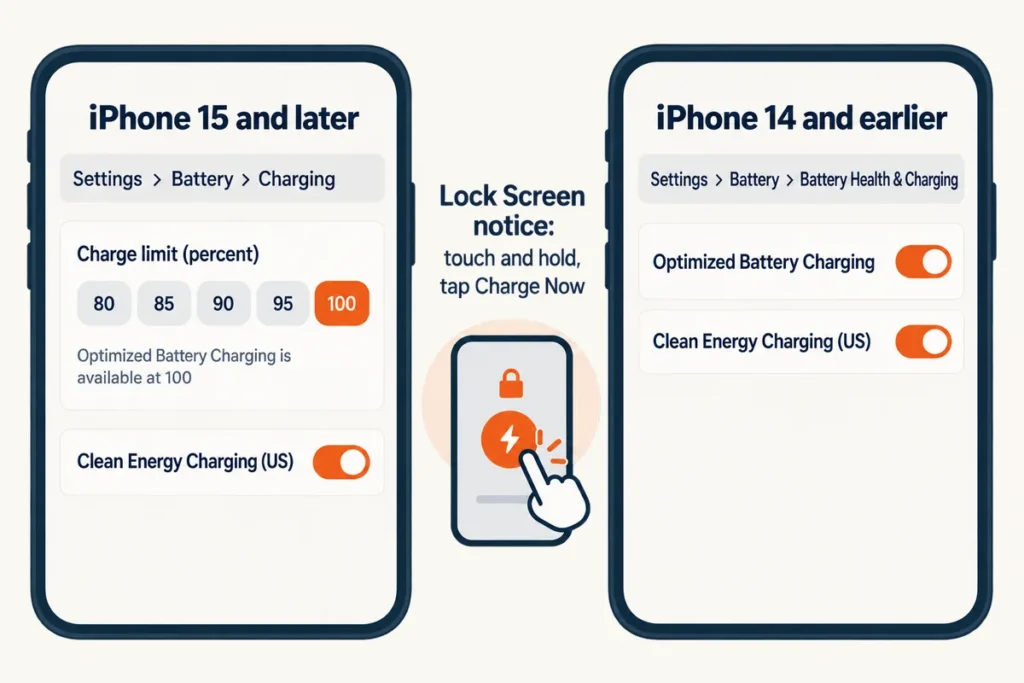
In the United States, Clean Energy Charging is on by default with iOS 16.1 and later. It charges when lower carbon-emission electricity is available, and it engages only where you charge regularly for long periods, such as home or work. When it suspends charging, the Lock Screen shows an estimated full-charge time and the same Charge Now option. To turn it off, open Settings, tap Battery, tap Battery Health & Charging, and switch off Clean Energy Charging.
When temperature is the reason
Apple designs iPhone for ambient temperatures between 0 and 35 degrees C (32 to 95 degrees F). Outside that range, charging, including wireless charging, can slow or stop. On iOS 16 and later, the Lock Screen then reads “Charging On Hold. Charging will resume when [device] returns to normal temperature.” Move a hot phone somewhere cooler and out of direct sunlight, a cold one somewhere warmer, and lock the screen if you’re using it.
Liquid detected, charging not available: what Apple says to wait for
A liquid-detection alert blocks charging until the connector, the cable ends and the accessory are dry. Unplug both ends of the cable, tap the phone gently against your hand with the connector facing down, leave it somewhere dry with some airflow, and wait at least 30 minutes before trying again, per Apple’s steps.
When an iPhone won’t charge because of this alert, the wording depends on the port and what’s plugged in. A Lightning iPhone connected to a charger shows “Charging not available”. A USB-C to USB-A cable can bring up “Liquid Detected in USB-C Connector”. An accessory that doesn’t charge the phone triggers “Liquid detected in Lightning Connector” or, on USB-C, “Liquid Detected”. The alert exists on iPhone XS, iPhone XS Max, iPhone XR and later, according to Apple.
If the alert returns, leave the phone in a dry area with some airflow for up to a day. Full drying can take up to 24 hours, and you can retry throughout. If the phone was actually wet, wait at least 5 hours before charging or connecting an accessory, per Apple’s handling information.
Don’t dry the phone with an external heat source or compressed air, don’t put a foreign object such as a cotton swab or a paper towel in the connector, and don’t leave the phone in a bag of rice. Those are Apple’s three don’ts. Charging a wet connector can corrode the pins and cause permanent damage. In an emergency the alert can be overridden when you reconnect the cable, and a Qi-certified wireless charger still works if the back of the phone is dry.
If the phone and cable are dry and the alert still appears, the answer splits by cable. An alert on one particular cable or accessory points at that cable, so contact its manufacturer, as Apple advises. An alert on every Apple Lightning or USB-C cable or accessory means the phone might need service, per Apple. A reply in an r/applehelp thread about an intermittent alert with no known liquid laid out the order:
“A technician would label this as intermittent behavior and if cleaning out the Lightning or USB-C connector on the phone didn’t fix things, and neither did using a different cable, the connector may need replacing in or out of warranty.”
– r/applehelp, July 2026 (2 upvotes)
Liquid damage isn’t covered under warranty, Apple’s handling information adds, so an alert after a real dunk is a different conversation from an alert on a phone that never got wet.
Charging on a pad but not on a cable
If an iPhone won’t charge on a cable but does on a Qi pad or a MagSafe charger, the battery is taking a charge and the fault sits in the cable, the adapter or the port. Wireless charging works on iPhone 8 and later, per Apple’s wireless page. A pad is a workaround that leaves the port question open.
The reverse case has its own list. Take off a thick, metal or battery case, which can stop or slow wireless charging, and keep magnetic mounts and any other object out from between the phone and the pad, since they can reduce performance. Both points come from Apple’s wireless page. A phone that vibrates can shift on the mat and lose power. A phone connected to USB charges over the cable instead of wirelessly.
For Apple’s MagSafe charger, lay it face up on a flat surface clear of metal objects or other foreign material, and plug it into power before you place the phone. If you placed the phone first, lift it off, wait three seconds and set it back down. A phone connected to both MagSafe and a cable charges through the cable. Keys, coins and similar metal on a wireless charger may become warm or interfere with charging, according to Apple’s safety information.
Wireless charging is one of the normal reasons an iPhone feels warmer, Apple notes, and the heat limit that holds charging near 80 percent applies to pads as well.
When the battery or the phone is the fault
Open Settings, tap Battery, then tap Battery Health. Apple designs iPhone 14 models and earlier to retain 80 percent of their original capacity at 500 complete charge cycles under ideal conditions, and iPhone 15 models at 1000 cycles, so an older phone that dies fast may simply be worn.
If battery health is significantly degraded, Apple’s message says an Apple Authorized Service Provider can replace the battery to restore full performance and capacity, and that the message doesn’t indicate a safety issue. A message reading “Unable to verify this iPhone has a genuine Apple battery” means the health figures might not be accurate and the battery needs a check from service. Apple’s one-year warranty includes service coverage for a defective battery, and out of warranty Apple offers battery service for a charge.
If your iPhone won’t charge after every step above, take it to a service provider when any of these applies:
- The case looks swollen or the screen is lifting. Apple’s safety information says to discontinue use of an iPhone if you suspect damage to the battery.
- The cable only works held at an angle, or sits loose in a port you’ve already looked at.
- The liquid alert returns on every Apple cable with a dry phone.
- Nothing changes after the half-hour, force restart and second half-hour steps. Apple says the phone might need service.
Back the phone up while it still turns on. I do the same with a laptop drive before any repair that touches it. Apple’s safety information says an iPhone should only be serviced by a trained technician and that disassembling it may cause damage, so none of the steps above need the back off.
Why chargers die, and which USB-C cable works
Why do iPhone chargers stop working?
Cables usually fail first. Apple’s handling information says a charge cable can become weak or brittle when it’s bent repeatedly in the same spot, and to stop using a cable that has kinks, breaks or other damage. Apple’s safety information gives the same instruction for an adapter with damaged prongs.
Can you use any USB-C cable on an iPhone 15 or later?
Any USB-C cable and power adapter that comply with the USB-C standard, including USB Power Delivery, work for charging, according to Apple. Cables and adapters from other manufacturers qualify when they meet that standard.
Why isn’t my iPad charging?
An iPad has its own charging page: the iPad won’t charge page covers the checks for that device.