

When an iPad won’t charge, the screen usually says why. “Not Charging” in the status bar means the computer’s USB port can’t supply enough power, “Slow Charger” in Settings means the adapter is too weak, and “Charging On Hold” means the iPad is too hot or too cold. Each message has a different fix.
Apple’s iPad User Guide and its temperature article supply the wording. If none of those messages appears, the cause is more likely the cable, the port or the battery, and the checks below run from free to paid.
What each charging message means
When your iPad is charging, you see a lightning bolt on the battery icon in the status bar, or a large battery icon on the Lock Screen, according to Apple’s “If your iPad won’t charge” article. When you see neither, one of these messages usually narrows down the reason.
| What you see | What Apple says it means | First move |
|---|---|---|
| “Not Charging” in the status bar, iPad plugged into a computer | The Mac or Windows computer isn’t providing enough power | Use a wall adapter, or make sure the computer is on and awake |
| “Slow Charger” under Settings, then Battery | The iPad supports fast charging but the charger can’t deliver optimal power; a wired charger of 7.5 watts or less can take longer than expected | Move to a bigger adapter |
| “Charging On Hold” on the Lock Screen | The iPad is temporarily too hot or too cold to charge | Bring it back to a normal temperature and wait |
| Blank screen right after you plug in a drained iPad | The display may stay blank for up to 2 minutes, then show a nearly depleted battery image that needs up to 10 minutes of charging before the iPad is usable | Wait before you change anything |
| Nothing at all, no message | Apple’s charging article starts with the power source, then a different adapter or cable, then temperature, then a force restart | Work through the sections below in order |
Is your charger strong enough for an iPad?
Possibly not, if the adapter came with an older iPhone. Apple’s iPad User Guide says a wired charger that provides 7.5 watts or less can make charging take longer than expected, and Apple’s adapter list shows iPads shipping with 10, 12, 18 or 20 watt adapters.
Figures come from “About Apple USB power adapters”. Out of the box, the iPad Air 2 and iPad mini 4 shipped with a 10 watt adapter, the iPad Pro 10.5-inch with 12 watts, the first iPad Pro 11-inch with 18 watts, and the iPad 9th generation with 20 watts. Most iPhones before the iPhone 11 came with a 5 watt adapter, which sits below the 7.5 watt line.
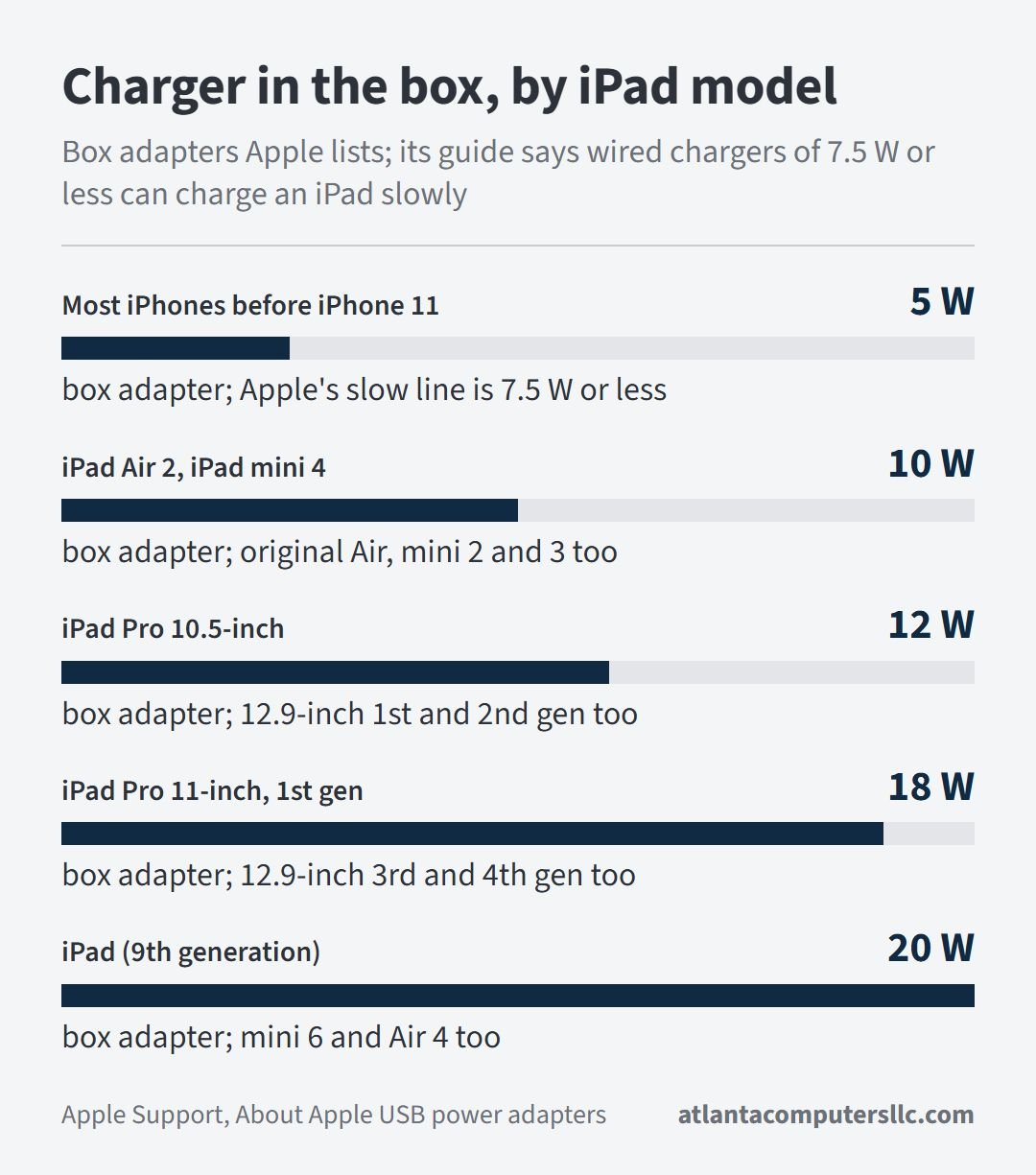
Watts also set a floor on charging time. Apple lists the iPad 10th generation battery at 28.6 watt-hours, so a 20 watt adapter needs about 1.4 hours at best and a 5 watt phone adapter about 5.7 hours. Add the slowdown Apple describes once the battery passes roughly 80 percent, and real charges run longer.
One r/ipad poster’s iPad sat at 5 percent with “Not Charging” where the percentage should be, although the same charger worked on a phone. The top reply blamed the charger’s wattage. Another commenter answered that a weak charger would still charge and show a Slow Charger message. Apple’s guide agrees with the second view: a weak charger means slower charging, not none. A charger that gives your iPad nothing at all is worth swapping outright.
Find the adapter’s rated output in watts, on its label or its box, before you blame the battery.
Any adapter on Apple’s list can charge an iPad, and Apple also names the Mac USB-C Power Adapter and third-party adapters that comply with applicable safety standards. Apple says adapters that don’t comply could pose a risk of death or injury, so a no-name brick is a poor test. A USB-C laptop charger that already runs a Chromebook makes a sensible stand-in, and if that charger is the one misbehaving, the Chromebook won’t charge page covers the adapter checks on that side.
Lightning or USB-C: which cable your iPad takes
Per Apple’s tech specs, the iPad 9th generation has a Lightning connector and ships with a Lightning to USB-C cable and a 20 watt USB-C adapter. Its successor, the iPad 10th generation, has a USB-C connector, a 1 meter USB-C charge cable and the same 20 watt adapter. Apple’s “Identify your iPad model” page maps the model number to the name, and the tech specs page for that model names the connector.
If an iPhone charges normally on the same adapter and cable, the accessories are cleared; when the phone is the one failing, the iPhone won’t charge page covers it.
Charging from a computer, a hub or a keyboard case
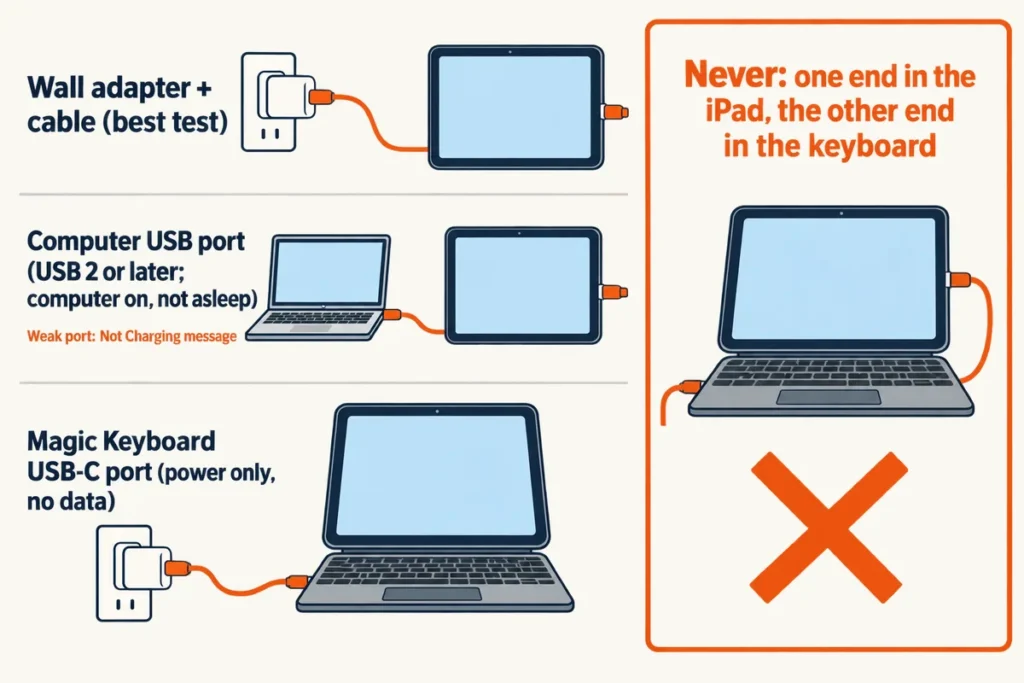
Your iPad can draw power from a USB port that supports USB 2 or later on a computer that is on and not in sleep mode, from a powered USB hub or dock, or from a compatible Magic Keyboard connected to a working power source, per Apple’s charging article. Per the iPad User Guide, an iPad connected to a computer that is turned off may drain instead of charge.
A wall adapter is the cleaner test, because it takes the computer, its sleep setting and its USB port out of the list of suspects.
Keyboards need a separate warning. For an ordinary keyboard, the User Guide says not to charge the iPad through it unless the keyboard has a high-power USB port. A Magic Keyboard is different: its USB-C port passes power but no data, and the cable can go into either the iPad or the keyboard. Apple’s Magic Keyboard page says never to connect one end of a USB-C cable to the iPad and the other end to the keyboard’s port.
Smart Keyboard and Smart Keyboard Folio cases link to the iPad through the Smart Connector, three small magnetic contacts, and Apple’s two pages for them describe no charging input. If the keyboard stops responding, Apple’s fix is to disconnect it and wipe the Smart Connector contacts on the keyboard and on the iPad with a soft, lint-free cloth.
If your iPad sits in a keyboard case and won’t charge, lift it out and plug the cable into its own port first. One step separates a keyboard fault from an iPad fault.
Cable, port and restart: the free checks
Apple’s charging page keeps the sequence short: a different power adapter or a different charging cable, then temperature, then a force restart. Change one thing at a time, so you know which one mattered.
- Swap the cable. Apple prefers the cable that came with your iPad, and a second cable costs you less than any other fix on the list.
- Swap the adapter, then the outlet. If a different adapter charges the iPad at once, the first adapter was the problem.
- Switch your iPad off and look into the port with a flashlight.
A cable can fail in a way that fools the iPad. One r/ipad commenter described it this way:
“The cable could also have broken. Sometimes they break in such a way that it detects that there is a cable, but it doesn’t pull charge. Try a different cable”
– r/ipad, September 2026 (3 upvotes)
In that failure the iPad reacts when the cable goes in, but the percentage never moves. A second cable tests it in one step.
Next comes the port. Apple’s iPad charging article gives no cleaning method, while its iPhone article says to remove debris from the charging port on the bottom of the device and names no tool. On the bench I reach for a plastic spudger, never metal, and the same rule applies to a tablet port. If you suspect liquid in the port, don’t plug a cable in at all, because the User Guide warns against it.
How do I restart an iPad that won’t charge?
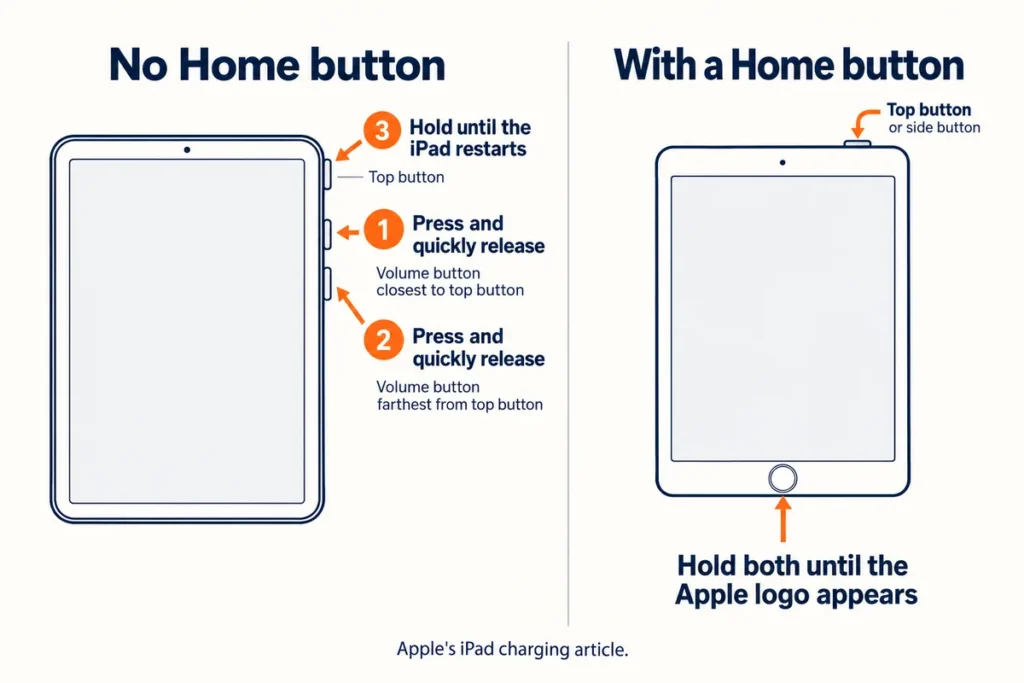
Force restart it. On an iPad without a Home button, press and quickly release the volume button closest to the top button, then the one farthest from it, then hold the top button until the iPad restarts. On an iPad with a Home button, hold the top (or side) button and the Home button until the Apple logo appears.
When an iPad won’t charge because it is hot, cold or drained
iPads are designed for ambient temperatures between 0 and 35 degrees C (32 to 95 degrees F), according to Apple’s temperature article, and charging pauses when the iPad runs outside that comfort zone.
If the iPad’s interior temperature climbs past its normal operating range, Apple says charging, wireless charging included, slows or stops. In the cold, the iPad might not charge or could stop charging. On the Lock Screen, “Charging On Hold” appears, and charging resumes when the iPad returns to a normal temperature. Leaving the device in a car on a hot day is the example Apple gives of what to avoid.
Some Reddit posts pass around warming the back of a dead iPad with a hair dryer. Nothing on Apple’s charging page suggests it; the top of the operating range is 95 degrees F, and very hot conditions can permanently shorten battery life, according to Apple.
A drained iPad needs patience before anything else. Plug it into a wall adapter and leave it past Apple’s 2 and 10 minute marks before you call it dead.
A few r/ipad posts from September 2026 describe 9th-generation iPads that stopped charging after the battery hit zero, some right after the iPadOS 27 update. All of that is user reports, not an Apple statement, and the cause isn’t established. One commenter offered a workaround for a drained 9th-generation iPad:
“Have you tried connecting it to a USB-A Lightning cable? If an iPad’s battery is fully depleted, it can occasionally struggle to negotiate over PD. Connecting the iPad to a USB-A charger that is 10W or more can often help to bring it back.”
– r/ipad, September 2026 (2 upvotes)
Back in that thread, the person who tried it replied that it worked, then later reported that charging was still flaky and failed on some USB-A cables. The Apple pages cited here don’t list this trick. A 9th-generation iPad ships with a Lightning to USB-C cable, so trying it means borrowing a USB-A to Lightning cable and a USB-A adapter. It costs nothing if you already own both.
What the iPad battery can and can’t tell you
Only some iPads show their battery health. Apple lists the iPad Pro (M4 and M5), iPad Air (M2, M3 and M4), iPad mini (A17 Pro) and iPad (A16); on those, open Settings, tap Battery, then tap Battery Health.
Capacity, cycle count, and the manufacture and first-use dates all appear there. If Battery Health isn’t in your Battery settings, Apple says your model doesn’t support it, so an older iPad gives you no number to read.
How many years does an iPad battery last?
Apple gives cycles, not years. Its battery page says an iPad battery is designed to retain up to 80 percent of its original capacity at 1000 complete charge cycles, and the one-year warranty includes service coverage for a defective battery.
A cycle means using a total of 100 percent of the battery’s capacity, which can be spread over several days. Heavy daily use reaches that number sooner than light use, and Apple adds that the figure depends on the product.
Signs it needs a service provider, not another cable
Stop swapping parts when any of these is true:
- A wall adapter from Apple’s list and a second cable both fail, the port looks clean, a force restart changes nothing, and the iPad has had well past 10 minutes on the charger.
- The screen is lifting, the case is bulging, or the iPad runs hot while idle. Unplug it and don’t charge it again. The User Guide says an iPad battery should be serviced or recycled by Apple or an Apple Authorized Service Provider, and a swollen battery is a stop-and-recycle job.
- The cable won’t seat, wiggles in the port, or the fault started after a drop or after liquid got in.
If your iPad still wakes at all, back it up before it goes in. A dead charging circuit on the board is microsoldering work, which I don’t do on laptops either, so don’t expect a home fix for it on a tablet.
Apple’s battery page lists a one-year warranty that covers a defective battery. If the iPad is still inside that year, start there.