
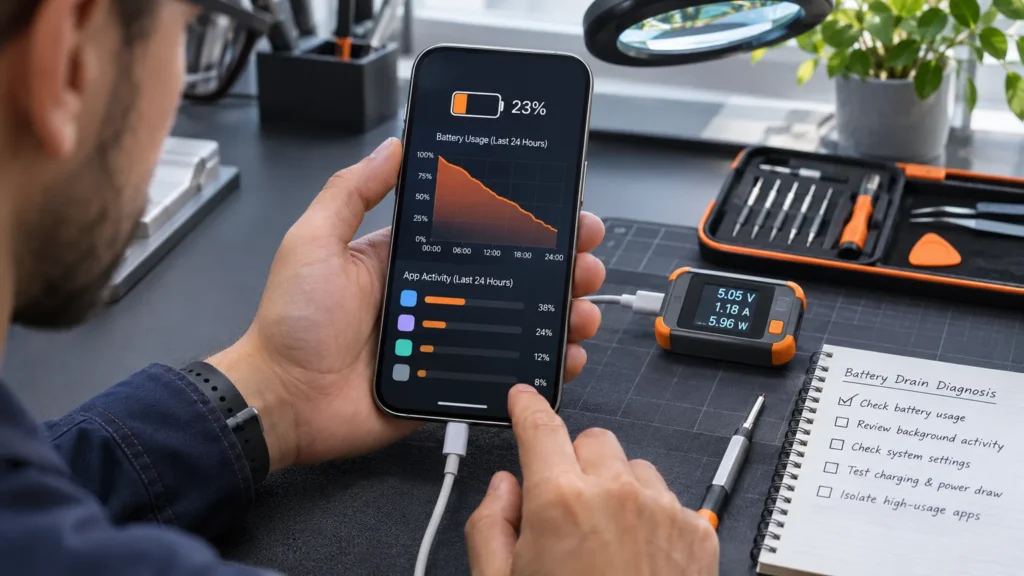
An iPhone battery draining fast sorts into three groups: background work left over from an update or setup, one app or weak signal, and a worn battery. Open Settings, tap Battery, and read the Insight line, the top three apps and Battery Health, in that order, the way Apple’s page on a battery that drains too quickly lays out the screens. Each group needs a different response, and only the third one means a repair.
If you installed an update or set the phone up in the last few days, start with the first group. If you did neither, look at the top apps next, then at Battery Health.
iPhone battery draining fast: read Settings > Battery first
On a laptop I look at what is running before I blame the battery. Settings > Battery is the phone’s version of that look, and it takes about a minute.
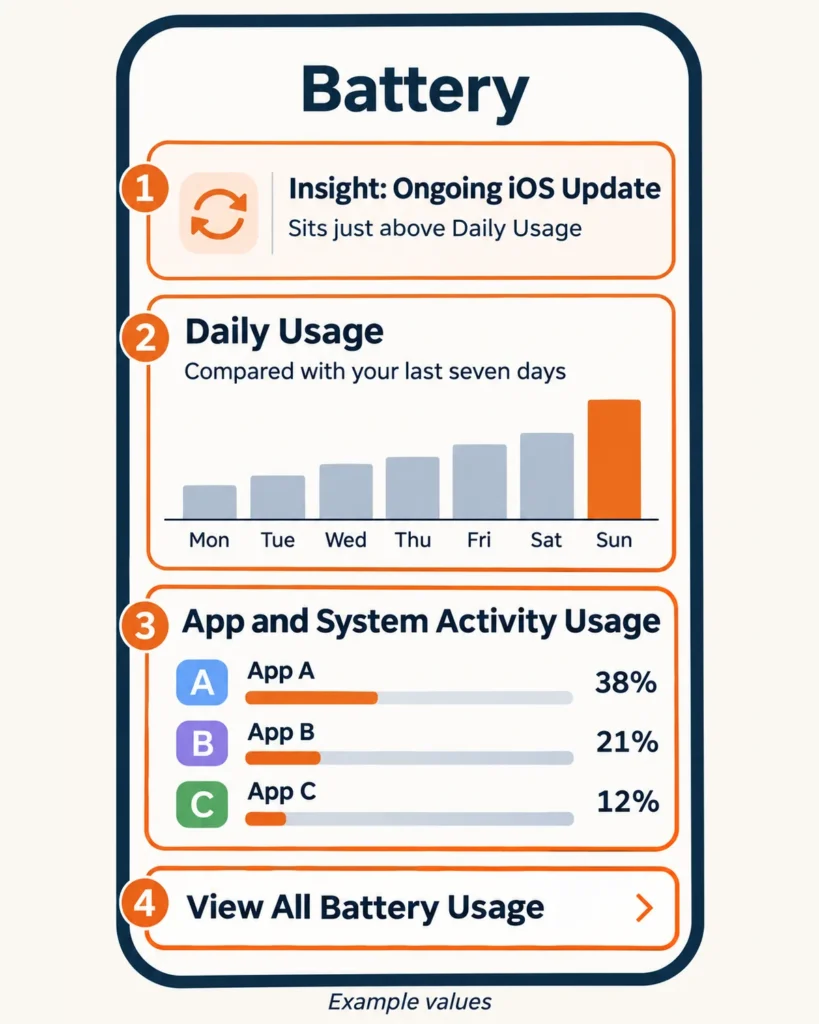
- Open Settings and tap Battery.
- Read any suggestion or Insight sitting just above Daily Usage.
- Read the Daily Usage chart. It compares today with your last seven days and says whether you’re using more, less or about the same battery as usual.
- Look at the three apps under App and System Activity Usage, then tap View All Battery Usage for the full list. Tap a day’s bar to see that day.
Insights need iOS 18 or later, and the Daily Usage chart needs iOS 26 or later. On an older version, update first through Settings, General, Software Update, after a backup.
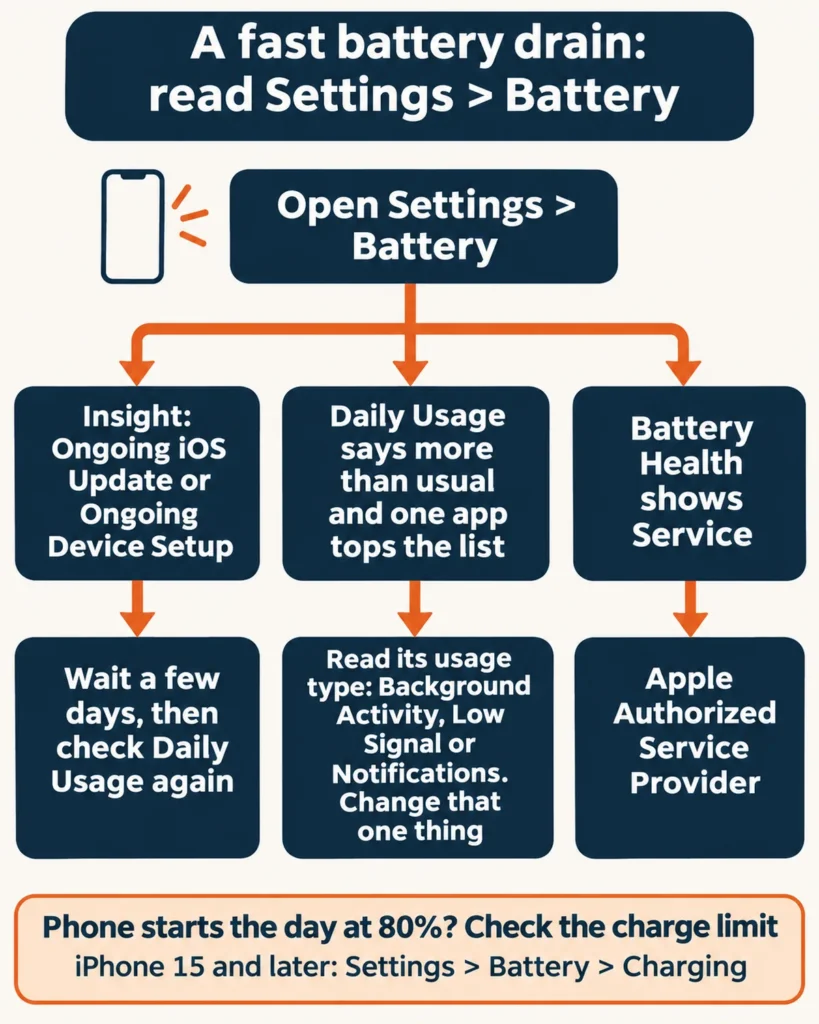
Here is how the screens sort the cause:
| What Settings > Battery shows | What it points to | Your next move |
|---|---|---|
| An Insight reading Ongoing iOS Update or Ongoing Device Setup | Work still finishing after an update or setup | Wait a few days, then compare Daily Usage again |
| Daily Usage says more than usual, and one app tops the list | That app, or the signal it works with | Open the app’s detail and read its usage type |
| Daily Usage looks normal, but the charge at unplug time is lower than you expect | A charge limit or power setting, not drain | Check Charging and Power Mode |
| Battery Health shows Service, or capacity well down | A worn battery | Read Battery Health, then use Apple service |
Updated in the last few days? Time first, then test
After an update, some tasks keep running in the background and can affect battery life and thermal performance for a while. While they run, Settings > Battery can show an Ongoing iOS Update Insight. Wait a few days, then check again; battery life returns to normal once the work finishes, per Apple’s battery page.
The date matters this week. Apple’s security releases page lists iOS 27.2 as the latest version as of November 4, 2026, released October 26. Phones that took it recently may still be inside that window.
Owners disagree about 27.2. One r/iOS27 poster reported 8 percent used in 12 hours with no screen-on time after the update, against 60 to 90 percent on 27.0.1. An iPhone 15 Pro owner in the same subreddit, at 100 percent battery health and 37 charge cycles, said the drain was the same as on 27.0.1. A reply in that second thread describes the waiting case:
“Happened also on my 15PM, worst, drains about 1% every 8 to 10mins. But after 2 full days, everything back to normal, great battery all day.”
– r/iOS27, October 2026 (1 upvote)
A warm phone is normal in this stretch too: Apple’s temperature page lists setup, a restore from a backup and a software update, particularly a major release, among the times it feels warmer. It cools when the process ends, and with no temperature warning on screen you can keep using it.
Waiting has an end. Nothing in Apple’s wording gives a number past “a few days,” so let the screen decide: if the Ongoing iOS Update Insight is gone and Daily Usage still says you’re using more than usual, the update note no longer applies. Move on to the next section. A new phone follows the same rule with an Ongoing Device Setup Insight.
One app, one weak signal, or one setting
Tap an app in the usage list and its detail screen can show a usage type. These four are the ones Apple’s battery page describes:
- Background Activity: most of the app’s battery use happened while it was active in the background, such as playing music or tracking location. Reduce your use of the app.
- No Mobile Coverage and Low Signal: the phone was searching for a signal or sitting in a weak one. Move somewhere with a stronger signal, or turn on Airplane Mode if you’ll be out of coverage for a while.
- Notifications: the app’s alerts wake the device. Adjust that app’s notifications so they wake it less often.
- Connected to Charger: the app was used only while the phone charged, so it didn’t use the battery.
Two broader settings sit behind those types. Wi-Fi uses less battery than cellular, so connect to a network when you can. On iPhone 12 and later and iPhone SE (3rd generation), open Settings, tap Cellular, tap Cellular Data Options, tap Voice & Data, then tap 5G Auto. The phone then drops to LTE when 5G speeds wouldn’t feel noticeably better.
The screen has its own suggestions above Daily Usage: Enable auto-brightness, Enable auto-lock and High Brightness, each with a link to the setting. Turn on auto-brightness and auto-lock, and bring brightness down if it’s set above the recommended level.
When one app sits far above the rest, treat it as an app problem before a phone problem. One reply to the iPhone 15 Pro post above read the poster’s usage screen that way:
“This looks like an app issue rather than a firmware battery drain issue. Uninstall and reinstall Instagram and Snapchat right off the bat. 36% battery usage is impossible on only 28 minutes screen on time. I had a similar drain with X (twitter) which was resolved with a reinstall.”
– r/iOS27, October 2026 (7 upvotes)
That is one owner’s call, not guidance from Apple, so confirm you can sign back in to the app first. If an app does top the list for no good reason, deleting and reinstalling it is a cheap test.
A look-alike: the charge limit you set
On iPhone 15 and later, Settings > Battery > Charging lets you pick a charge limit between 80 and 100 percent in 5 percent steps. The phone charges to within a few percentage points of that limit and stops, so a morning start at 80 percent is the setting at work, not a drain. With a limit under 100 percent it still charges to 100 now and then to keep its battery estimates accurate. Apple’s charge limit page describes all of this.
Rule that out before you blame the battery. The iPhone won’t charge page covers the other reasons charging stops short of 100 percent, including the temperature hold.
Low Power Mode and Adaptive Power: relief, not a diagnosis
Low Power Mode trims background work so the charge lasts longer. On iPhone 15 and later, open Settings, tap Battery, tap Power Mode and switch it on; on iPhone 14 and earlier the switch sits under Settings > Battery. While it’s on, the phone makes these changes:
- Auto-Lock drops to 30 seconds and brightness goes down.
- Some visual effects turn off, and iCloud Photos pauses.
- Automatic downloads, email fetch and Background App Refresh stop.
The battery icon in the status bar turns yellow while it’s on, and the mode switches itself off once the phone is back at 80 percent or higher.
Use it to get through a day, then switch it off and read Daily Usage again. A mode that hides the symptom can’t name the cause.
Adaptive Power, which needs iOS 26 or later, is the gentler version. It can lower brightness a small amount, limit background activity and turn on Low Power Mode when the battery reaches 20 percent. It’s on by default on iPhone Duo, iPhone 18 Pro Max, iPhone 18 Pro, iPhone 17 Pro Max, iPhone 17 Pro, iPhone Air, iPhone 17 and iPhone 17e, and off by default on iPhone 16 models, iPhone 16e, iPhone 15 Pro and iPhone 15 Pro Max. The switch is under Settings > Battery > Power Mode.
That default gap is one reason two phones on the same iOS version can behave differently. If yours is on the off-by-default list, turning it on is a one-switch test.
When the battery itself is worn
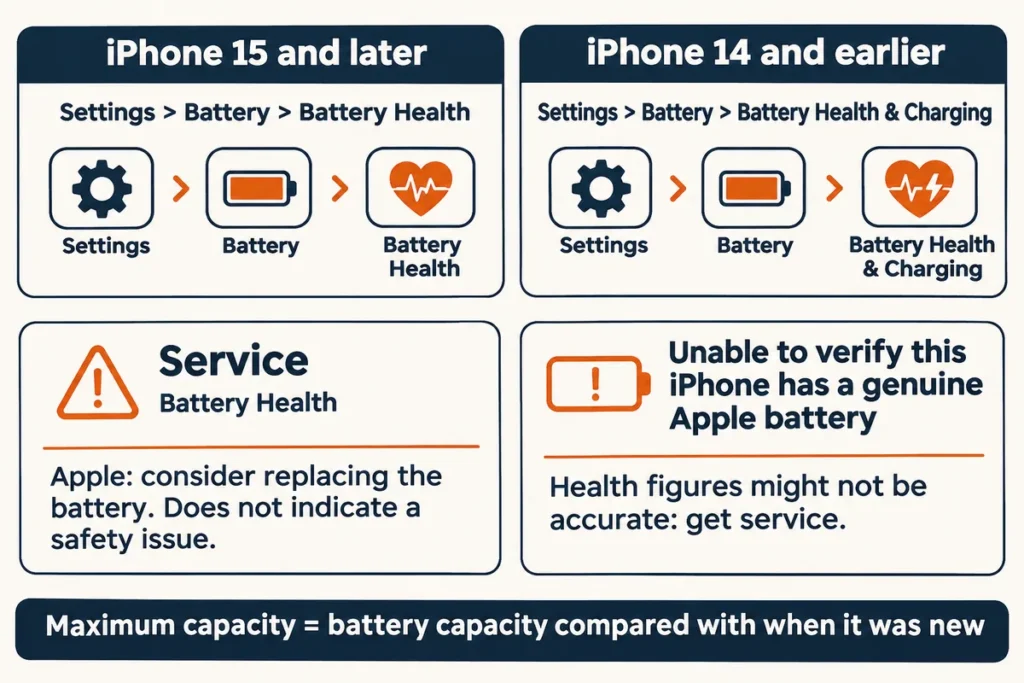
Battery Health is the number that settles it. On iPhone 15 and later, open Settings, tap Battery, then tap Battery Health. On iPhone 14 and earlier, it sits under Battery Health & Charging. Maximum capacity measures the battery against when it was new, and a lower figure can mean fewer hours between charges.
The design targets are on the record. iPhone 14 models and earlier are designed to retain 80 percent of their original capacity at 500 complete charge cycles under ideal conditions, and iPhone 15 models at 1000 cycles. Real results depend on how the phone is used and charged, per Apple’s battery and performance page.
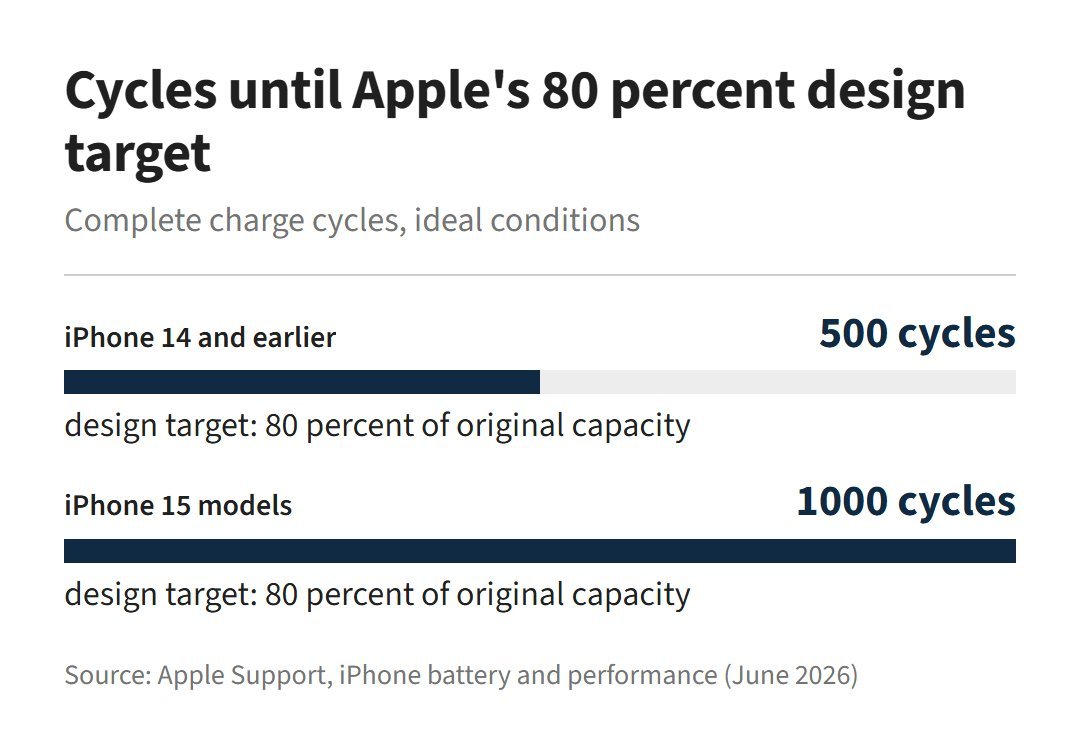
Forum numbers are looser. One Apple Support Community reply names 89 percent as the point to replace a battery and, a paragraph later, 80 percent. The battery page gives neither as a replace-now line: 80 percent is a design target at a cycle count, and the signal to replace is a Service label next to Battery Health.
The reading cuts both ways. A phone at 100 percent health after 37 cycles, like the r/iOS27 iPhone 15 Pro above, isn’t losing charge because of wear, so look first to an app, a setting or the update. A phone showing Service can’t be fixed from the settings pages above.
On a laptop I want the battery’s wear figure before anyone orders a replacement, and the same rule holds here: no number, no new battery. The laptop battery replacement guide covers the laptop version of that check.
Two outside factors can also change the picture:
- Temperature: an iPhone is designed for ambient temperatures from 0 to 35 degrees C (32 to 95 degrees F). Very hot conditions can permanently shorten battery life, and very cold ones can temporarily shorten it, so keep the phone out of a parked car.
- Unexpected shutdowns: a phone that shuts off with charge still showing is more likely at a low state of charge, a higher chemical age or in the cold. The iPhone won’t turn on page covers getting one back on.
When to stop and use Apple service
Settings can’t fix a worn, unverifiable or damaged battery. Stop changing settings and arrange Apple service when any one of these shows up:
- Battery Health shows Service. The message says an Apple Authorized Service Provider can replace the battery to restore full performance and capacity, and that it doesn’t indicate a safety issue.
- The message reads “Unable to verify this iPhone has a genuine Apple battery.” The health figures on that screen might not be accurate, so the number can’t settle the question.
- The case looks swollen or the screen is lifting. Stop using the phone when you suspect battery damage.
The first two come from the battery and performance page, and the third from the iPhone User Guide’s safety information. The same safety page says an iPhone should only be serviced by a trained technician, so leave the back on. Coverage depends on age: the one-year warranty includes service for a defective battery, and out of warranty Apple offers battery service for a charge.
Back up the phone before it goes anywhere. I image a laptop drive before any repair that touches it, and a phone deserves the same step.
Overnight drain, restarts and new phones
Why is my iPhone battery draining fast overnight?
Open View All Battery Usage, tap the bar for the day it happened and read the usage types. Background Activity, Low Signal or Notifications names the cause, and an Ongoing iOS Update Insight means update work was still finishing. Also rule out the charge limit: a phone that started the night at 80 percent looks lower by morning than one charged to 100.
Does restarting or resetting fix a fast battery drain?
Apple’s page on a battery that drains too quickly lists no restart or reset step. Replies in community threads often suggest a restart once an update finishes. It costs nothing, so try it once. A restart can’t restore lost capacity, though: that’s the Battery Health number, measured against the battery when it was new.
Should a new iPhone drain fast in the first days?
It can. Ongoing Device Setup is one of two Insights that name background work affecting battery life and thermal performance until it finishes, and a phone feels warmer after setup or a restore. Give it a few days, then read Daily Usage again.