

iPhone overheating needs sorting before it needs fixing. A warm iPhone with no warning on the screen is normal during setup, a restore, a major update, wireless charging, games and video, according to Apple’s page on a phone that gets too hot or too cold, and you can keep using it. A temperature warning screen is different: turn the phone off and let it cool somewhere shaded.
Heat that keeps coming back while nothing demanding is running, or any sign of damage, is where home troubleshooting ends. Find your situation in the table first, because normal warmth, a warning and a fault each need a different response.
iPhone overheating: warm, hot or a warning screen?
Normal warmth needs nothing, a “Charging On Hold” notice needs patience, and a temperature warning screen needs the phone turned off. Match what’s on your screen to a row below to see which one applies.
| What you see | What it means | What to do |
|---|---|---|
| A warm back or sides, normal screen, during setup, a restore, an update, wireless charging, a game or video | Normal. It cools when the activity ends | Keep using it, or set it down for a few minutes |
| “Charging On Hold” on the Lock Screen | Too hot (or too cold) to charge right now; charging resumes by itself | Move it somewhere cooler and leave it alone |
| Dim or black display, weaker signal, camera features switched off, choppy apps | Built-in protection after the inside ran past its normal range | Stop the heavy task and cool the phone |
| A temperature warning screen | The interior passed its threshold | Turn it off, move it away from direct sunlight, let it cool |
| “Restore Paused” during an iCloud restore | The restore stopped to keep the phone in range | Wait; it resumes when the phone cools |
| Hot with nothing heavy open, warnings that return after cooling, or a damaged phone | Not normal warmth | Read the last two sections |
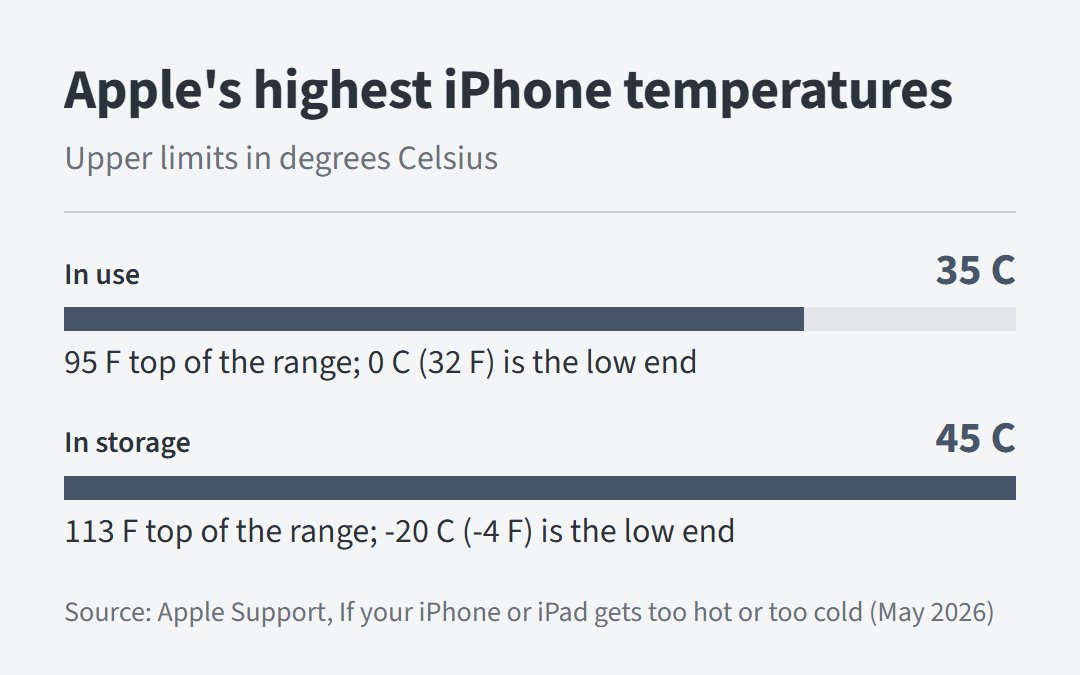
The numbers behind the table are short. An iPhone is designed for ambient temperatures from 0 to 35 degrees C (32 to 95 F) and stored between -20 and 45 C (-4 to 113 F), which rules out a parked car. Very hot conditions can permanently shorten battery life, the same page adds.
Cool it down in this order
Take the load off, take the heat source away, then let the phone cool, in that order. The first three steps cost nothing and take seconds.
- Stop the heavy task. Close the game, the camera or the navigation. The temperature page names GPS navigation, long camera use and graphics-heavy games in hot conditions as things to avoid.
- Unplug the charger.
- Get out of direct sunlight and out of the car. Parked cars can pass the 45 C storage limit.
- If a warning screen is up, turn the phone off. The temperature page gives three steps for that screen: turn the device off, move it to a cooler environment away from direct sunlight, and let it cool down. The phone may still be able to make emergency calls while the warning shows.
- Take the case off while it cools. The temperature page says nothing about cases, so treat this as a cheap precaution rather than a rule.
- Skip the freezer and the fridge. Asurion’s guide warns that sudden, intense temperature changes can leave lasting damage to internal parts.
You know it worked when the warning is gone, the display is back to normal brightness and a “Charging On Hold” notice, if there was one, clears and charging picks up again. If the phone still runs hot after time in a cool room with nothing running, go to the sections below on updates, apps and service.

On a laptop I look at what’s running before I blame the hardware. A phone deserves the same order: remove the load, remove the heat source, and only then suspect a part.
Hot while charging: the phone is allowed to slow or stop
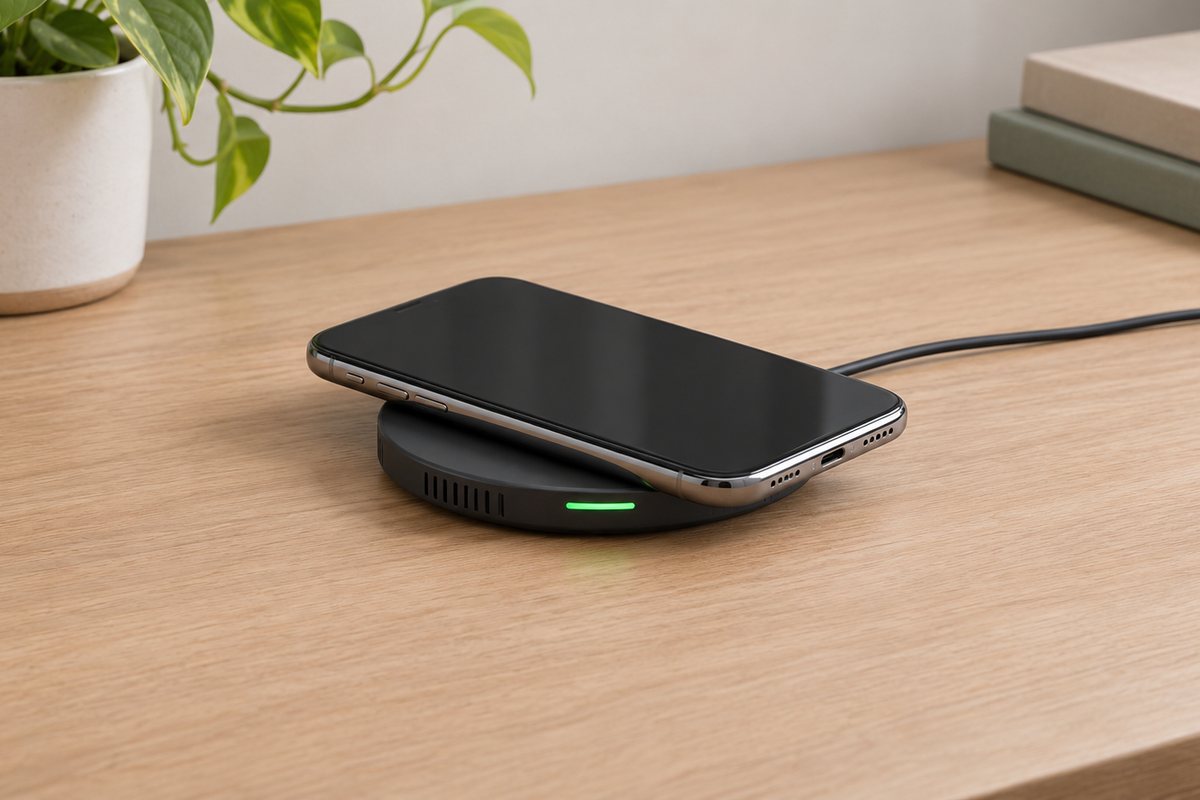
When the inside runs hot, charging slows or stops, wireless charging included. A message on the Lock Screen reads “Charging On Hold” and promises that charging resumes when the phone returns to normal temperature. That is protection, not a fault, and nothing needs fixing while it’s on screen. Wireless charging is also on the list of normal reasons for a warmer phone, so a pad on a sunny windowsill stacks two sources of heat.
The iPhone User Guide adds three charging rules that help here:
- Keep the phone, cable, power adapter and any wireless charger somewhere well ventilated while charging.
- With a wireless charger, remove metallic cases and keep metal objects such as keys and coins off the pad, since they can get warm or interfere with charging.
- Retire damaged cables and chargers. The same safety information warns they can cause fire, electric shock or injury, and a frayed cable is on its list of reasons to stop using one.
Heat also costs you over time. The battery page advises against charging or leaving the phone in hot places, direct sun included, for long stretches, and its charging page counts temperature history as part of a battery’s chemical age. If the “Charging On Hold” notice never clears even in a cool room, the iPhone won’t charge page covers that case.
Hot after an update, setup or a restore
Warmth after an update, setup or restore is on the temperature page’s normal list, and the battery page’s advice is to wait a few days and check again. An update looks finished before it is: certain tasks tied to it keep running in the background and can affect battery life and thermal performance, so Settings > Battery may show an Ongoing iOS Update or Ongoing Device Setup note.
Check which version you’re on under Settings > General > Software Update, and back up first if an update is waiting. As of November 5, 2026, Apple’s security releases page lists iOS 27.2, released October 26, as the latest version.
Owners in r/iOS27 describe a different problem on iOS 27: a temperature warning on an iPhone 15 Pro that wasn’t actually hot. None of Apple’s temperature or battery pages mention it, so it rests on owner reports. One r/iOS27 poster said the warning stopped after 27.2, and a commenter agreed:
“Facing it since updating to ios 27 but now finally it’s resolved in my 15 pro after updating 27.2”
– r/iOS27, October 2026 (2 upvotes)
It didn’t work for everyone. A reply in the same thread (October 27, 2026, 1 upvote) said the warning still appeared on an iPhone 14 after 27.2. So update first if you’re behind, and if the warning keeps returning on the latest version, have Apple look at the phone.
Hot with nothing heavy running
With iPhone overheating and nothing demanding open, look at what the phone is spending power on. One app far above the rest is the first one to check.
- Open Settings and tap Battery.
- Read the three apps listed under App and System Activity Usage, then tap View All Battery Usage for the full list.
- Tap an app to see its usage type.
No Mobile Coverage and Low Signal means the phone was searching for a signal or sitting in a weak one, and the battery page suggests moving somewhere stronger, or turning on Airplane Mode if you’ll be out of coverage. The iPhone battery draining fast page walks through the rest of those screens.
A reply on r/iphone, aimed at an owner whose battery health read 86 percent, lays out an order for a phone that runs hot for no obvious reason:
“86% battery isn’t terrible so i’d try software first. update to the latest ios, then check settings > battery to see which app is eating power in the last 10 days, and delete or reinstall that one. if it’s still slow after that, back it up and do a full reset as new, since old leftover junk can cause constant background load. also don’t charge it in a case or in the sun, heat makes it worse.”
– r/iphone, November 2026 (1 upvote)
That’s one owner’s advice, not guidance from the manufacturer. Hold off on the reset. It’s the last resort, and I back up a laptop’s drive before any repair that touches it, so back up the phone first.
Then read Battery Health. On iPhone 15 and later, open Settings, tap Battery, then tap Battery Health; on iPhone 14 and earlier it’s under Battery Health & Charging.
The battery page says iPhone 14 models and earlier are designed to retain 80 percent of their original capacity at 500 complete charge cycles, and iPhone 15 models at 1000. A phone whose capacity sits well below 80 percent and runs hot with nothing heavy open is a fair candidate for a battery check at Apple or an Authorized Service Provider. The battery pages don’t link wear to heat directly, so treat that as a judgment call, not a stated rule.
Where home fixes end: damage, repeat warnings and swelling
Stop troubleshooting iPhone overheating and contact Apple or an Apple Authorized Service Provider if any of these is true. The first is a judgment call; the rest follow the safety guide.
- The temperature warning keeps returning after the phone has cooled to room temperature, you’re on the latest version and no heavy app is open.
- The phone has been dropped, cracked or wet and then started running hot. The safety guide’s line is to discontinue use if you suspect damage to the phone or its battery, since it may cause overheating or injury.
- The back cover bulges, the screen is lifting from the frame, or you smell something burning. The guide doesn’t name swelling, but treat these as the damage that line describes. Power the phone down and don’t charge it.
- The phone shut off from heat and won’t turn back on after it has cooled. The iPhone won’t turn on page covers that next step.
Don’t open the phone yourself. The guide says an iPhone, and its battery in particular, should only be repaired by a trained technician to avoid battery damage that could cause overheating, fire or injury. The battery page notes that the one-year warranty includes service coverage for a defective battery, and that out-of-warranty battery service is offered for a charge, so check your coverage before you assume the cost.
What people ask next about a hot iPhone
Is it bad to use an iPhone while it charges?
Not by itself, going by Apple’s temperature page, which doesn’t call it harmful. What it does say is that wireless charging, graphics-heavy apps and streaming video each make the phone warmer, so doing them together stacks the heat. If a “Charging On Hold” notice appears, set the phone down and let it cool.
Can heat damage an iPhone for good?
Yes, in one way Apple states: using an iPhone in very hot conditions can permanently shorten battery life. Ordinary iPhone overheating that clears when the activity ends isn’t in that category.
Will iOS 27.2 fix a false temperature warning?
Maybe. Owners of an iPhone 15 Pro reported it did, and one iPhone 14 owner reported it didn’t. Apple’s pages don’t mention the issue. Update first, and if the warning still appears on a cool, idle phone, take it to Apple.