
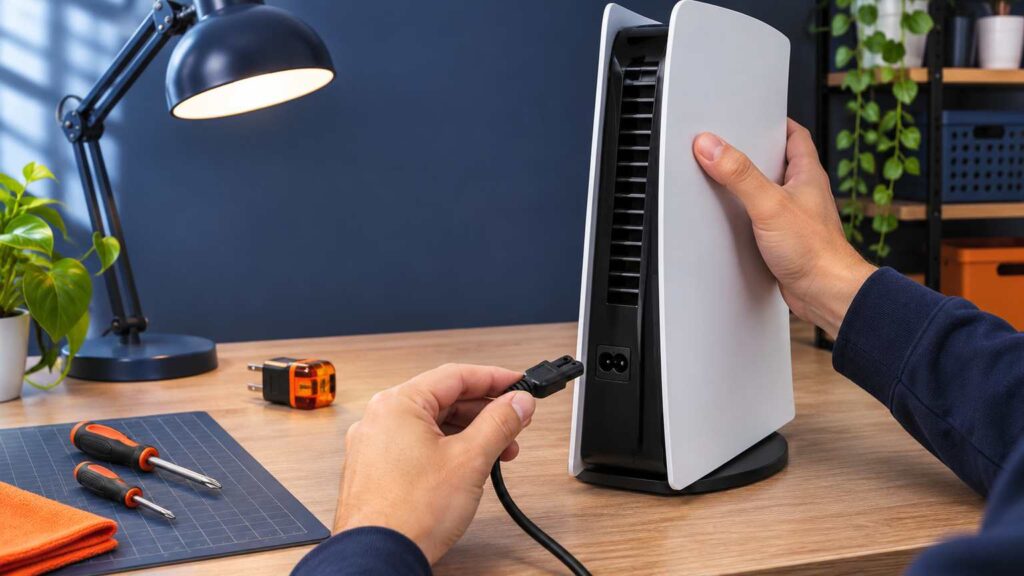
When a PS5 won’t turn on, the power indicator tells you which fix to run. Sony’s power indicator page sorts the problem into three states: solid orange is rest mode, blinking white or blue is a frozen console, and no light is a console that is off.
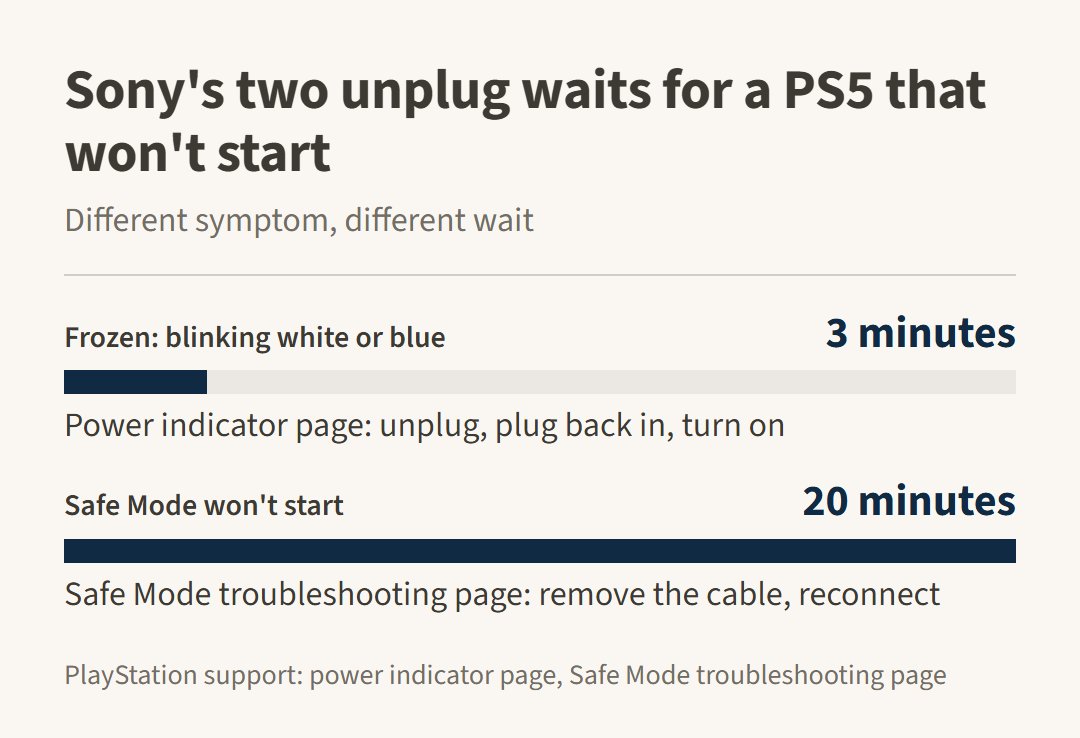
On a desktop that won’t power on, I test the outlet and swap the cord before suspecting the power supply. PS5 support pages start with the same cable swap and give two different waits for two different symptoms: 3 minutes for a frozen console, 20 minutes when Safe Mode won’t start.
PS5 won’t turn on: what each power indicator color means
Each light maps to a status on that page, and the fix depends on the status. Match the light on your console to a row.
| What you see | Label on the page | What to do |
|---|---|---|
| Solid orange | Rest mode | Hold the PS button on a USB-connected or previously paired controller. |
| Blinking white, or blue that never turns white | Console error (frozen) | Unplug the console, wait 3 minutes, plug it back in and turn it on. |
| Blue, then white | Powering on | Normal. If the console powers off immediately, go to PlayStation Repairs. |
| Solid white, no picture | Powered on | The console is on. No-picture cases go to PlayStation Repairs, and Safe Mode’s Change Video Output option is the one listed for blank screens. |
| No light | Powered off | Check the cord, the outlet and the plug, then run the 20-minute unplug. |
Pulsing red appears on that page under the PS4 console only. A PS5 that gets too hot shows an on-screen message instead, so there’s no PS5 light to wait for.
Solid orange means rest mode, not a dead console
Orange is a low-power state. To turn the console on from rest mode, hold the PS button on a USB-connected or previously paired controller. If the pad does not respond, fix the controller connection first. Pressing the console’s own power button works too, per the power options page.
Factory settings put the console into rest mode after it has been inactive for a while. An orange light on a console nobody has touched for a while is the default behavior, not a fault.
If neither the controller nor the button wakes it, go on to the frozen-console steps.
Blinking white or stuck blue: the 3-minute unplug
A console that only blinks white, or stays blue without turning solid white, counts as frozen. Unplug the console, wait 3 minutes, plug it back in and turn it on. A normal start shows blue, then solid white. If the problem keeps happening, reinstall the system software using Safe Mode.
One conflict between the pages matters here. Disconnecting the AC power cord while the power indicator is lit or blinking can lose or corrupt data and damage the console, the power options page warns. Yet the indicator page tells you to unplug a frozen console.
Try the turn-off method from the power options page first: hold the power button until the console beeps, after which the screen goes blank and the indicator flashes white before it goes out. If the button does nothing, unplug. Putting the button first is a judgment call, not Sony’s instruction.
Hold times are where advice drifts. One r/playstation thread about a console that wouldn’t turn on drew this top reply:
“Unplug from all. Hold in the power button on the console for 10 seconds. Let it sit until you can’t stand it anymore. Reattach everything and boot it up to Safe Mode. Go from there. Next time you have a little money buy a surge protector for God’s sake.”
– r/playstation, May 2026 (17 upvotes)
Ten seconds is that commenter’s number. According to the support pages, the hold lasts until the console beeps, or three seconds in the Safe Mode steps. Hold times belong to the console, and the Switch uses different ones, which the Nintendo Switch guide lists. Everything after that, wait with everything unplugged and then try Safe Mode, follows the same order as the support pages.
No light at all: cord, outlet, plug, then the 20-minute unplug
With no light, the first suspects sit on the wall side of the console. Work through these in order.

- Look over the cord. Sony’s safety guide says not to use a cord or cables that are damaged or modified, or any power cord other than the one included with the console.
- Check the plug and the AC IN connector on the rear of the console. The guide says to confirm there is no dust or small particles in or on the plug or the connector before you plug in.
- Test the outlet. Plug a lamp or phone charger into the same socket, then plug the PS5 straight into the wall instead of a power strip. That step isn’t from Sony. It’s the check I run on a PC that won’t start, before any part gets blamed.
- Run the 20-minute unplug. Hold the power button until the console beeps, wait for the indicator to flash white and go out, remove the power cable, leave the console for 20 minutes, then reconnect it. If the console is already dark, skip the button hold and start with the cable.
Safe Mode troubleshooting prints that 20-minute cycle for a console that won’t launch Safe Mode or keeps starting in it. That page doesn’t say the cycle applies to a dark console, but nothing is lost except time.
A console that goes blue and then solid white after the 20 minutes is starting normally. One that is still dark has used up the free checks.
If the console just came in from the cold
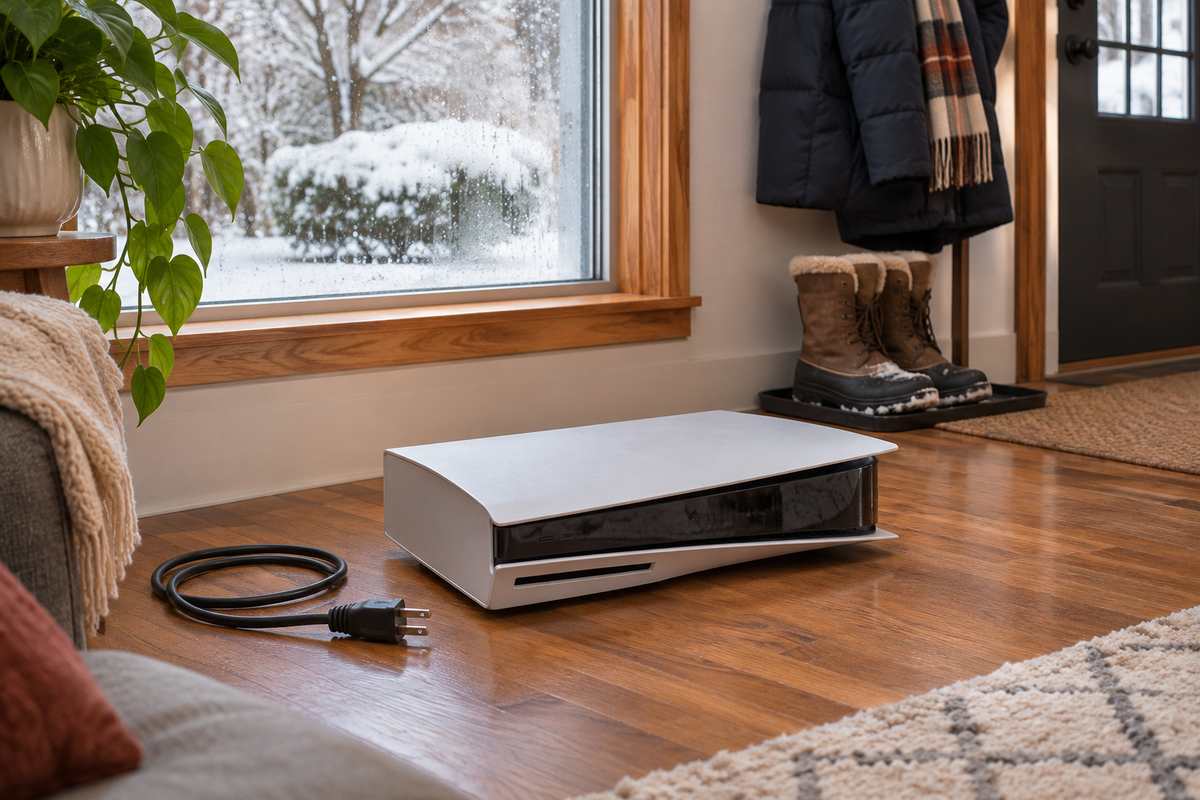
One cause in the safety guide has nothing to do with the cord. A console brought straight from a cold place into a warm room can collect moisture inside and may not operate properly.
Turn it off, unplug it and leave it until the moisture evaporates, which can take several hours. If it still misbehaves after that, contact customer support. A console carried in from a cold car or porch is the situation it describes.
Safe Mode: how to start it and what to try first
Safe Mode starts the PS5 with only the most basic functions active, according to Sony’s Safe Mode page. Its options can rebuild the storage database, change the resolution or reset the console to factory settings.
- Turn the console off by holding the power button for three seconds. The indicator blinks for a few moments before it turns off.
- Press and hold the power button again. Release it after the second beep: one beep sounds when you first press, and another seven seconds later.
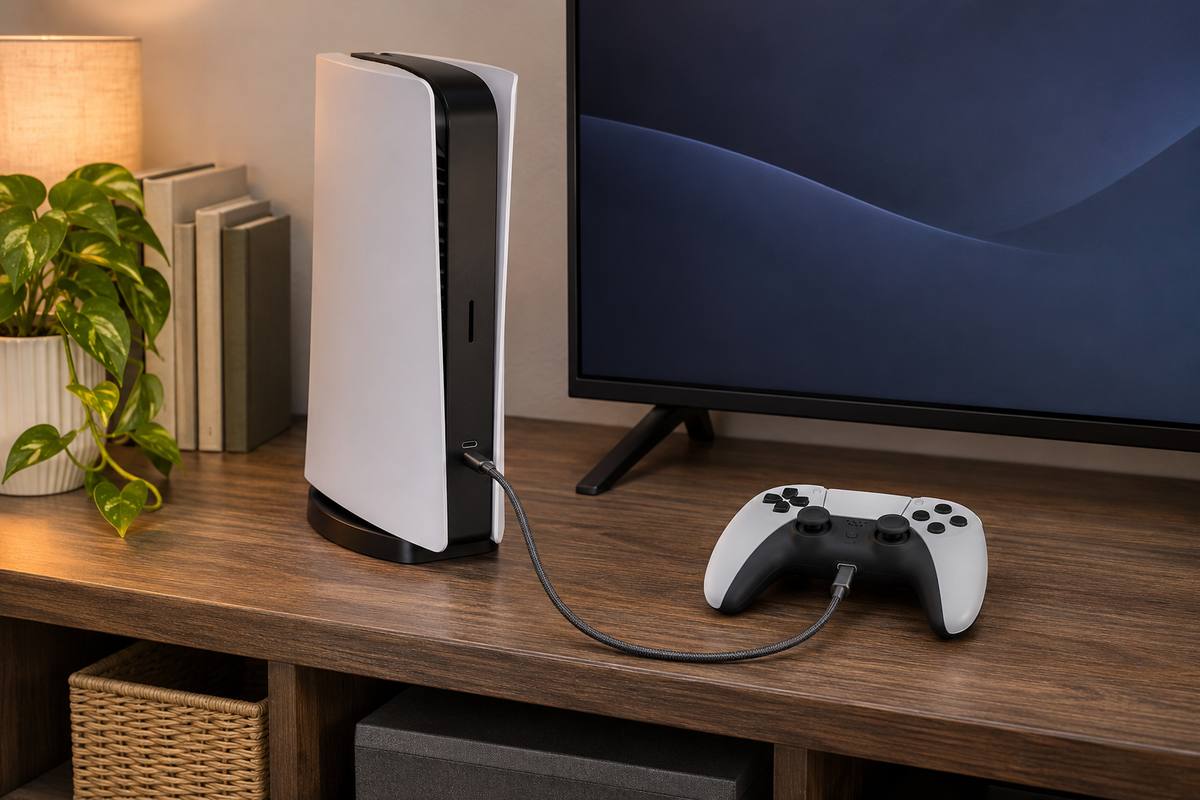
- Connect the controller with a USB cable and press the PS button.
Beeps are timing cues here, not fault codes. The indicator, Safe Mode and power options pages use them to mark the end of a hold, and none lists a beep pattern as a diagnosis.
If the Safe Mode menu never appears, the troubleshooting page points to the USB, HDMI or power cable. Swap each one for a different cable and try Safe Mode after every change, so you know which cable was at fault. If it still won’t launch, run the 20-minute unplug from the last section and try again.
Each PS5 menu entry, with what Sony says it does:
- Restart PS5 ends Safe Mode and restarts the console normally.
- Change Video Output offers Change Resolution and Change HDCP Mode, which help with blank screens.
- Repair Console Storage does not erase data. Try it if the PS5 doesn’t start up properly.
- Update System Software works by direct download or from a USB drive.
- Restore Default Settings keeps games, apps, screenshots, video clips and saved data.
- Clear Cache and Rebuild Database clears the system software cache or scans the drive and builds a new content database.
- Reset PS5 deletes all user data.
- Reset PS5 (Reinstall System Software) deletes all user data and removes the system software.
Try the entries that keep your data first, starting with Repair Console Storage and then Update System Software. The page doesn’t rank the entries, so that order is a suggestion. Before any option that loses data, back up to a USB drive or Cloud Storage, the Safe Mode page says, and Safe Mode’s menu has no backup entry. Both Reset entries therefore come last, just before PlayStation Repairs.
An update that failed, or a console that has been offline for a long time, can stop the console from starting. If Update System Software can’t download the file, put it on a USB drive instead. Format the drive FAT32 or exFAT, make a folder named PS5 with a folder named UPDATE inside it, and save the update file there as PS5UPDATE.PUP. Then choose Update System Software, Update from USB Storage Device, OK. If the console doesn’t recognize the file, check the folder and file names and type them in uppercase.
Original, Digital Edition, Slim and Pro: what changes
Nothing changes between PS5 models on Sony’s indicator, Safe Mode and power options pages. They are written for PS5 consoles as a group, and the only model split on them is the PS4 rows, such as the pulsing red overheating light.
Models matter in one place, the disc drive. The slim model’s safety guide covers attaching and removing it and describes a console bought without one installed, so any step that involves a disc applies only to a console with the drive in. Asurion’s guide suggests sliding a game disc into an empty drive as a wake-up trick. The indicator, Safe Mode and power options pages don’t mention it, so treat it as a long shot, not a step.
When to stop and use PlayStation Repairs
Stop the home steps when any one of these six conditions is true. The next move is the PlayStation Repairs diagnostic tool, not a screwdriver:
- The console is still dark after the cord, outlet and plug checks and the 20-minute unplug.
- Safe Mode won’t start after you’ve swapped each cable and run the 20-minute unplug.
- The light keeps blinking white or blue after the 3-minute unplug and a Safe Mode reinstall of the system software.
- The console powers off right after it turns on. The indicator page sends that case to PlayStation Repairs. If an overheating message came first, the PS5 overheating guide covers the airflow checks before you book anything.
- You notice an unusual smell or sound, or the case is too hot to touch. The safety guide says to stop using the console and disconnect the AC power cord immediately.
- Liquid has gotten in or the console has been dropped. The guide says there are no user serviceable components inside and to refer servicing to qualified personnel only.
Here the free ladder ends. One r/playstation poster described reaching it:
“I’ve unplugged it all night still won’t turn on I had tried in plugging and holding the power button and disc button then plugging back in I’ve tried different power cables and different outlets at this point I’m going to assume it’s broken”
– r/playstation, September 2026 (1 upvote)
Every step in that comment was a free one, and the console still showed nothing. Next comes the diagnostic tool, and the first year of the warranty is worth checking before you pay anyone: the limited hardware warranty in the slim model’s safety guide runs one year from the original purchase date and is valid only in the United States and Canada.
Four power issues are listed on the power issues page, including “PS5 console won’t turn on”. Each goes to the PlayStation Repairs diagnostic tool, which also checks whether the console is eligible for an under-warranty repair.