
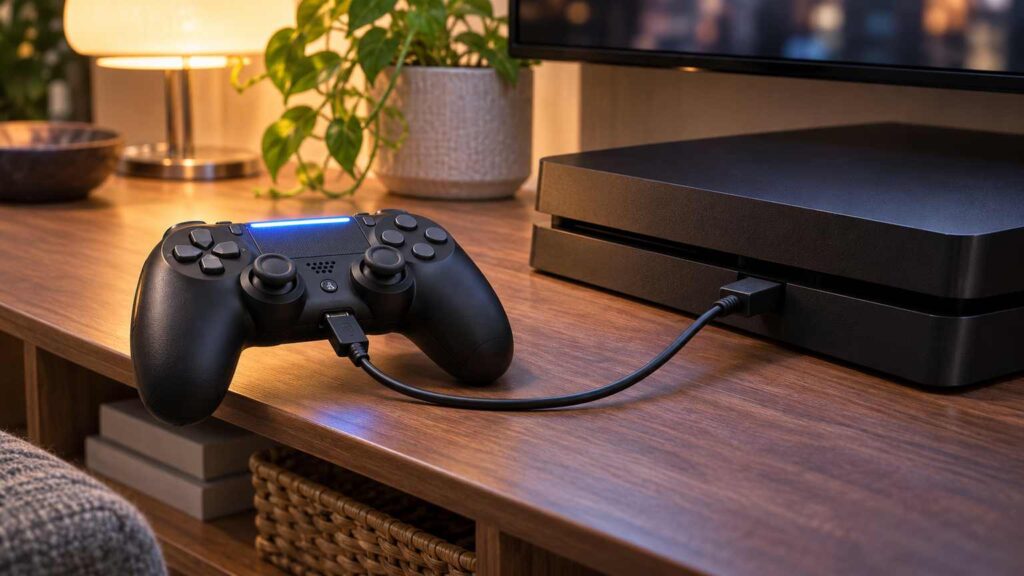
A PS4 controller not connecting is usually one of three things: a USB cable that charges but carries no data, a console that is off or in rest mode while you try to pair, or a pairing the PS4 still holds for some other pad. Sony’s fix for all three starts the same way, with the controller plugged into the console by cable.
Before you reach for the reset pin, plug the DualShock 4 into a USB port on the PS4 and watch the light bar for a few seconds, because what it does next points to the cause and saves you from resetting a controller that only needed a different cable.
PS4 controller not connecting? Plug it in and read the light bar
The light bar on a DualShock 4 tells you whether the problem is power, pairing or the wireless link. Sony’s PS4 User’s Guide says the bar glows blue, red, green or pink depending on player order, and slowly blinks orange while it charges in rest mode.
Use the PS4’s own USB port for this test, not a phone charger, then match what you see:
| What the light bar does on the cable | Most likely cause | First move |
|---|---|---|
| Nothing on any cable or either port | Charge-only cable, or a battery run flat | Swap to a data cable, try the other port, then let it charge |
| Slow orange blink and nothing on the TV | The PS4 is in rest mode, so the pad is only charging | Turn the console fully on, then press the PS button |
| Blue, red, green or pink, but no game control yet | The pad paired and the PS4 is waiting for a user (Sony’s step is PS button, then pick a user) | Press the PS button and select a user |
| Glows while wired, drops when you unplug | The Bluetooth pairing is stale or the paired list is full | Forget the pad in Bluetooth Devices, then pair it again by USB |
| A brief flash, then dark | Owners report this when the console refuses the pairing | Full shutdown, pin reset, then pair by USB |
The last row comes from owner reports. The PS4 guides publish the player colors and the orange charging blink. Nothing in them covers a white or blue flash, so treat that one as “not paired yet” and work through the pairing steps below.
Use a data cable on a console that is awake
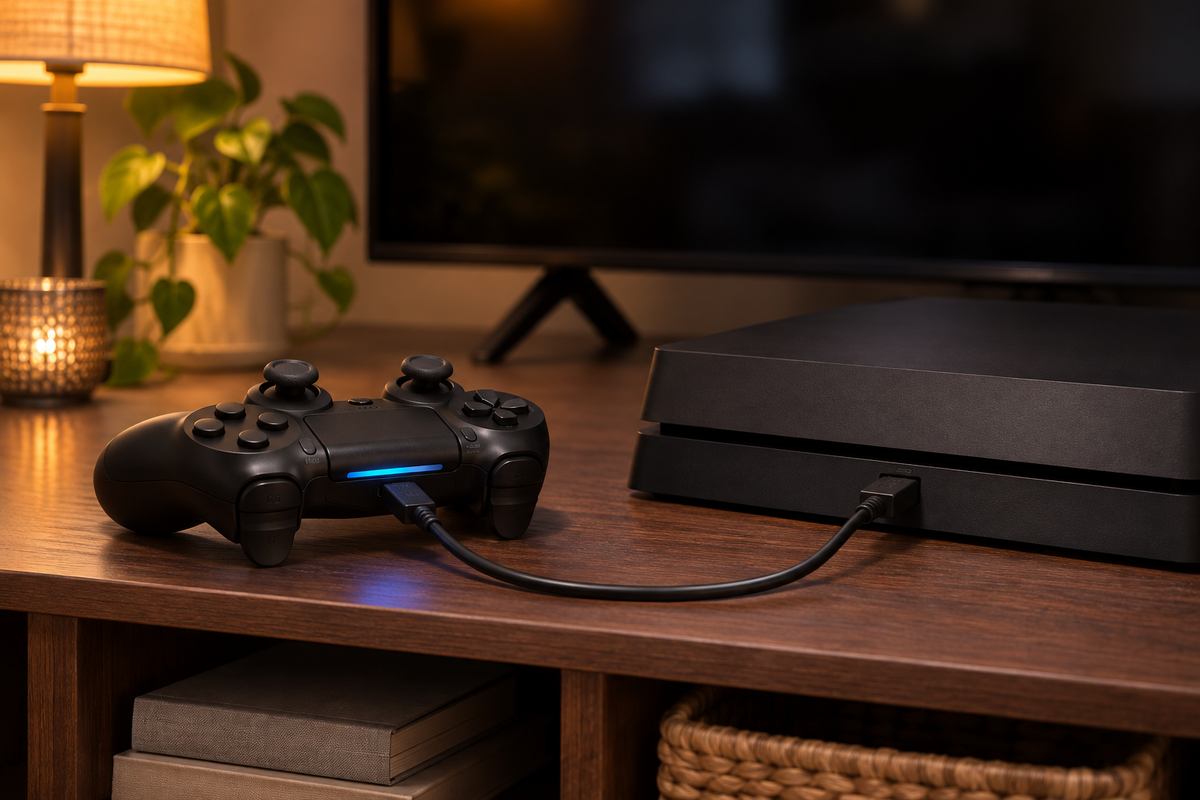
Pairing needs a cable that carries data and a PS4 that is switched on. The first use, and any move to another PS4, needs the controller connected by USB cable while the system is on, per the PS4 User’s Guide.
Some micro-USB cables only carry power. They will charge the pad and never let the console see it. The troubleshooting steps call for the official USB cable for that reason. If yours is long gone, use one sold for data transfer or file sync.
On laptops that won’t charge, the first thing I swap is the cable. It costs nothing and rules out the cheapest fault first. A DualShock 4 gets the same test before anything comes apart.
“switching out the cable fixed the issue, thanks! none of my cables were pairing the controller, so I ordered one that specifically said it would do data transfer. and it worked! now I’m just perplexed about why the other one *was* working before, but maybe I just mixed up my cables at some point lol. anyway, thanks again!”
– r/consolerepair, July 2026 (2 upvotes)
That owner had been using the controller on a laptop before the trouble started, and none of the cables in the house would pair it.
Charging but not connecting
A slow orange blink means the PS4 is in rest mode and the pad is only charging. The PS4 User’s Guide says the bar blinks orange while it charges in rest mode and switches off when charging is done, which can look like a dead controller.
Rest-mode charging also depends on a setting. Go to Settings, Power Save Settings, Set Features Available in Rest Mode, Supply Power to USB Ports, and pick anything other than Off. With it off, a pad plugged into a sleeping PS4 gets no charge at all.
A fully drained pad needs about 2 hours to charge, per the same guide, which also says it may not charge efficiently outside 10 to 30 °C (50 to 86 °F). The same guide asks owners to charge the pad fully at least once a year, so one that has sat in a drawer for a long time may need that first long charge before it will pair.
Clear the stale pairing from the PS4 side
The PS4 keeps a list of every Bluetooth device it has paired, and when that list is full the PS4 User’s Guide has you remove the ones you no longer use. Clearing the old entry and pairing the pad again by USB fixes a controller that only works on the cable.
You need a working controller, or the stubborn one plugged in, to reach the menu:
- Open Settings, then Devices, then Bluetooth Devices.
- Highlight the DualShock 4 that keeps dropping and press the OPTIONS button.
- Select Forget Device.
- Plug the controller into the PS4 with the data cable while the console is on.
- Press the PS button. The bar should settle on a player color and the PS4 should ask you to pick a user.
- Unplug the cable and press a button. If the pad keeps working, the wireless pairing has taken.
Each controller pairs on its own, so a second controller that came in a gift box needs its own trip on the cable even if the first one already works; the PS4 User’s Guide says two or more pads must each be paired separately.
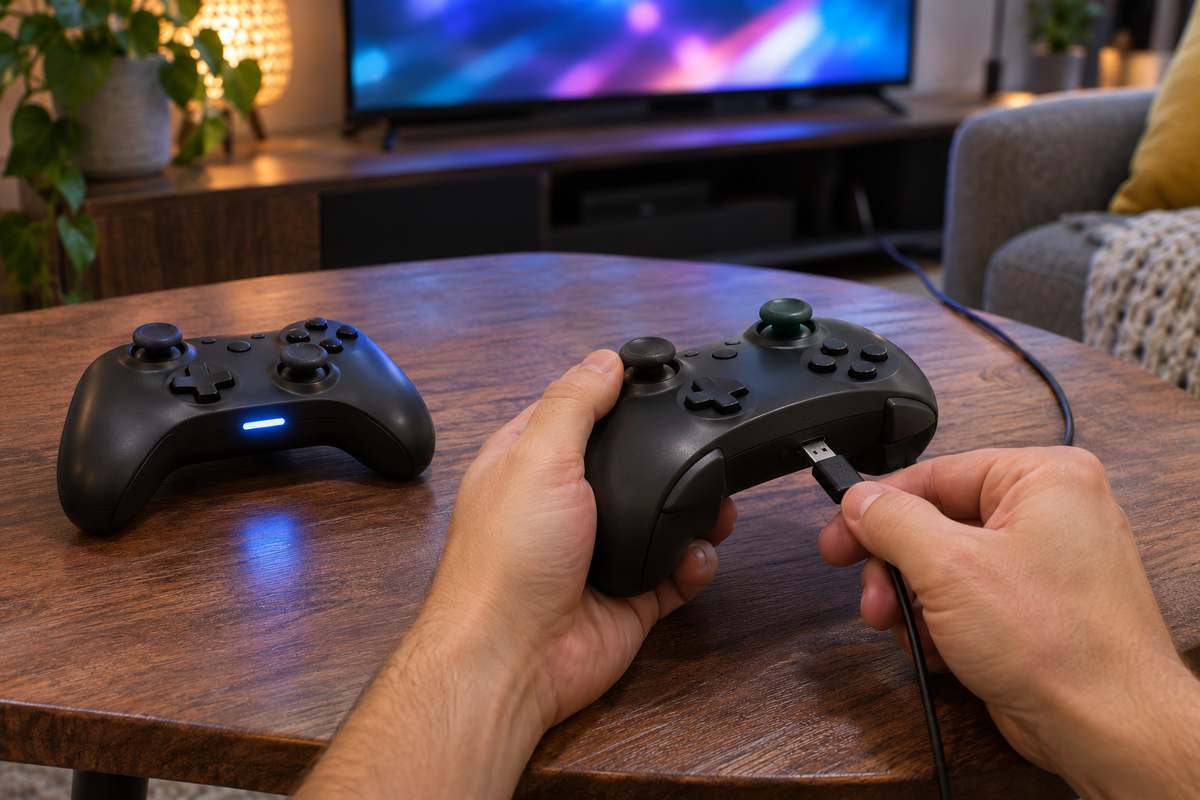
A pad that spent the weekend on a friend’s PS4 or your PC comes back the same way, through a data cable with the console switched on.
Reset the DualShock 4 in Sony’s order
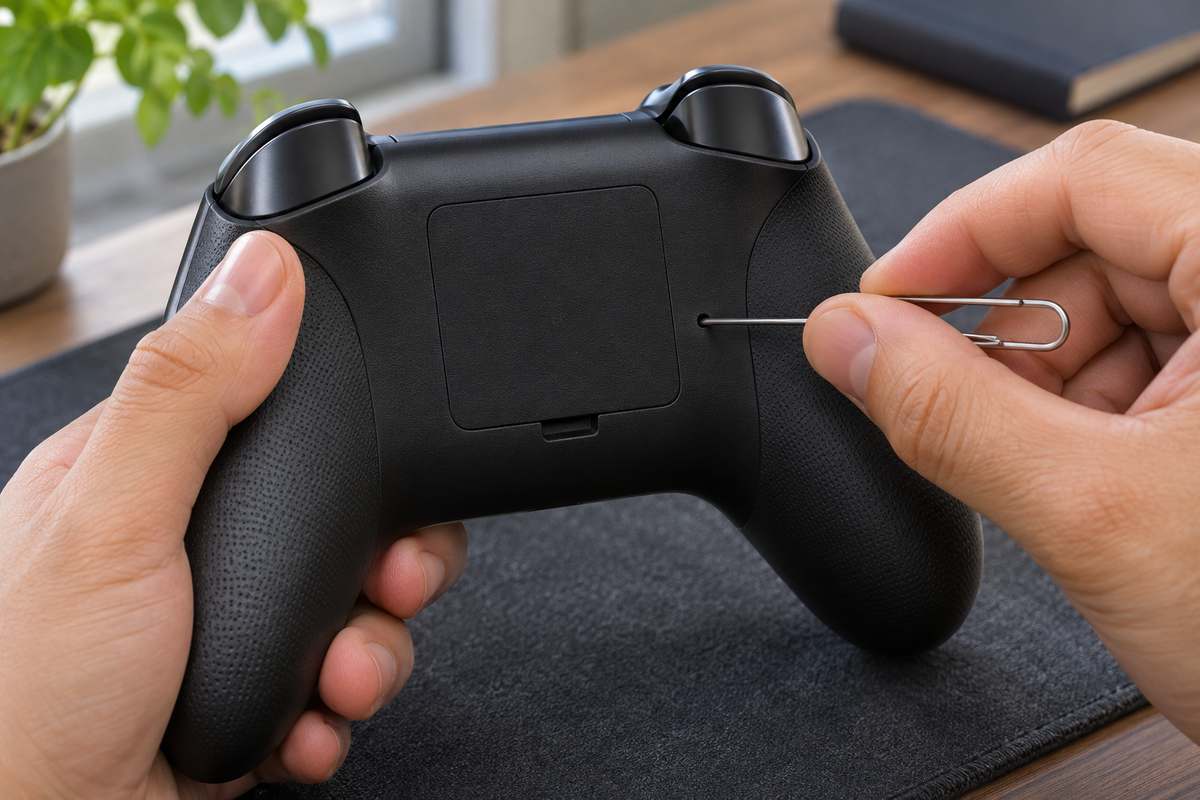
The DualShock 4 reset button sits inside a tiny hole on the back of the pad. Sony’s support page says to hold it for at least five seconds with a paper clip, with the PS4 turned off and unplugged first.
Turn the PS4 off properly before you start. Hold the power button for at least 7 seconds, until the system beeps twice, as the PS4 power guide describes. A single beep only puts it in rest mode.
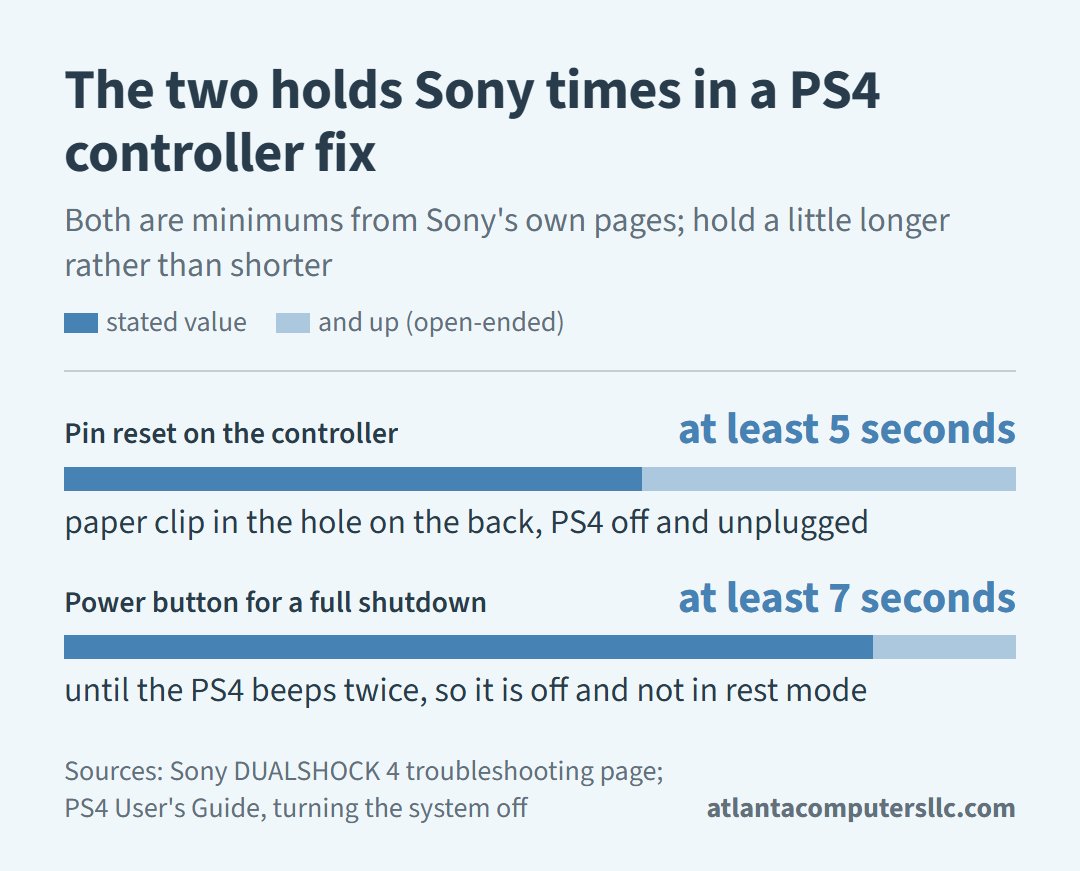
Then follow the order on Sony’s DualShock 4 troubleshooting page:
- Unplug the PS4 from the wall.
- Disconnect the controller from the USB cable.
- Push an unfolded paper clip into the hole on the back and hold the button for at least five seconds.
- Plug the PS4 back in, connect the controller to a front or rear USB port with the cable, and turn the console on.
- Press the PS button to pair.
A pin reset works on the pad and leaves the PS4’s own Bluetooth list alone, so if that list is still full, go back and forget the old entry first.
While you have a working pad, check for a system update under Settings, then System Software Update, the path Sony lists on its PS4 update page.
CUH-ZCT1 or CUH-ZCT2: why the model matters here
Only the second DualShock 4, the CUH-ZCT2 series, can talk to the PS4 over the USB cable instead of Bluetooth. Sony’s PS4 Controllers guide lists that option as Communication Method, and it only appears after a CUH-ZCT2 has been connected to the console.
Telling them apart takes one look. The PS4 User’s Guide notes that the light bar strip on the touch pad does not glow on the CUH-ZCT1 series, so a pad that lights only at the top edge is the first model. That is how the first model was built.
If you have a CUH-ZCT2 whose wireless link has died, set Settings, Devices, Controllers, Communication Method to use the USB cable and keep playing wired while you sort out a repair. A CUH-ZCT1 has no such option.
Sony’s steps are written for its own controllers, and third-party pads can behave differently, as this owner found:
“I hooked up my PS4 and my controller wouldn’t connect. It’s not an original one, and no matter how many times I pressed the reset button or tried different USB cords, it just wouldn’t blink right. The PS button flashes white for a second and dies. It pairs with my phone just fine, but the PS4 ignores it. Turns out, most of the time this is about the cable or how you’re trying to sync it. You need a proper USB data cable, not just a charging cable. Some generic cords don’t actually transfer data…” [excerpt — 1,083 characters in full]
– r/PlayStation_X, January 2026 (25 upvotes)
If a third-party pad still won’t pair after a data cable and its own reset, check its maker’s manual for a PS4 mode or pairing button combination.
Where the DIY fixes end
Sony’s own route ends at PlayStation Repairs. After the reset, its DualShock 4 page sends pairing issues, controller disconnects and battery issues straight to the repair service, with no further home steps.
Stop and book a repair if:
- The light bar stays dark on two data cables, in both PS4 ports, after a two-hour charge.
- The pad pairs on the cable but drops every time you unplug, even after Forget Device and a pin reset.
- The controller case is bulging or split. That points to the battery, and a swollen battery is a stop-and-recycle job, not a pairing fix.
A DualSense on a PS5 uses a different pairing system with four slots, so its steps don’t carry over. That one is covered in PS5 controller not connecting.
FAQ: charging time, PC sessions and a flashing light
How long does a PS4 controller take to charge?
A PS4 controller takes about 2 hours to charge from empty, according to Sony’s PS4 User’s Guide. Hold the PS button to see the charge level on screen, and charge it somewhere between 50 and 86 °F.
Why won’t my PS4 controller connect after I used it on a PC?
A DualShock 4 used on a PC has to be paired with the PS4 again before the console will take it back. Plug it into the PS4 with a data cable while the console is on and press the PS button. Sony writes that step for moving a pad between consoles and says nothing about PCs, but it is the same cable pairing that brings the pad back.
PS4 controller not connecting and flashing white or blue: what does it mean?
Sony publishes no meaning for a flashing white or blue light on a DualShock 4. Its PS4 guide only lists the player colors and the slow orange charging blink, so a pad that flashes and goes dark is best treated as unpaired: data cable, console on, PS button, then the pin reset if that fails.
The full list of what the PS button, light bar and charging behavior should look like is in Sony’s PS4 User’s Guide page on the wireless controller.