
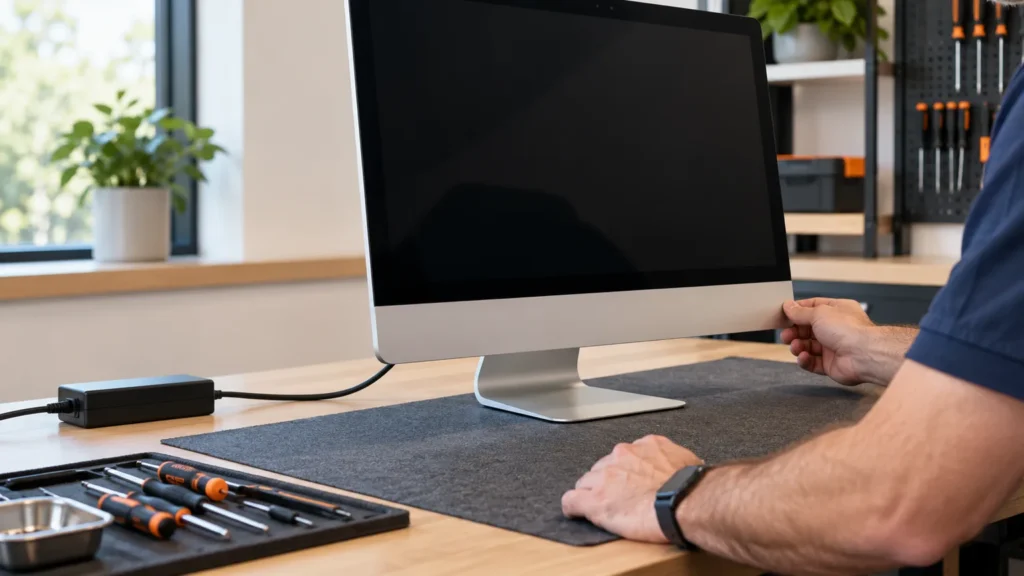
When your iMac won’t turn on, treat it as a power-path problem until it proves otherwise: the cord, the wall outlet and, on the 24-inch iMac, the external power adapter. Apple’s own checklist starts there too, then moves to a 10-second power-button hold and unplugging every accessory.
I run these checks in the same order on every machine: free fixes first, parts second, a shop last. Dell, HP and Lenovo machines filled most of my bench, so every Apple-specific step here comes from Apple’s support pages, not from memory.
Telling a dead iMac from a dark screen
Press the power button once and watch for any sign of life: fan noise, a startup chime, a glow behind the glass. Any sign means the iMac is running, and the problem is the display or the startup. Skip ahead to the black-screen section. Apple treats the two cases separately for the same reason, with one page for a Mac that won’t turn on and another for a Mac that seems on but shows a blank screen.
No fan, no sound and no light means the power path. Start there.
Settle the chip now, because the reset and recovery steps differ by it. Apple lists every iMac introduced in 2021 or later as Apple silicon. Its model-identification page shows that group as the 24-inch iMacs, from the 2021 M1 through the 2024 models, while the 21.5-inch line ends with 2019 and the 27-inch with 2020. So the late-2017 27-inch in a r/iMacRepair thread runs an Intel processor, and a 24-inch iMac does not.
On a Mac that starts, About This Mac shows a Chip line for Apple silicon and a Processor line for Intel. A dead iMac can’t show you that screen, so go by the screen size and the year you bought it.
When the iMac won’t turn on at all: cord, outlet, adapter
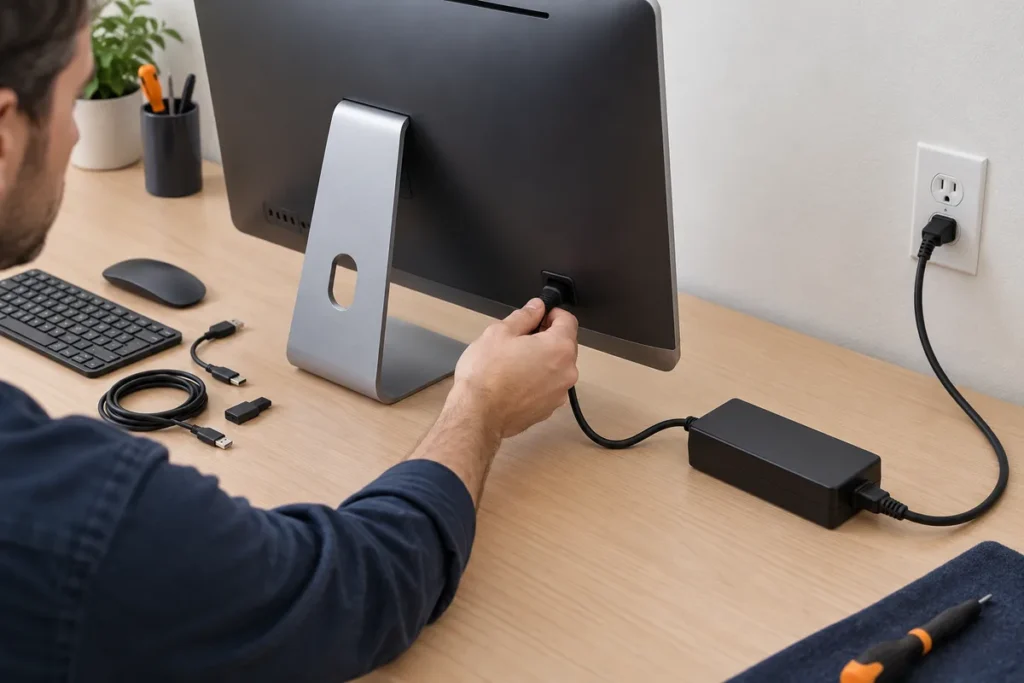
Seat the power cord firmly at both ends, then plug it straight into a wall outlet instead of a power strip or surge protector. A strip is one more part that can fail.
Apple’s page asks for the same things: an undamaged cable, plugged securely into the Mac and into a working outlet, and a different compatible cable or adapter if you have one to try. Prove the outlet works by plugging a lamp into it. I carry a multimeter, but the lamp is faster and nobody has to read a dial.
On the 24-inch iMac the power adapter is a separate brick that also carries the Ethernet port, which makes it a part you can swap without opening anything. An iFixit Answers thread from May 2024 shows how that plays out. A 24-inch M3 iMac had sat idle through a stretch of power outages, then would not turn on, though the power button still clicked. The store swapped in a different adapter, the iMac came on, and the adapter was named as the failed part. That is one case, not a failure rate. It does show why borrowing a matching adapter is worth an afternoon before anyone blames the computer.
Press the button, then clear the desk
I work through these before anything that touches the disk. I back up or image a drive before any repair that touches it, and an iMac that won’t start makes that hard, so the steps that leave the disk alone go first. Apple’s page for a Mac that doesn’t turn on gives this sequence:
- Press and hold the power button for about 10 seconds.
- Release it, then press and release it normally.
- Unplug everything except the power cord: printers, external drives, USB hubs and phones. Apple names accessories and their cables as a possible cause.
- Repeat steps 1 and 2 with the desk cleared.
If the iMac starts after step 3, plug the accessories back in one at a time. The last one you connected before it failed again is your suspect.
Apple silicon or Intel: the resets that differ
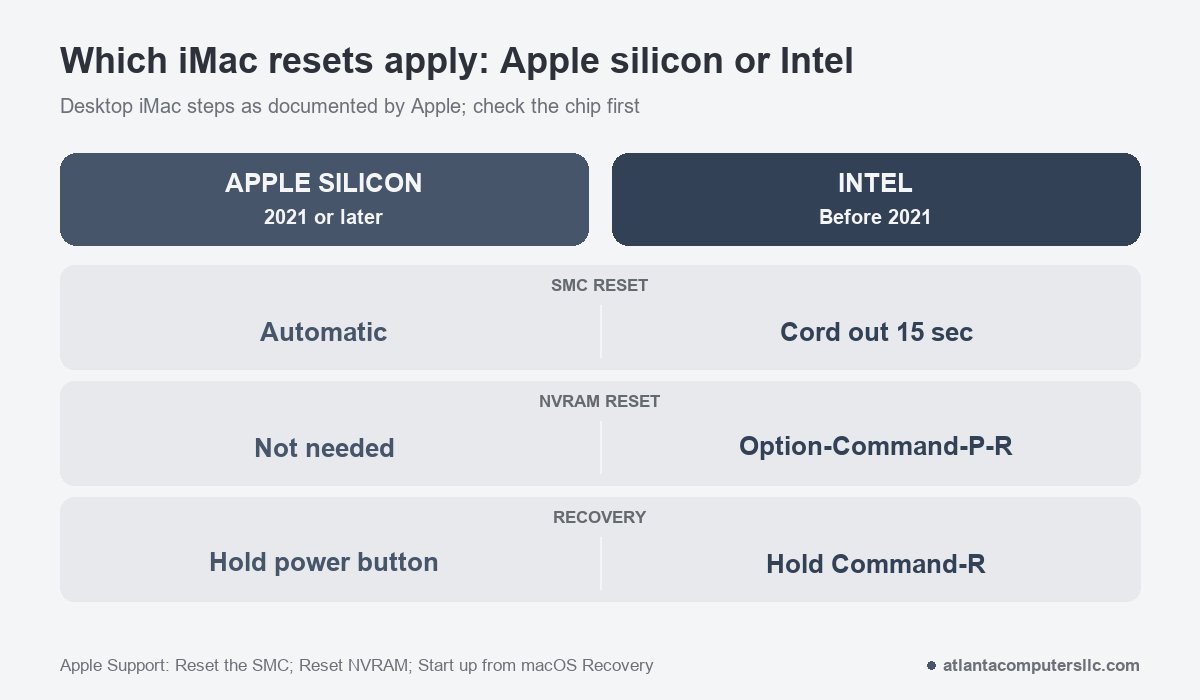
Here the chip matters. The SMC (system management controller) handles power button behavior, and Apple says that on a Mac with Apple silicon it resets automatically: restart, or shut down and press the power button, and nothing else is needed. On an Intel desktop iMac, Apple’s SMC reset page has one procedure. Shut down, unplug the power cord, wait 15 seconds, plug it back in, wait 5 seconds, then press the power button.
The Shift-Control-Option key combination on that page belongs to laptops. A desktop iMac gets the cord pull and nothing more.
NVRAM is the second reset. It stores settings such as sound volume, display resolution and the startup-disk choice. Apple says the reset applies only to Intel-based Macs and isn’t needed on Apple silicon. On an Intel iMac, shut down, turn it on, and immediately hold Option-Command-P-R, releasing after about 20 seconds. That is worth trying on an iMac that powers up but behaves oddly, and it will not bring back one that shows no sign of life.
If it runs but the screen stays black
Hold the power button for up to 10 seconds until the iMac switches off, then turn it on again. That is Apple’s first step for a blank screen. If the screen is still black, try macOS Recovery next.
- Apple silicon iMac: shut down, then press and hold the power button until you see “Loading startup options” or an Options icon. Click Options, then Continue.
- Intel iMac: press the power button and immediately hold Command-R until an Apple logo or a spinning globe appears.
If Recovery loads, use Disk Utility to repair the startup disk and restart. Still blank after that? Apple’s next step is to reinstall macOS from Recovery. Apple says a reinstall doesn’t remove personal files, and I would still copy off anything irreplaceable first if the machine lets me.
Safe mode helps when software that loads at startup is the suspect. It only applies once the iMac gets as far as a login window. On Apple silicon, get to the startup options as above, select your startup disk, hold Shift and click Continue in Safe Mode. On Intel, hold Shift right after startup until the login window appears. Apple Diagnostics, which checks for a failing hardware part, is Command-D at the Options screen on Apple silicon and the D key at startup on Intel, with Option-D as the fallback.
If Recovery won’t load at all, the cause may be the firmware. Apple documents a revive or restore for Apple silicon and T2 Macs, but it needs a second Mac running macOS 14 or later and a USB-C cable that carries data. If you don’t have both, that is a job for Apple or a shop.
When the iMac stalls on the Apple logo
A logo, then a progress bar, is normal startup, and the screen may flash blank a few times in between. After a macOS update the bar can crawl and pause for long stretches, and Apple suggests starting an update in the evening so it can finish overnight. Give an update that long before you touch anything.
If startup never gets past the logo or bar, run the same sequence as before. Hold the power button up to 10 seconds, turn the iMac on again, then unplug nonessential accessories and try once more. After that, start from Recovery, repair the startup disk in Disk Utility, and reinstall macOS if needed. An iMac that keeps coming back to the logo after all of this needs service, per Apple.
Where DIY stops
You have now covered the cord, the outlet, the adapter, the 10-second hold, the accessories and, on an Intel iMac, the cord pull. If nothing responds, the fault is in the power supply or the logic board, and neither is a screwdriver job.
Getting to those parts means cutting the display loose. Apple’s repair procedure for the 24-inch M1 iMac says the display is attached to the housing with adhesive strips, removed by cutting through them with an adhesive cutter, and it warns against running the cutter across the camera area because damage there requires a display replacement. iFixit’s guide for the 27-inch 5K power supply opens with a different warning: unplug the iMac and hold the power button for ten seconds to discharge the capacitors, and keep clear of the capacitor leads. Glued glass is not a spudger job. I don’t do board-level microsoldering either, so a dead logic board ends my list of fixes.
One reply in the r/iMacRepair thread about that late-2017 27-inch, whose power button did nothing, shows where the checklist leads once the cheap fixes fail:
“next is to try power on the unit only with minimal part connected. can start with PSU + fan only. see if it goes to 2nd and 3rd LED.”
– r/iMacRepair (2 upvotes)
That is bench work on an opened machine. Stop here if you smell burning, see scorching at the cord or the adapter, or reach the end of the list with no sign of life. Take the iMac to Apple, an Apple Authorized Service Provider or a repair shop, and tell them which checks you ran. Bring the power cord and the adapter too, since the shop will want to try them.
