
A PS5 black screen with the light on and the fan running is usually a problem in the path between the console and the screen. That path is the TV input, the HDMI cable, the port, or a video setting your TV can’t handle. A console that shows no light at all is a different job, covered in PS5 won’t turn on. A picture with no audio belongs to PS5 no sound.
When a desktop gives me no display, I try the monitor on another input and another cable before I blame the graphics card. Sony’s own no-image page works in much the same order. It starts with the HDMI connection, then a 20-minute power-off, and sends you to PlayStation Repairs last. What changes is which step fits, and that depends on when the picture disappears.
Before anything else: the 30-second split
One change at a time.
- Cycle your TV through its inputs and make sure the HDMI channel matches the port the PS5 is plugged into.
- Press the cable in firmly at both ends. The one packed with the console is the safest choice, and the console’s safety guide says to use it.
- Move the cable to a different HDMI port on the screen. If the port has an HDMI 2.1 label, use that one.
- Borrow a second HDMI cable, or try a second TV or monitor if you have one.
- Unplug the TV from the wall for a few minutes. Turning it off with the remote doesn’t count.
Those first three come straight from Sony’s no-image troubleshooting page, which adds a fourth: plug the console directly into the screen and disconnect anything else on the chain, such as a sound bar, home theater receiver or capture device. The wall-unplug step is not on Sony’s page. Reddit threads recommend it often, though, and it costs nothing:
“Try unplugging the TV from power for a few minutes. It might be a HDCP issue with the TV. And I don’t mean power it off. It needs to be physically unplugged from the outlet.”
– r/playstation, October 2022 (33 upvotes)
Read the result like a verdict: if the picture comes back on a second TV or with a second cable, the console is fine and the first screen or cable is the problem. If another device works on the original TV and port, the fault sits in the console or its HDMI port.
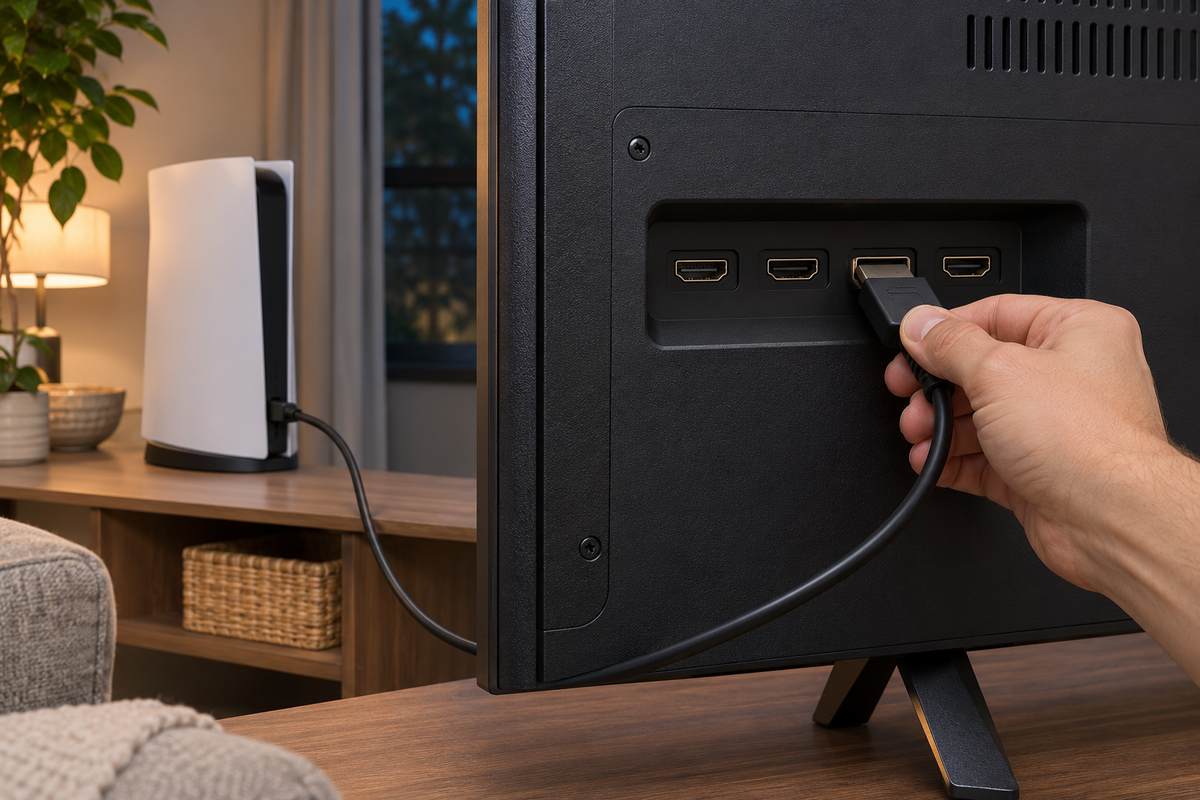
PS5 black screen from the moment you turn it on
A console that never shows a picture, even briefly, may have lost its handshake with the screen, or it may be holding a video setting the screen rejects, and Sony’s pages don’t say which. After the swap test, power both ends down properly. Turn off the TV and the console, pull both power cables, wait 20 minutes, then reconnect everything and turn it all on. That is Sony’s third step on the no-image page, and its Safe Mode troubleshooting page uses the same 20 minutes.
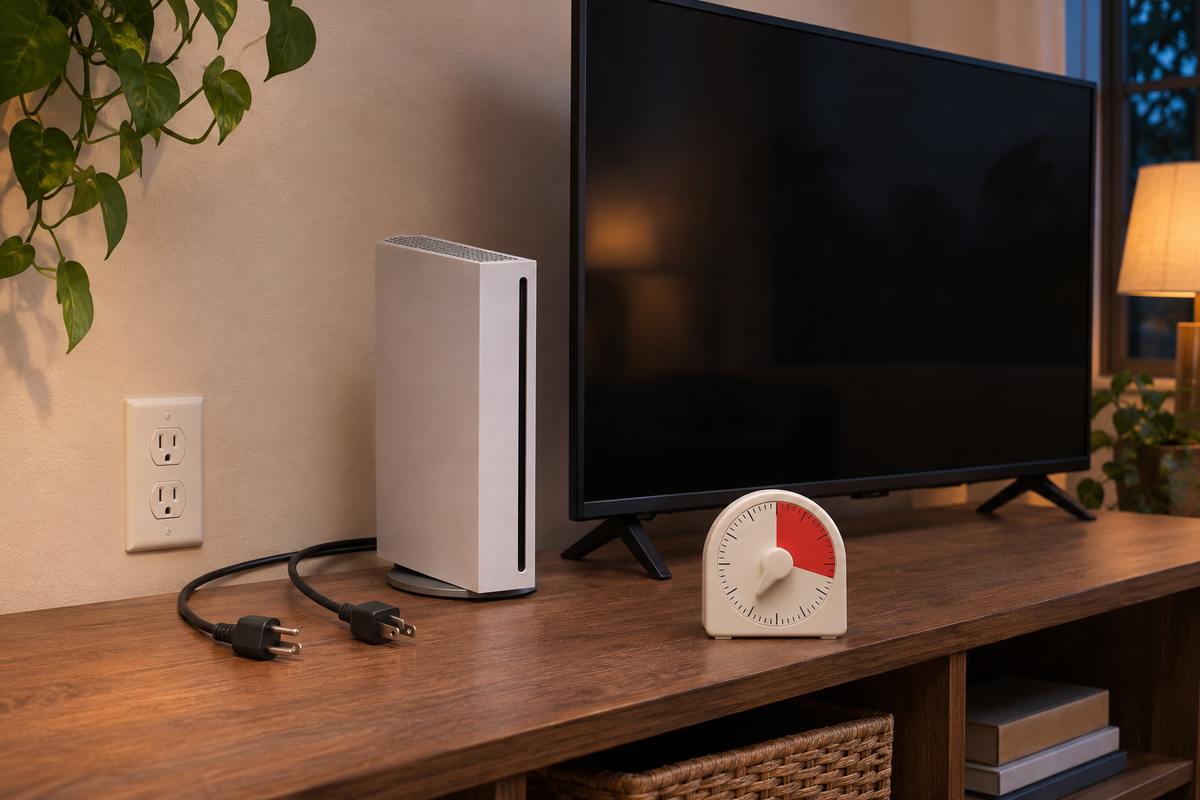
Check the TV’s firmware too, and read your TV manual for any setting needed for high-resolution signals. On a TV with HDMI 2.1 ports, the resolution guide adds that HDMI 2.1 support may need a setting changed on the TV itself.
Shop guides add more: a 60-second unplug, a 10-second power-button hold, a menu path to switch HDCP off. None of that is on Sony’s pages, and the HDCP path needs a picture you don’t have yet. The only HDCP control on Sony’s pages lives in Safe Mode.
Safe Mode when you can’t see a menu
Safe Mode starts the console with only the basic functions, and its Change Video Output entry exists for screens like this. Sony’s Safe Mode page says that entry’s Change Resolution and Change HDCP Mode options can be helpful when troubleshooting blank screens.
- Turn the console off by holding the power button for three seconds. The indicator blinks for a moment, then goes out.
- Press and hold the power button again. Let go after the second beep. The first sounds as you press, the second seven seconds later.
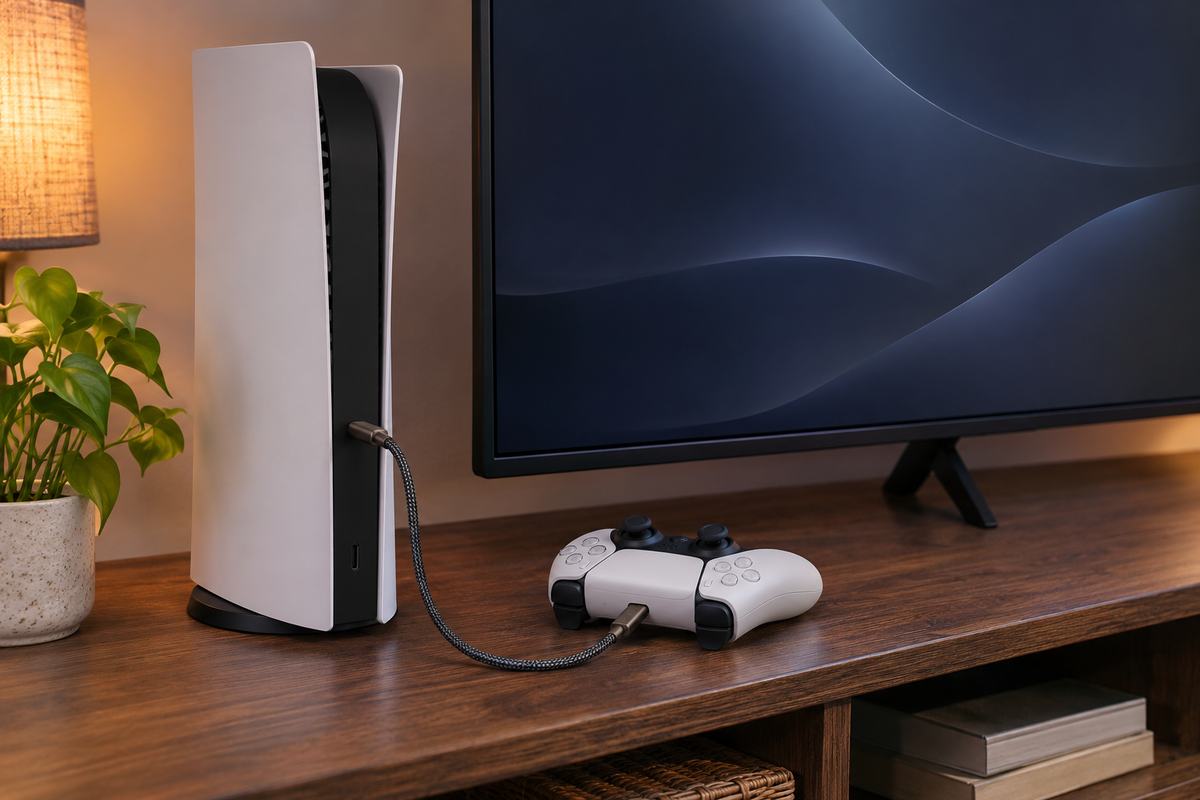
- Plug the controller into the console with a USB cable and press the PS button.
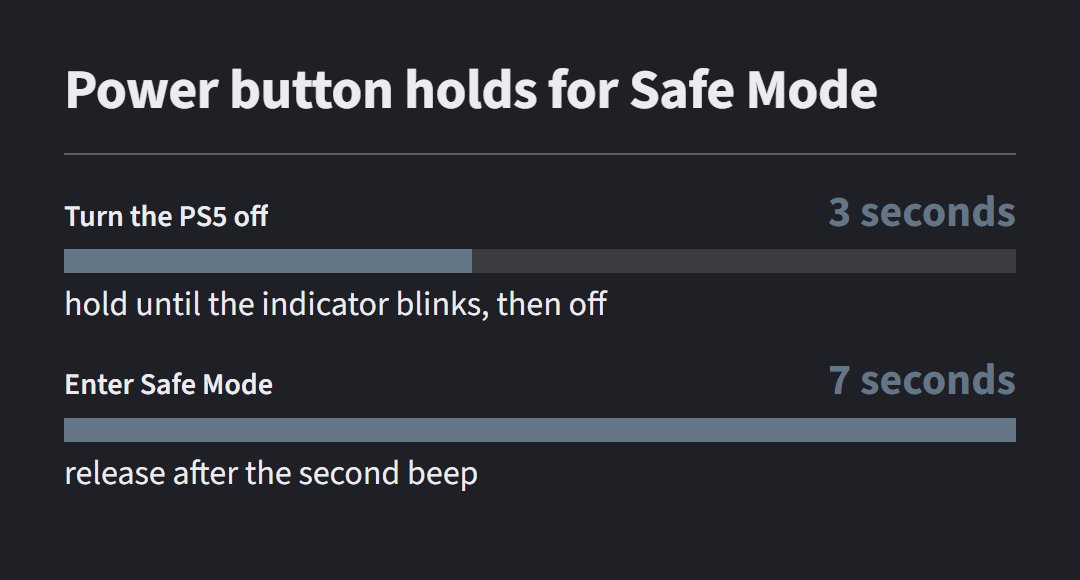
You’ll hear the beeps even with a black screen. Count them. If the Safe Mode menu never appears, swap the USB, HDMI and power cables one at a time and try again after each swap. If it still won’t start, run the 20-minute power-off from the last section. The longer version, with every Safe Mode entry, is in the won’t turn on guide.
Once the menu shows, pick Change Video Output, then Change Resolution, and choose a setting your TV is known to handle. Change HDCP Mode is the other option in the same entry. Trying it second is a suggestion here, not an order from the page.
If the picture only dies after the startup screen, Clear Cache and Rebuild Database is the entry that fits. Clear System Software Cache is for system feature issues, and Rebuild Database scans the drive and creates a new database of everything on it. The page doesn’t flag either one as erasing data, which it does for the Reset entries below.
Two other entries sit nearby and are less risky than they sound. Repair Console Storage doesn’t erase data, and Sony points it at a console that doesn’t start up properly. Restore Default Settings keeps games, apps, screenshots, clips and saved data. The two Reset PS5 entries delete all user data, and Safe Mode has no backup option. Leave them for last.
Black only in some games, at 120 Hz, or with HDR
If the home screen looks fine and the screen goes dark when a game launches, the video output settings are the next suspect. They sit under Settings, then Screen and Video, then Video Output, and Sony’s resolution guide describes each one.
- 120 Hz Output: turn it off if you get video problems on a monitor or other display.
- VRR with Apply to Unsupported Games: turn that off if games behave unexpectedly.
- Video Transfer Rate: choose -1 or -2 if the picture flickers, which limits 4K 120 Hz output among other things.
- HDR: Always On forces HDR output even for games that don’t support it, so On When Supported is the gentler setting.
Change one, test, then change the next. A Reddit commenter on a thread about black screens when opening or closing apps found the VRR switch was the one:
“For me it was vrr. I turned off “apply for unsupported games” and it doesn’t do it anymore :)”
– r/PS5, January 2023 (17 upvotes)
One person’s fix isn’t a diagnosis. It does match the menu entry Sony describes, so try it before replacing anything.
For a screen that stays black when the console should be sending 4K at 120 Hz, the resolution guide has a checklist:
- The TV has to claim support for 4K 120 Hz, and it should be on its latest firmware.
- The cable should be the one included with the console or an Ultra High-Speed cable rated for 4K 120 Hz.
- The console should connect straight to the TV, not through a receiver or other equipment that could affect the signal.
- Use the TV’s HDMI 2.1 port, and switch on any TV-side setting for HDMI 2.1 that the manual lists.
- Set Resolution to Auto or 2160p, and set Video Transfer Rate to Auto.
If you can’t reach the menu to check, use Safe Mode’s Change Resolution first. Then put the settings back one by one from the menu.
Black in the middle of a session
Mid-game blackouts split into two kinds. A blackout that clears by itself after a few seconds is most often blamed on a change in video mode, which is why the 120 Hz, VRR and transfer-rate settings above are the first place to look. Sony’s pages don’t name this case, so treat that as a lead, not a finding. If the console also shuts itself down, think heat.
Look for the too-hot notice. Sony’s safety guide says a console that becomes too hot shows a notification on screen, and that continued use while it displays may make the console non-operational. If you saw it before the picture died, turn the console off, let it cool, and read the PS5 overheating guide before turning it on again.
Stop here and use PlayStation Repairs
Stop the home steps once you’ve swapped the cable, the port and the screen, changed the video output in Safe Mode, and still see black. The same goes for any of these:
- The HDMI port on the console looks bent, loose or physically damaged. That’s not from a Sony page, but no menu setting repairs a damaged port.
- Safe Mode won’t start after you’ve swapped each cable and run the 20-minute power-off.
- The console smells odd, makes unusual sounds or is too hot to touch. The safety guide says to disconnect the AC power cord immediately.
The safety guide also says the console has no user serviceable components, and that servicing belongs to qualified personnel. So there’s no opening the case to reseat anything. Sony’s no-image page ends at the PlayStation Repairs diagnostic tool, whose issue list includes “No image”, “HDMI cable doesn’t work” and “No HDR”. If you’ve done the free steps in order, you can describe exactly what you tried. The same cutoff applies on a desktop: once the swaps are done, what’s left is a part, not a setting.