
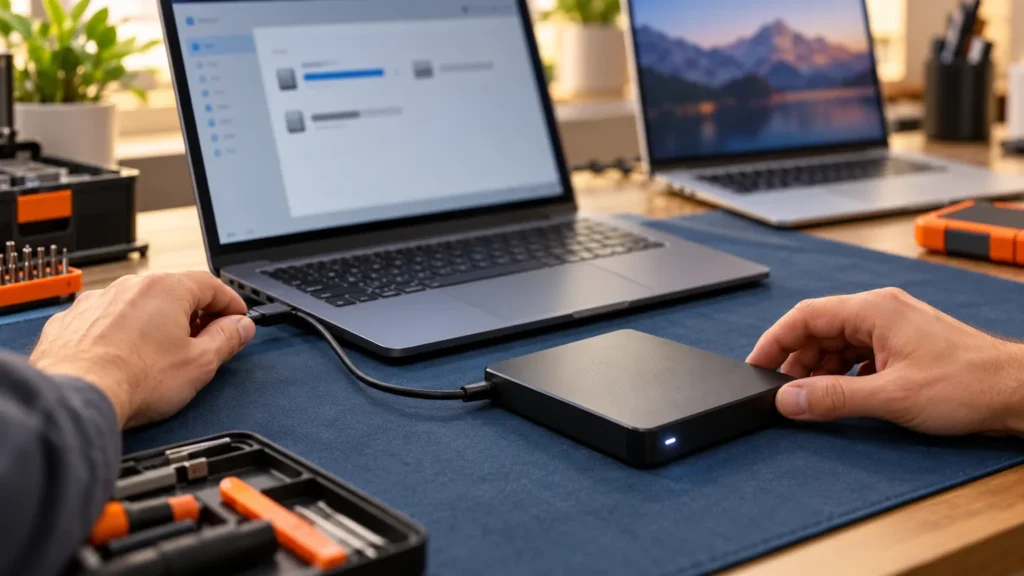
An external hard drive not showing up usually comes down to one of three points: power and cable, the operating system’s list of drives, or the file system on the disk. Work through them in that order, and decline any prompt to initialize, format or erase the drive until the files you need are copied somewhere else.
Initialize Disk, Format, New Simple Volume and Erase all wipe a drive that holds files. Microsoft’s initialize page warns that initializing a disk already in use erases all data on it. I back up or image a drive before any repair that touches the disk, so the checks that follow run from free and read-only to the ones that write.
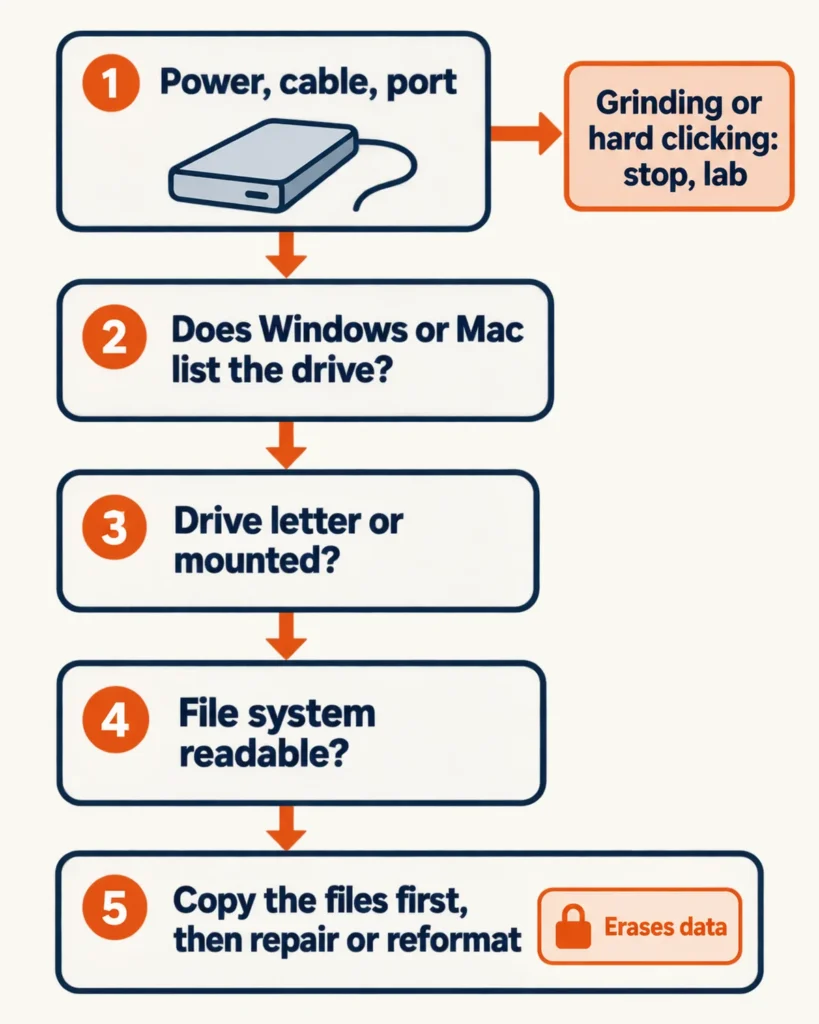
Power, cable and port come first
Plug the drive straight into the computer, swap the cable, and confirm a desktop drive’s power light is on before you suspect the disk. Microsoft’s Disk Management troubleshooting page lists the direct port and the cable swap early because USB disks don’t get enough power from some ports, and it calls the problem especially common with USB hubs.
- Plug the drive straight into the computer. Take it off any hub, dock or extension cable.
- Try a different port. On a desktop, use one on the back of the case. On the desktops I’ve built, the front ports ride on a cable inside the case, so a rear port is a clean second path to the motherboard.
- Swap the cable. A cable can work with one computer and not another, as Western Digital’s support page notes, and cables fail often. A spare costs nothing, so I swap it before I blame a drive.
- On a drive with its own power adapter, find the drive light. Seagate says no light could mean the adapter isn’t getting power, and it suggests plugging the adapter into a wall outlet instead of a power strip.
- Try a second computer. A disk that doesn’t work on another PC is a good sign the problem is the disk, not your machine.
One r/computers commenter ran into the hub problem with three external drives and a docking station:
“I have 3 externals and a HDD/SSD docking station and I encountered it when I hooked them up to a 4 port usb hub that was not powered. Not claiming this is your problem but it was something I encountered. The easiest thing to check is to just plug it straight into the back of the computer so it is connected directly to the motherboard.”
– r/computers, July 2026 (9 upvotes)
Sounds that mean stop using the drive
Grinding or scratching means stop. Continued use of a drive making those noises can damage the platters and put the data at risk, according to Seagate’s drive-sounds page, which advises contacting data recovery before you troubleshoot if you need what’s on the disk.
Not every click is a death rattle. A working drive can click softly as part of normal operation, and a soft click on a drive that won’t appear can come from a failing power supply or power cable, so swap those first. Hard clicking, a loud metal-on-metal impact, usually points to physical failure, and a hard click that keeps repeating, or clunking alongside it, likely means a physical fault.
Beeps are a power signal first. A single intermittent beep usually means the drive isn’t getting enough power, per Seagate, so try another power supply, cable, port or computer before you assume the worst.
I don’t open drives and I don’t do clean-room recovery. A drive that grinds or keeps clicking goes to a lab, and I stop plugging it in.
External hard drive not showing up on Windows: read Disk Management
Disk Management lists every disk Windows can see, whether or not File Explorer shows it. Open it with the drive unplugged, then plug the drive in and watch for a new entry. Ask Leo’s walkthrough uses that sequence because a new entry means Windows recognizes the hardware.
To open it, search the Start menu for Create and format hard disk partitions, the name Microsoft’s initialize page uses. The steps are the same on Windows 10 and 11. If the drive still isn’t listed, unplug it, plug it back in, then choose Action, then Rescan Disks.
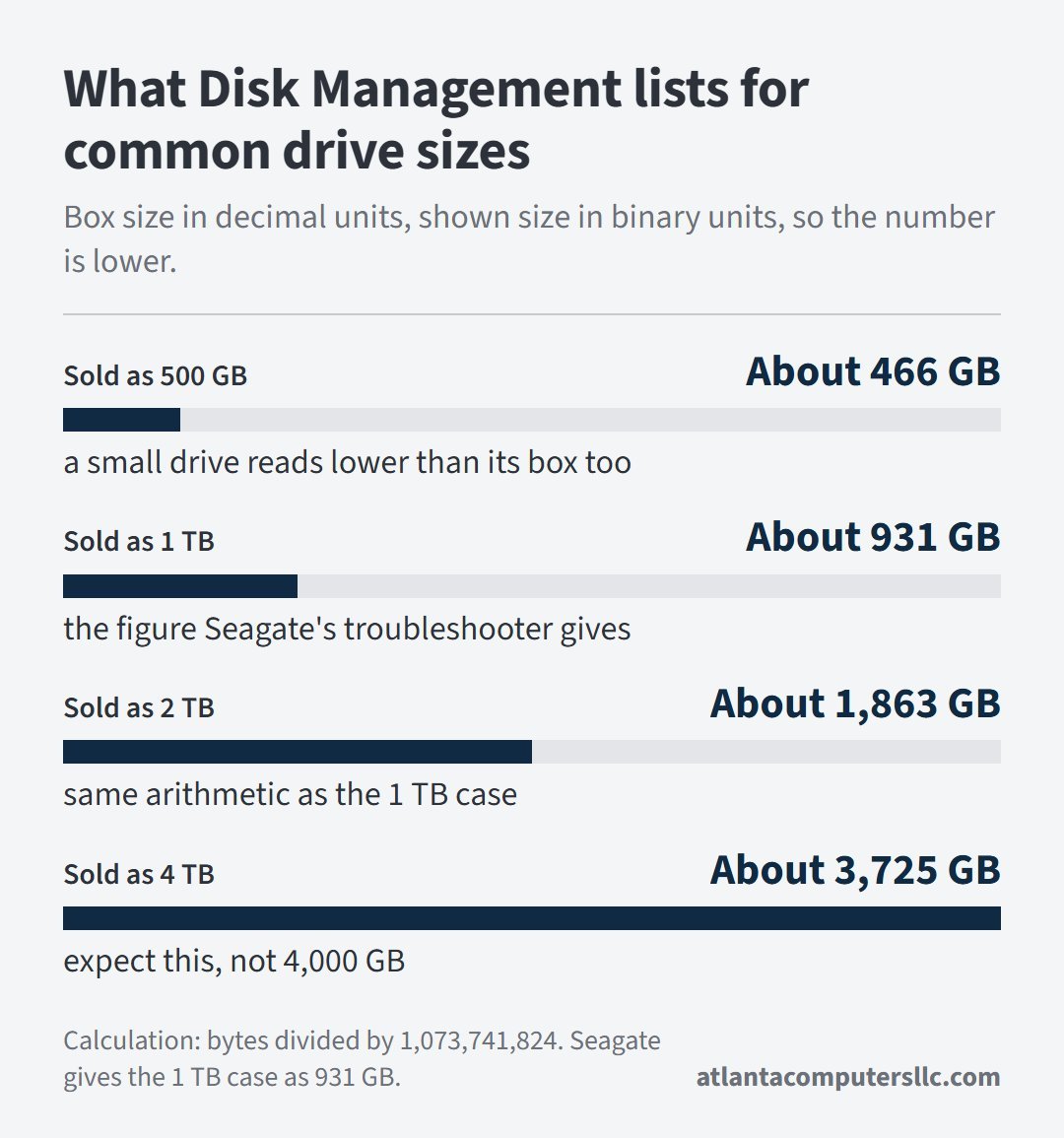
Which disk is mine?
Match the disk by size. Disk Management reports capacity in binary units, so a drive sold as 1 TB shows as about 931 GB, the figure Seagate’s troubleshooter gives. The other sizes come from the same arithmetic: the bytes on the box divided by 1,073,741,824, rounded to whole gigabytes. The partition on the disk can read a little lower still.
Read the status, then pick the click
Find the row that matches your screen. The bold clicks erase the drive, so they come after the files are safe.
| What Disk Management shows | What it means | Next move |
|---|---|---|
| Healthy, a file system (NTFS, exFAT or FAT32), no drive letter | Windows reads the volume but hasn’t given it a letter, so File Explorer skips it. | Right-click the volume, choose Change Drive Letter and Paths, then Add and pick a letter. Your files aren’t touched. |
| Offline | Windows lists the disk but hasn’t brought it online. | Right-click the disk and choose Online. |
| Not Initialized | No valid disk signature. Microsoft’s causes: never initialized, formatting corrupted, or a hardware problem. | If the drive ever held files, leave it alone. Initialize Disk erases it. |
| RAW instead of NTFS, exFAT or FAT32 | The partition has no file system Windows can read. | Format erases everything. Copy or recover the files first. |
| Unallocated | Free space with no volume on it. | New Simple Volume builds a fresh volume. Use it only on a disk you know is empty. |
| Change Drive Letter and Paths is gray or missing | Microsoft: the volume isn’t ready for a letter. It may be unallocated and need initializing, inaccessible, or you may lack permission. | Find the disk’s status in this table first, and open Disk Management as an administrator. |
| No entry, even after Rescan Disks | Windows has no working connection to the drive. | Go back to power, cable and port, then open Device Manager. |
Ask Leo’s example of a drive missing from File Explorer is the first row: a disk that works but has no letter. Microsoft’s drive-letter page also covers the gray option, and a drive that last lived on a Mac can produce it. Apple lists APFS and Mac OS Extended as Mac formats and only MS-DOS (FAT) and ExFAT as Windows-compatible, so Windows has no reason to mount the first two.
An r/techsupport commenter answered someone whose old Seagate showed as Disk 2 with the letter option gray:
“drive letter option greyed out in disk management usually means it has no valid partition windows recognizes, not that the drive itself is dead, that’s actually a good sign since it’s still detected and reporting fine”
– r/techsupport, September 2026 (2 upvotes)
The same commenter’s advice was not to format the drive, which matches Microsoft’s own warning on the RAW and Unallocated rows. Those prompts are one click away, and that is why I read the status before I touch anything on a drive that holds files.
The drive isn’t in Disk Management? Open Device Manager
If the drive is missing from Disk Management even after Rescan Disks, Windows has no working connection to it. Open Device Manager and look for an unknown device, other device or mass storage device with a yellow exclamation mark, and expand Universal Serial Bus controllers too.
Right-click the entry, choose Properties, and read Device status on the General tab for an error code. Seagate’s troubleshooter covers two.
Code 10, after you’ve tried another cable and another computer, means the drive has probably failed. Code 28, and per Seagate possibly 43, calls for a driver reload: uninstall the device, shut the computer down, disconnect the drive, restart without it, then plug it into a different port and let Windows install the driver again.
A shorter version of the same idea is the route Microsoft’s page describes: right-click the problem device, choose Uninstall device, then Action, then Scan for hardware changes.
Mac: Finder settings, then Disk Utility
On a Mac, look in three places in order: Finder settings, so external disks are allowed to appear; Disk Utility with View, then Show All Devices; and System Information. Apple’s Mac help page sends you to Finder settings first for icons of external disks.
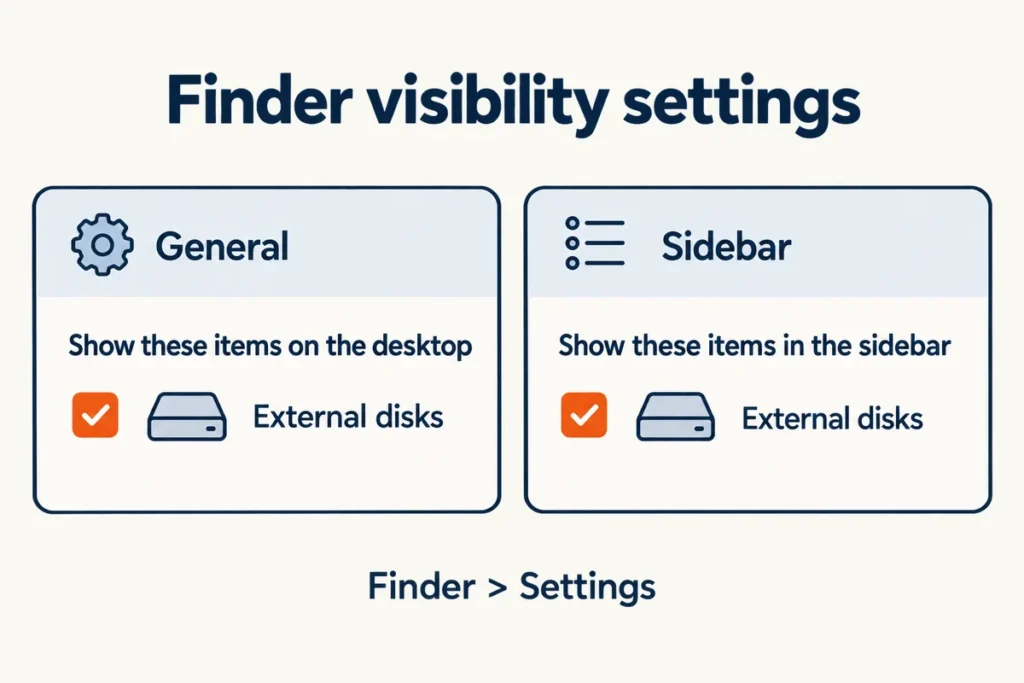
- Choose Finder, then Settings. The General tab controls what sits on the desktop and the Sidebar tab controls what appears in Finder windows, so tick external disks in both.
- Open Disk Utility from Applications, then Utilities, and choose View, then Show All Devices. The first-time default lists only volumes, so a drive can hide until you switch the view.
- If the drive is listed but gray or not mounted, select its volume and click Mount. A volume that won’t mount suggests some level of file system corruption, per Seagate.
- If the drive isn’t in Disk Utility, hold Option, click the Apple menu and choose System Information, then open USB under Hardware. A drive listed there is seen as hardware even though no disk appears.
- If it’s in neither place, shut the Mac down, unplug nonessential devices and check the drive’s cable, connections and power, as Apple’s Disk Utility repair page advises. After that, the Mac or the drive might need service.
A Time Machine disk can fool you. In an Apple Community thread, the top reply asked the poster to look in System Information and Disk Utility, and the drive turned out to be mounted but not shown on the desktop. Time Machine settings listed it too.
First Aid belongs after you’ve copied what you can. Have a current backup before running it, Apple advises, then start with the last volume on the device and work upward.
A drive from a Windows PC can appear but refuse new files. Disk Utility doesn’t support NTFS, which a Mac might read but not write, according to Apple’s support page on saving to external drives.
If the files matter, copy them before you repair anything
If the drive opens at all, copy the files to another disk before running any repair. If it won’t open and the files matter, stop writing to it: initializing, formatting, creating a new volume and erasing all lay down new structures, and initializing a disk already in use erases all data on it.
CHKDSK belongs after the copy. Run without parameters it only reports status, while /f fixes errors on the disk and /r adds bad-sector recovery, according to Microsoft’s CHKDSK reference. Both change a drive you may be about to lose.
When the status is RAW or Unallocated and the data matters, consider data recovery once a different port, cable and computer have failed, as Seagate suggests. Apps exist that try to pull data off a failing disk, and for vitally important files a recovery lab is the paid route, per Microsoft’s guide. Neither page names a program, and I don’t either.
If you do reformat afterwards, choose the file system on purpose. Western Digital’s support page lists NTFS as read and write on Windows but read-only on macOS without a third-party driver, and exFAT as read and write on both. The same page puts FAT32 at a 4 GB limit per file.
Then give the files a second home. The cloud backup terms breakdown covers what a plan keeps and for how long. Microsoft’s own page says a disk that sometimes doesn’t appear is a reminder to double-check your backup methods.
When to stop and send it to a data recovery lab
Send the drive to a data recovery lab when the evidence points at the disk itself rather than the cable, the port or the file system. Four signs do that:
- Grinding, scratching, or hard clicking that keeps repeating.
- Device Manager shows Code 10 after another cable and another computer.
- The drive is missing on a second computer too. The most common reason a disk is missing or fails to initialize is that the disk is failing, per Microsoft.
- Disk Management shows RAW or Unallocated and you need the files.
For those, I point readers to a lab, not a screwdriver, because I don’t do board-level repair or clean-room recovery myself. If you don’t need the data and the drive is still under warranty, Seagate and Western Digital both send you to their warranty pages for a replacement.
Questions that come up after the basic checks
Why is my external hard drive not showing up in File Explorer but listed in Disk Management?
The volume has no drive letter, or no file system Windows can read. If Disk Management shows it Healthy with a file system, add a letter through Change Drive Letter and Paths. If it says RAW or Unallocated, copy or recover the files before you format.
Why is Windows 11 not detecting my external hard drive?
Start with a direct port, a different cable and a rescan, because Disk Management and Device Manager work the same on Windows 10 and 11. If neither place lists the drive, the connection or the drive itself is the likely cause.
Can I run CHKDSK on a drive that won’t show up?
Only after the files are copied. Per Microsoft, chkdsk /f fixes errors on the disk and /r adds bad-sector recovery, so both write to a drive that may be failing. Without parameters, CHKDSK only reports status.
Why does my drive work on one computer but not another?
The usual causes are the port’s power, the cable and the file system. Western Digital notes that a computer’s USB port may not supply enough wattage, and Apple lists only FAT and ExFAT as Windows-compatible, so a drive formatted APFS on a Mac won’t mount on a PC.