

To check laptop battery health, compare what the battery can hold now with what it held when new. On Windows, powercfg /batteryreport writes both numbers to a file you open in a browser. On a Mac, System Settings shows the condition and maximum capacity, and a Chromebook’s Diagnostics app shows health and cycle count.
That is how to check laptop battery health in one line: divide the first number by the second to get the health percentage. What the percentage means depends on who built the laptop, because most makers publish a status scale and only Dell and Apple, of the makers covered here, put a percentage in writing.
Windows: how to check laptop battery health with the battery report
Windows writes its own battery report and needs no extra software. The report lists the battery’s design capacity, its full charge capacity and its cycle count in one table.
- Press the Windows key plus R, type
cmdand press Enter to open a Command Prompt. - Type
powercfg /batteryreportand press Enter. Leave a space between powercfg and the slash. The window prints the path of the file it saved. - Open File Explorer and go to that folder. Dell’s example path is
C:\Users\Your_Username\battery-report.html. - Double-click
battery-report.htmlto open it in a browser. - Scroll to Installed batteries.
The report lands in whatever folder the prompt is sitting in, because powercfg saves it to the current path. Microsoft’s battery support page describes the result as an HTML file stored in a folder on the PC. To choose the spot yourself, add an output path: powercfg /batteryreport /output "%USERPROFILE%\battery-report.html" in Command Prompt.
Installed batteries is the only table you need for health. Design Capacity and Full Charge Capacity are in mWh, and Cycle Count sits right below them.
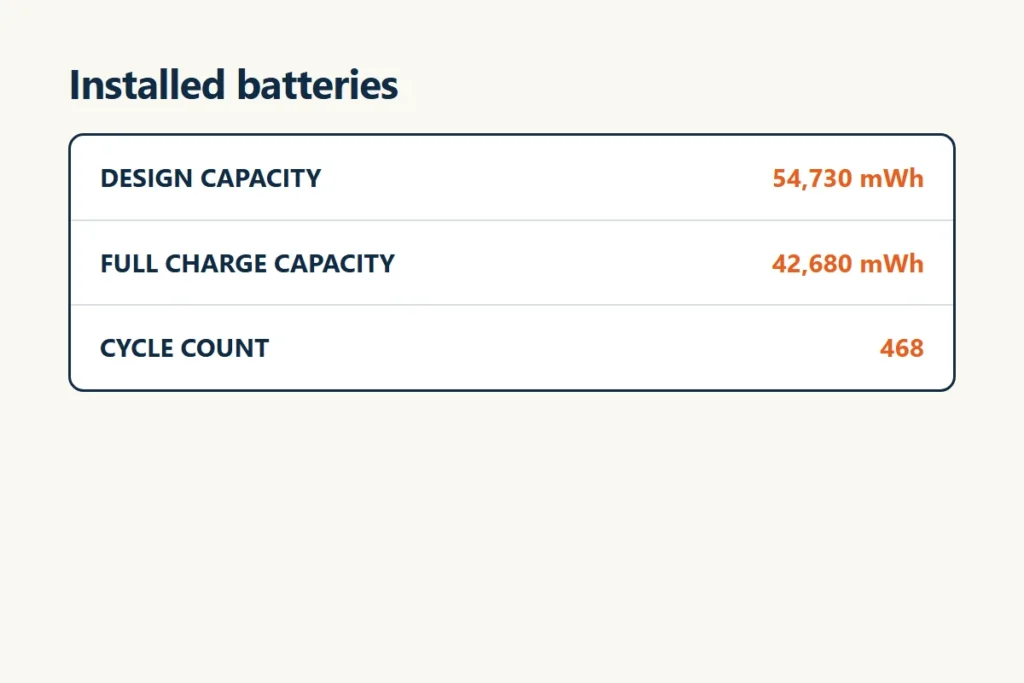
That table also lists the battery’s serial number, so crop it out before you post a screenshot of the report in a forum. Recent usage and Battery usage sit further down. They record sessions on battery, which helps when run time is the complaint, but the capacity rows answer the health question.
Turn the two numbers into a health percentage
Health is Full Charge Capacity divided by Design Capacity, times 100. Design Capacity is the most charge a new battery can store, and Full Charge Capacity is what it can hold now.
Use the same unit for both numbers. The report lists both in mWh, so nothing needs converting.
Say the Design Capacity is 54,000 mWh and the Full Charge Capacity is 43,200 mWh, round numbers picked for easy arithmetic and not a reading from a real laptop. Divide: 0.80. The battery holds 80 percent of its original capacity.
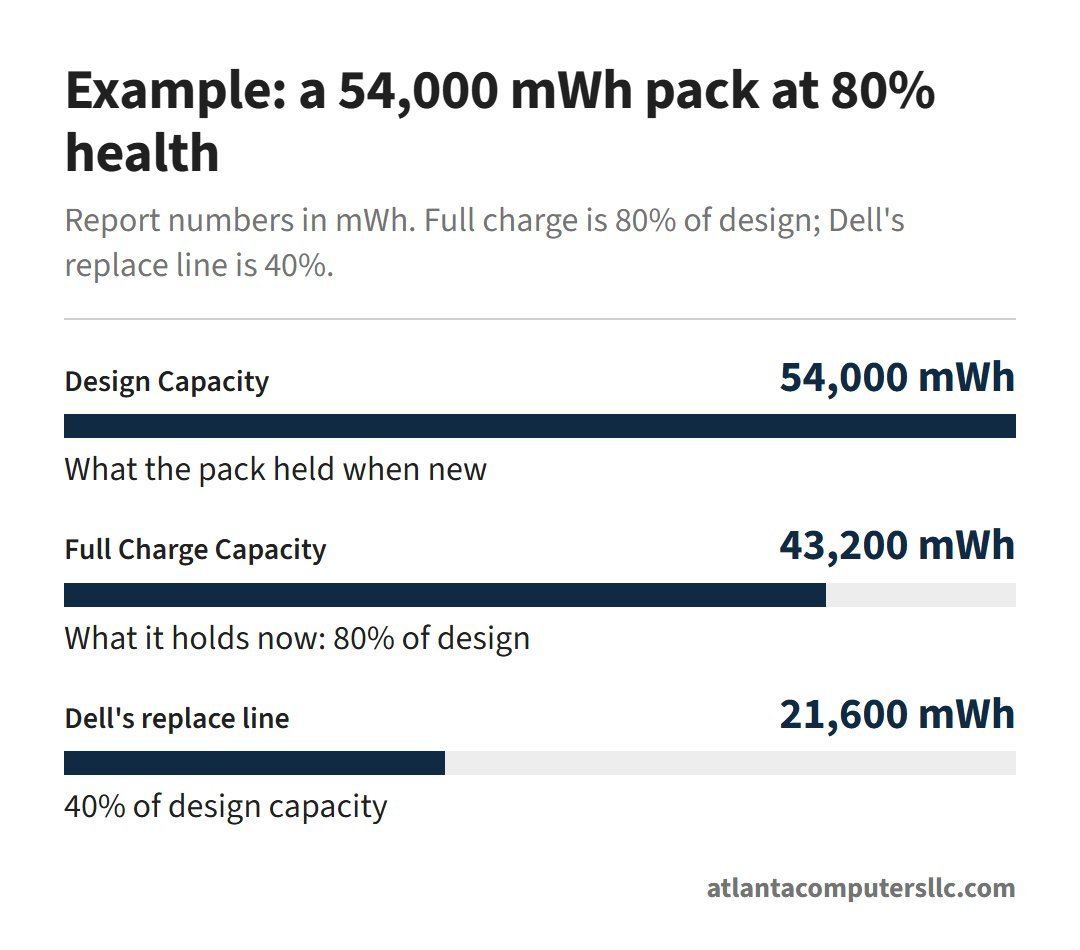
The shortest bar marks Dell’s replace line. Below 40 percent of Design Capacity the battery counts as degraded and should be replaced, per Dell’s powercfg page. For the pack above, that line sits at 21,600 mWh.
Don’t expect a healthy pack to read 100 percent. Full Charge Capacity shifts with room and system temperature, with how often the battery has been run down to 0 percent, and with the number of full charge cycles. Design Capacity also carries a 10 percent buffer, so a gap is standard industry practice and the battery is working as designed, according to Dell.
Cycle Count is the third number. Treat it as an age clue next to the percentage rather than a verdict, because ASUS’s Poor result weighs capacity against age and cycle count together.
Mac: Battery Health, maximum capacity and cycle count
A Mac laptop shows its battery condition in System Settings and its cycle count in System Information. No command is needed.
- Choose Apple menu, then System Settings, then click Battery in the sidebar. You may need to scroll down.
- Find Battery Health. Click the info button beside it to see Battery Condition and Maximum Capacity, the battery’s capacity relative to when it was new.
- For the cycle count, hold Option, click the Apple menu and choose System Information. Under Hardware select Power, then read the Battery Information section.
Normal means the battery is functioning normally. Service Recommended means it holds less charge than when new, or isn’t functioning normally. The Mac is safe to keep using at that point, and service is worth arranging once the lower capacity gets in your way.
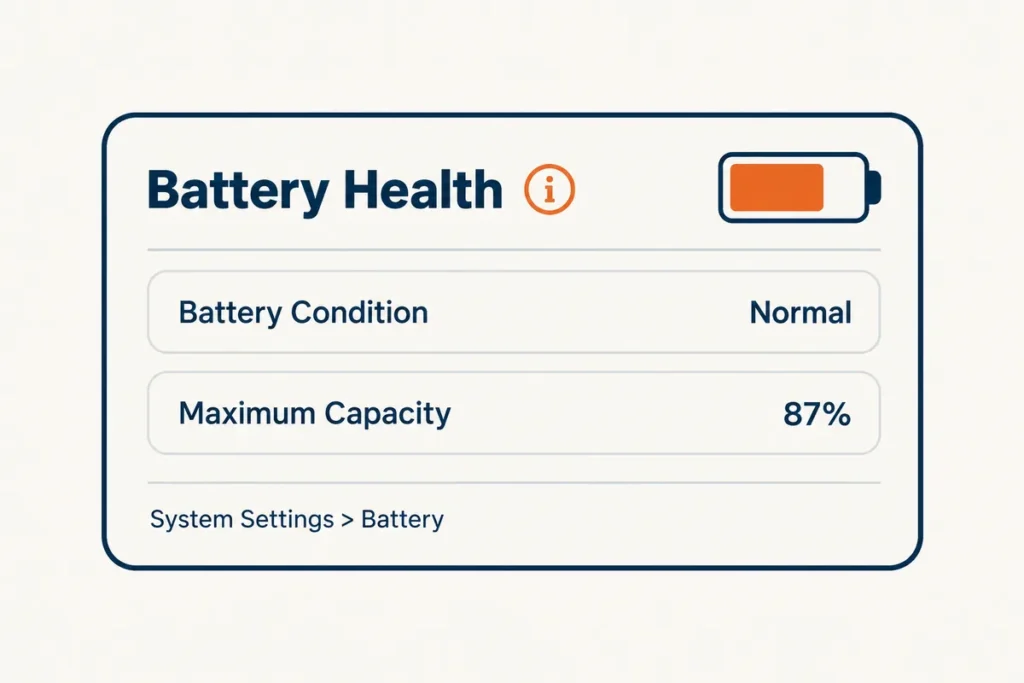
Older Macs and older macOS versions don’t show Battery Health. On those, hold Option and click the battery icon in the menu bar, where the status can read Replace Soon, Replace Now or Service Battery.
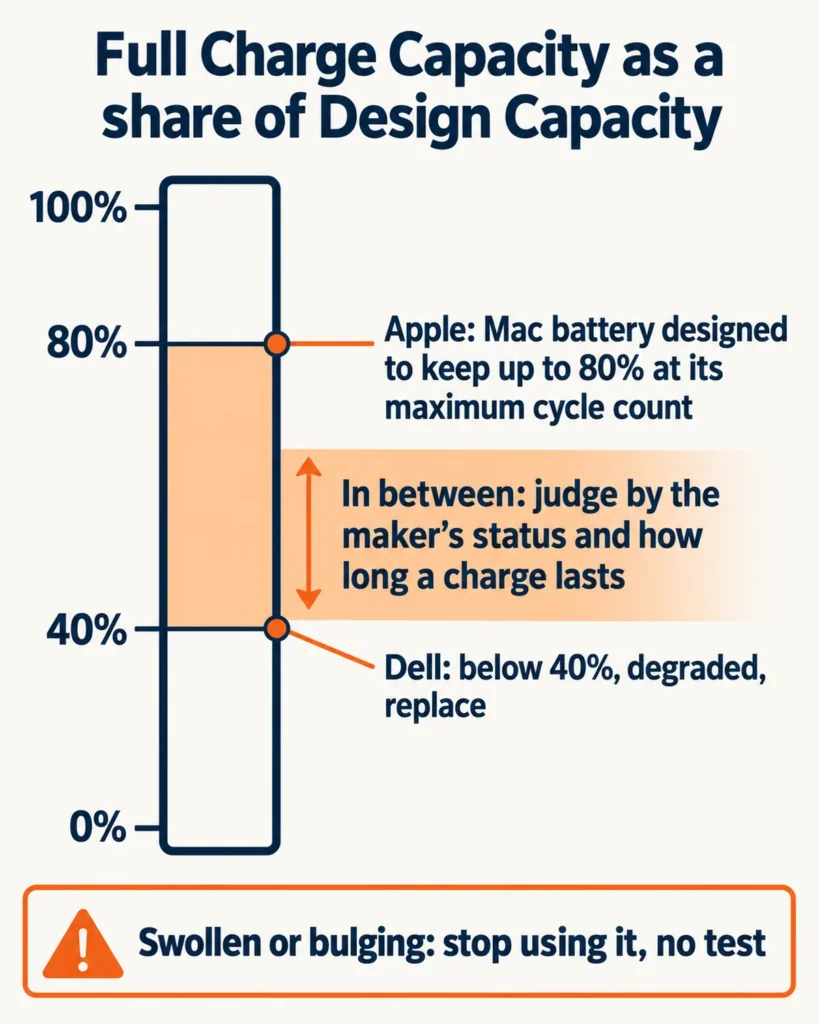
Compare the cycle count with the limit for your model in Apple’s cycle count table. Recent MacBook Air and MacBook Pro models are listed at 1,000 cycles, and the oldest at 500 or 300. The battery is designed to keep up to 80 percent of its original capacity at that count. A battery past the limit still works, with shorter run time.
Skip third-party battery apps on a Mac. Their conditions might not be accurate, so the reading macOS gives is the one to trust.
Dell, HP, Lenovo and ASUS: where each maker puts the reading
The report gives you capacity. A maker’s own tool gives you a verdict, which is the wording a warranty desk expects to hear. Most of the laptops on my bench were Dell, HP and Lenovo, so those come first. Not every model has every tool.
Dell
In Windows, open Dell Power Manager, choose Battery Information and read Battery Health. Dell Optimizer shows it under Power, then About my battery. Without either app, restart the laptop, press F2 repeatedly and look for Battery Health under Overview or General in the BIOS. The how to get into BIOS page covers keys for other brands.
For a test that doesn’t depend on Windows, restart and press F12 repeatedly, choose Diagnostics and finish the test. Then click Advanced Test, System Info and the Health tab.
HP
HP’s battery test runs outside Windows. Charge the battery fully, unplug the adapter and hold the power button for at least five seconds to turn the laptop off. Turn it on and press Esc about once a second. At the startup menu press F2, choose Component Tests, then Power, then Battery, and click Run once. The test takes about two minutes. Write down the status and any Failure ID it shows.
Lenovo
Open Lenovo Vantage and find the battery health display. It moves from Good (green) to Poor (red) as capacity falls. The gauge reset described below lives under Device, then My Device Settings, then Battery Gauge Reset.
ASUS
Open MyASUS, click System Diagnosis, then Battery problems under Diagnosis Tool. Connect the laptop to power, click Checkup, then Results. If System Diagnosis doesn’t appear in MyASUS, that model doesn’t support the feature, and the Windows battery report above is the fallback. It is also the check for any other Windows brand.
Chromebook: the Diagnostics app
On a Chromebook, select the clock at the bottom right, then Settings, then About ChromeOS, then Diagnostics. The Battery category shows health, cycle count and electrical current. Diagnostics needs ChromeOS version 90 or later, per Google’s Chromebook Help.
The app also runs a discharge test, which measures the rate of charge and discharge over a fixed period. A very low rate may point to a battery or charging port problem. If your Chromebook is the one that won’t charge, the Chromebook won’t charge page walks through the adapter and port checks first.
Keep, recalibrate or replace
A health percentage means little until you know whose scale it is. Below 40 percent of design capacity is Dell’s replace line. Apple designs a Mac battery to keep up to 80 percent at its maximum cycle count. Between those lines it’s judgment. Treat Apple’s 80 percent as a rough line for any laptop and weigh it against how the machine behaves. That’s a rule of thumb, not a maker spec.
| What you see | The maker’s wording | Next move |
|---|---|---|
| Dell report: Full Charge Capacity below 40% of Design Capacity | Degraded, should be replaced | Rule out the false alarms below, then replace |
| Dell app or BIOS: Fair, Poor or Unknown | Fair: nearing the end of its usable life, consider replacing soon. Poor or Unknown: replacement recommended | Same check, then replace |
| Dell: run time under half of the original, shutdowns with charge showing, or visible swelling | Listed among the signs to replace | Replace; stop at swelling |
| HP test: Calibrate | The battery functions correctly but needs calibration | Calibrate, then run the test again |
| HP test: Weak or Very Weak | Normal aging has made life between charges much shorter; replace to get the most working time | Replace when the run time bothers you |
| HP test: Replace | Failure; replace as soon as possible | In warranty, contact HP support |
| Lenovo Vantage: Poor (red) | Reset the battery gauge first; buy a new battery if Vantage still reports poor condition | Battery Gauge Reset, then check again |
| MyASUS: Poor, or an error in the Battery problems check | An error condition, or capacity below what its age and cycle count predict | Contact ASUS Product Support |
| Mac: Service Recommended | Holds less charge than when new; safe to keep using | Arrange service when it affects you; with AppleCare, a battery under 80% is replaced at no charge |
| Chromebook: low health or a low discharge rate | No replace line published | Judge by run time and the discharge test |
If a row points to replacement, laptop battery replacement picks up from here with testing the old pack, matching the part and deciding who does the swap.
Readings that look worse than the battery
Rule these out before you buy a pack.
- A charge limit. Lenovo’s Battery Charge Threshold in Vantage, a Mac’s Charge Limit and Optimized Battery Charging, and the charging mode in HP business notebooks hold the charge below 100 percent on purpose. One r/laptops commenter hit this on an EliteBook:
“Go into the bios and turn off the battery protection that limits it to 80% capacit at the hardware level if it is enabled. My Elitebook 745 was showing as 70% capacity when Windows said it was 100% charged. When I disabled that, drained to 20% then recharged to 100%, the battery capacity was like 87% it’s original capacity.”
– r/laptops, July 2026 (5 upvotes)
- A gauge that lost track. A laptop that shuts off while the meter shows charge may have a drifting gauge rather than a dead pack. The Battery Gauge Reset fully discharges and recharges the battery so the management system can relearn Full Charge Capacity. It doesn’t add run time, only accuracy.
- A test run too soon. Running HP Battery Check before the battery has charged fully can return a false failure. On an HP business notebook, the Let HP manage my battery charging setting is the one that allows a full charge.
A swollen battery ends the checking
A battery that has visibly expanded is a stop sign, not a health reading. Skip the tests above.
- Stop using the laptop and unplug the AC adapter.
- Don’t press on, puncture, compress or open the battery, and keep it away from heat.
- Take it to the maker’s service, a repair shop or a battery recycler.
These steps follow Microsoft’s battery page, Dell’s swollen-battery guidance and the Lenovo battery Q&A, which sends owners to the Support Center or an authorized service representative. Leave the case shut on a swollen pack.
Follow-ups after you have the numbers
Is 70% laptop battery health good?
A 70 percent reading means the battery holds 70 percent of the energy it held when new, so the same workload gets roughly 70 percent of the original run time. It sits above Dell’s 40 percent replace line and below Apple’s 80 percent design figure, so none of the maker pages above gives a verdict for it. Judge it by the maker’s status and by whether the laptop still lasts through your day.
How long should a full charge last?
There’s no fixed figure, because run time is the battery’s energy in watt-hours divided by the watts the laptop draws. Lenovo’s example is a 50 Wh battery, which can supply 10 W for 5 hours or 5 W for 10 hours. Divide the report’s mWh by 1,000 to get Wh, multiply by the health percentage to account for wear, and the same battery life calculator does the rest.
Can you check laptop battery health without the maker’s app?
Yes. Use the Windows battery report from the first section, which needs only Command Prompt and works on any Windows laptop with a battery. On a Mac use System Settings, and on a Chromebook use Diagnostics. Third-party battery software isn’t needed on any of them.
Can I replace my laptop battery?
Sometimes. A removable pack is a home job, as is an internal one the maker lists as customer-replaceable; a glued or built-in pack, a MacBook’s included, belongs with the maker or a repair shop. The laptop battery replacement guide covers how to tell which kind you have.