

An iPad black screen is a display question before it is a power question. The iPad is either off, alive but unlit, or on and running behind glass that shows nothing, and each answer takes a different road; the first two minutes go to working out which one you have.
That split matters because the fixes don’t overlap. A dead iPad needs power and a force restart; an unlit one needs a flashlight test and probably a display repair; a settings glitch needs thirty seconds, not a screw kit. If your iPad shows nothing at all (no sound, no warmth, no charge screen), treat it as a won’t-turn-on problem first, then come back here if the screen stays dark after it proves alive.
black screen, or ipad off
Before touching settings or screws, prove which of three states the iPad is in: powered off, awake with an unlit screen, or on with a dead display. Each state has its own first move and its own stop point.
The test takes two steps. Connect the charging cable and listen: a chime or vibration says the iPad is on, and any sound at all moves you straight to the flashlight test below. Total silence gets the power path first. While it sits on the cable, feel the back for warmth and press a volume button. An iPad that responds with a sound or haptic tick is alive, and a black screen on a live iPad is a display problem, not a dead device.
| What you observe | Which lane it is | Where to go |
|---|---|---|
| No sound, no warmth, no charge screen | Powered off or deep-drained | Charge path, then force restart |
| Chime, vibration or warmth; screen fully dark | Alive but unlit | Settings quick checks, then flashlight test |
| Screen wakes sometimes, blacks out randomly | Intermittent fault | The intermittent section |
| Apple logo or cable-to-computer icon visible | Software crash, screen works | The recovery-mode step |
Two related problems live on their own pages: an iPhone with the same alive-but-dark symptom follows the iPhone black-screen checks, and an iPad that takes no charge at all has its own charging page.
two settings that fake a dead screen
Two software states make a working iPad look powered off, and both take seconds to rule out before anything hardware: brightness dragged to the floor in a dark room, and VoiceOver’s Screen Curtain.
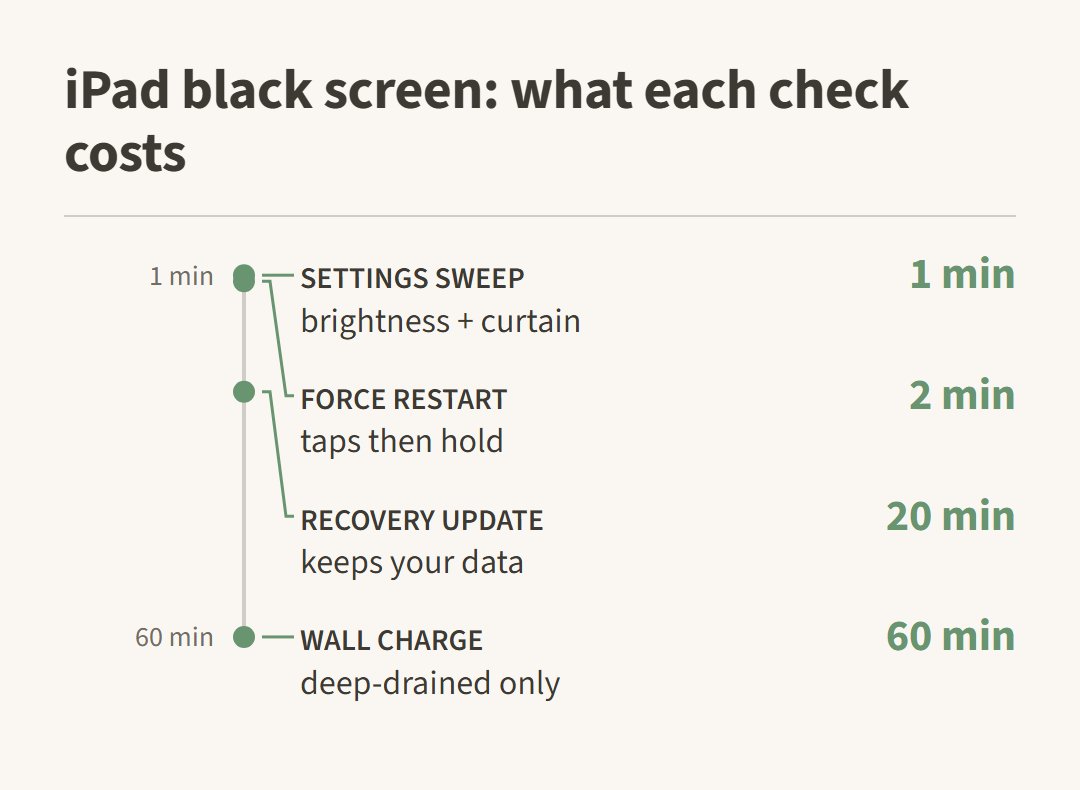
The brightness trap is simple. Auto-Brightness can drag the backlight so low in a dark room that the picture is technically there and practically invisible. Wake the iPad, then sweep your finger up from the bottom-right or down from the top-right for Control Center and push the brightness slider up. If the image appears, Auto-Brightness under Settings > Accessibility > Display & Text Size is the setting to review, and the black screen was never a fault.
Screen Curtain is the sneakier one. When VoiceOver is enabled, Apple builds in a privacy feature that blanks the display completely while the iPad keeps running; triple-tapping the screen with three fingers toggles it on and off. If the iPad talks to you or makes VoiceOver sounds while staying dark, try the three-finger triple-tap once before assuming the display died; it is a feature doing its job, not a failure.
force restart, in the order apple lists
For a frozen or unresponsive screen, Apple’s first move is a force restart, and the button sequence depends on whether the iPad has a Home button. It clears a crashed system without erasing anything.
On an iPad without a Home button: press and quickly release the volume button nearest the top button, press and quickly release the volume button farthest from it, then press and hold the top button until the Apple logo appears. On an iPad with a Home button, press and hold the Home button and the top button together until the logo appears. Apple’s frozen-screen page lists both sequences the same way.
One caution on order: release the two volume buttons before you hold the top one. Holding everything at once is the older habit and it doesn’t match Apple’s current sequence on Home-button-free models.
the charge test for a screen that stays dark
A battery drained to zero can produce a convincingly dead iPad, dark screen included, so a silent device gets real power and real patience: a known-good cable and adapter into a wall outlet, then up to an hour before the result is judged.
Work the simple end of the path. A computer’s USB port charges slowly and sleeps; the wall adapter that came with the iPad, or one that has proven itself on another device, is the reference. Peek into the charging port with the flashlight while you’re there. Packed lint stops a plug seating fully, and a wooden toothpick coaxes it out. Owners in the threads report the same ending to this story: a battery left flat for weeks can take hours to show a charge screen, and some never come back because the battery’s own management refuses a deeply over-discharged cell. An hour is the fair test; a day tells you no more.
when the screen keeps going black
A screen that wakes sometimes and blacks out at random is a different diagnosis from a permanently dead one: intermittent failure is what aging hardware looks like, and the pattern itself is the evidence.
“iPad will randomly do this. No damage to the iPad, this just started one day. It’ll usually fix itself randomly, but it’s getting worse and takes longer to do so every time.”
— r/applehelp (3 upvotes)
That cadence, random at first, then more frequent and slower to recover, is not how software behaves. Software fails the same way every time. A display connector working loose, a backlight circuit on its way out, or a display cable fatigued at a hinge point all degrade gradually, which is exactly what “worse and slower every time” describes. Run the software steps once to rule them out, but don’t let a good week fool you: intermittent today is permanent soon, and the smart move while it still wakes is a backup, not a wait-and-see.
the flashlight test and what it proves
When the iPad is clearly alive (it chimes, vibrates or speaks) but shows nothing, a flashlight splits the display fault in half. In a dark room, shine a bright light at a shallow angle across the screen while the iPad wakes, and look for a faint lock screen or Apple logo ghosting in the beam.
A faint image under the light means the display works but its light source doesn’t: on iPads with LCD panels that’s a backlight or backlight-circuit failure, a repair-shop job on the display or the board that feeds it. Newer iPad Pros with OLED panels have no separate backlight at all, so the same symptom on those models points at the panel itself. Nothing under the light on an iPad that makes sound is a third result: the display or its connector has failed; it also keeps you from paying for a battery your iPad never needed.
“It’s an Ipad pro 11 inch 2nd gen and this morning when I woke up, It’s stuck to this blank screen but it’s lit (It makes a sound when I plug it)”
— r/ipad (5 upvotes)
the computer step, update before restore
If the iPad reaches the Apple logo or a cable-and-computer icon and stops, the fault is iPadOS itself, and Apple’s answer is recovery mode from a computer. When the computer offers a choice, take Update: it reinstalls iPadOS and keeps your data, where Restore wipes the device.
Connect by cable to a Mac running Finder, or a PC with the Apple Devices app or iTunes. Press your model’s force-restart sequence, but keep holding the final button until the recovery screen appears rather than releasing at the logo. Choose Update and let it download and install; a successful update boots you back in with everything intact. An error thrown here, or an update that fails repeatedly, is a real diagnosis: storage or board faults surface at exactly this stage, and it’s the point where software DIY genuinely ends.
where diy ends on a black ipad screen
DIY ends at the parts counter: a swollen battery, a liquid history, a cracked frame, or a device under warranty all close the home-repair chapter, and a confirmed display or connector fault belongs to a shop with the right jigs.
The stop signs are the usual three plus one. A screen bowing out of its frame or a sweet chemical smell means a swollen battery. Power it down, stop charging, and carry it in; pressing and prying around a swollen cell is how batteries vent. Liquid history changes the math too, since every power cycle through residue deepens the corrosion. An iPad still inside warranty or AppleCare goes to Apple first, before any paid or DIY work that could void it. And the newest one: a screen that blacks out intermittently gets its backup taken while it still wakes, because that pattern only runs one direction.
On cost, the failed part sets the bill. A display connector reseat or backlight fix on an LCD iPad sits at the low end of shop quotes, a full panel on an OLED Pro runs high, and diagnosis should come before any number; a firm quote given without seeing the device is a reason to phone another shop.
ipad black screen questions
What is the black screen of death on an iPad? Community shorthand for an iPad that seems dead (dark screen, no response) rather than one specific fault. Under the slang it is still the same three states the split test separates: powered off, alive with an unlit screen, or running behind a failed display. The name sounds final; the causes mostly aren’t.
Why does my iPad screen go black randomly then come back? Intermittent black-outs that get more frequent and take longer to recover point at aging hardware, like a loosening display connector, a tiring backlight circuit or a fatigued cable, not at software, which fails the same way every time. Back up while it still wakes; the pattern runs one direction.
Can a black iPad screen be fixed without a shop? Sometimes: a frozen system, a rock-bottom brightness setting, Screen Curtain, or a fully drained battery all masquerade as a dead screen and all fix free at home. A confirmed backlight, panel or connector fault does not: those are parts and solder, not settings.
How do you turn an iPad off when the screen is black? The force-restart sequence above works without seeing the screen: on models without a Home button, two quick volume taps then hold the top button; on models with one, hold Home and top together. The iPad powers through its cycle whether or not the display shows it.